Import a QR Image into Auth Code on iPhone
Add an authenticator account from a saved QR image, verify its details, and complete enrollment with your service.
Updated Nov 23, 2026
In this article
When an authenticator setup page is open on your iPhone, pointing the same phone's camera at its screen is awkward. Importing a saved QR image gives you another way to add the account, provided your installed authenticator supports that option.
Auth Code's publisher lists QR image import from Photos alongside camera scanning and manual setup keys. This guide covers preparing the image, checking the imported account, and finishing enrollment with the service. Auth Code on the App Store
Alibox promotes this application.
Start with the service's authenticator setup page
Open the account's security settings through the service's own app or website and follow its instructions for adding an authenticator. Keep that page available until enrollment is confirmed.
Use the QR image supplied for the account you are currently configuring. If you restarted setup and received a replacement code, use the current image. Keep track of which service and account it belongs to before moving between apps.
Import a QR image into Auth Code
Save a clear image of the setup QR code if the service allows it. Make sure the entire square and its surrounding border are visible. Avoid adding annotations or covering part of the pattern.
Open Auth Code and use the option for adding an account from a saved QR image. Select the intended image in Photos, then review the account details presented by the app. The available labels and controls can vary with your installed version.
If your version does not offer image import, check its available setup options. Camera scanning from another screen or entering the service's setup key may fit your situation. QR code and manual setup key guide
Confirm the imported account
Check the service name and account identifier before using the generated code. This is especially helpful when you have personal and work accounts with the same provider.
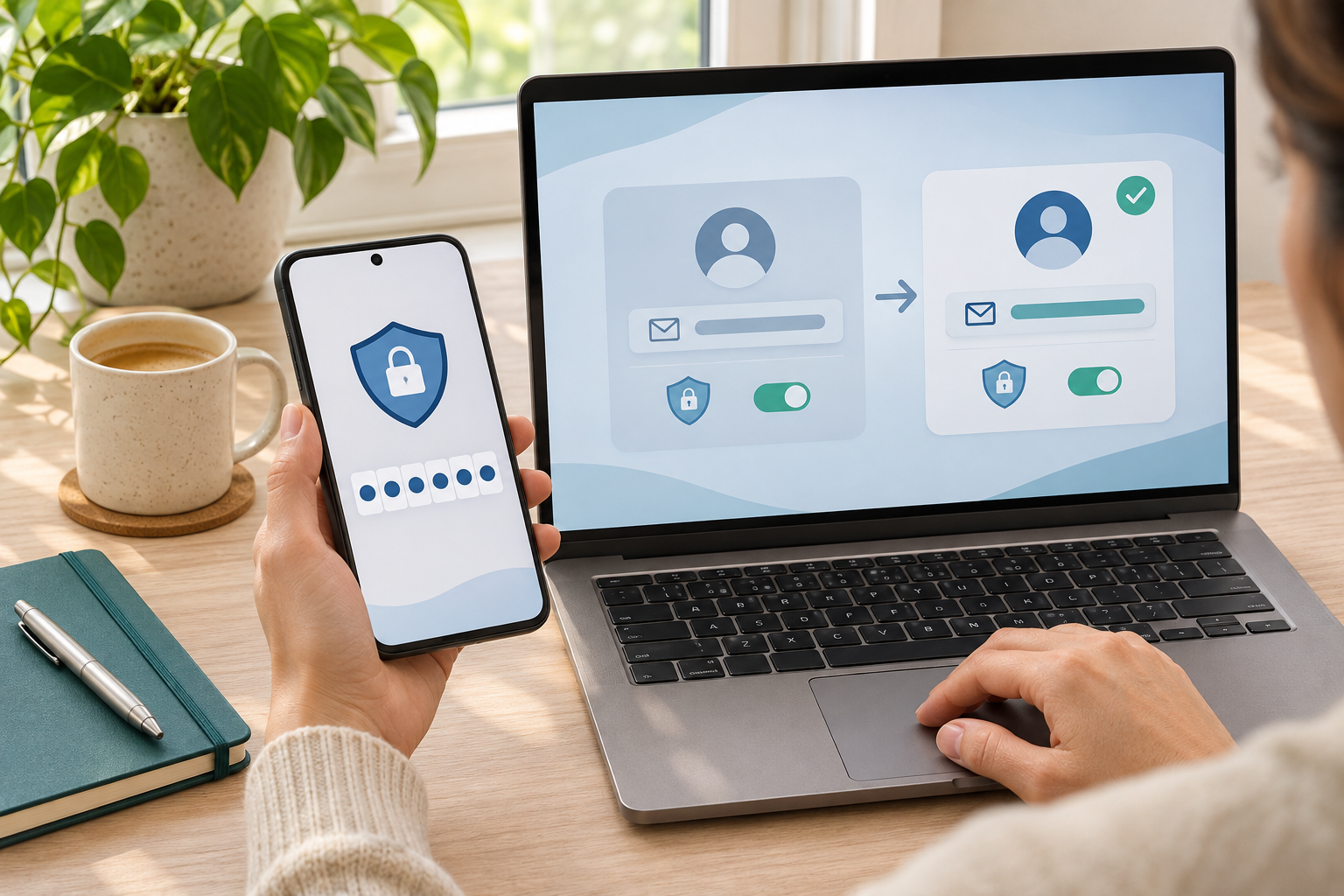
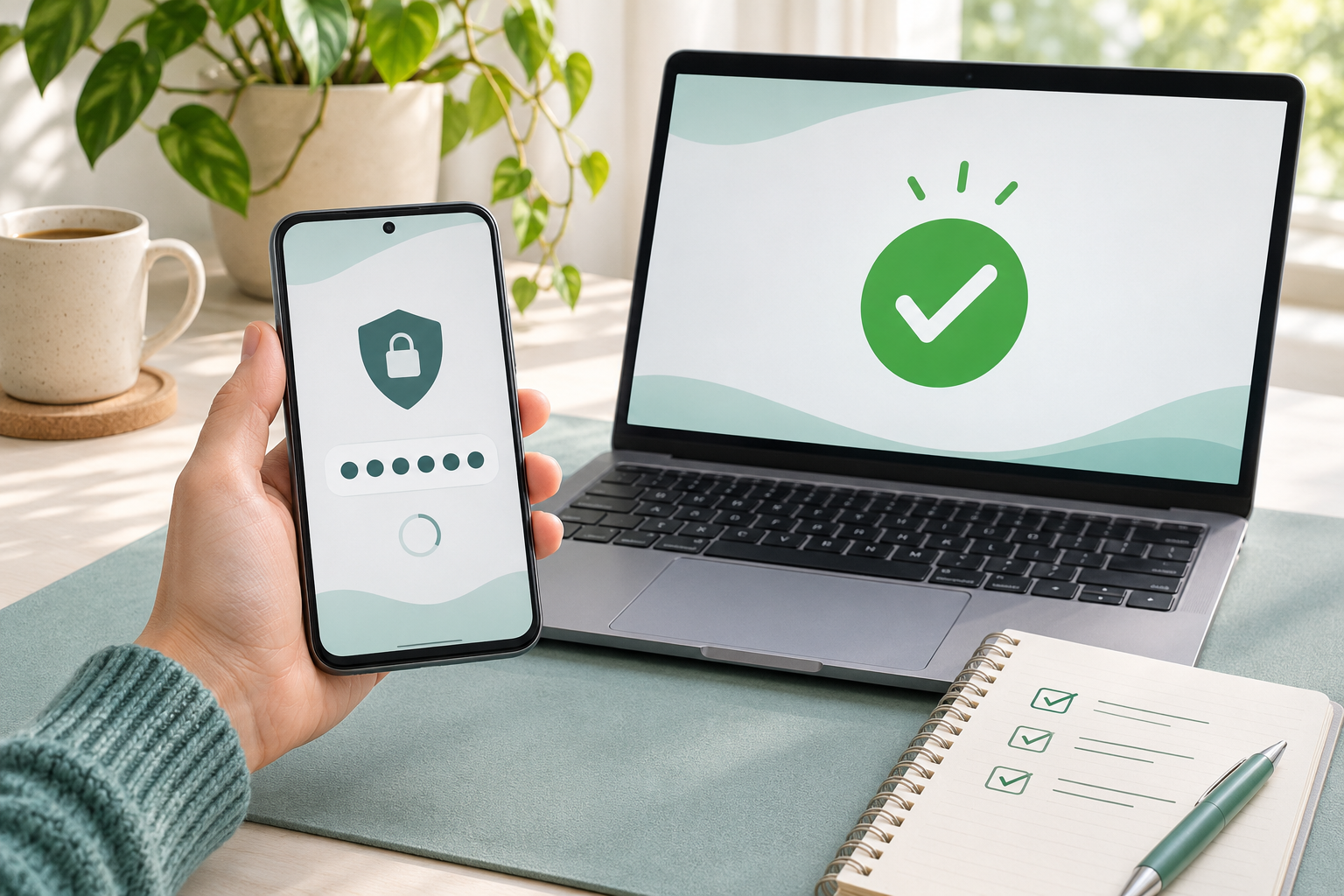
Return to the service's setup page and enter the requested verification code. Wait for its confirmation that the authenticator is enrolled. Then test the authenticator method in a separate sign-in while keeping your existing session available. Verify your 2FA setup
Handle the setup image carefully
An authenticator setup QR code contains account setup information used to generate verification codes. Keep it private while completing enrollment. Avoid sending it through a group chat or including it in a support screenshot.
After confirming setup, review any copies you created in Photos or other storage. Follow your account recovery plan and the service's guidance for retaining sensitive setup information. Save recovery codes separately using the method recommended by the service.
Before changing phones, check how you will transfer or restore the account and test the replacement setup. Prepare before changing your iPhone
What if the image cannot be read?
Check that you chose the original, complete image and that the pattern is sharp. Try a clearer capture from the current setup page, keeping the square and border intact. If the service supplies a manual setup key, you can use that supported method instead.
Will any QR code add an authenticator account?
Use the authenticator setup code provided by the service. Other QR codes may represent website links or unrelated information. Review the imported account and finish the service's confirmation step before relying on it for sign-in.
Does importing the image finish enrollment?
Complete the confirmation requested by the service after adding the account. Seeing an entry in Auth Code gives you a code to use during that step. Check the service's success message and test a sign-in before treating enrollment as complete. Auth Code feature overview