Review Duplicate Entries in Auth Code
Identify similar account entries, test the correct login, and review recovery before cleaning up.
Updated Nov 28, 2026
In this article
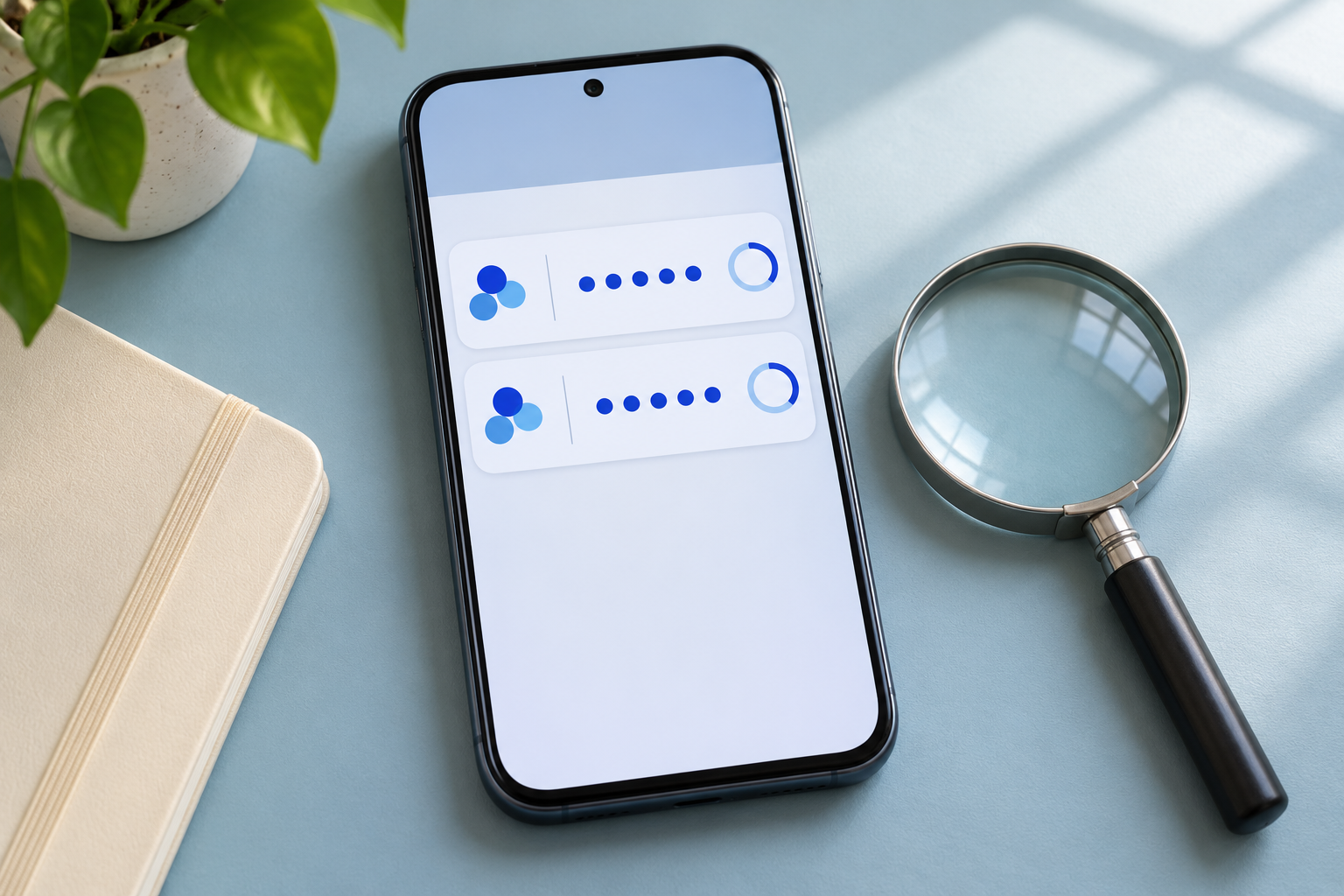
Two authenticator entries with similar names can make a routine sign-in confusing. You may have added the same account twice, restarted enrollment, or kept separate personal and work accounts with the same provider. Before tidying the list, identify which entry belongs to the login you are using.
Auth Code supports managing multiple authenticator accounts. This guide focuses on checking similar-looking entries while preserving access to the service. Auth Code on the App Store
Alibox promotes this application.
Review duplicate entries in Auth Code
Start with the service name and account identifier shown in each entry. Compare them with the account open in your browser. Similar names can represent different logins, particularly when you use one provider for work and personal access.
Think back to when you added the entries. A repeated scan during the same setup and a fresh enrollment started later can have different outcomes. Use that history as context while checking the service's current security settings.
Keep a working signed-in session available during the review. It gives you a way to return to enrollment and recovery options if needed.
Check the account before testing a code
Open the service through its normal app or website and confirm the login identifier. If you recently changed an email address, review the account details before deciding which authenticator label is relevant.
Choose the entry you believe belongs to that account and follow the service's sign-in instructions in a separate session. If it succeeds, confirm that you reached the intended account. Note which entry you used without recording its current code or setup secret. Verify your 2FA setup
If the code is rejected, review the account selection and the service's message before trying again. Avoid rapid repeated guesses.
Use matching codes as a clue carefully
Two time-based entries may display the same current code, but a matching value alone does not establish everything about their enrollment. Compare account identifiers and the service's accepted sign-in method as part of the review.
If the entries display different codes, check whether one came from an older enrollment or belongs to another account. The service's current security settings and a successful sign-in are more useful than choosing whichever entry appears first.
For counter-based entries, follow the service's instructions and avoid advancing codes just to compare them.
Review recovery before removing an entry
Check the service's recovery options and confirm that you can use the verified authenticator entry. Keep the account session available while reviewing any proposed cleanup.
Only remove an entry when you have identified what it represents and confirmed that the access you need remains available. If you cannot tell the entries apart, preserve them while consulting the service's enrollment guidance.
If you replace enrollment, finish confirmation and test the new setup before cleaning up older entries. Organizing accounts in Auth Code
Keep future entries easier to identify
When adding another account, compare the displayed service and account details immediately. Complete the service's confirmation step and note the account in your own records.
A small note linking the service to the login identifier can help when several accounts share a provider. Keep setup keys, QR images, and recovery information private and stored according to your recovery plan. Login codes and setup keys explained
Does deleting an entry turn off 2FA on the website?
Removing a local authenticator entry and changing the service's security settings are separate actions. Review the service's instructions before removing your means of generating its codes.
What if I still cannot identify the working entry?
Preserve any working account session and use the service's supported recovery or authenticator replacement process. Confirm the replacement setup before removing uncertain entries. Auth Code feature overview