Organize Your 2FA Accounts with Auth Code: Search, Favorites, and Review
Keep authenticator accounts easier to recognize with Auth Code search and favorites, plus a practical routine for reviewing unclear entries and recovery options.
Updated Oct 30, 2026
In this article
- Start by identifying accounts, not codes
- Use a consistent way to recognize entries
- Use search deliberately
- Keep favorites selective
- Review suspected duplicates before removing anything
- Balance convenience with visibility
- Keep recovery information separate from daily navigation
- Add new entries with the same review routine
- A short maintenance routine
- Frequently asked questions
- Can Auth Code search for accounts?
- Should every account be a favorite?
- Are two similar entries necessarily duplicates?
- Does removing an entry turn off 2FA at the website?
- Where can I get Auth Code?
An authenticator is easy to navigate when it contains one account. Add personal email, work tools, and several services with similar names, and finding the right entry can take more attention. A familiar logo alone may not tell you which account you are about to use.
This guide explains how to organize 2FA accounts with a practical review routine for Auth Code. The goal is straightforward: recognize the service, select the intended account, and keep your everyday list useful without deleting something you still need.
App to try: View Auth Code: 2FA Authenticator on the App Store. Alibox promotes this application.
Start by identifying accounts, not codes
A generated code is temporary or advances according to its supported authentication method. It is not a useful label for an account. Focus on the service and the identity associated with each entry instead.
Look through your list and ask whether you can distinguish every entry without guessing. Two entries for the same service may belong to different people, a personal and work login, or an old enrollment. Similar appearance does not establish that they are duplicates.
Use the service's own account information as your reference when checking an entry. Do not infer ownership from position in the list or from a code that happens to be visible. If you are unsure, keep working access available while you investigate.
Use a consistent way to recognize entries
Choose a simple convention for how you think about your accounts: service first, then the detail that distinguishes the login. For example, your private inventory might identify “email service — personal” and “email service — work.” These are example descriptions, not required Auth Code field names.
Review the details and editing options actually available in your installed app. Where labels can be changed, make them understandable without adding unnecessary sensitive information. If an option is not available, maintain a separate private reference that contains account descriptions rather than setup secrets or verification codes.
Avoid putting passwords or recovery codes into descriptive labels. A useful name tells you which entry to select; it should not become another place where you store credentials.
Use search deliberately
The publisher lists account search in Auth Code. Use it to narrow the list when you know which service you need, then confirm the account before entering a code. A search result is a candidate, not proof that it is the correct login.
Try the words you normally associate with the service and see whether you can find the expected entry. If the results remain ambiguous, review the available account details. The solution may be clearer identification rather than adding more favorites.
This is especially useful after a migration. Imported names can reflect information from an earlier setup, and you may recognize them differently now. Compare uncertain entries with your transfer inventory and test the relevant sign-in before deciding what to change.
Keep favorites selective
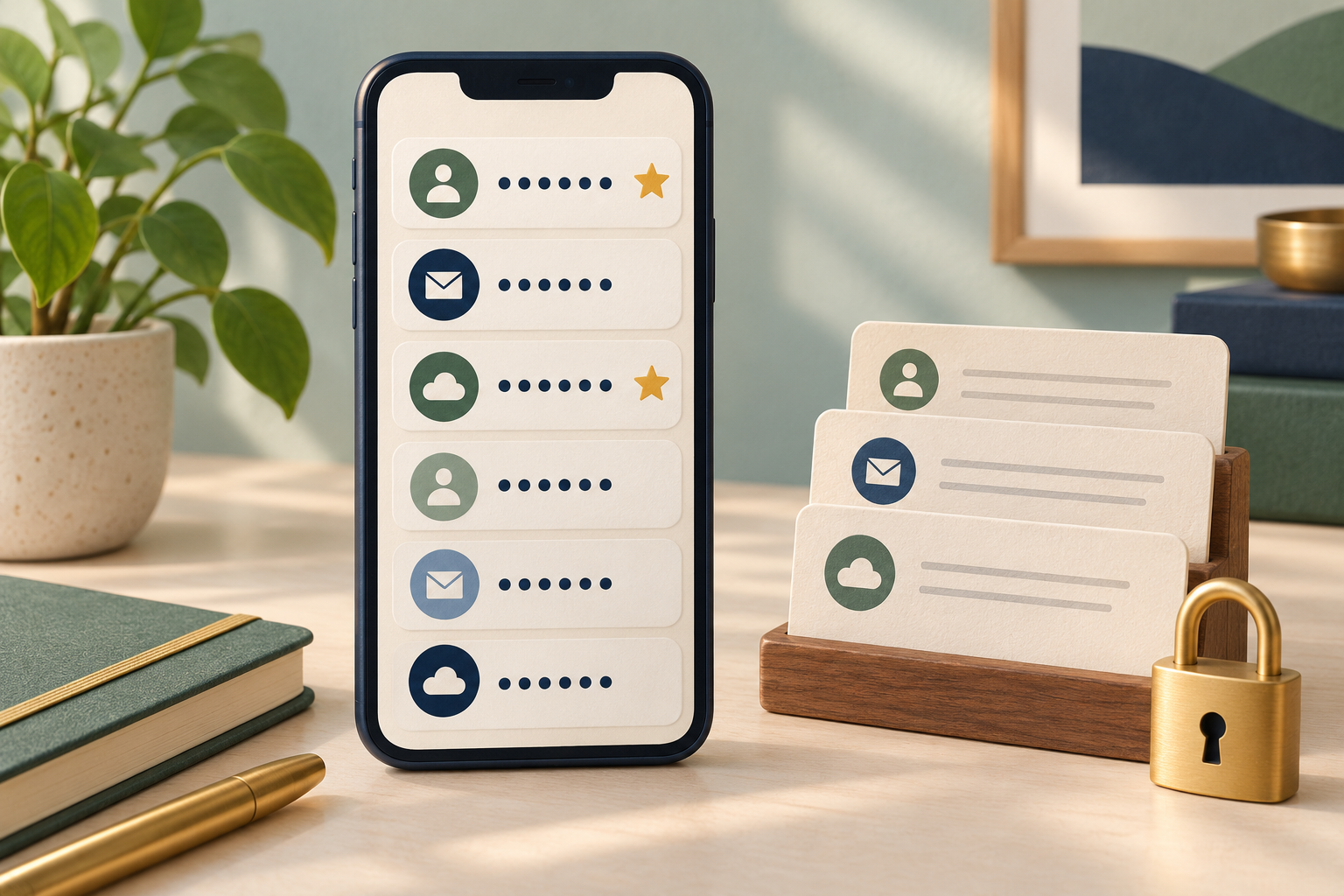
Favorites are another listed Auth Code feature. Reserve them for entries you use frequently so that the short list remains useful. Marking everything as a favorite recreates the original navigation problem in another view.
Choose favorites based on your actual routine rather than on which accounts feel most important in the abstract. An account used every day and an account used twice a year may need different navigation treatment even if both matter to you.
Revisit the selection when your routine changes. A completed project or a new work role can change which entries deserve quick access. Removing a favorite should be understood as organization; do not confuse it with disabling the service's authenticator method.
Review suspected duplicates before removing anything
An entry that looks redundant may still be connected to a valid account. Before deleting it, establish which service and account it belongs to and whether another tested entry provides the access you expect.
If an entry came from a recent import, compare it with your original checklist. Our Google Authenticator import guide explains why a complete transfer and successful sign-in tests should come before retiring an old setup.
Deleting a local entry and disabling 2FA at the service are different actions. An organization task should not accidentally become a change to your sign-in method. When the relationship between an entry and a service is unclear, use the service's official account and recovery instructions.
Balance convenience with visibility
Auth Code lists biometric app locking on supported devices, automatic locking, and an option to hide codes. Review these controls alongside the way you normally access your phone. Organization and access protection are related decisions, but a tidy list alone does not establish a secure configuration.
The publisher also lists a Home Screen widget. Before using it, consider what information the available widget displays and where your device is likely to be seen. Do not assume that every app-level visibility setting applies identically to every surface.
Test the behavior you choose on your own device. Check how you open the app, locate an entry, and return to your sign-in screen. A short rehearsal can reveal whether your setup is practical without making assumptions about a particular locking or widget behavior.
Keep recovery information separate from daily navigation
Your everyday list helps you generate codes. Recovery information helps when the usual sign-in method is unavailable. Do not assume that making an entry easy to find also solves recovery.
Review the recovery methods offered by important services. Know where you can find their instructions and any recovery codes you have chosen to save. Avoid making your only recovery route depend entirely on the same device or account you would need to recover.
Auth Code's publisher describes password-encrypted backups and optional encrypted iCloud sync. Understand the current workflow, access requirements, and restore process before relying on those features. Publisher encryption descriptions are not an independent security audit or a guarantee against account loss.
For a feature overview, visit the Auth Code application page. Check current purchase screens for entitlements rather than assuming that all listed tools are included in your present access.
Add new entries with the same review routine
Organization is easier when each new entry gets a quick check as you add it. Confirm the intended account, complete the service's enrollment process, and make sure you can recognize the result in your list.
If you need help with first-time enrollment, our Auth Code setup guide for iPhone covers the difference between installing an app and enabling a supported authenticator method at a service.
After a successful setup, decide whether the entry belongs in favorites and whether your recovery reference needs attention. This small habit prevents a large, confusing cleanup later. It also keeps account identification connected to a time when the details are still fresh.
A short maintenance routine
Occasionally review the list with three questions: can I identify this entry, do I still use the associated account, and do I understand its recovery route? You do not need to change something simply because you are reviewing it.
Check your favorites, investigate unclear labels, and note entries that need further verification. Keep sensitive setup material out of ordinary notes. If you decide an entry is no longer needed, confirm the relevant service state and your intended access before taking a removal action.
The result should be a list you can navigate confidently, supported by recovery choices you understand. Organization is useful when it reduces guessing at the moment you need to sign in.
Frequently asked questions
Can Auth Code search for accounts?
The publisher lists account search. Use it to find candidate entries, then confirm that the service and account match the sign-in you are completing.
Should every account be a favorite?
A short favorites list is easier to use for frequent sign-ins. Choose the entries that fit your routine and review the selection when that routine changes.
Are two similar entries necessarily duplicates?
No. They may refer to different accounts or enrollments. Verify their identity and working access before deleting anything.
Does removing an entry turn off 2FA at the website?
Do not assume that a local deletion changes the service's security settings. Manage authenticator enrollment through the service's official process when that is your actual intention.
Where can I get Auth Code?
Find Auth Code: 2FA Authenticator on the App Store. Review current compatibility and feature access, then start by checking a few entries you use regularly.