Move from Google Authenticator to Auth Code: An Import Checklist
Prepare a Google Authenticator export, import supported accounts into Auth Code, check every entry, and test sign-ins before retiring your old setup.
Updated Oct 29, 2026
In this article
- Know which kind of transfer you are making
- Prepare a small account inventory
- Create the export in Google Authenticator
- Import through Auth Code's supported workflow
- Check the full set of accounts
- Test sign-ins before removing the old setup
- Understand what importing does not do
- Plan backups and app access separately
- Finish with a clear completion checklist
- Frequently asked questions
- Can Auth Code import Google Authenticator accounts?
- Can I delete the old app immediately after scanning?
- Does importing disable the original codes?
- What if the codes are rejected?
- Where can I get Auth Code?
Moving authenticator accounts deserves a different approach from moving ordinary app preferences. You want the new app to generate usable codes, but you also want to keep a working route into each service while you check the transfer.
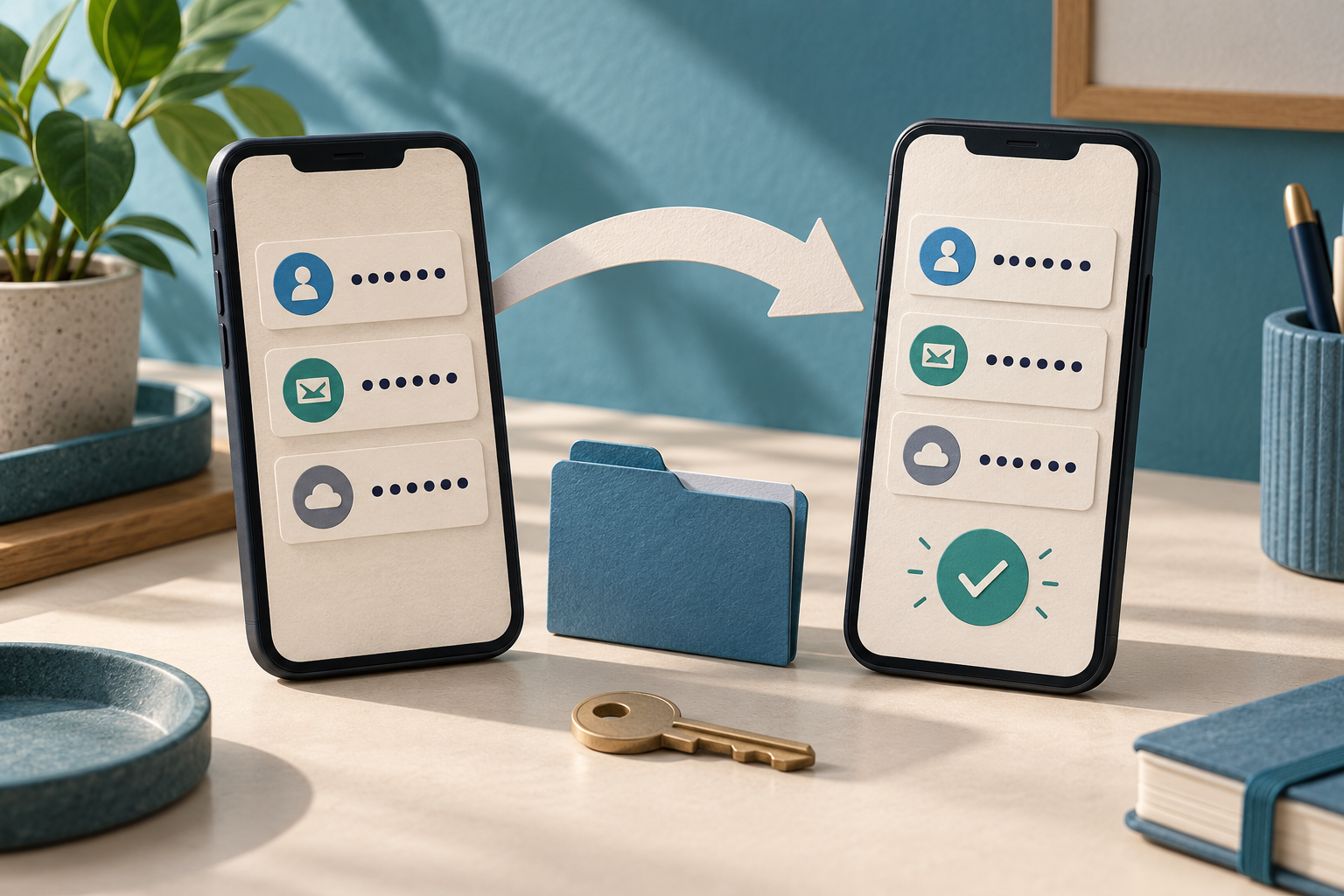
Auth Code: 2FA Authenticator lists support for importing Google Authenticator export QR codes, including exports with multiple QR codes. This guide explains how to prepare for that workflow, verify the imported accounts, and decide when the move is complete. It does not assume that seeing an account name in a new app proves a successful sign-in.
App to try: View Auth Code: 2FA Authenticator on the App Store. Alibox promotes this application.
Know which kind of transfer you are making
Importing an existing authenticator entry is different from enabling 2FA for the first time. An import uses supported account information from an existing setup. Initial enrollment begins in the service's security settings and usually requires confirming a generated code there.
If you are starting with a new service rather than moving an existing entry, follow our guide to setting up 2FA on iPhone with Auth Code. For a transfer, first confirm that you still have access to the existing authenticator and the services you need.
Google Account sync inside Google Authenticator is also different from importing into Auth Code. Signing into a Google Account should not be assumed to populate a separate app automatically. Use the import method supported by the destination app and follow its current instructions.
Prepare a small account inventory
Before exporting, make a private checklist of the services you intend to move. You can record a service name and an account label without writing down setup secrets or current verification codes. Include enough information to distinguish personal and work accounts on the same service.
Check that you can still open the original authenticator. Review the recovery methods offered by important services and confirm that you know where to find them if needed. Do this before changing devices or removing apps.
Start with a manageable group of entries instead of combining the transfer with several unrelated security changes. Keep a working session available where practical while you test a fresh sign-in. The goal is to verify the new workflow without immediately discarding the access that already works.
Create the export in Google Authenticator
Follow Google's current official instructions for the platform you use. Its authenticator help page describes a transfer/export workflow where you select accounts and generate an export QR code. It also notes that selecting multiple accounts can produce more than one QR code.
Google's page explains its own product and transfer process; the destination steps in Auth Code should follow Auth Code's current interface. Menu names and screen layouts can differ between platforms and versions, so do not rely on an assumed sequence of identical buttons.
Treat an export QR code as sensitive authentication material. Keep it away from shared screens, public posts, and unrelated support messages. Anyone helping you understand the process should not need a readable copy of your account export.
Import through Auth Code's supported workflow
Open the relevant import option in Auth Code and follow its current prompts for Google Authenticator exports. The publisher lists support for multi-QR exports, so pay attention to whether the workflow is asking for additional parts before you consider the import complete.
If the export is displayed on another trusted device, follow the available scanning instructions. If you are working on one phone, check what input methods the import workflow actually supports. The app's general ability to import QR images should not be treated as proof that every QR format works through every entry point.
Do not guess at an incomplete import or repeatedly add the same export without checking the result. Review the app's feedback and compare the imported entries with the inventory you prepared. An unfamiliar error is a reason to consult the current help or the service's recovery options, not to delete your working source entries.
Check the full set of accounts
After importing, compare the service names and account labels with your inventory. Look for missing entries, unexpected duplicates, and labels that make it hard to distinguish accounts. A count can be a useful check, but it does not prove that each entry is correct.
Auth Code lists search and favorites among its organization features. Use the available options to make frequently used entries easier to find. Keep the identity of the account clear before testing a sign-in.
If you transferred several QR parts, check the complete group rather than only the first accounts that appeared. A successful first scan and a complete transfer are different milestones. Confirm that you have processed the intended export before moving on.
Test sign-ins before removing the old setup
Use a fresh sign-in flow on a service you intend to verify. Select the correct entry in Auth Code and enter the requested code on the legitimate service. Follow any additional confirmation steps the service requires.
Check each important account rather than assuming one successful sign-in validates the whole collection. Different entries may use different settings or belong to similar-looking accounts. Mark an entry as tested only after you have confirmed the relevant workflow.
If you compare time-based codes between apps, remember that the value can change while you are looking. Matching visible codes can be a useful observation, but the service accepting the requested code is the practical test. Do not apply time-based expectations to counter-based entries or advance counters repeatedly just to compare displays.
Avoid resetting the service's authenticator method during an ordinary import unless you intentionally choose a separate re-enrollment process. A reset can change which setup information the service accepts, making old entries unsuitable for future sign-ins.
Understand what importing does not do
An import should not be assumed to revoke the old authenticator or replace the service's underlying setup secret. Deleting an app entry and disabling 2FA at the service are also different actions.
If you need to replace a secret because it may have been exposed, follow the service's official process for changing or re-enrolling its authenticator method. Merely copying the same account into another app is not a secret rotation.
This distinction matters when retiring a device. Verify the new setup, confirm recovery options, and handle the old device according to the relevant device and account instructions. Do not interpret an import confirmation as a complete security review of every place the original information may remain.
Plan backups and app access separately
The Auth Code application overview lists password-encrypted backup export, optional encrypted iCloud sync, and app locking options. These are separate features to configure and understand after the transfer.
The publisher describes Premium as including unlimited accounts, encrypted iCloud sync, and password-protected backup export, with restoration of an existing encrypted backup available without Premium. Review the current app and purchase screens for access and terms before planning a larger migration.
If you choose to create a backup, understand where the file goes and how you would restore it. Keep its password safe. An authenticator backup and recovery codes issued by individual services serve different purposes; neither should be assumed to replace the other.
Finish with a clear completion checklist
A move is ready for your final decision when the intended accounts are present, important sign-ins have been tested, and recovery options remain available. Confirm that you can identify the entries you use most often and understand the backup or sync workflow you have chosen.
If you created temporary export images, review where they were saved, including any shared or synchronized locations, and remove unnecessary copies through the relevant storage controls. Do not make broad assumptions about deletion or backup retention.
Only then decide what to do with the old app or device. If anything is uncertain, preserve your working access while you resolve it through the appropriate official support channel.
Frequently asked questions
Can Auth Code import Google Authenticator accounts?
The publisher lists support for Google Authenticator export QR codes, including exports containing multiple QR codes. Follow the current import workflow and verify the resulting entries.
Can I delete the old app immediately after scanning?
Test the new sign-in method and confirm recovery options first. An entry appearing in the destination app is not enough to establish that every intended account is ready.
Does importing disable the original codes?
Do not assume that copying an entry revokes the old setup. If you need to change the service's authenticator secret, use that service's official security settings and instructions.
What if the codes are rejected?
Check the correct service and account, the requested code type, and device time for time-based codes. Keep working access available and use the service's official troubleshooting or recovery process if the issue continues.
Where can I get Auth Code?
Find Auth Code: 2FA Authenticator on the App Store. Check current compatibility and access, then begin with a small, verifiable transfer.