AI Chat for Email Writing: From Rough Notes to a Clear Draft
Use AI Chat Agent Plus to turn notes into clear email drafts, adjust tone, refine follow-ups, and check facts and commitments before sending.
Updated Oct 29, 2026
In this article
- Define the reader and the outcome first
- Turn rough notes into a small brief
- Choose a tone you can recognize
- Ask for alternatives with a purpose
- Make follow-ups easy to answer
- Check facts, commitments, and attachments
- Keep private information out of unnecessary context
- Use chat revisions without losing the original intent
- Finish with a human read-through
- Frequently asked questions
- Can AI chat write an email from bullet points?
- Should I send the first draft unchanged?
- Can I ask for a shorter version?
- Does writing assistance send the email for me?
- Where can I try AI Chat Agent Plus?
The difficult part of an email is often deciding what it needs to say. You may know the background but still struggle to explain the request, choose a tone, or finish without adding another unnecessary paragraph.
AI chat for email writing can help you turn a few notes into a draft you can review. The useful workflow keeps you in charge of the facts and the final message: explain the situation, ask for a focused version, and check that it says what you actually mean.
AI Chat Agent Plus lists writing assistance and idea generation among its features. This guide shows a practical way to use that kind of chat assistance for ordinary messages, without treating generated text as ready to send automatically.
App to try: View AI Chat Agent Plus on the App Store. Alibox promotes this application.
Define the reader and the outcome first
Before asking for a draft, identify who will read it and what you want them to do. “Write an email” leaves too much open. “Ask a colleague to confirm which of two meeting times works” gives the task a clear purpose.
You do not need a long background story. Include the details that affect the message: your relationship to the reader, the request, any real deadline, and the tone you want. Separate confirmed facts from details you have not decided yet.
A useful starting prompt is:
Draft a short email to a colleague asking which meeting time works: [option A] or [option B]. Keep it friendly and direct. Use only the details provided. Do not add a deadline, location, or reason that I have not supplied.
Replace the placeholders before using the draft. A clear prompt gives you a better basis for review, but it does not guarantee that every sentence will follow the instructions perfectly.
Turn rough notes into a small brief
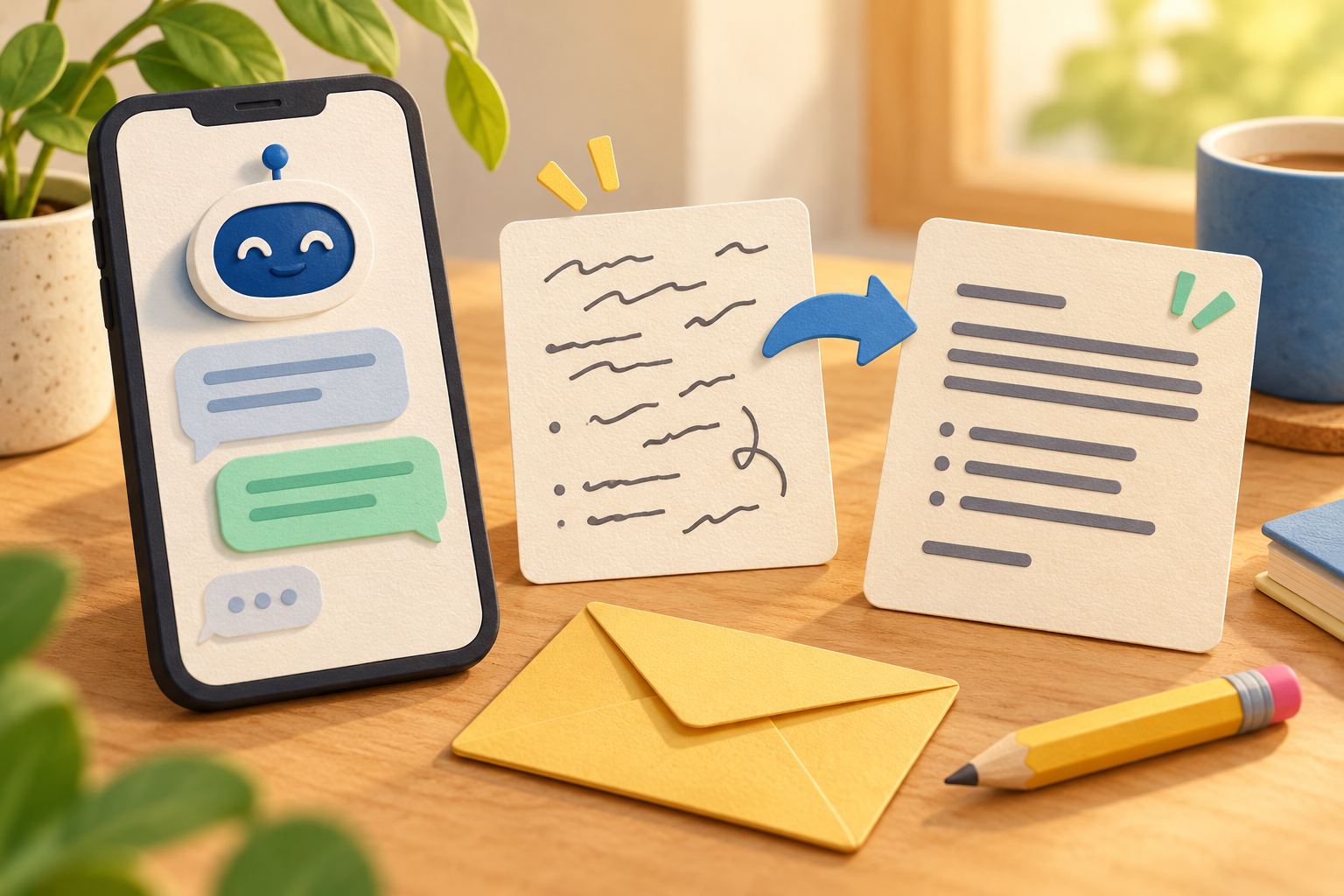
If your thoughts are scattered, write them as simple notes before requesting polished language. Keep one point per line and mark the main request. This helps you see whether the problem is wording or missing information.
For example, your notes might say: project file updated, two sections need feedback, reader should review by a date you have actually agreed on, and no response is needed on the other sections. That is enough to define a useful message without copying an entire conversation into the chat.
Ask the assistant to flag missing details rather than inventing them:
Use these notes to draft an email. If a necessary detail is missing, leave a visible placeholder and list what I need to fill in. Do not guess names, dates, attachments, or commitments.
Review both the draft and the missing-information list. A placeholder is useful only if you notice it before sending.
Choose a tone you can recognize
Tone instructions work better when they describe concrete choices. Instead of asking for something vaguely professional, specify a short opening, plain language, a direct request, and a polite closing.
You can also name what to avoid: exaggerated enthusiasm, repeated apologies, unnecessary urgency, or a long introduction. These constraints help define the message, but you should still read it aloud or imagine saying it to the recipient.
Try this revision prompt:
Rewrite the draft in a friendly, concise tone. Keep the request unchanged. Remove repeated phrases and unnecessary apologies. Do not make it more urgent or add promises.
A polished email should still sound like something you are comfortable sending. If a sentence feels unnatural, edit it yourself rather than preserving it because it looks formal.
Ask for alternatives with a purpose
Generating several versions can be helpful when each version explores a specific choice. Ask for a shorter version and a warmer version, for example, rather than requesting ten interchangeable drafts.
Compare the alternatives by the needs of the reader. Is the action clear? Is there enough context to respond? Does the tone fit your relationship? The best version is not necessarily the one with the most elegant phrasing.
You can use a small comparison prompt:
Give me two versions of this request: one brief and one slightly warmer. Keep all facts identical. After each version, explain in one sentence what changed in tone.
Check that the facts really stayed the same. Different wording can quietly change a request into an instruction, turn a tentative idea into a decision, or imply agreement that has not happened.
Make follow-ups easy to answer
A follow-up email should remind the reader what needs attention without forcing them to reconstruct the entire conversation. State the outstanding question and include the minimum context needed to answer it.
If there is no agreed deadline, do not let the draft invent one. If the situation is time-sensitive, provide the real timing and explain what response would help. A clear request is more useful than vague pressure.
For a routine follow-up, try:
Draft a polite follow-up about [topic]. The unanswered question is [question]. Mention the previous message briefly. Do not imply the reader promised a response or missed a deadline unless I explicitly say so.
Before sending, check whether the original message already contains a reply you overlooked. AI wording assistance cannot confirm the current state of your inbox unless you have separately provided and verified that information.
Check facts, commitments, and attachments
Review generated email text in three passes. First, confirm factual details such as names, dates, times, and project references. Second, look for commitments: what does the email say you will do, and when? Third, check any mention of files or links.
A sentence such as “I have attached the updated document” is a claim about an action. Make sure the file is actually attached and is the correct version. Likewise, a phrase such as “as agreed” should refer to a real agreement.
Ask the assistant to help identify statements that need your confirmation:
List the factual claims and commitments in this draft. Highlight anything that depends on an attachment, a date, a prior agreement, or information outside the notes I supplied.
Use that list as a review aid rather than proof that every issue was found. You remain responsible for the final content and the actual send action.
Keep private information out of unnecessary context
For many writing tasks, you can replace real names and sensitive details with placeholders. “A colleague,” “the project,” and “[date]” may be enough to improve structure and tone. Add the correct details in your own final review.
Avoid pasting passwords, verification codes, confidential documents, or unrelated personal information just to make a routine draft more specific. Review the app's current privacy information and the rules that apply to your work before sharing material.
Do not assume that a writing assistant has access to your inbox, calendar, files, or previous messages outside the information available in the current workflow. If the draft refers to something external, verify it directly.
Use chat revisions without losing the original intent
Once a draft is close, ask for one targeted change at a time. Shorten the opening, clarify the request, or simplify a sentence. This makes it easier to see what changed and whether the revision preserved the meaning.
If the conversation drifts, restate the few facts and constraints that matter. Our guide to getting better AI chat answers explains how to refine a conversation without rebuilding the whole request after every reply.
For the app's listed chat and writing capabilities, see the AI Chat Agent Plus application page. Check current feature access and purchase terms inside the app rather than assuming a specific model, unlimited usage, or a particular entitlement.
Finish with a human read-through
Read the final email from the recipient's perspective. Can they identify the purpose in the first few sentences? Is the requested action easy to understand? Are there placeholders or details that should not be included?
Then check the actual recipient, subject, attachments, and message body in the email app you use. Drafting text in AI chat does not establish that those fields are correct or that a message has been sent.
Keep the finished version only when it matches your intent. A useful assistant helps you express a decision; it should not make the decision or invent the circumstances behind it.
Frequently asked questions
Can AI chat write an email from bullet points?
Writing assistance is a listed feature of AI Chat Agent Plus. Provide the reader, purpose, confirmed facts, and tone, then review the draft for missing or invented details.
Should I send the first draft unchanged?
Review it first. Check the request, factual claims, commitments, names, dates, and any reference to attachments or earlier agreements.
Can I ask for a shorter version?
Yes, you can request a targeted revision. Tell the assistant which information must remain and check that the shorter draft preserves it.
Does writing assistance send the email for me?
Do not assume inbox access or a sending integration. This guide covers preparing text that you review and use in your own email workflow.
Where can I try AI Chat Agent Plus?
Find AI Chat Agent Plus on the App Store. Start with a routine message using non-sensitive notes, then refine and check the draft before sending it.