Use Auth Code for Offline 2FA While Traveling
Prepare your authenticator before a trip, test offline code access, and check your account recovery options.
Updated Nov 19, 2026
In this article
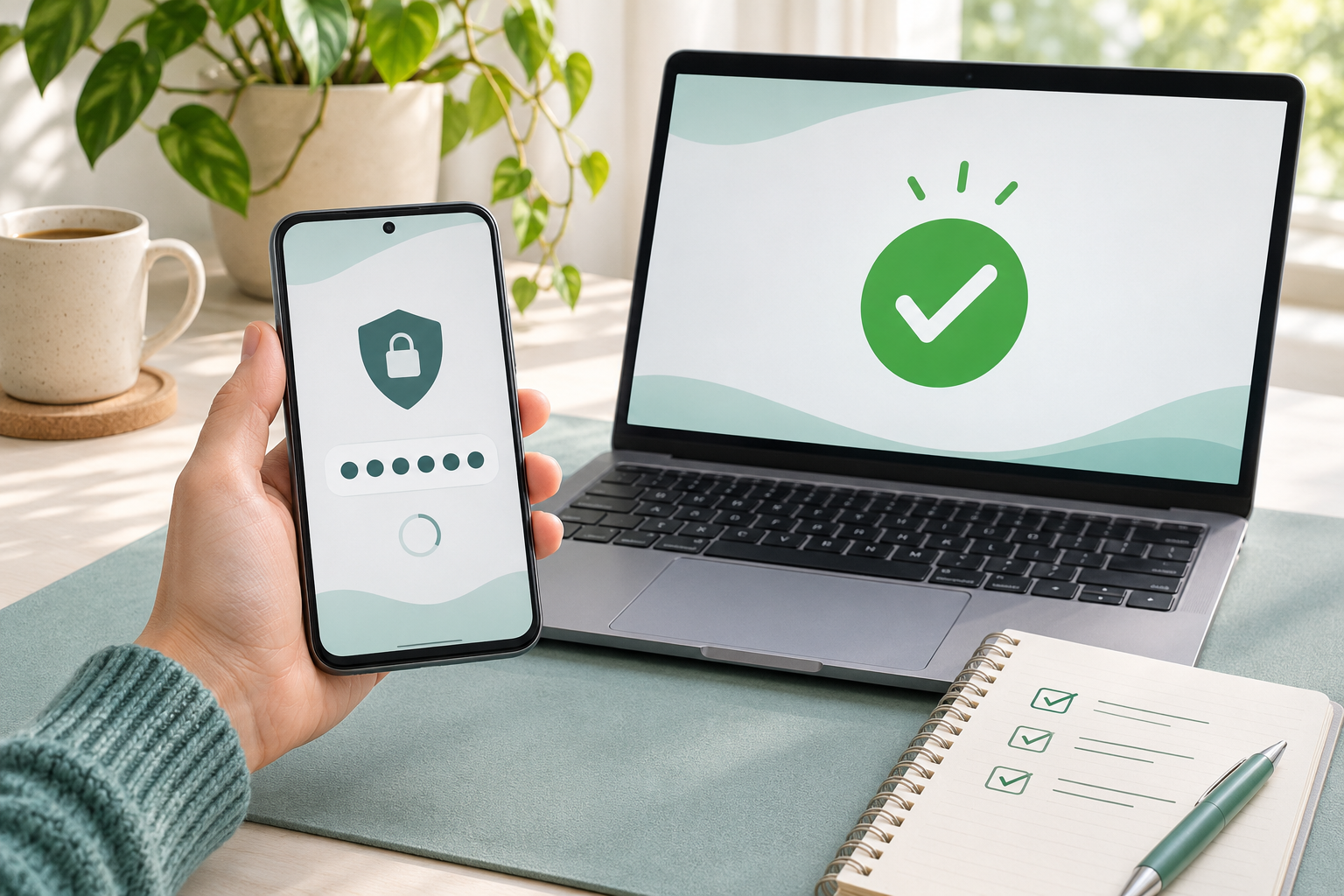
You open your laptop while traveling and reach a sign-in screen that asks for an authenticator code. Your iPhone has no mobile signal. If you already enrolled the account in Auth Code, you can still open the app and read its time-based verification code.
The publisher describes Auth Code as a TOTP authenticator that generates codes without an internet connection. Accounts can be added by scanning a QR code or entering a setup key. Auth Code: 2FA Authenticator on the App Store
Alibox promotes this application.
Prepare offline 2FA with Auth Code before traveling
Add your accounts while you have a working connection and can follow each service's security settings. Complete the service's confirmation step, then test a sign-in with the generated code. Keep an existing signed-in session available during this check so you can return to the security settings if needed.
Confirm which account entry belongs to each login. If you have personal and work accounts with the same provider, check the account details before selecting a code. A few minutes of preparation can make a later sign-in easier when you are away from your usual setup. Auth Code setup guide
Try the offline workflow on your phone
Once enrollment is complete, temporarily disconnect your iPhone from Wi-Fi and mobile data. Open Auth Code and check that the enrolled account still displays a code. If you have a second device with internet access, use it to open the service's sign-in page and enter the current code from your phone.
This test lets you check the whole process before departure. Restore the phone's connection afterward and keep its date and time accurate. If a code is rejected, confirm the selected account and use a fresh code before investigating further. Guide to rejected authenticator codes
Understand what still needs a connection
The authenticator can generate its code locally from the account setup information and the current time. The website or app you are signing into still needs to reach its own service to verify your login.
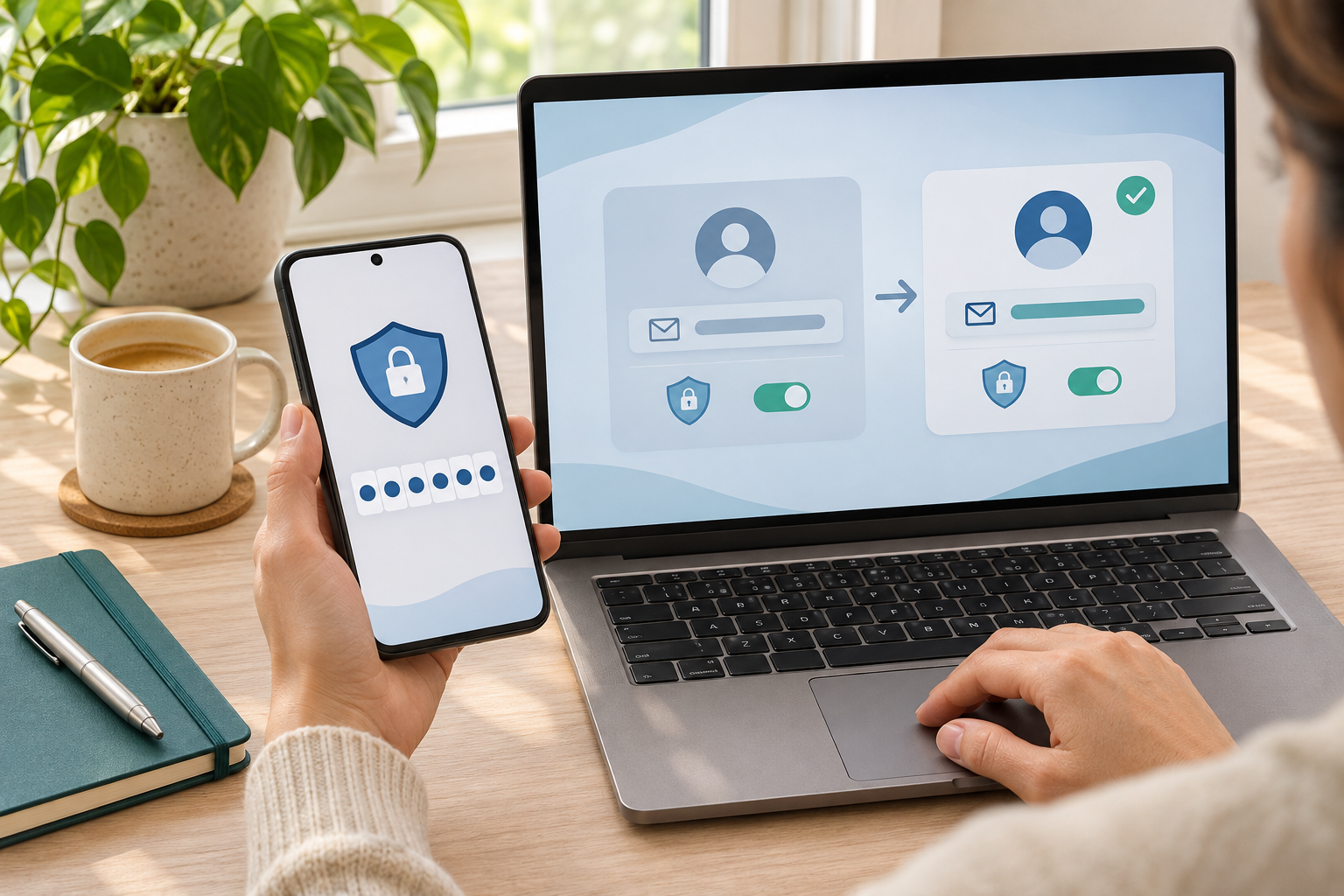
For example, a connected laptop can request a code while your phone remains offline. You read the code in Auth Code and type it on the laptop. If both devices lack a connection, you can view the code, but completing an online sign-in depends on restoring access to the service.
A service may also require another check, such as an email confirmation or approval for an unfamiliar device. Review the recovery and verification options offered by important accounts before a trip.
Keep account recovery available
Check whether your service provides recovery codes and store them somewhere you can access if the phone is unavailable. Follow that service's instructions for keeping them secure. A working offline authenticator still depends on having the enrolled device available.
Before changing phones, verify how you will restore access to each account. Keep the old phone until the new setup works and you have tested a sign-in. Prepare before changing your iPhone
Does traveling across time zones stop the codes working?
TOTP depends on accurate time. Let your phone maintain its time automatically where available, and check the device clock if codes unexpectedly fail. Start troubleshooting with the correct account entry and a fresh code, then consult the service's recovery instructions if access remains unavailable.
Can I add a new account entirely offline?
Enrollment normally starts in the service's account security settings and includes a confirmation step with that service. Prepare the account while connected, then test the offline code workflow after enrollment is complete. Auth Code feature overview