PhotoPic Face Swap: How to Choose Photos and Review Your Edit
A practical guide to face swaps in PhotoPic: choose clear portraits, compare angles and lighting, inspect the result, and share creative edits with context.
Updated Oct 28, 2026
In this article
- What PhotoPic offers for face swaps
- Start with a clear purpose
- Choose portraits you can inspect easily
- Compare angle, light, and framing
- Make one face swap before adding other edits
- Review more than the center of the face
- Use PhotoPic's other tools with a specific goal
- Share the edit with context
- Frequently asked questions
- Can PhotoPic swap faces between photos?
- Which photos should I try first?
- Does every face swap look realistic?
- Are all tools included for free?
- Where can I get PhotoPic?
A creative face swap begins before you press a generate button. The portraits you choose affect how easy it is to judge the edit: a face hidden behind sunglasses gives you less to work with than a clear, evenly lit portrait.
If you want to try a face swap app on iPhone, PhotoPic brings face swapping together with other photo editing tools. This guide explains how to choose images, approach an edit, and review the result without expecting every photo combination to work equally well.
App to try: View PhotoPic: AI Face Swap Editor on the App Store. Alibox promotes this application.
What PhotoPic offers for face swaps
The publisher's App Store description lists face swapping between photos or within the same image. That makes it an option for playful portraits and creative photo compositions. A finished edit still needs your review; the presence of an AI tool does not guarantee a convincing result.
PhotoPic also lists background editing, object editing, colorization, scratch removal, image upscaling, and outpainting. Those are separate editing options rather than proof that a face swap will preserve every detail of the original. Choose the feature that matches your task instead of applying several transformations at once.
You can find the app overview and its listed features on the PhotoPic application page. Check the current App Store listing and in-app screens for compatibility, purchase terms, and access to individual tools.
Start with a clear purpose
Decide what you want to make before picking pictures. A funny portrait for a private group chat and a carefully composed creative image have different review criteria. For the first, a clearly playful result may be enough. For the second, you may care about lighting, framing, and how the face fits the scene.
A useful first project is a simple portrait with one prominent face and a straightforward background. It gives you fewer details to inspect than a crowded group photograph. Once you understand the workflow and the kind of results you get, try a more complicated image.
Use your own photos or pictures you have permission to edit. If someone else's face is involved, agree on the intended edit and where it will be shared. Treat a private experiment and a public post as separate decisions.
Choose portraits you can inspect easily
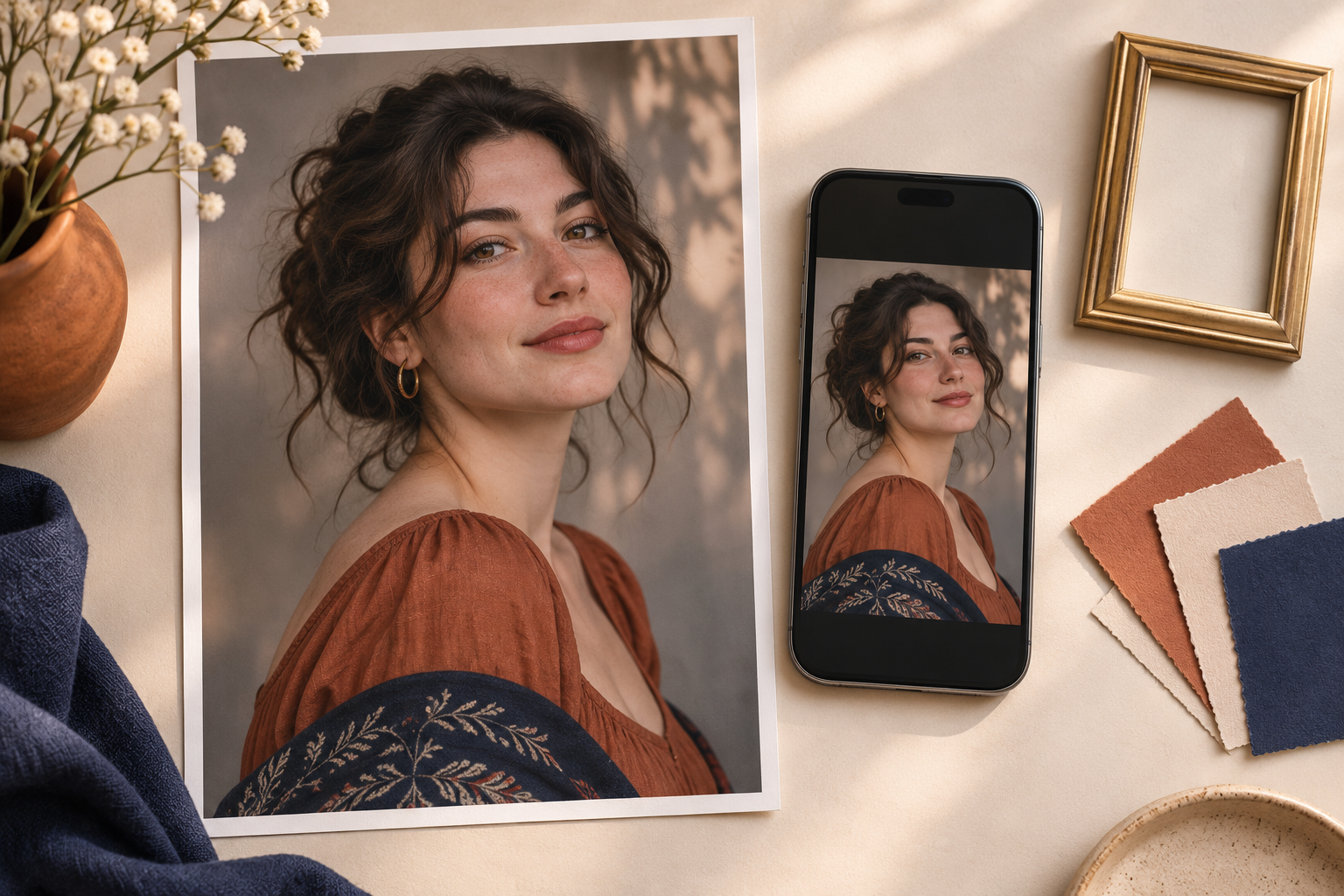
Look for a photo where the eyes, nose, mouth, and outline of the face are visible. A clear source makes it easier to see whether the generated result looks coherent. You do not need a studio portrait, but you do need enough detail to compare the edit against the original.
Before choosing an image, check these points:
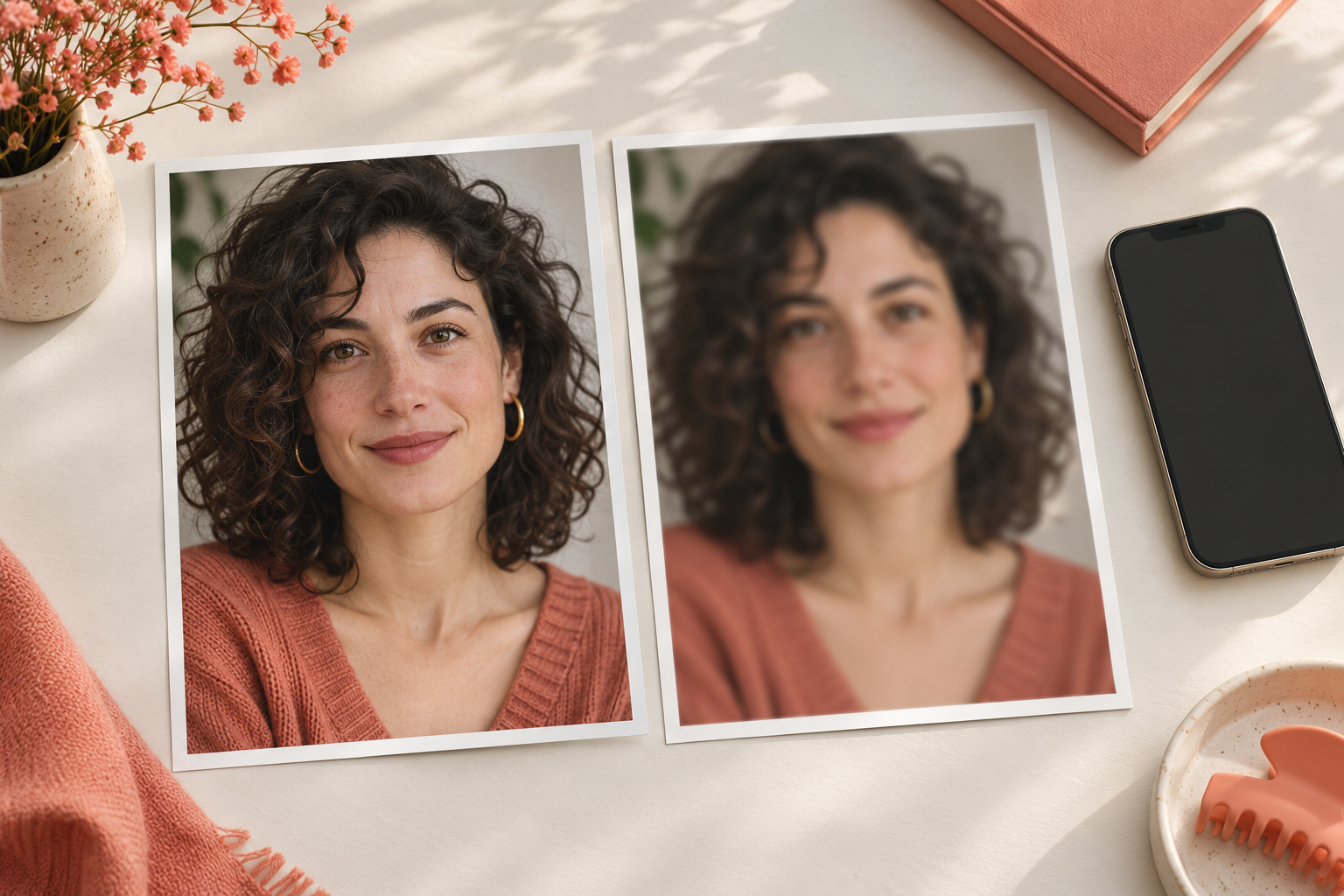
- The face is in focus at a useful viewing size.
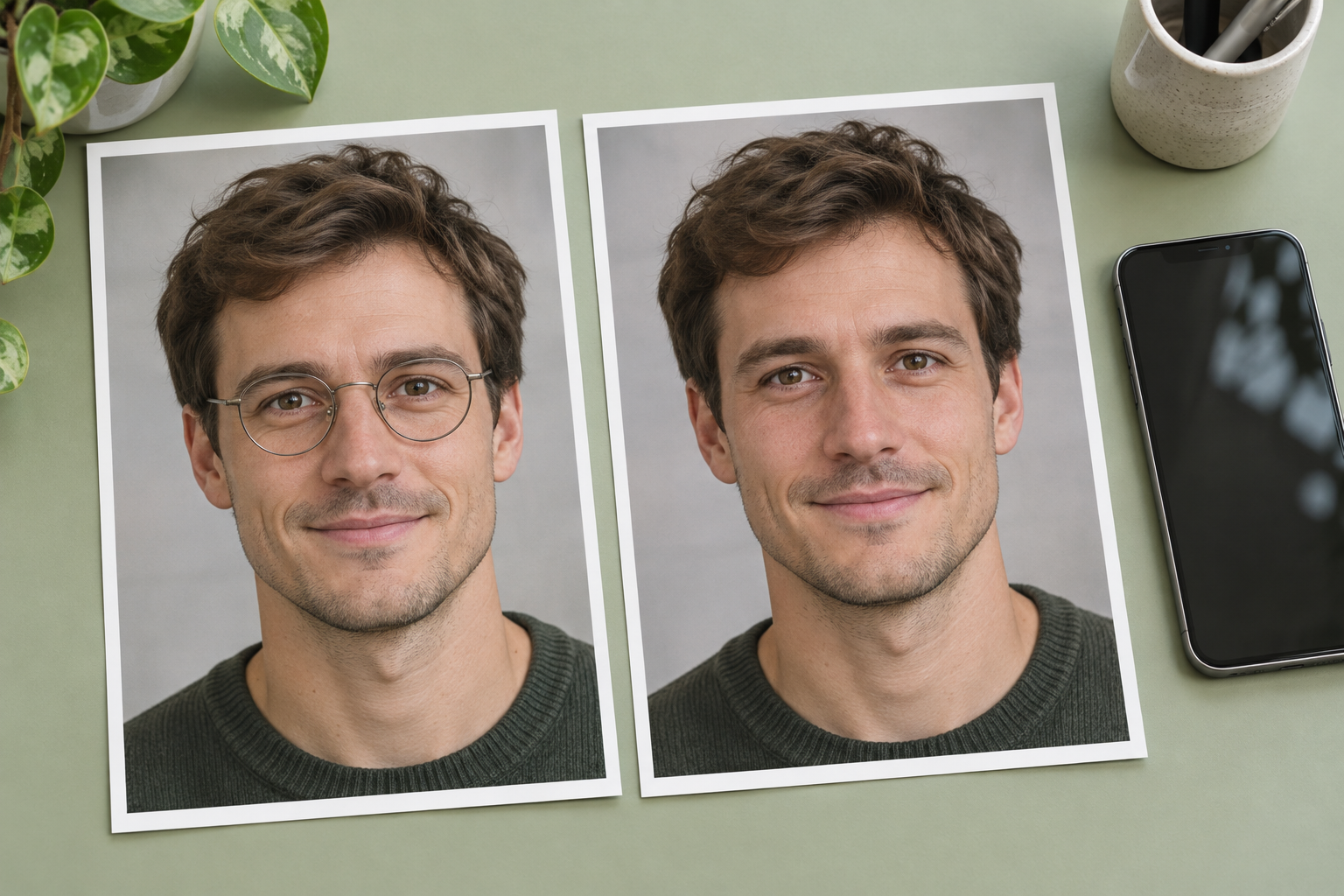
- Hair, hands, glasses, or other objects do not hide most of the features.
- The image is not heavily compressed or covered in a strong beauty filter.
- Lighting does not leave half the face in deep shadow.
- The expression and head position fit the kind of composition you want.
These are practical selection checks, not a promise about PhotoPic's output. If a combination produces awkward details, try a different pair of photos rather than assuming repeated generation will fix the same problem.
Compare angle, light, and framing
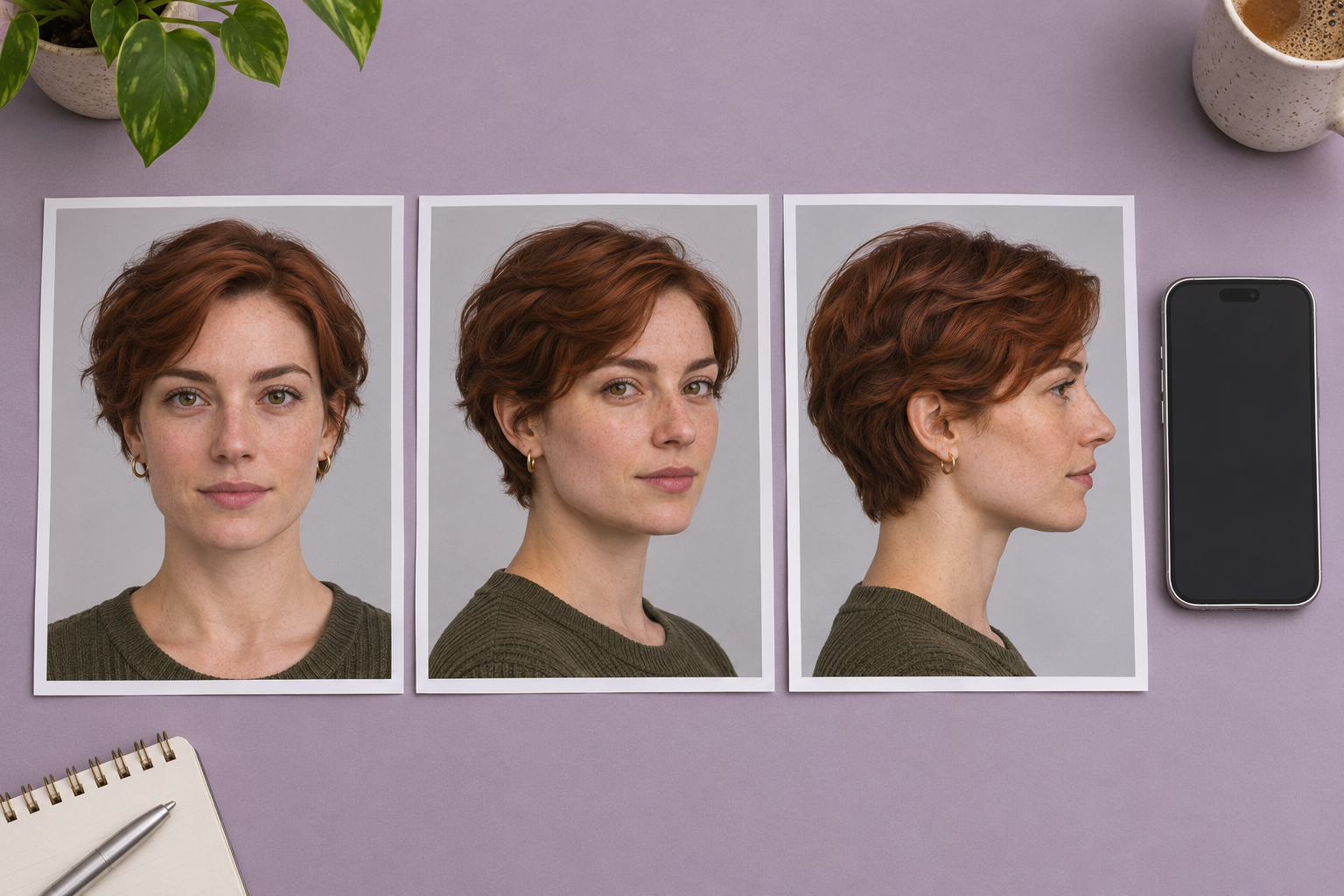
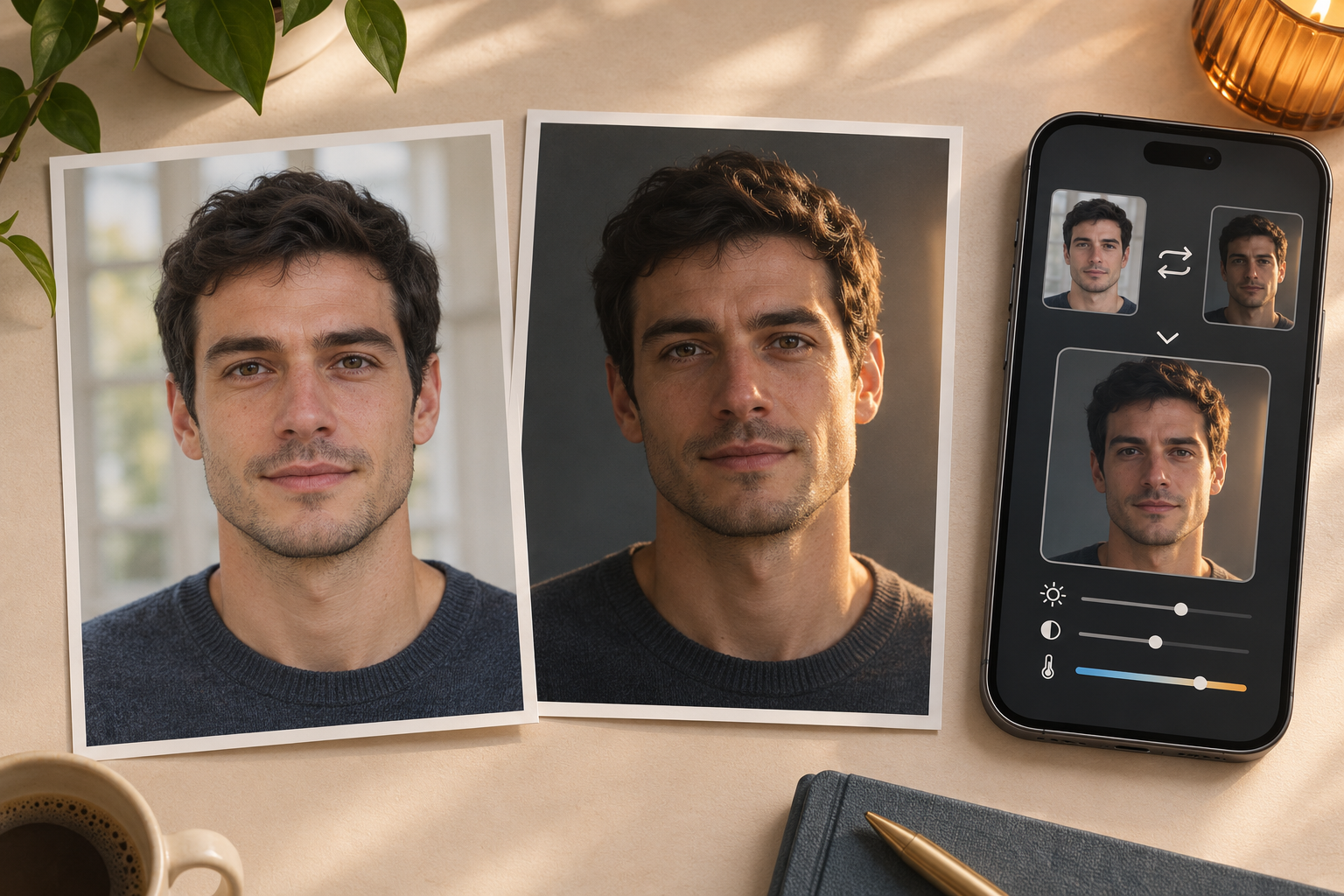
Place your candidate photos side by side. Are both people looking roughly toward the camera, or is one face turned sharply away? Is one portrait softly lit while the other has a strong light from the side? Differences can make the result harder to evaluate and may create a less consistent composition.
For an initial experiment, choose photos with a similar head angle and relatively even lighting. Keep enough of the head and surrounding image visible to judge proportions. A crop that removes the forehead or chin can make a portrait difficult to assess, even if the central features appear clear.
Pay attention to expression too. A wide smile, an open mouth, and a neutral expression each change the visible shape of the face. Do not assume an app will reproduce every expression exactly. Choose the combination that gives you the clearest starting point for your intended image.
Make one face swap before adding other edits
Open PhotoPic and choose its face swap feature. Follow the current in-app prompts to provide the required images and start the edit. Exact labels and available options can change, so use the instructions shown in your installed version.
Keep the original photos available while you work. Review the first face swap before changing the background, replacing objects, or applying restoration tools. Working in stages helps you identify which change introduced an unwanted detail.
If the result is unsatisfactory, change one input at a time. Try a sharper portrait, a closer head angle, or a simpler target image. Changing several things together makes it harder to learn which choice improved the composition.
Review more than the center of the face
A quick glance can miss distracting details. Inspect the entire portrait at a normal viewing size, then look more closely at the transition between the face and the surrounding image.
Check the hairline, ears, jaw, and neck. Look at the eyes and mouth without assuming that an AI-generated detail matches the source. Also examine nearby accessories and objects: glasses, earrings, hats, and hands may draw attention if their shapes look inconsistent.
Then step back and view the full picture. Does the head fit the body? Does the lighting make visual sense? Is the expression appropriate for the scene? A result that looks acceptable as a small thumbnail may need another attempt before you share it at a larger size.
There is no requirement to keep an edit simply because it finished processing. Save the versions you like and discard the ones that do not meet your own quality check.
Use PhotoPic's other tools with a specific goal
The listed background and object editing tools can support a broader creative project. For example, you might want a different setting after you have selected a face swap you like. Keep a copy of that version before making further changes, where your workflow allows it.
Restoration tools serve a different purpose. Colorization adds color to a black-and-white image; scratch removal targets visible damage; upscaling increases image resolution. None of those operations establishes what a historical photo originally looked like. Treat transformed images as creative or restored interpretations rather than evidence of missing original detail.
Likewise, outpainting extends an image beyond its existing frame by generating additional content. Review those new areas as carefully as the portrait itself. More editing options give you more choices, but each additional transformation creates another result to inspect.
Share the edit with context
When you share a face swap, make its edited nature clear if someone could mistake it for an authentic photograph. A short caption such as “creative face swap” can explain the context without a long technical description.
Ask before posting someone else's likeness publicly, even if they were comfortable with a private test. Avoid using the result to impersonate a person or suggest that they attended an event or endorsed something they did not.
A good creative workflow includes both visual review and a sharing decision. Check the image, confirm permission, and choose a caption that fits the actual edit.
Frequently asked questions
Can PhotoPic swap faces between photos?
The publisher lists face swapping between photos and within the same image. Follow the current app's instructions for the available workflow and supported inputs.
Which photos should I try first?
Start with clear portraits, visible facial features, and a simple composition. Similar angles and lighting give you an easier comparison when you inspect the result, although they do not guarantee a particular output.
Does every face swap look realistic?
No result should be assumed realistic without review. Inspect facial details, edges, proportions, and the surrounding scene before saving or sharing it.
Are all tools included for free?
Check the current App Store listing and in-app purchase screens. Feature availability and access terms should be confirmed in the app rather than inferred from a feature list.
Where can I get PhotoPic?
Download PhotoPic: AI Face Swap Editor from the App Store, then begin with a simple portrait project and review the finished image before sharing.