Prepare a PhotoPic Face Swap for a Small Print
Review the saved portrait, check the frame crop, and prepare a test print before ordering copies.
Updated Nov 28, 2026
In this article
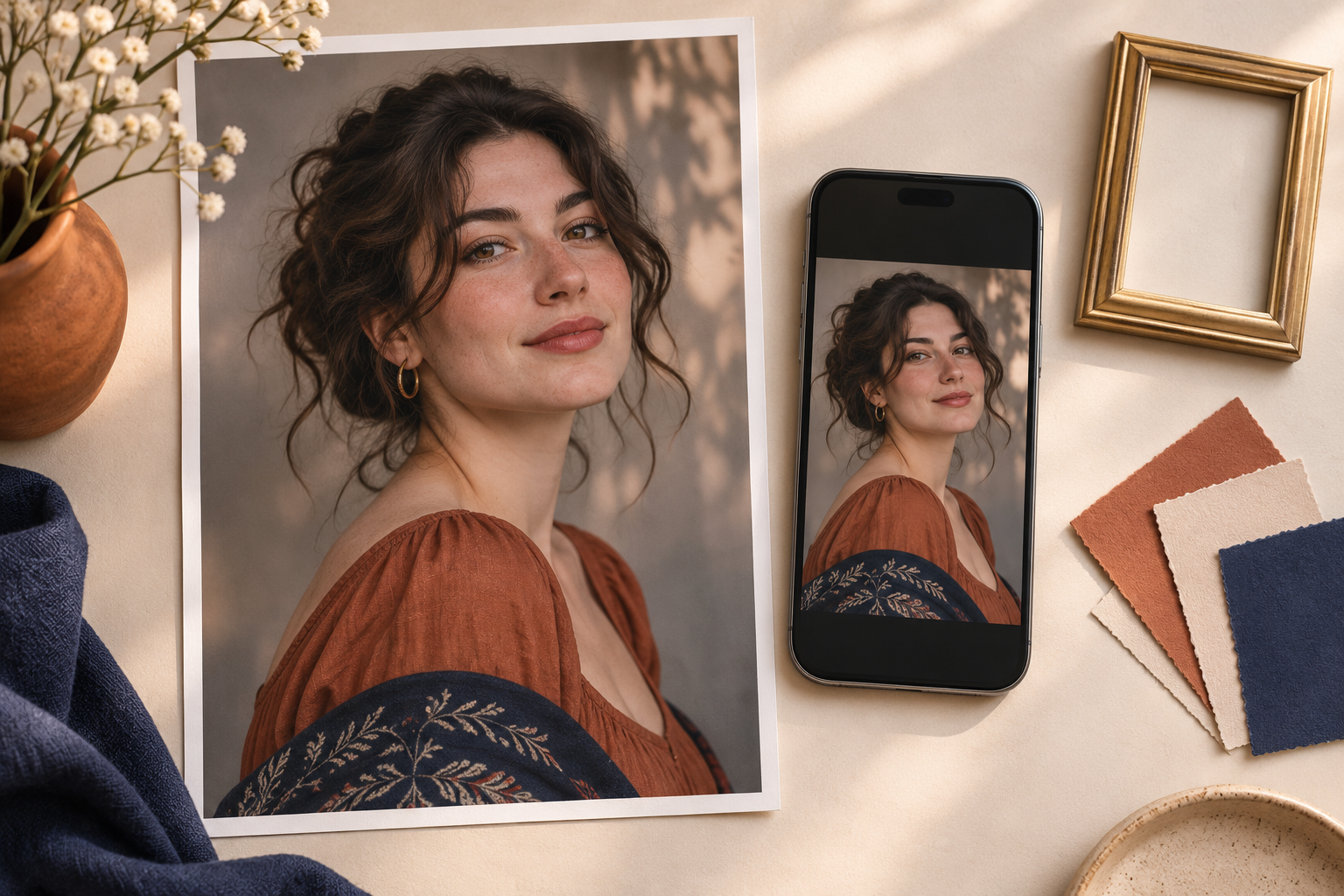
A creative face swap can make a fun small print for a desk frame or a gift. Before ordering it, review the saved image beyond the phone thumbnail. A larger view can reveal a crop, soft detail, or an edge that you would want to change before putting the portrait on paper.
PhotoPic includes Face Swap among its photo editing tools. Use the saved result as the starting point for your print preparation, then check the requirements of the printer or photo service you choose. PhotoPic on the App Store
Alibox promotes this application.
Review your PhotoPic face swap for a small print
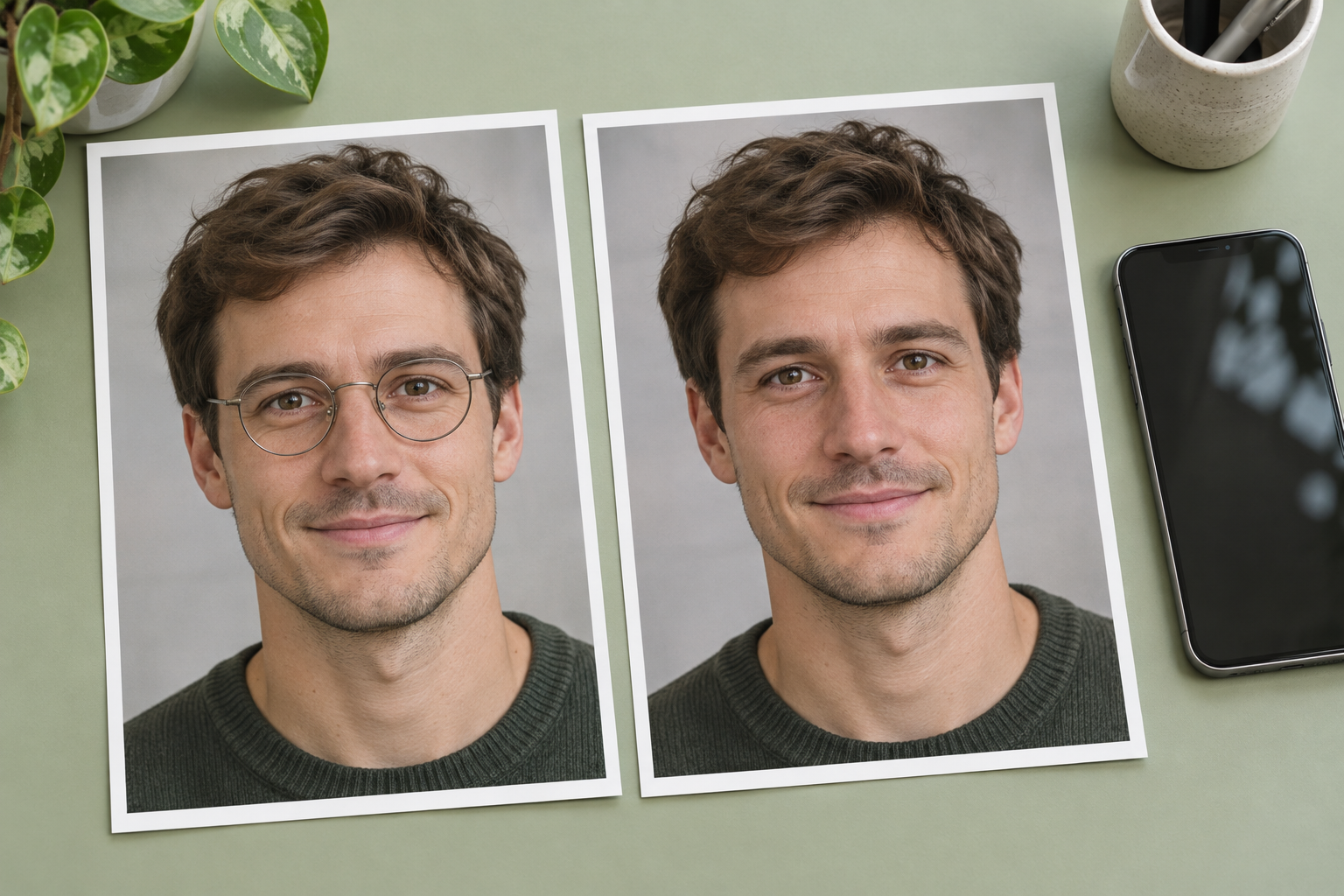
Open the saved portrait and inspect the eyes, mouth, hairline, and jaw. Look at the complete image as well as a closer view of the face.
Choose the version you want to print and keep it separate from other attempts. If you made several edits, identify the final file before uploading it to a print service.
Use portraits you own or have permission to edit and print. When giving the image as a gift, describe it as a creative face swap so the recipient understands the altered portrait.
Check the crop for the frame
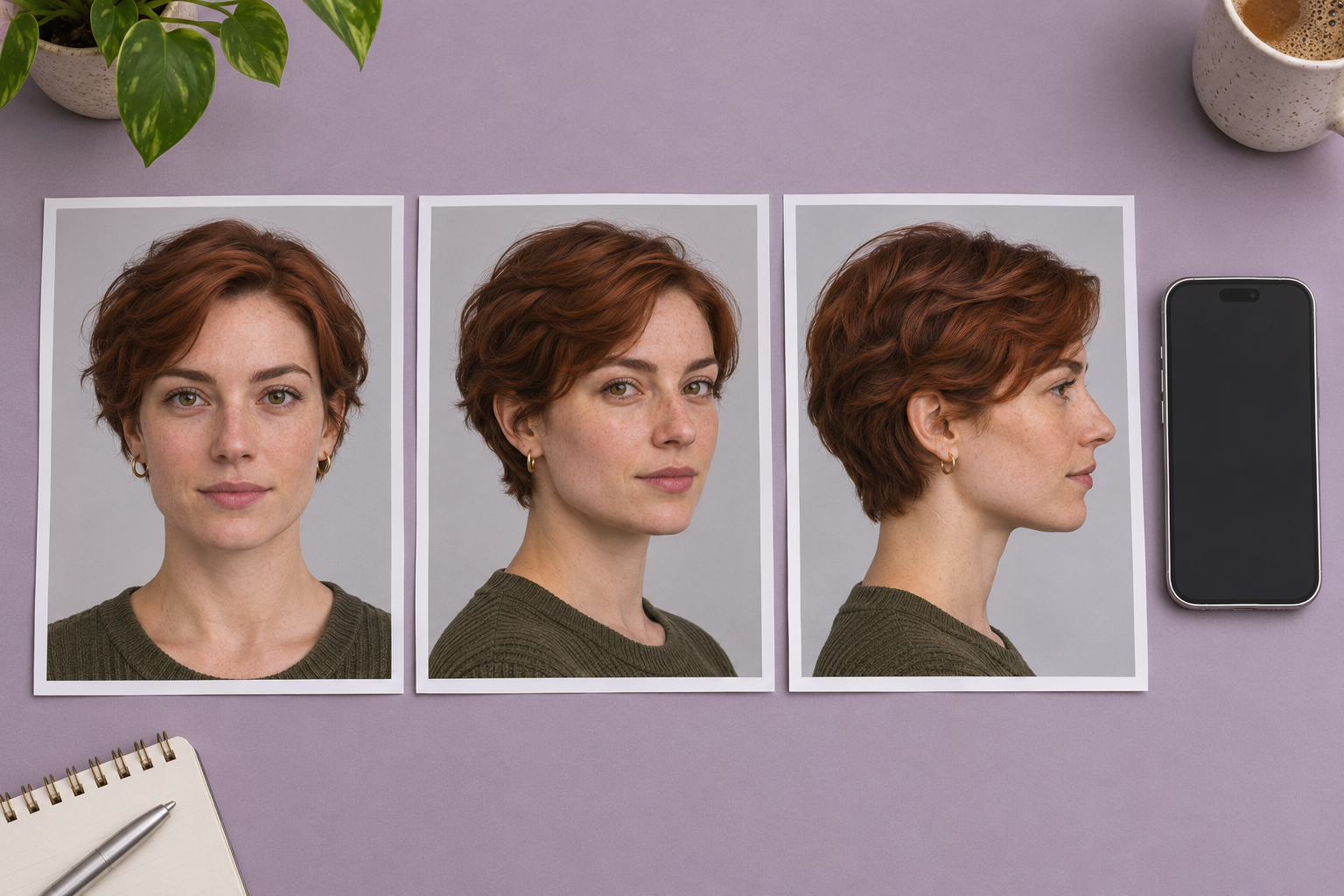
Decide which print size and frame you intend to use. In the print service's preview, check how the image fits that shape. A portrait that fills your phone screen may be cropped differently on paper.
Look at the top of the head, shoulders, and any important background detail. Leave enough room around the subject for the selected crop. If the frame has a mat, check how much of the picture it will cover.
Review the final preview after changing the print size. PhotoPic photo selection guide
Use the saved image file
Upload the saved output you selected rather than a screenshot of its preview. Check the file's dimensions and the service's guidance for the size you want.
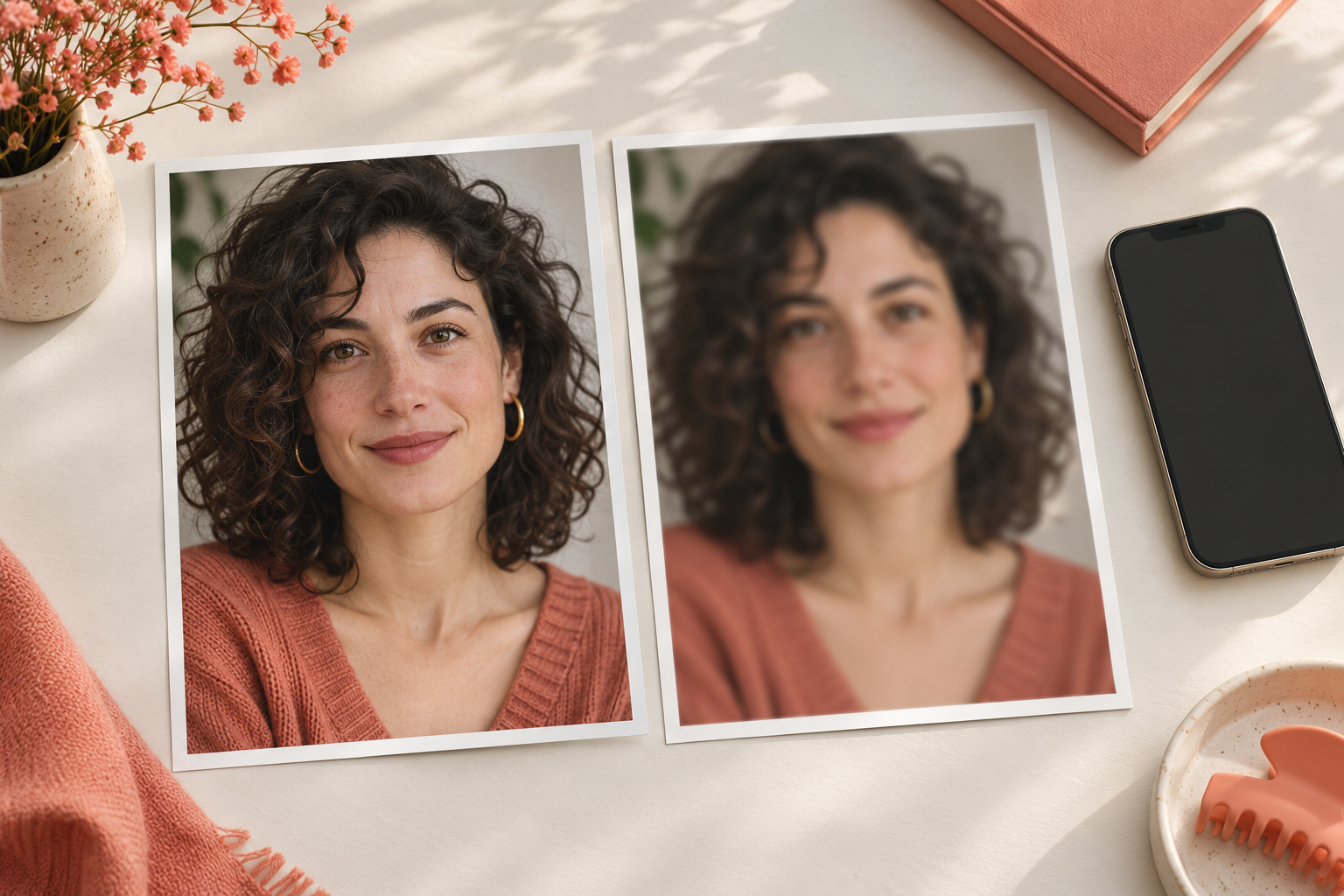
Read any quality warning shown during upload. A small preview alone cannot tell you whether the file has enough detail for your chosen print.
If the portrait looks soft, compare it with the source photos and another saved version. A clearer source may give you a more useful result to review before printing. Choosing a sharp photo
Inspect brightness and color
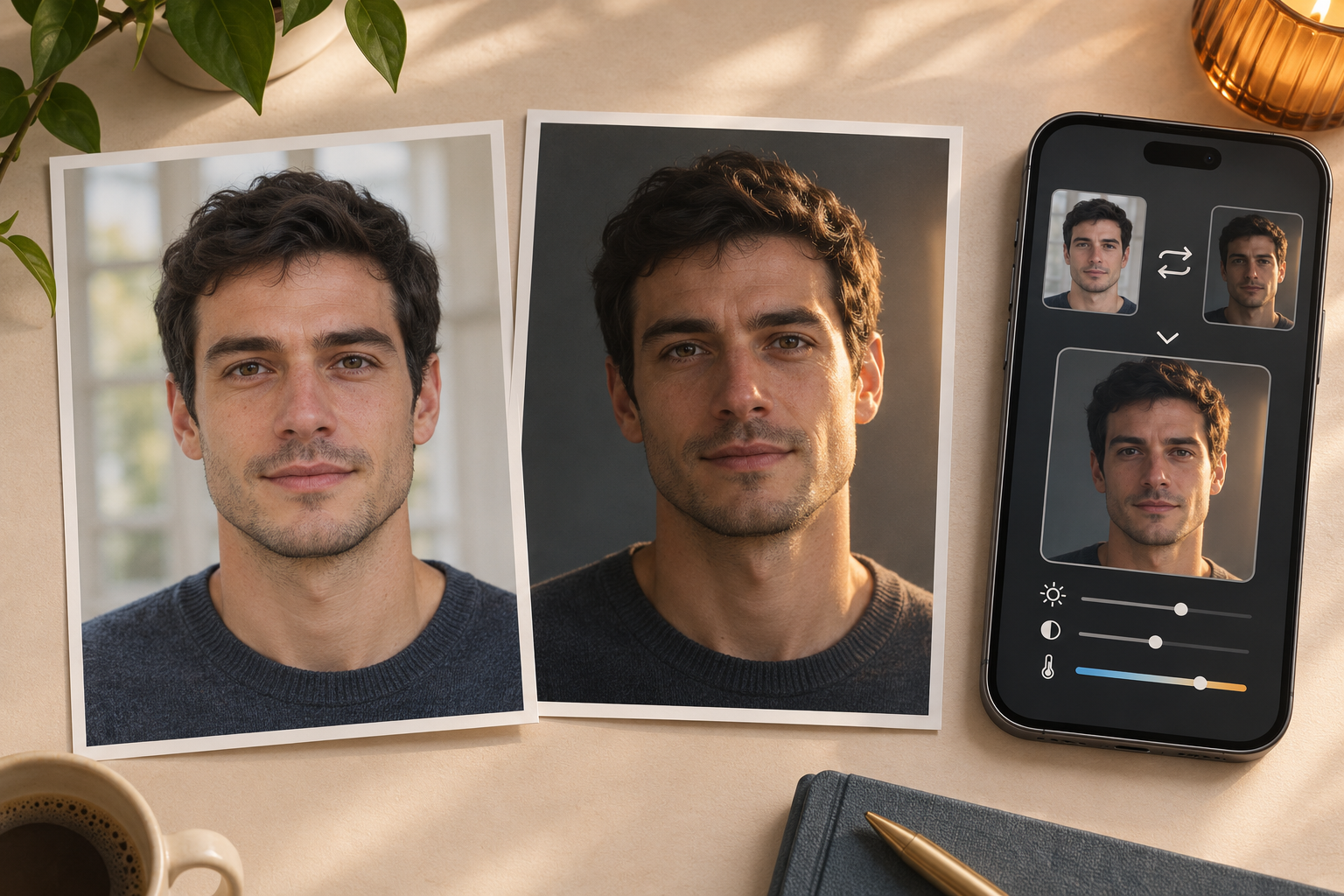
Look at the portrait in ordinary lighting with your screen at a comfortable brightness. Check whether the face and background feel balanced and whether shadowed details remain visible.
Paper and screens can show an image differently. For a gift or a set of copies, consider one test print through the service you plan to use. Review it before ordering more.
If you revise the portrait afterward, save the updated version with a clear name and confirm that you upload that file on the next order.
Keep a simple print record
Note the selected file, print size, and service settings you used. This makes it easier to order another copy or compare a revised version later.
Keep the originals and your preferred edit available. If a cheek edge or lighting mismatch becomes distracting in the test print, try another photo pairing and compare the results before ordering again. Lighting comparison guide
Check the order preview one last time for crop and orientation before completing it.
Can I choose any print size?
Follow the print service's requirements and quality guidance for the actual saved file. Review the preview and any warnings for each size you consider.
What if the test print looks too dark?
Compare the print with the saved image in normal viewing conditions and review the service's guidance. If you make an adjustment, keep it as a separate version and test that file before ordering several copies. PhotoPic feature overview