Choose a Sharp Photo for a PhotoPic Face Swap
Compare original portraits, spot blur, and review facial detail before choosing a face swap source.
Updated Nov 26, 2026
In this article
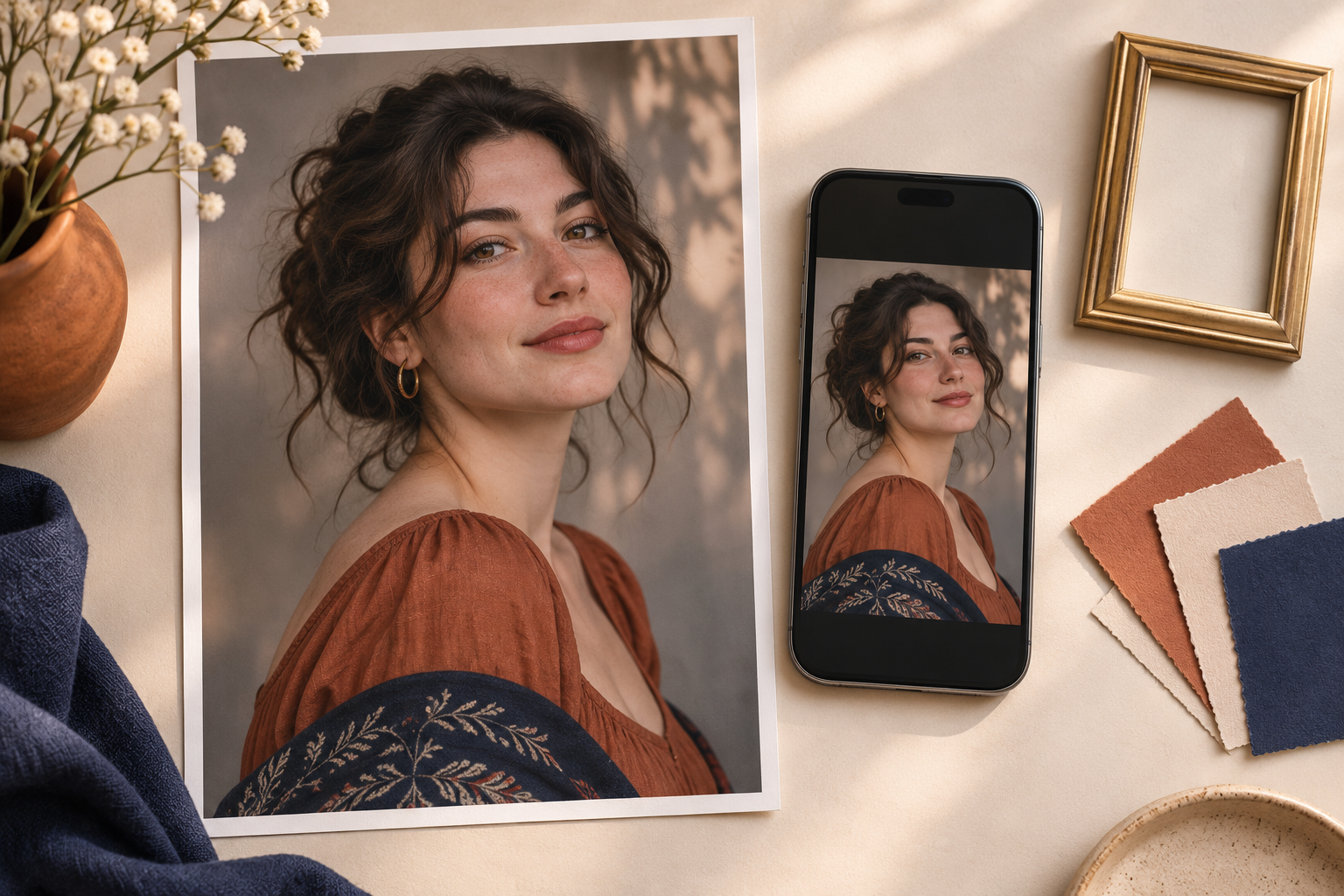
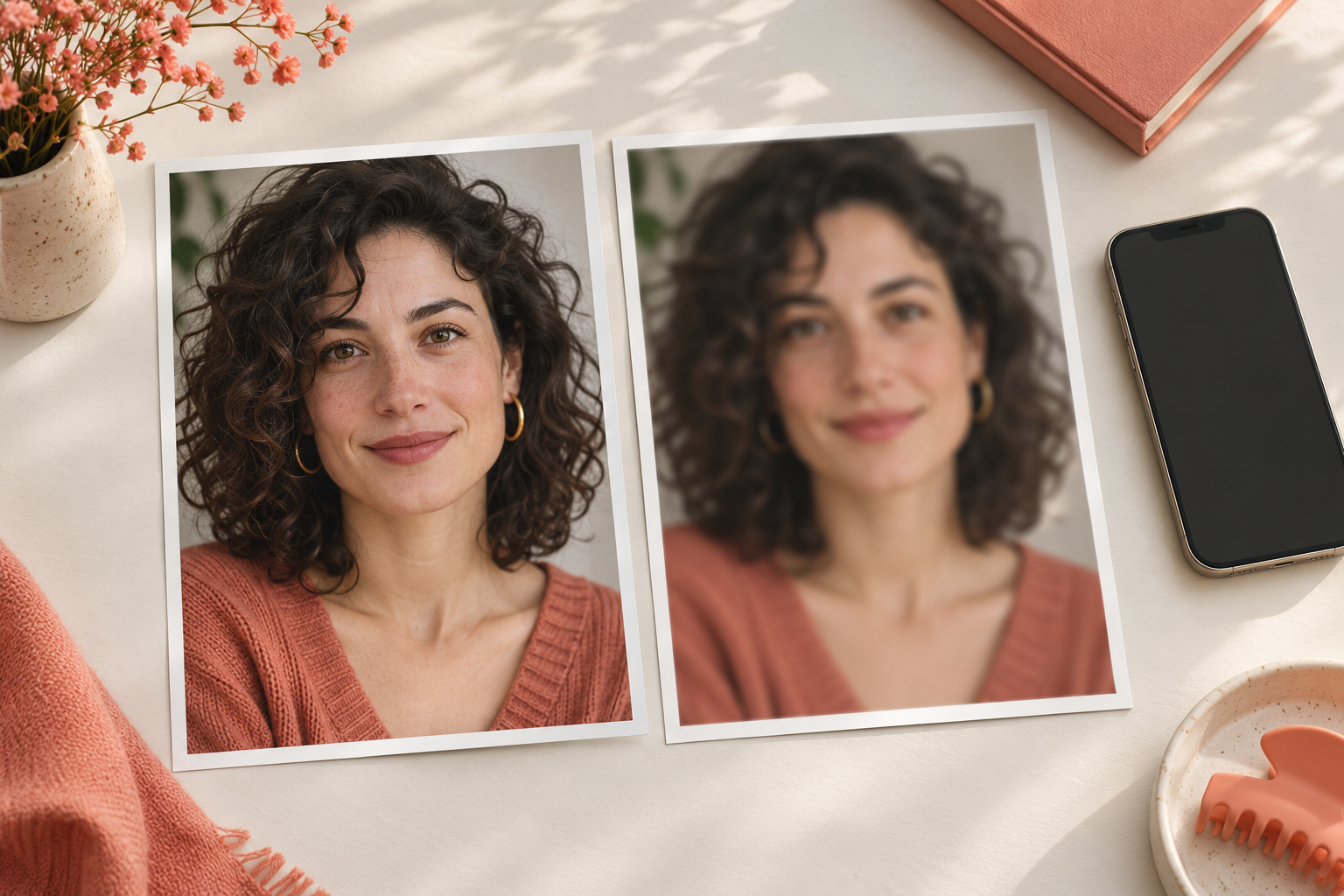
A portrait can look clear as a small thumbnail and reveal blur when you open it. Before starting a face swap, take a closer look at the eyes, mouth, and outline of the face. Choosing a sharper original gives you more detail to inspect when reviewing the finished edit.
PhotoPic includes Face Swap among its photo editing tools. This guide focuses on preparing your images and comparing the saved result so you can make a more deliberate choice between source portraits. PhotoPic on the App Store
Alibox promotes this application.
Choose a sharp photo for a PhotoPic face swap
Open the original image at a larger size. Look for clear eyelids, distinct lip edges, and facial features that remain recognizable beyond the thumbnail view. Check both the source and the target.
A photo where the face occupies only a tiny part of the frame may provide little visible detail even when the overall image is large. Compare it with a closer portrait of the same person, if available.
Keep the originals separate from any resized copies. That makes it easier to return to the clearest version when you try another pairing. PhotoPic photo selection guide
Tell motion blur from a soft-looking preview
Look at nearby edges in the original. If the eyes and hair seem smeared in the same direction, movement may have affected the picture. If the whole image looks soft, compare it with another shot taken around the same time.
Wait for your photo viewer to finish loading the image before judging it. Then compare the candidates at a similar zoom level. Choose the one where the facial details are easiest to see.
If you are taking a new portrait, hold the phone steady and review the shot before moving on. Even light and a comfortable pose can make that review easier.
Prefer the original over repeated shared copies
If you have several versions of the same picture, start with the original file when possible. Repeated saving, resizing, or sharing can reduce visible detail. A screenshot of a small portrait may also include far fewer useful pixels than the photo itself.
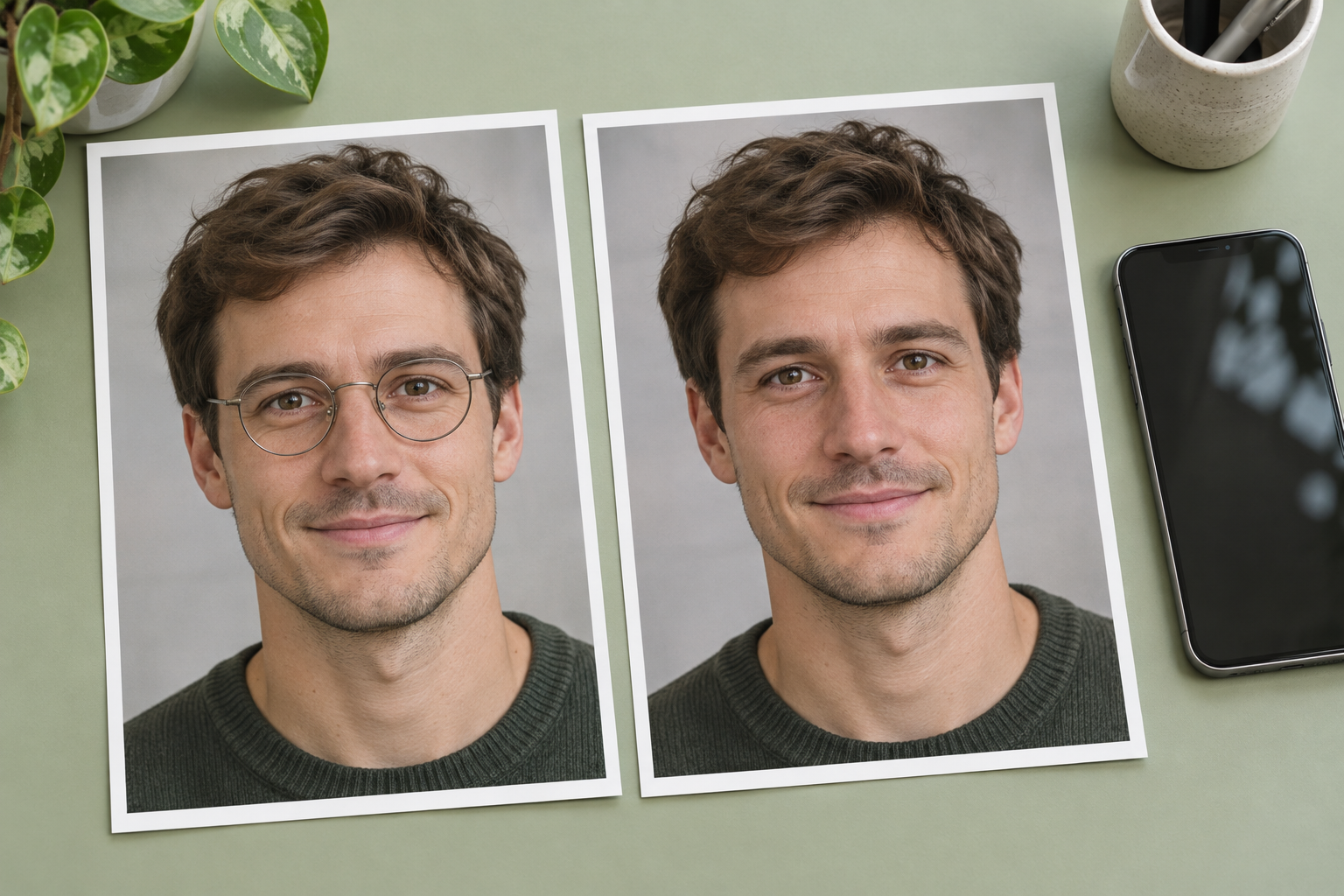
Compare the files by opening the face at the same size. Look for blocky edges, flat patches, or details that disappear in one version. Keep a note of which file you select so you can repeat the edit later.
Test with one target image
Keep the target fixed and try your clearest source first. Save the result, then compare another source only if you want to explore the difference. Review each output at the same size.
Inspect the eyes, mouth, and jaw before looking at the whole scene. If the result seems soft, return to both originals and check which details were already unclear. A different source may give you a more useful comparison.
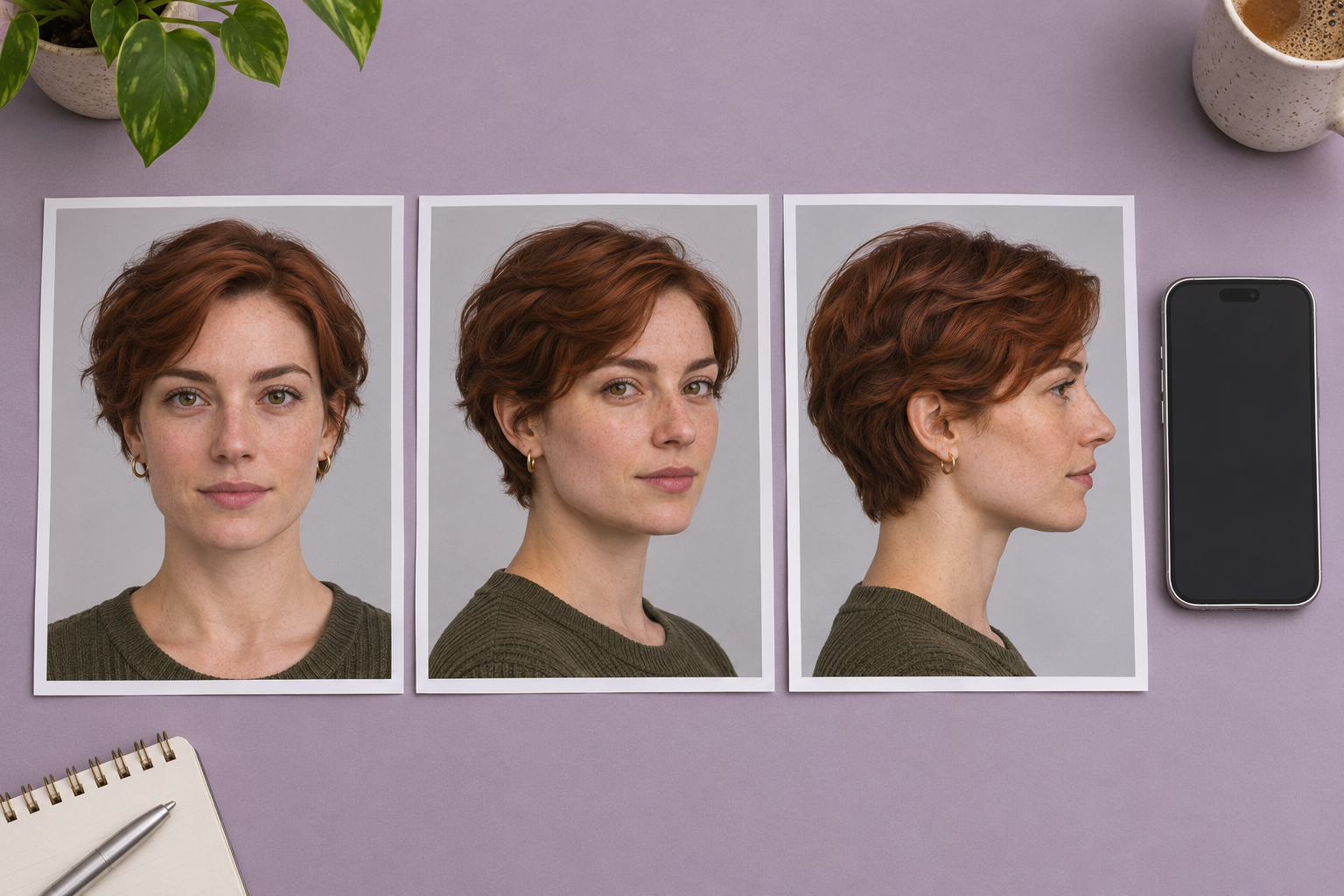
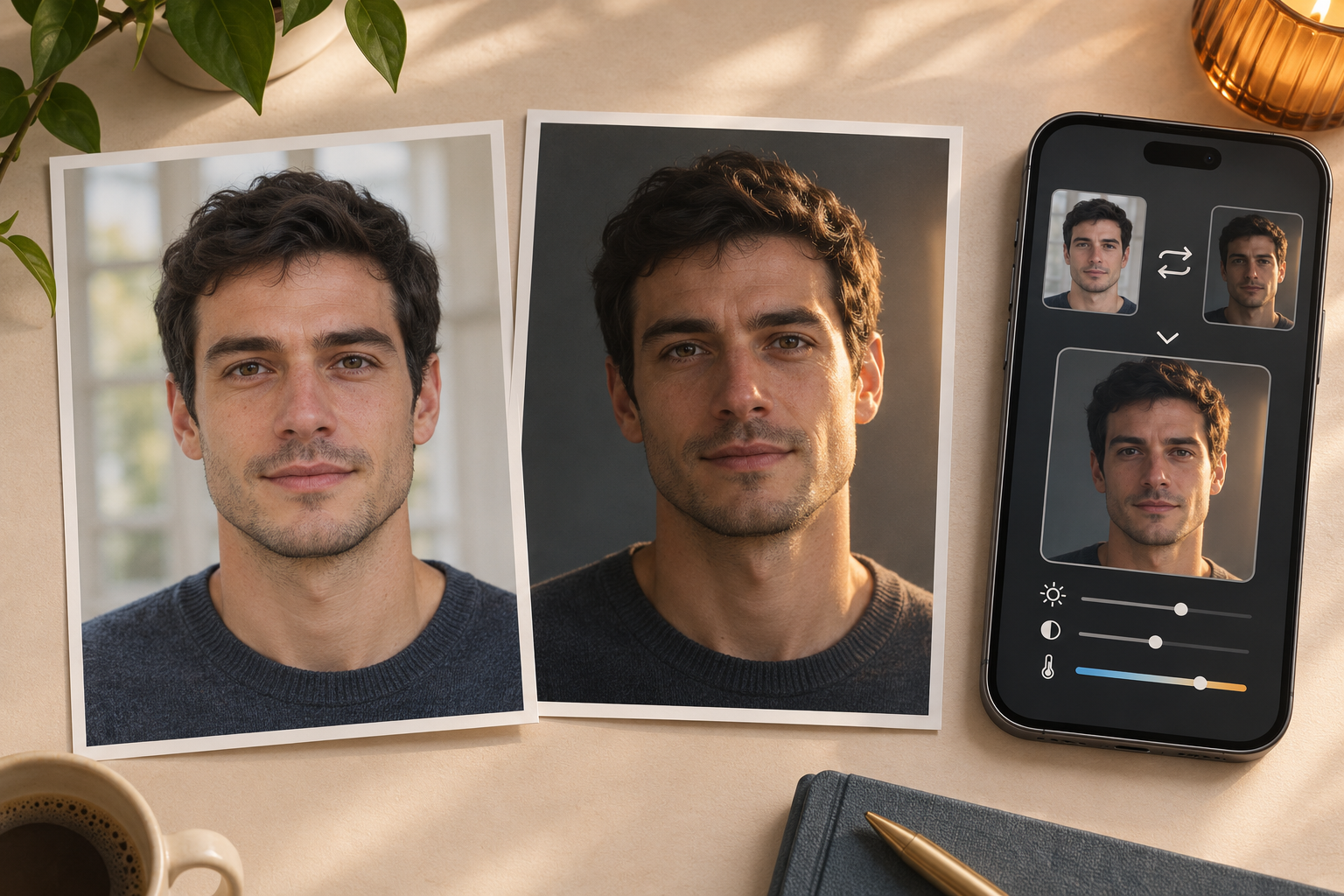
Head angle and lighting can affect how the image pair looks too. Check them when sharpness alone does not explain the result. Head angle comparison guide
Review the saved image where people will see it
Open the exported portrait at its intended size. A message preview, a profile thumbnail, and a larger image show different levels of detail. Choose the version that works for your actual use.
Use pictures you own or have permission to edit, and describe the shared result as a creative face swap. Keep the preferred output separate from later experiments so you can return to it.
Does a larger file always make a better source?
Look at the face itself. Image dimensions and file size do not tell you whether the eyes are in focus or whether movement blurred the mouth. Compare visible detail in the originals.
What if every source looks soft?
Try a new, steady portrait in even light if you can. Keep the face clearly visible and review the image before starting another swap. PhotoPic troubleshooting guide