Face Swap Looks Wrong? A Practical PhotoPic Troubleshooting Guide
Troubleshoot a creative face swap by checking angles, lighting, expressions, and overlapping objects, then changing one photo input at a time.
Updated Oct 30, 2026
In this article
- Describe the problem before changing the photos
- If the head angle feels inconsistent
- If the face and scene have different lighting
- If glasses, hair, or hands create distractions
- If the expression does not fit the scene
- If the source image lacks usable detail
- Change one meaningful input at a time
- Keep extra editing steps separate
- Know when to discard a result
- Frequently asked questions
- Will another attempt always fix an awkward face swap?
- Should I change both photos at once?
- Can upscaling guarantee a better likeness?
- Does PhotoPic include a manual repair control for every issue?
- Where can I try PhotoPic?
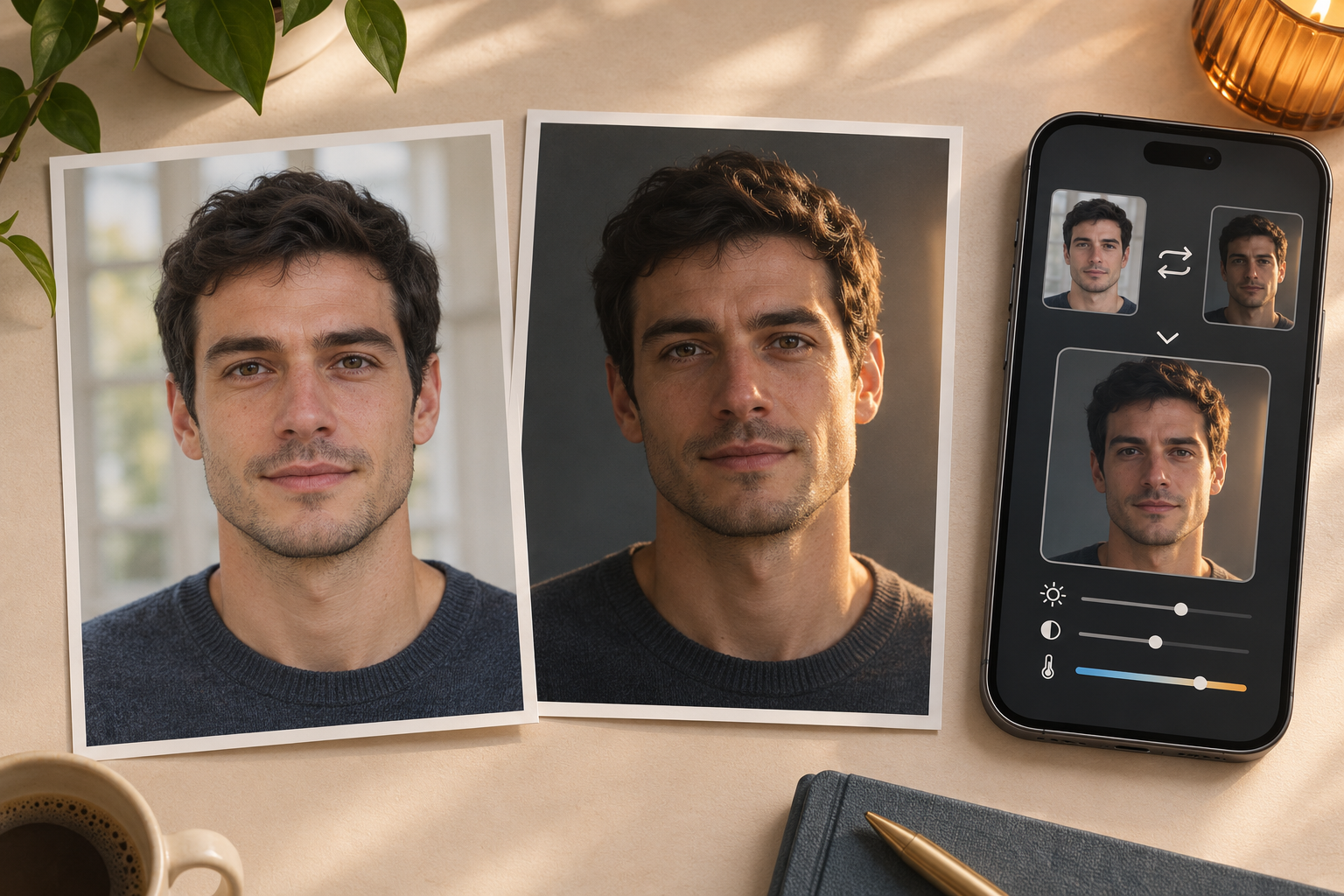
Your face swap has finished, but something looks wrong. The expression feels out of place, the jaw draws attention, or the face looks disconnected from the rest of the picture. Generating the same combination again is one possible experiment, but it does not tell you what to change.
A more useful approach is to identify one visible problem and choose a specific next attempt. This face swap troubleshooting guide explains how to compare your photos and results when working on a creative project in PhotoPic. It is a review method, not a promise that any input can be repaired.
App to try: View PhotoPic: AI Face Swap Editor on the App Store. Alibox promotes this application.
Describe the problem before changing the photos
Start with what you can actually see. “The result looks strange” is understandable, but it does not suggest a next step. “The face is turned differently from the body” or “the glasses look interrupted near the temple” gives you something concrete to investigate.
Compare the result with the source and target images. Note whether the distracting detail was already present, appeared in the edit, or became more noticeable because of the combination. Keep your observations separate from guesses about how the app works internally.
The publisher lists face swapping between photos and within an image in PhotoPic. That capability does not guarantee a convincing result for every pair of photos. Sometimes the best decision is to choose another composition or discard an attempt.
If the head angle feels inconsistent
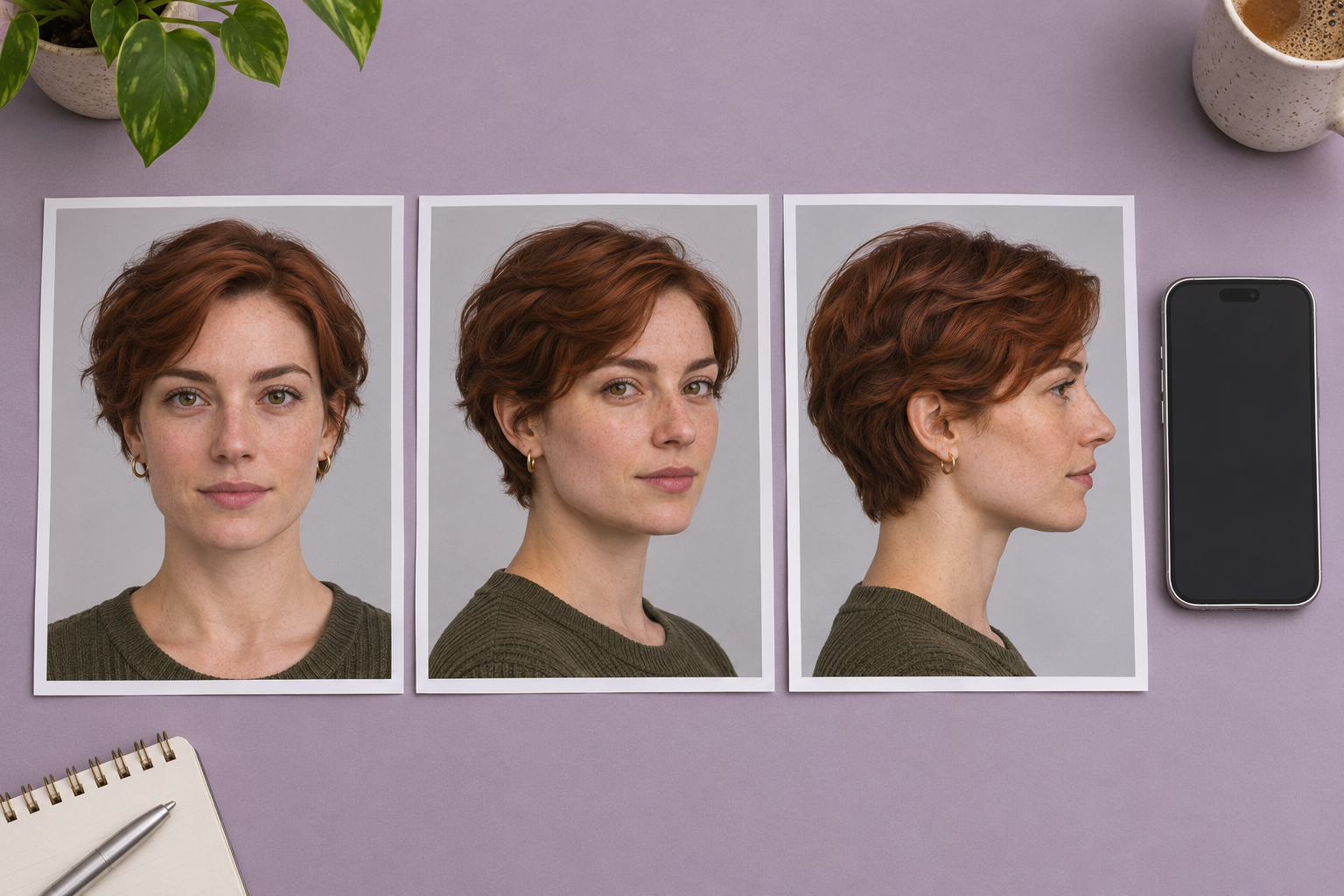
Look at the direction of the face in both input photos. A forward-facing portrait and a strong profile give you very different visible features. In the result, the eyes, nose, and jaw may suggest a pose that does not feel consistent with the surrounding head and body.
For the next attempt, try a source portrait with a closer viewing angle to your target. Keep the target scene the same so you can compare the change. You are testing whether a different input creates a more coherent composition, rather than applying a guaranteed correction.
Do not keep forcing a difficult pairing simply because you like the target background. If the pose is central to the problem, another target photo may give your project a more useful starting point. Our PhotoPic photo selection guide covers the basics of choosing a clear pair.
If the face and scene have different lighting
Compare the visible shadows and highlights. Is the source face lit from a different direction? Is one photo strongly warm while the other is cool? Does one portrait have deep shadows that hide details?
Try a source with lighting closer to the target scene, or choose a target with simpler illumination. Keep the rest of your experiment limited so you can judge whether that input change helped.
A deliberately stylized collage can tolerate contrast that would distract in a more blended portrait. Decide which visual effect you want before judging the result. Troubleshooting should serve the project rather than impose the same standard on every creative image.
If glasses, hair, or hands create distractions
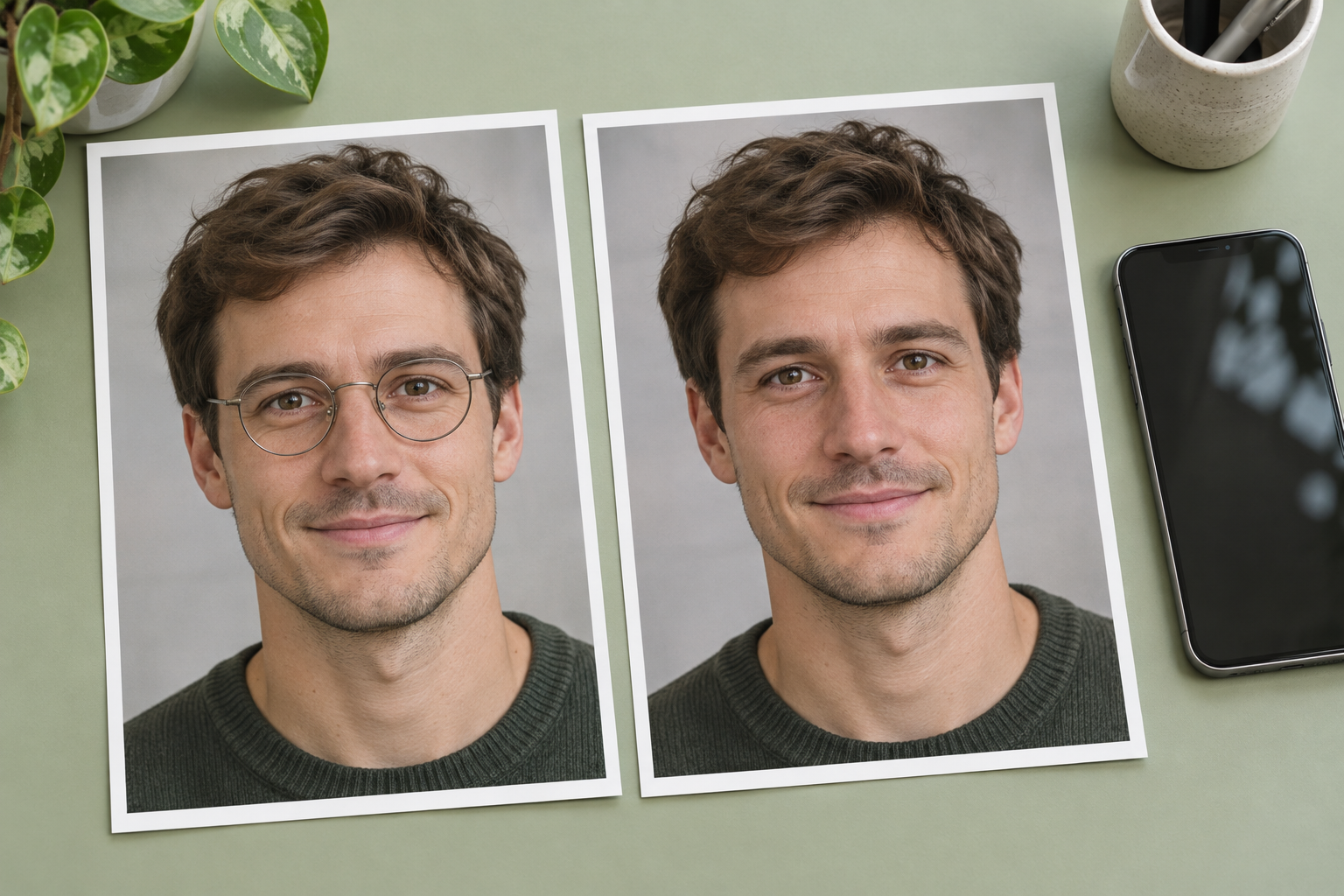
Inspect the area around the face as well as its center. Glasses can cross the eyes and temples, hair can cover facial features, and a hand can overlap the jaw or mouth. These elements make the composition more complex to evaluate.
For a simpler next attempt, choose a portrait where the important facial features are visible and nearby objects do not cross them. If the target includes an accessory that matters to the concept, compare results carefully instead of assuming it will remain unchanged.
Look at the full image after inspecting a detail. An imperfection visible only at an extreme zoom may not matter for your intended private experiment, while a broken outline obvious at normal size may be worth rejecting. Use the size and purpose of the final image as part of your decision.
If the expression does not fit the scene
A smile, an open mouth, and a neutral expression create different visual expectations. Even if individual features appear detailed, the overall portrait can feel awkward when the expression conflicts with the pose or setting.
Try another source portrait whose expression is closer to your intended result. Avoid assuming that a face swap will reproduce every subtle feature of the source exactly. Judge the version you actually receive.
If you are making a playful image, an exaggerated expression may be part of the idea. If you want a calm studio portrait, the same expression may be distracting. Write down the mood you want in a few words and compare the edit with that intention.
If the source image lacks usable detail
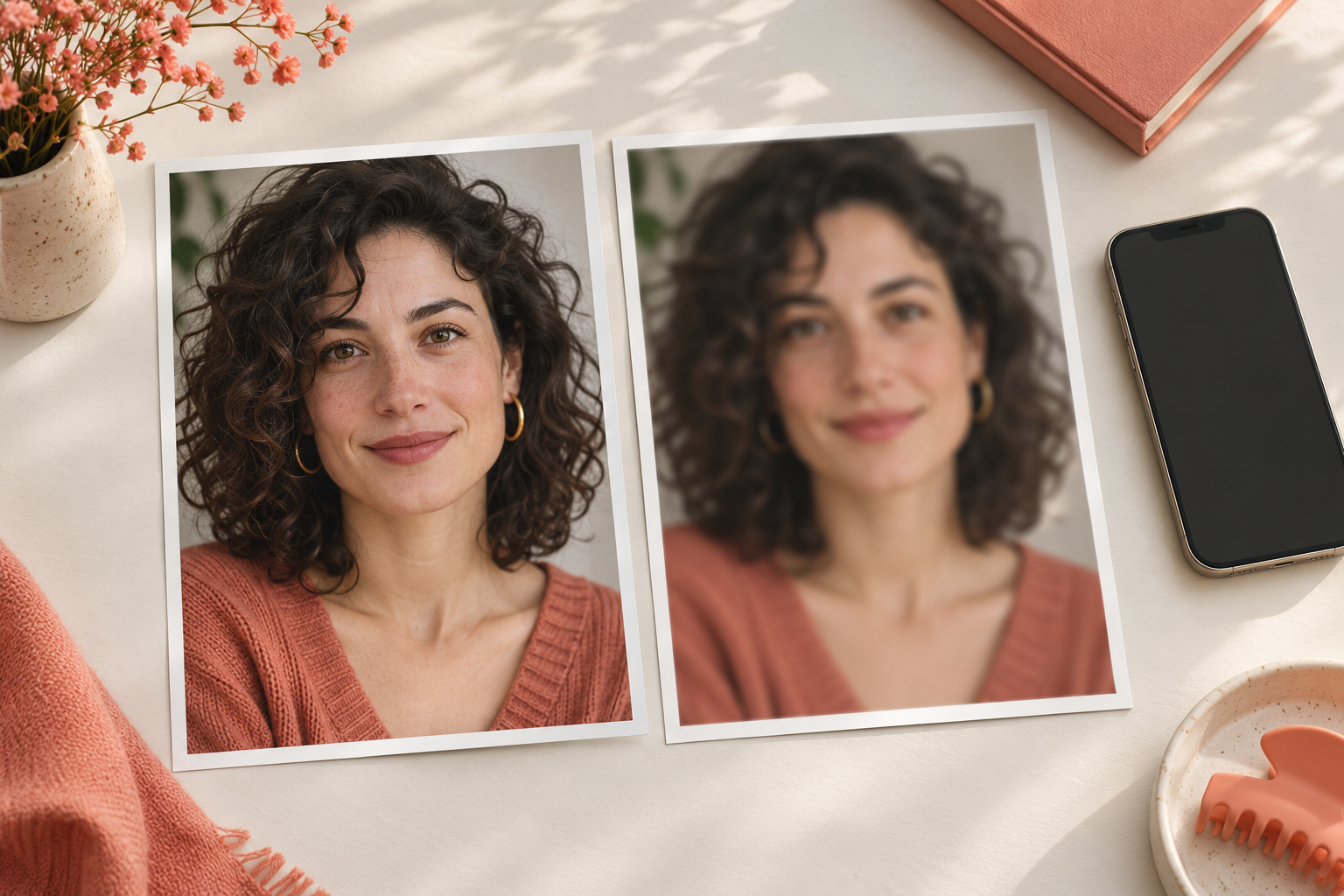
Check whether the original portrait is sharp enough to inspect. A tiny crop, heavy compression, a strong filter, or a partially hidden face can leave you with little reliable detail to compare against the result.
Use a clearer original if one is available. Avoid assuming that increasing resolution establishes missing facial details or makes a generated result more faithful. A larger image and a more informative source are different things.
PhotoPic lists upscaling and restoration tools alongside face swapping. Treat those as separate transformations with their own results to inspect. Applying another feature does not automatically establish that the face swap is now correct or that missing original details have been recovered.
Change one meaningful input at a time
A useful experiment has a question. “Would a more similar head angle help?” is a question you can test by replacing one portrait while keeping the target. Changing both photos and several other edits at once makes comparison harder.
Keep a small private record of what changed if you are making several attempts. You do not need sensitive information or a complicated spreadsheet: a note such as “same target, softer lighting in source” can be enough.
Stop when another attempt is no longer helping you make a decision. A different concept may be more productive than repeatedly trying to force the same pair. Our creative face swap ideas offer project directions that start with a clear visual theme.
Keep extra editing steps separate
If you change the background, replace an object, or extend the image after a face swap, inspect the new version against the earlier one. A later transformation may introduce a distraction that was not present in the first result.
Where your workflow allows it, keep a version you liked before moving on. That gives you a reference for deciding whether the additional edit serves the project. Do not assume the current app offers independent editing controls for every generated element.
The PhotoPic application overview describes the publisher's listed tools. Follow your installed app's current prompts and check feature access rather than expecting a specific repair button, manual mask, or adjustment slider that has not been confirmed.
Know when to discard a result
A finished generation is not a commitment to share it. Discard a version if the problem dominates the picture, if the likeness is uncomfortable for the person involved, or if the image could imply something you did not intend.
If you decide to keep it, inspect the final composition at a useful viewing size. Check the facial details, transitions, proportions, and surrounding scene. Our checklist before sharing a face swap covers this final review.
Use photos you are permitted to edit and confirm agreement before sharing someone else's likeness. Identify the image as a creative edit where viewers could otherwise mistake it for an authentic photograph. A convincing output does not remove the need for appropriate context.
Frequently asked questions
Will another attempt always fix an awkward face swap?
No. Choose a specific input change to test, compare the result, and be prepared to use a different pair or discard the attempt. No particular output is guaranteed.
Should I change both photos at once?
Changing one meaningful input at a time makes comparison easier. If the target itself is unsuitable, choose another target and treat that as a new experiment.
Can upscaling guarantee a better likeness?
No. Increasing resolution should not be treated as proof that missing detail is accurate or that a face swap will match your intended result.
Does PhotoPic include a manual repair control for every issue?
Do not assume that a particular mask, slider, or repair tool exists. Check the current interface and available features rather than planning around unverified controls.
Where can I try PhotoPic?
Find PhotoPic: AI Face Swap Editor on the App Store. Start with clear photos, change one input when testing a problem, and review the final image before sharing.