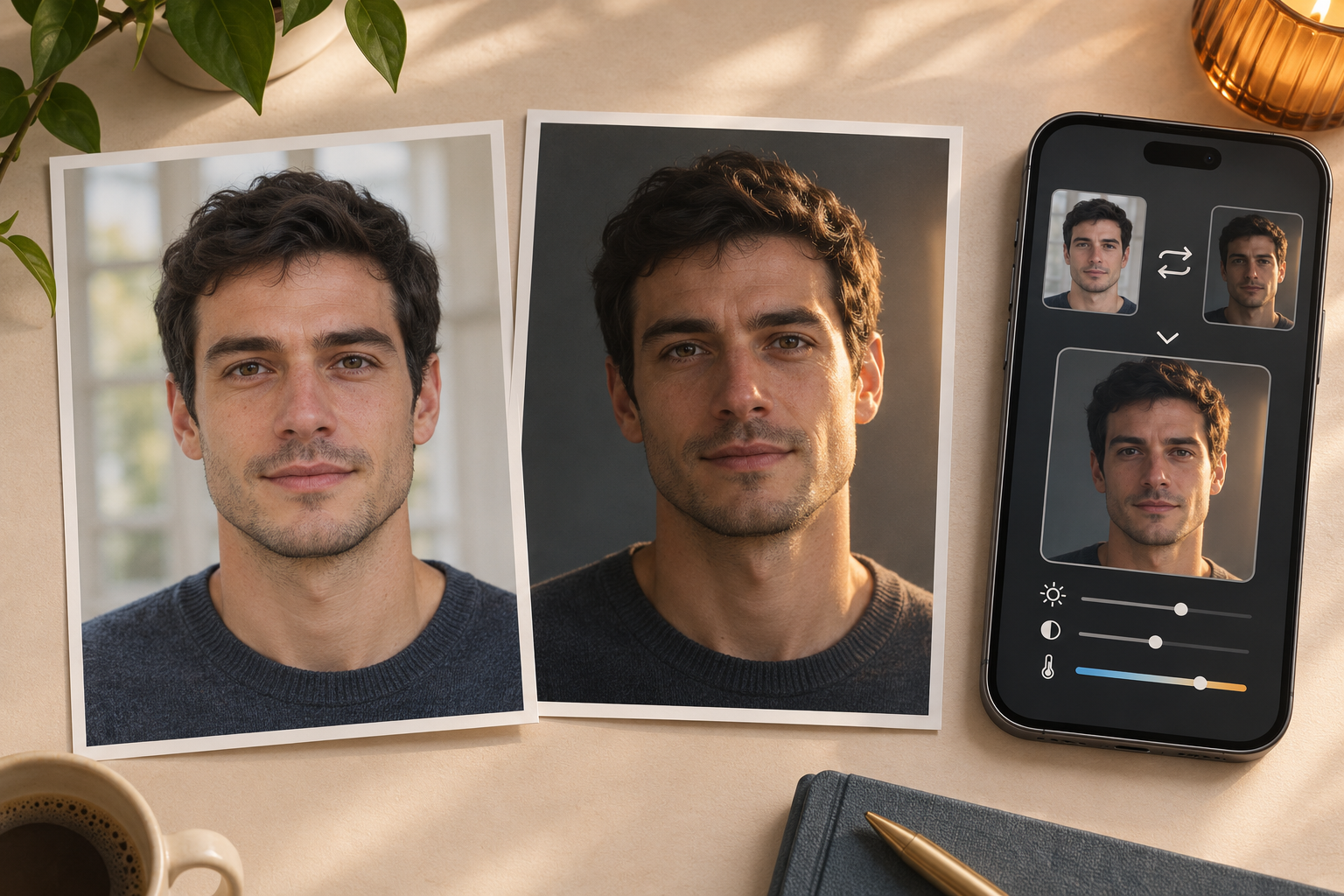
Before You Share a Face Swap: A Practical PhotoPic Checklist
Review your face swap before sharing: inspect the portrait, check edges and lighting, confirm permission, and add clear context to your creative edit.
Updated Oct 28, 2026
In this article
- Separate finishing from approving
- Check the whole image before zooming in
- Inspect the transitions around the face
- Give eyes, mouth, and accessories a second look
- Compare lighting across the portrait
- Review additional edits separately
- Decide who should see the result
- Add context before pressing send
- Frequently asked questions
- Should I inspect a face swap at full size?
- What if I notice an awkward detail?
- Does a completed edit mean it is ready to publish?
- Can I assume all PhotoPic tools are included?
- Where can I try PhotoPic?
Your face swap is finished, and the preview looks good at first glance. Before you send it to a friend or post it publicly, give the image a second look. A small preview can hide an odd edge, a distracting accessory, or a detail that changes the meaning of the picture.
This face swap checklist focuses on the final stage of a creative edit: deciding whether the result is ready to share. It works as a review routine when experimenting with PhotoPic, without assuming that every generated image will meet the same standard.
App to try: View PhotoPic: AI Face Swap Editor on the App Store. Alibox promotes this application.
Separate finishing from approving
A completed generation is a candidate, not an obligation to publish. Give yourself three possible outcomes: keep it, try another version, or discard it. That simple distinction makes it easier to reject an image with distracting details instead of trying to justify it because you spent time creating it.
PhotoPic's publisher lists face swapping between photos and within the same image, together with other photo editing tools. The feature list describes what you can try; it does not replace your judgment about a specific result. For the application overview, visit the PhotoPic page.
If you have not made your first edit yet, start with our guide to choosing photos for a PhotoPic face swap. The checklist below begins once you have a result to inspect.
Check the whole image before zooming in
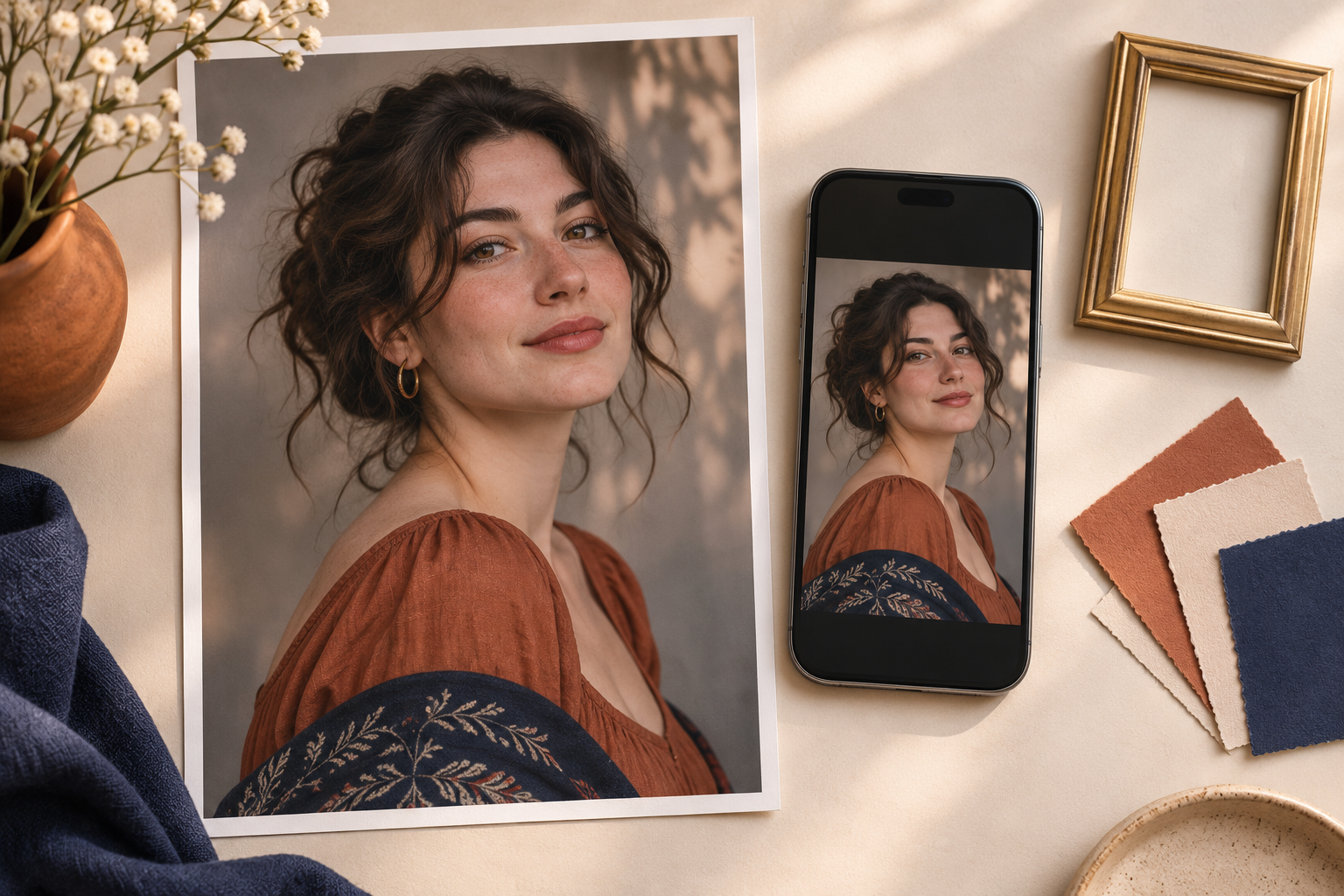
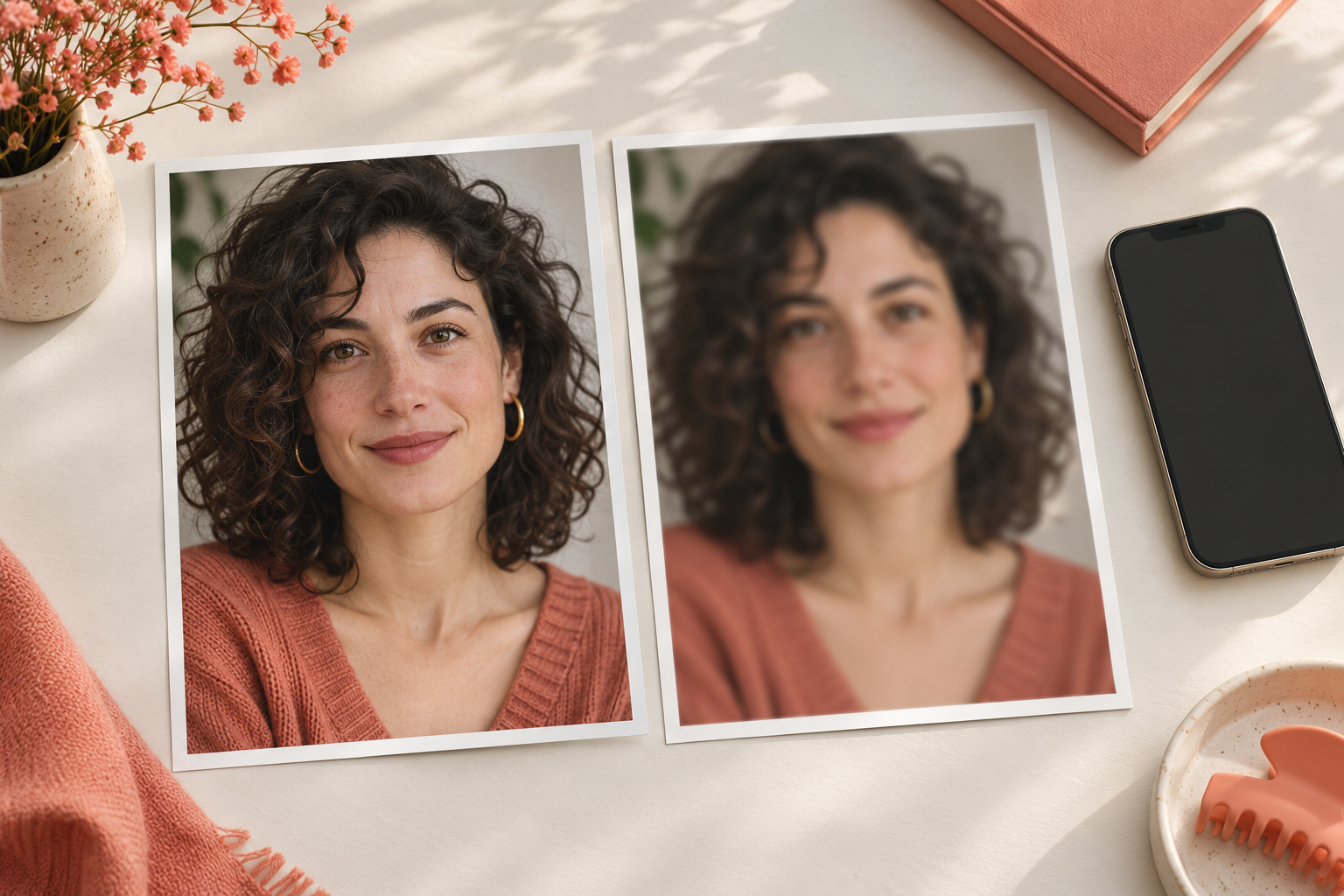
View the picture at the size where people are likely to encounter it. For a message, that may be a phone-sized preview. For a profile image, consider how a tight crop will affect the composition. For a larger post, inspect enough of the image to see the face and its surroundings together.
Ask whether the portrait feels visually consistent. Does the head fit the body? Is the expression appropriate for the scene? Does anything attract attention for an unintended reason? You are looking for distractions, rather than demanding that a playful edit look like an untouched photograph.
An image can be technically detailed and still fail as a composition. If the first thing you notice is an awkward head angle or a mismatched expression, consider another version before spending time on tiny imperfections.
Inspect the transitions around the face
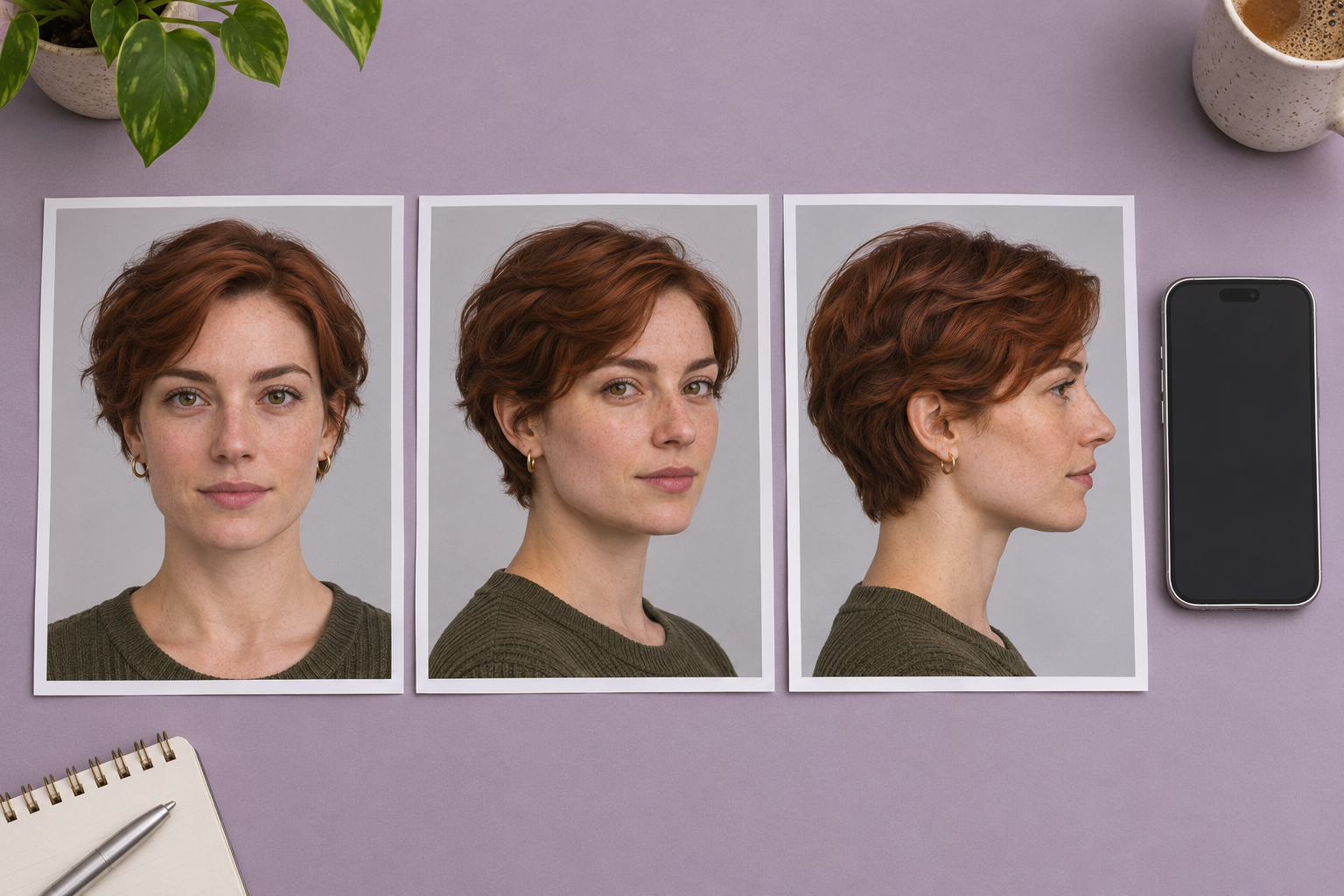
Next, look more closely at the hairline, temples, jaw, and neck. These areas connect the edited face to the surrounding photograph, so they deserve a deliberate check.
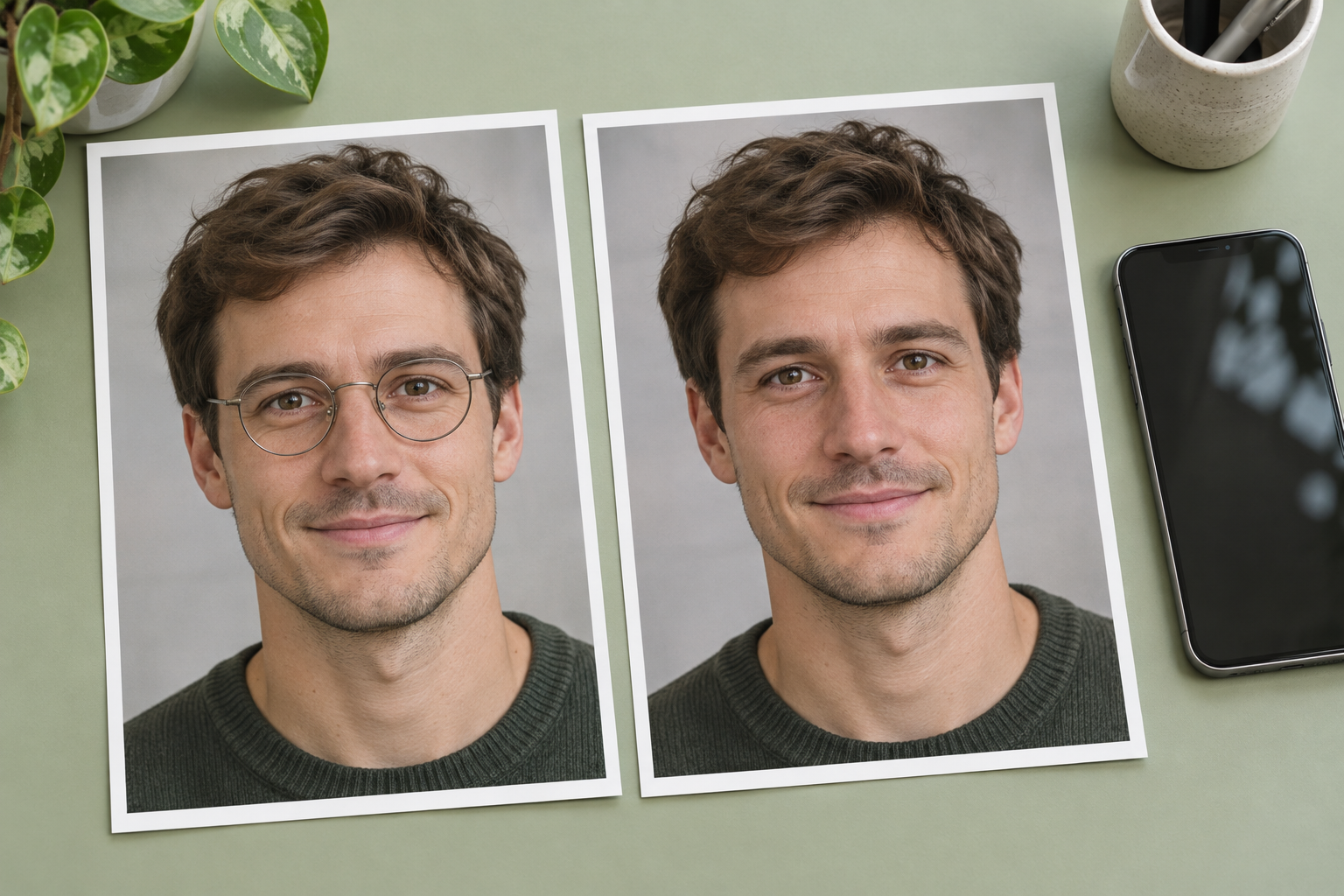
Look for abrupt changes in color, unexpected shapes, or details that appear cut off. A transition may look acceptable at one size and distracting at another. Compare the result with the original when you need to understand what changed.
Do not assume that a separate editing tool will repair every issue. If the face itself is a poor fit, choosing a different source portrait or target image may be a more useful next attempt. Keep the version you are reviewing separate from any new experiments where your workflow allows it.
Give eyes, mouth, and accessories a second look
Facial details are easy to overlook when you recognize the overall portrait. Inspect the eyes and mouth individually, then look again at the expression as a whole. You do not need to measure symmetry; you need to decide whether the details look coherent for your intended image.
Glasses, earrings, hats, and nearby hands also matter. Check whether they remain understandable shapes and whether they overlap the face in a distracting way. A strange accessory can be more noticeable than a small difference in skin texture.
Use this short inspection sequence:
- Look at both eyes and the direction of the gaze.
- Check the mouth, teeth where visible, and expression.
- Follow the outline of glasses or other accessories.
- Inspect any hand or object close to the face.
- Return to the full picture to judge the overall effect.
This is a visual review method, not a claim that PhotoPic produces any particular defect. Evaluate the image in front of you rather than assuming either success or failure.
Compare lighting across the portrait
Look at the direction of light on the face, neck, and clothing. Do the shadows suggest a reasonably consistent scene? Is the face much brighter or warmer than its surroundings? Strong differences can make a creative composition feel disconnected.
Your goal depends on the project. A deliberately stylized collage may welcome contrast. A portrait intended to blend into its setting needs a different standard. Decide which effect you want and judge the result against that intention.
If you decide to try again, change one thing at a time. A source photo with a different lighting direction is a meaningful experiment. Generating several versions while also changing the background and crop makes it harder to understand which change helped.
Review additional edits separately
PhotoPic's listing includes background editing, object editing, restoration tools, upscaling, and outpainting. If you use more than one feature, review each stage before moving to the next. A version you liked earlier can become harder to assess after several transformations.
For a background change, inspect the subject's outline and nearby objects. For outpainting, examine the newly generated areas rather than treating them as recovered original content. For restoration or colorization, remember that the transformed picture is an interpretation, not confirmation of details missing from the source.
Keep the review proportional to the image. A casual creative portrait does not need an elaborate production process, but a quick full-image check after each major change can prevent you from overlooking something obvious.
Decide who should see the result
Visual quality and permission are separate checks. A convincing edit is not automatically appropriate to post. If you used another person's likeness, confirm that they agree with both the edit and the intended audience.
Private sharing and public posting can have different consequences. Someone may be happy to see a playful picture in a small conversation while preferring that it stay off a public profile. Ask about the actual use instead of treating permission for one setting as permission for every setting.
Also consider what the image appears to say. A face swap should not create a misleading impression that someone attended an event, supported a product, or made a statement. Choose a different composition if the intended context would remain confusing even with a caption.
Add context before pressing send
A brief caption can explain that the picture is edited. Use plain language such as “creative face swap” or “AI-edited portrait” when viewers could otherwise mistake it for an authentic photograph. The caption should describe the actual transformation, without suggesting that the image documents something that happened.
Check the crop and preview in the destination app before posting. Important context can be lost when an image is cropped or when text is separated from the picture. If the edit only makes sense with a long explanation that viewers may miss, reconsider how you present it.
The final decision can be simple: the image looks acceptable for its purpose, the people involved are comfortable with the use, and the audience can understand that it is a creative edit.
Frequently asked questions
Should I inspect a face swap at full size?
Inspect it at a useful viewing size and look more closely at facial details and edges. Also check the size and crop your audience will actually see. Neither a tiny preview nor an extreme zoom tells the whole story on its own.
What if I notice an awkward detail?
Try another version or discard the result. If the issue seems connected to the input image, change one photo choice at a time so you can compare the attempts meaningfully.
Does a completed edit mean it is ready to publish?
No. Review the image and decide whether its quality and context fit the intended use. You can keep a result as a private experiment without sharing it.
Can I assume all PhotoPic tools are included?
Check the current App Store listing and in-app purchase screens for feature access, compatibility, and terms. A listed feature should not be treated as a promise about your specific access or output.
Where can I try PhotoPic?
Find PhotoPic: AI Face Swap Editor on the App Store. Start with a simple creative project, then use this checklist to decide which results are worth keeping and sharing.