5 Creative Face Swap Ideas to Try with PhotoPic
Try five creative face swap projects with PhotoPic, from costume portraits to fictional postcards, with practical tips for choosing and reviewing your edits.
Updated Oct 29, 2026
In this article
- Start with a concept you can explain in one sentence
- Idea 1: A theatrical costume portrait
- Idea 2: A retro portrait experiment
- Idea 3: A fictional travel postcard
- Idea 4: A small portrait series with one visual theme
- Idea 5: A collaborative portrait challenge
- Turn the chosen idea into a manageable edit
- Give the project a final review
- Frequently asked questions
- Are these built-in PhotoPic templates?
- Which idea is easiest to start with?
- Will every combination produce a convincing result?
- Can I use another person's photo?
- Where can I try PhotoPic?
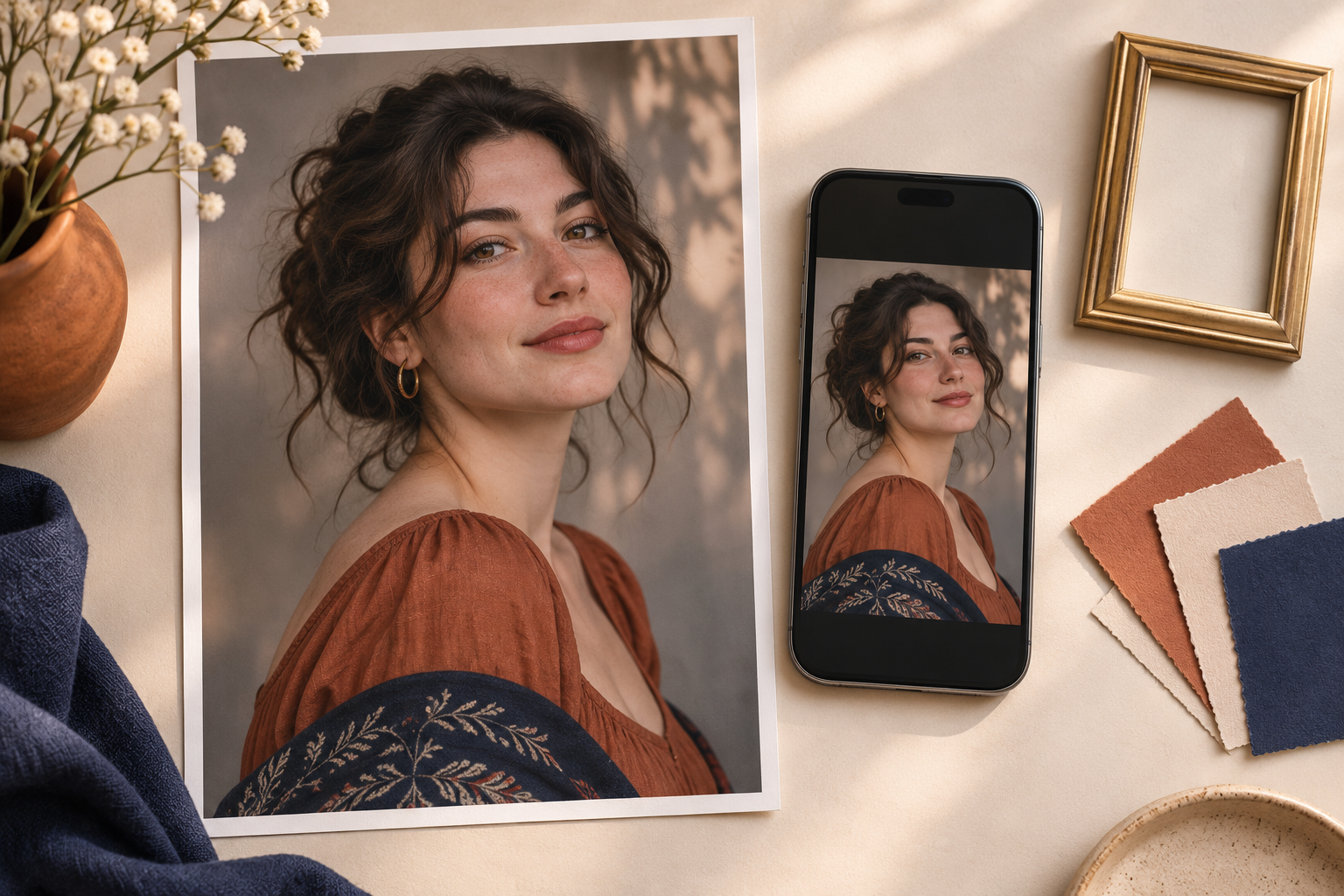
The most interesting face swap projects start with an idea for the picture, not a promise that an app will make every combination look convincing. A playful costume portrait, a fictional postcard, or a deliberately theatrical image gives you something specific to create and judge.
This collection of creative face swap ideas is designed for small projects you can try with PhotoPic. Each idea starts with photos you own or have permission to edit and leaves room for experimentation. These are composition suggestions, not claims that the app contains ready-made templates for each concept.
App to try: View PhotoPic: AI Face Swap Editor on the App Store. Alibox promotes this application.
Start with a concept you can explain in one sentence
Before choosing pictures, describe the project simply: “a theatrical portrait with a new character” or “an obviously fictional holiday postcard.” That sentence helps you select a suitable target image and decide whether a result works.
The publisher lists face swapping between photos or within an image in PhotoPic. Its other listed tools include background editing, object editing, photo restoration, upscaling, and outpainting. Check the PhotoPic application page for the feature overview and confirm current access in the app.
For your first project, keep the composition simple. A picture with one prominent face gives you fewer interactions to inspect than a crowded scene. Our photo selection guide for PhotoPic face swaps explains how to choose clear portraits before you begin.
Idea 1: A theatrical costume portrait
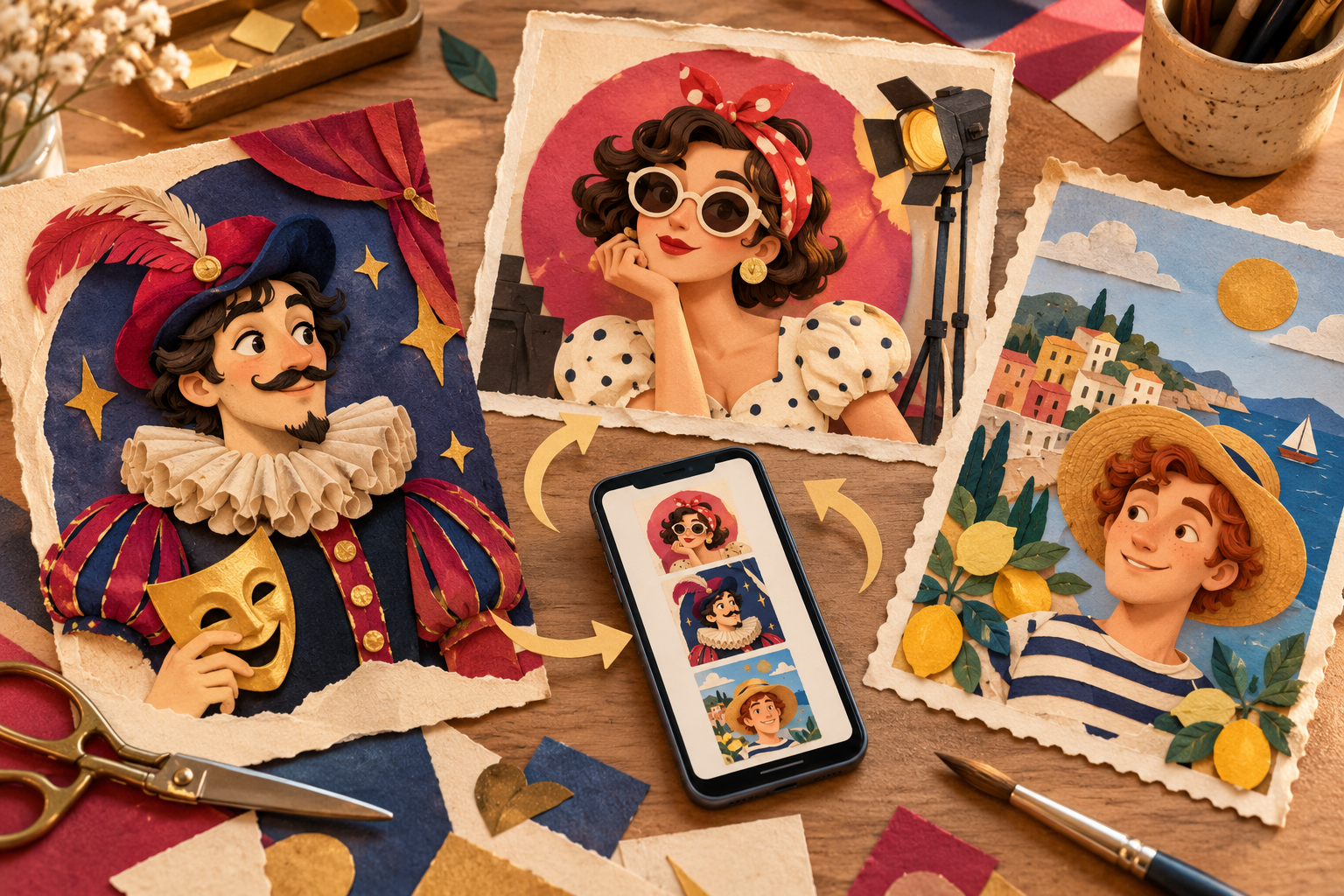
Use a costume photograph from a shoot you arranged or an image you have permission to adapt. A deliberately theatrical setting makes the project feel like character design rather than a claim about an event that actually happened.
Choose one visual theme: a stage magician, a whimsical explorer, or a handmade festival costume. Let the clothing and setting carry the concept while the face swap changes the character. You do not need to add several extra transformations for the idea to be understandable.
Judge the result as a portrait composition. Does the expression fit the costume? Does the head feel proportionate to the body? If the image depends on a difficult angle or a face partly hidden by props, try a simpler target rather than assuming repeated attempts will solve it.
A useful caption might identify the image as a creative costume edit. Keep the presentation playful and avoid implying that the subject actually wore the outfit or attended an event unless that is true.
Idea 2: A retro portrait experiment
Create a stylized portrait using a staged photograph with retro clothing, lighting, or props. The creative task is to explore a visual mood, not to manufacture a historical record.
You might arrange a simple studio scene with a plain backdrop and one distinctive accessory. Starting from your own staged photo gives you more control over the expression, pose, and framing. Select a source portrait that is easy to compare with the target.
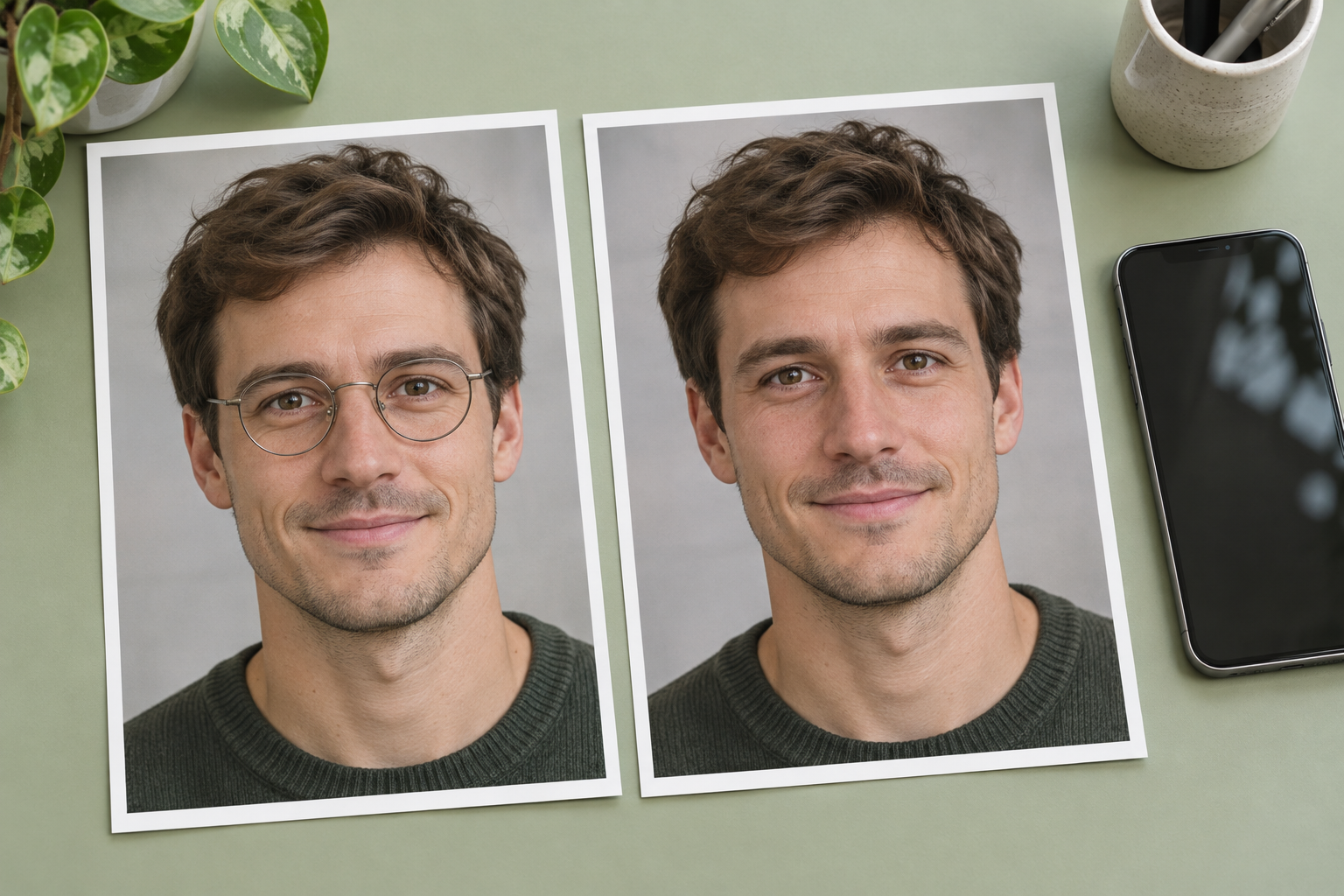
Keep an original version beside your edit while reviewing it. This helps you distinguish the changes you intended from unexpected alterations. If you later use other editing tools, inspect each stage separately instead of assuming the earlier face swap remains unchanged.
Label the result as a retro-inspired creative image. A stylized composition should not be presented as a recovered family photograph or evidence of a past event.
Idea 3: A fictional travel postcard
Make a clearly imagined postcard scene using your own photos or material you are allowed to adapt. A whimsical setting can be more appropriate than a realistic scene that appears to document a trip someone never took.
Decide what makes the postcard fictional: a theatrical pose, an exaggerated prop, or a deliberately illustrated presentation you create outside the face swap itself. The point is to give viewers enough context to understand the creative intent.
If you try PhotoPic's listed background editing or outpainting tools as part of the project, treat those as additional transformations to review. Outpainting generates new image areas; it does not recover a missing view of a real location.
Check the portrait and the wider scene together. A face can look acceptable on its own while the full composition feels unbalanced. Keep the most successful version and use a caption that describes it as an imagined postcard.
Idea 4: A small portrait series with one visual theme
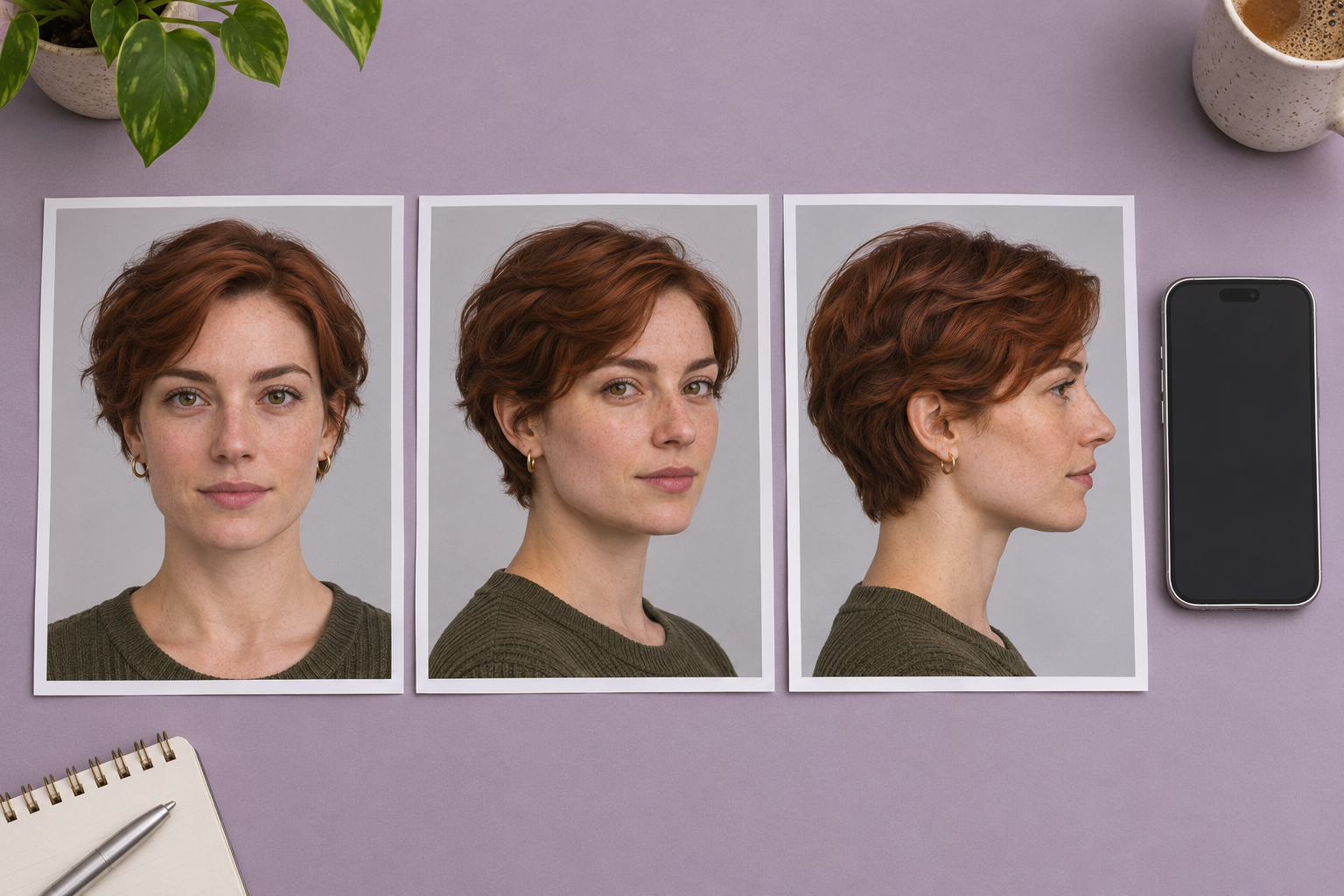
Instead of making one complicated image, create a short series with a consistent theme. For example, use the same staged scene and test a few permitted source portraits. This is a manual creative project, not a claim about automatic batch processing in PhotoPic.
Keep the target image and your review criteria consistent. That makes it easier to compare results without changing the entire concept after each attempt. You may discover that one expression fits the scene better than another even when both photos are clear.
Choose a small number of images worth keeping. A series benefits from consistency, but it does not require you to publish every generated result. Ask each person involved whether they are comfortable with the final selection and the intended audience.
When arranging or sharing the series, explain that the portraits are edited. Do not rely on viewers having seen the first image's caption to understand the rest.
Idea 5: A collaborative portrait challenge
Invite a friend to help choose a simple target scene and agree on the intended use before editing. One person can suggest a theme while the other chooses an expression or source portrait. The challenge is creative decision-making rather than trying to fool an audience.
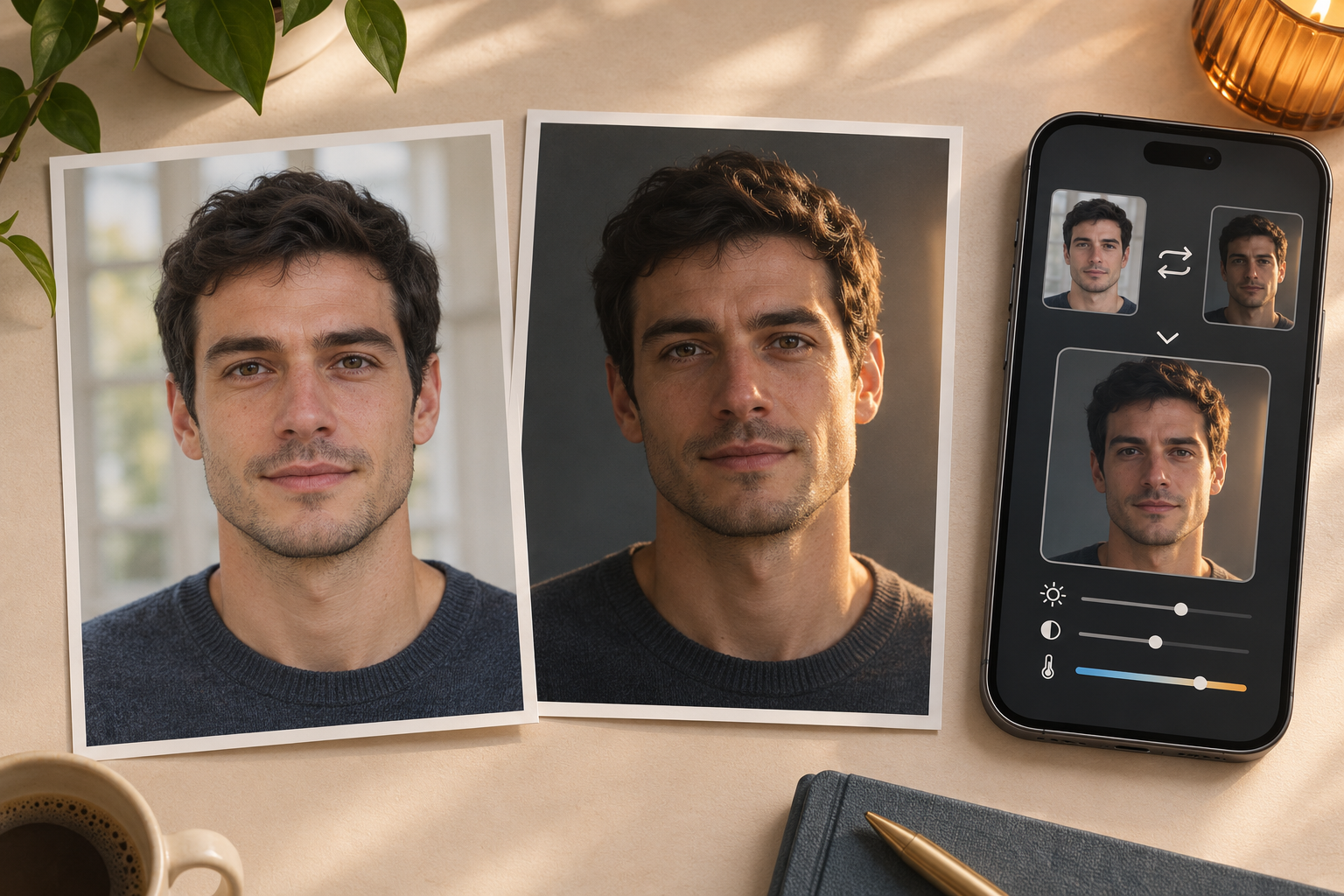
Use a clear constraint, such as one costume photo or one fictional postcard setting. Then compare which input choices create the most coherent composition. Keep the discussion about visible results: expression, framing, lighting, and whether the concept reads clearly.
Make participation and sharing separate choices. Someone may enjoy the private experiment but prefer not to have the result posted publicly. Agree on the actual image and audience after reviewing the final version.
This approach can produce a more thoughtful project than swapping faces at random because both participants understand the idea and can decide what they want to keep.
Turn the chosen idea into a manageable edit
Pick one concept and collect only the photos you need for that first attempt. Follow PhotoPic's current face swap prompts to provide the required images and generate a result. Exact controls and access can change, so use the instructions shown in your installed version.
If the result needs another attempt, change one meaningful input at a time. Try a closer head angle, a different expression, or a simpler target scene. That gives you something useful to learn from each version instead of changing everything and losing track of what helped.
Save a version you like before making further transformations where your workflow allows it. Background changes and other edits should serve the concept, not replace the decision about whether the portrait itself works.
Give the project a final review
Check the full image, then inspect the eyes, mouth, hairline, jaw, and nearby accessories. Look for distracting transitions and proportions. A creative theme does not remove the need to decide whether a result is good enough for its purpose.
Our face swap checklist before sharing covers this final stage in more detail. It also explains why visual quality, permission, and audience context deserve separate checks.
Choose a caption that fits the actual transformation. “Creative face swap portrait” or “fictional postcard edit” can make the intent clear without a lengthy explanation. If the picture could still mislead viewers about a person's actions or identity, change the presentation or keep it private.
Frequently asked questions
Are these built-in PhotoPic templates?
No. They are creative project suggestions using photos you supply. Check the current app for its actual tools, inputs, and available options.
Which idea is easiest to start with?
A simple staged portrait with one clear face gives you a manageable first experiment. Choose a concept with an obvious visual theme and a source photo you can inspect easily.
Will every combination produce a convincing result?
No outcome should be assumed. Review each result and try different inputs or discard the version if it does not fit your intended project.
Can I use another person's photo?
Use images you have permission to edit and confirm the person's agreement to the intended use of their likeness. Check the final image and audience before sharing it.
Where can I try PhotoPic?
Find PhotoPic: AI Face Swap Editor on the App Store. Check current compatibility and feature access, choose one small project, and review the result before publishing it.