How to Record Your Drawing Process on iPhone
Capture a drawing technique, trim the recording, and review your exported creative process video.
Updated Nov 19, 2026
In this article
A finished drawing shows the result. A screen recording shows the decisions behind it, from choosing the first color to fixing a line that went in the wrong direction. If you sketch on your iPhone, you can turn a small part of that work into a clip for a friend, a class, or your creative portfolio.
Screen Recorder: Record App offers screen capture, microphone commentary, trimming, playback speed adjustments, and export to Photos, according to its publisher. These tools give you a way to capture a drawing session and prepare a shorter version for sharing. Screen Recorder on the App Store
Alibox promotes this application.
Decide which part of the drawing to record
Choose one visible change. You might show how you shade a leaf, build a simple background, or turn a rough outline into a clean sketch. A focused task gives the viewer something specific to follow.
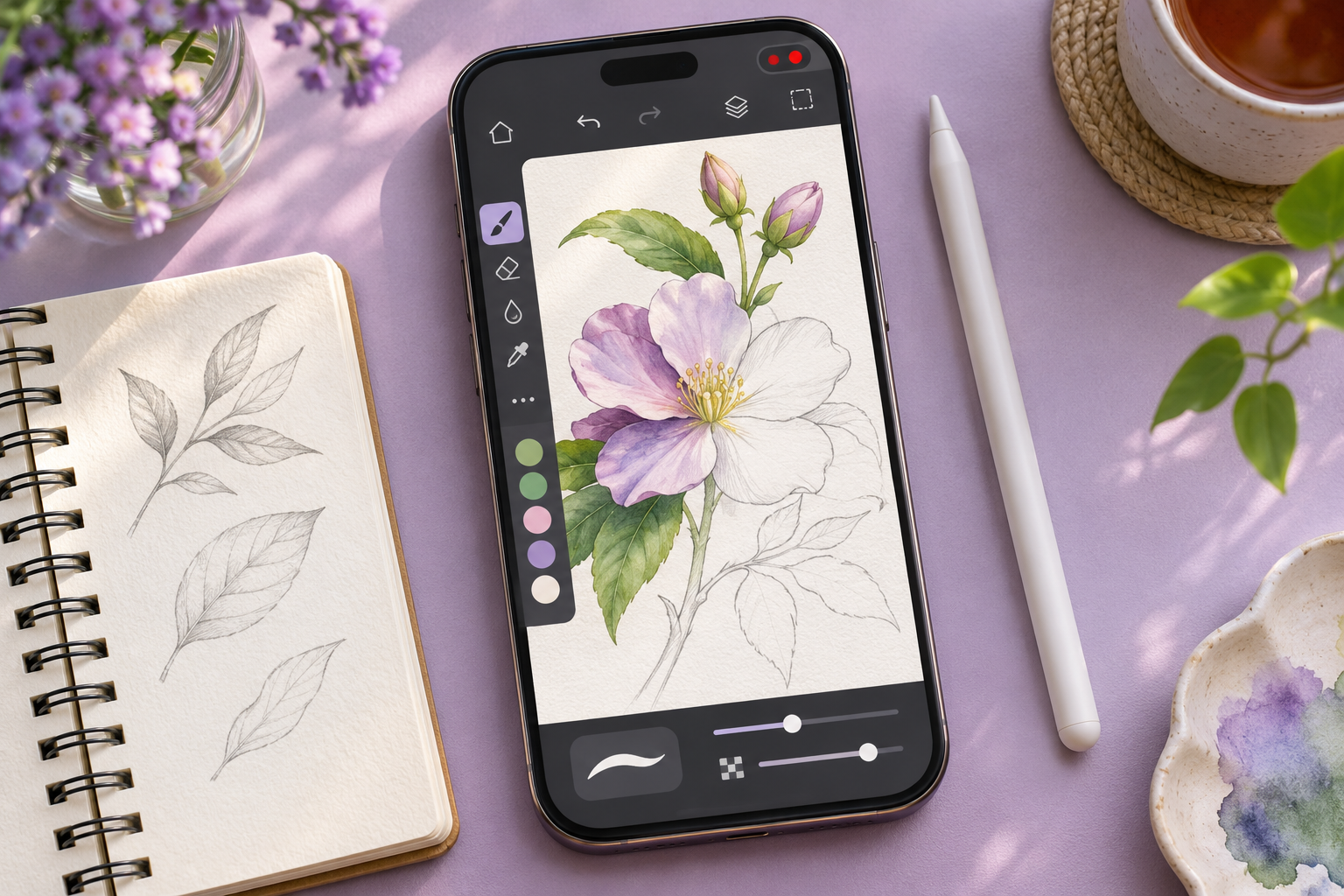
Prepare the canvas before you start. Open the right file, choose the brush you plan to use, and position the artwork at a useful zoom level. If you want to explain your technique, jot down two or three points so you can keep the narration tied to what appears on screen.
Record your drawing process on iPhone
Start a short test recording using Screen Recorder, then return to your drawing app and make a few strokes. Stop and replay the test to check that the canvas and any commentary are captured as expected.
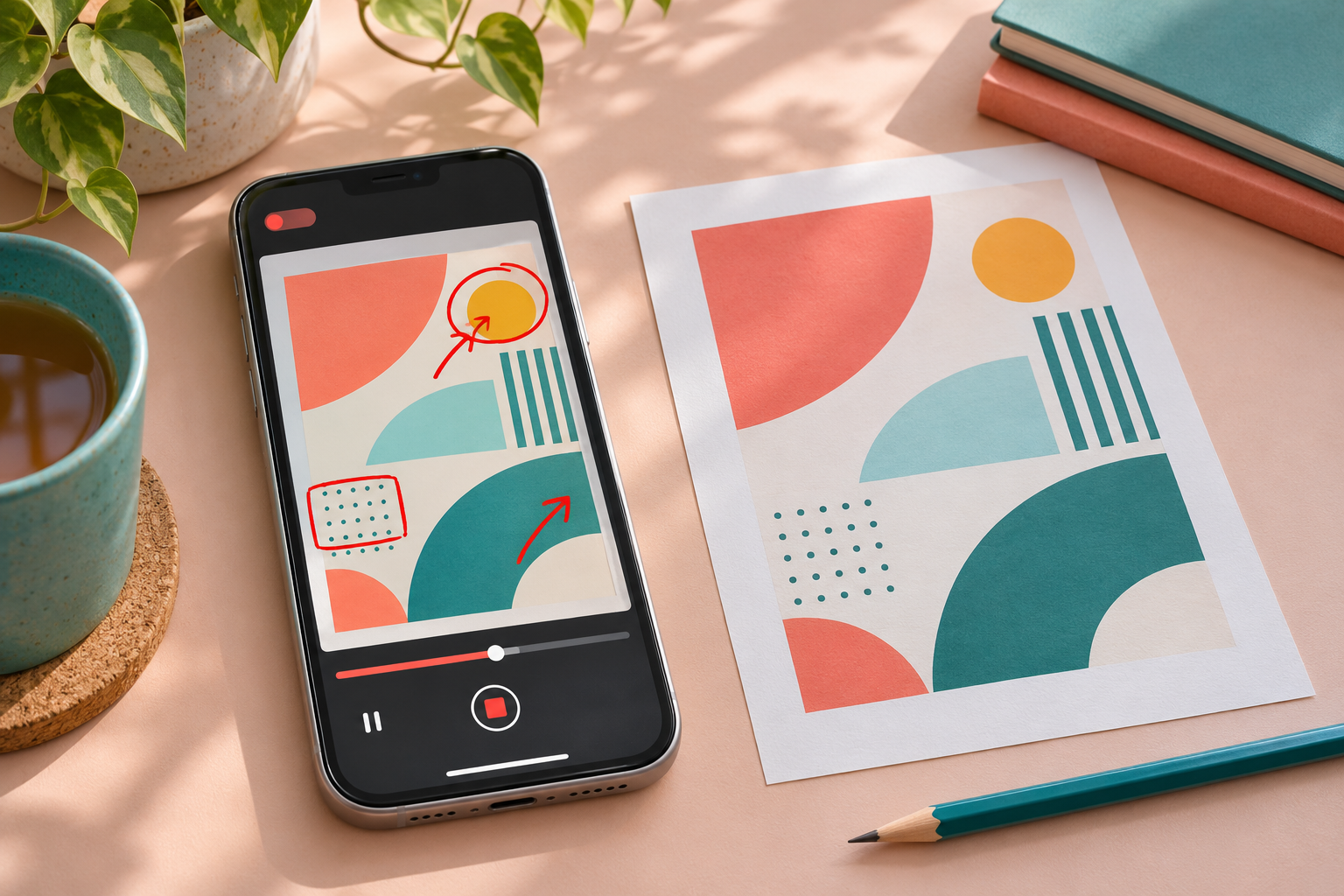
For the main recording, begin with a brief view of the starting sketch. Work through the change at your normal pace, keeping the canvas steady where possible. Pause after opening a brush or color menu if the choice matters to the explanation. When you finish, return to a view that shows the whole section you changed.
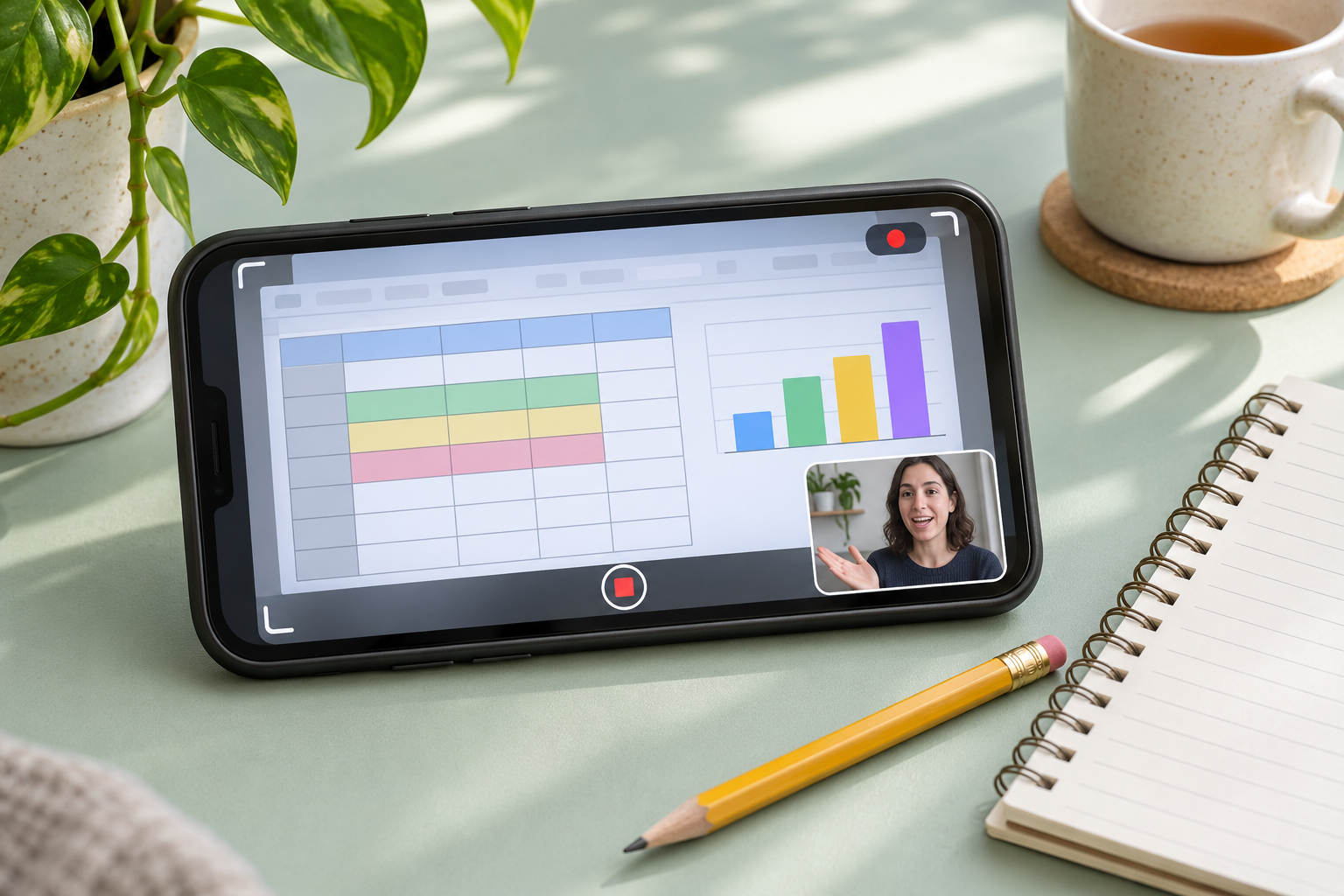
You can keep the microphone off for a visual progress clip. If you use commentary, explain decisions that the viewer cannot see, such as why you chose a softer brush for the shadow. Microphone commentary guide
Keep the useful steps in the edit
Open the saved recording in the editor and trim the time spent starting or stopping the capture. Watch the beginning again. The viewer should be able to identify the part of the drawing that will change.
If you adjust playback speed, check whether the important strokes remain understandable. A faster passage can suit repeated shading, while a detailed brush demonstration benefits from enough time to follow the movement. Preview the audio whenever you change the speed of a narrated clip.
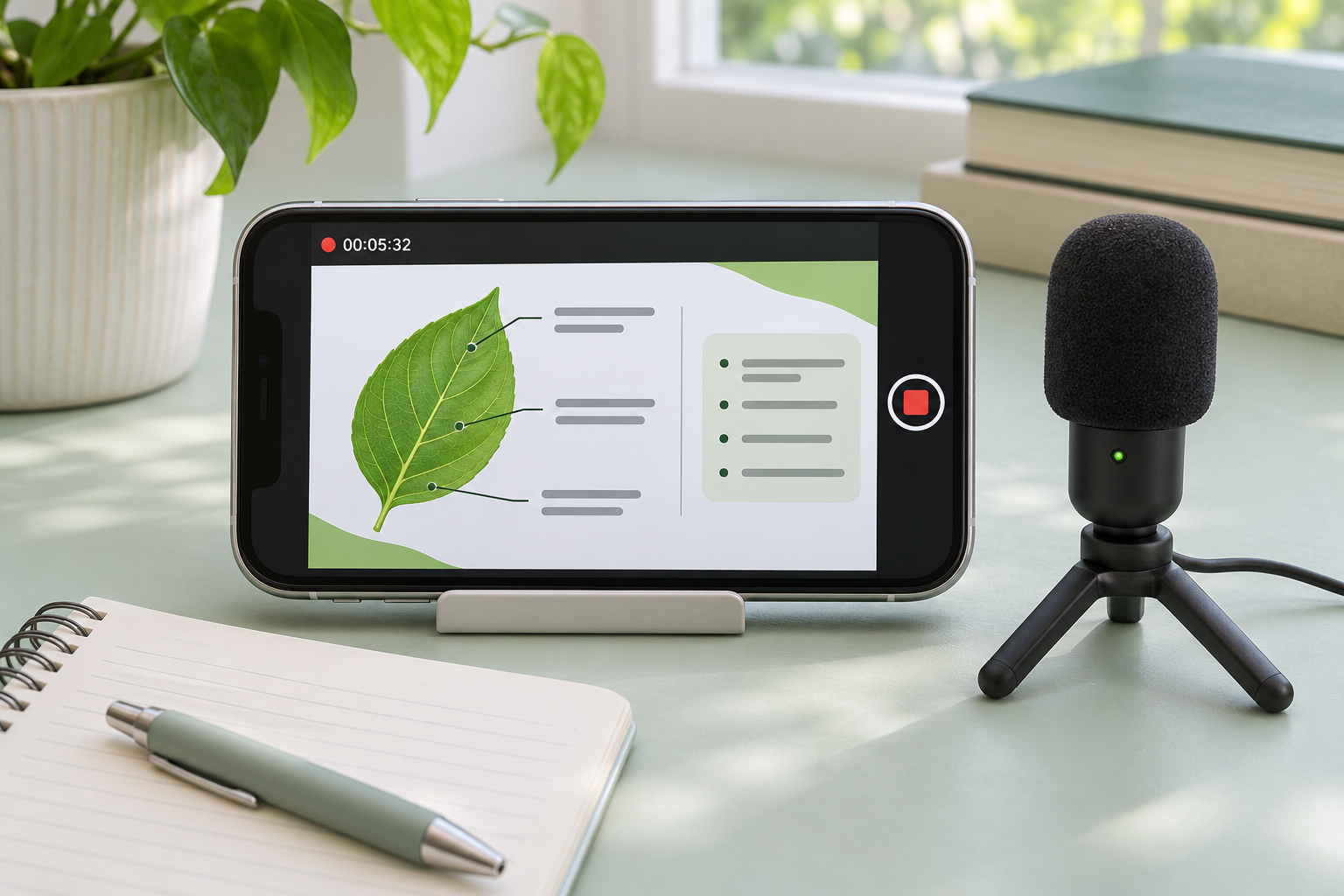
For a drawing of a leaf, keep the outline, the first shadow, and the final view easy to follow. Those moments give the clip a clear progression even if some of the work between them moves quickly. Trimming a screen recording on iPhone
Export and review the saved video
Export the clip to Photos and play that saved copy before sending it. Check the crop, the smallest detail you expect viewers to notice, and the clarity of your voice if you recorded commentary. The publisher says free exports include a watermark, with additional quality options available through Premium. Check the export choices shown in your app.
Keep the original drawing file so you can continue working on the artwork later. The video is useful for reviewing the process and sharing a demonstration.
Can I record only one drawing technique?
Yes. A single technique often makes a clear clip. Start with the area ready to edit, demonstrate the change, and finish with a wider view so viewers can see how it fits the artwork.
Why are my brush strokes hard to follow?
Review the canvas zoom, the pace of the recording, and the exported video. Tiny details can become hard to see on another phone. Try a closer view for the demonstration, then pull back for the finished result.