Record a Narrated Photo Album on iPhone
Choose a small photo story, add microphone commentary, and prepare a screen recording to share.
Updated Nov 25, 2026
In this article
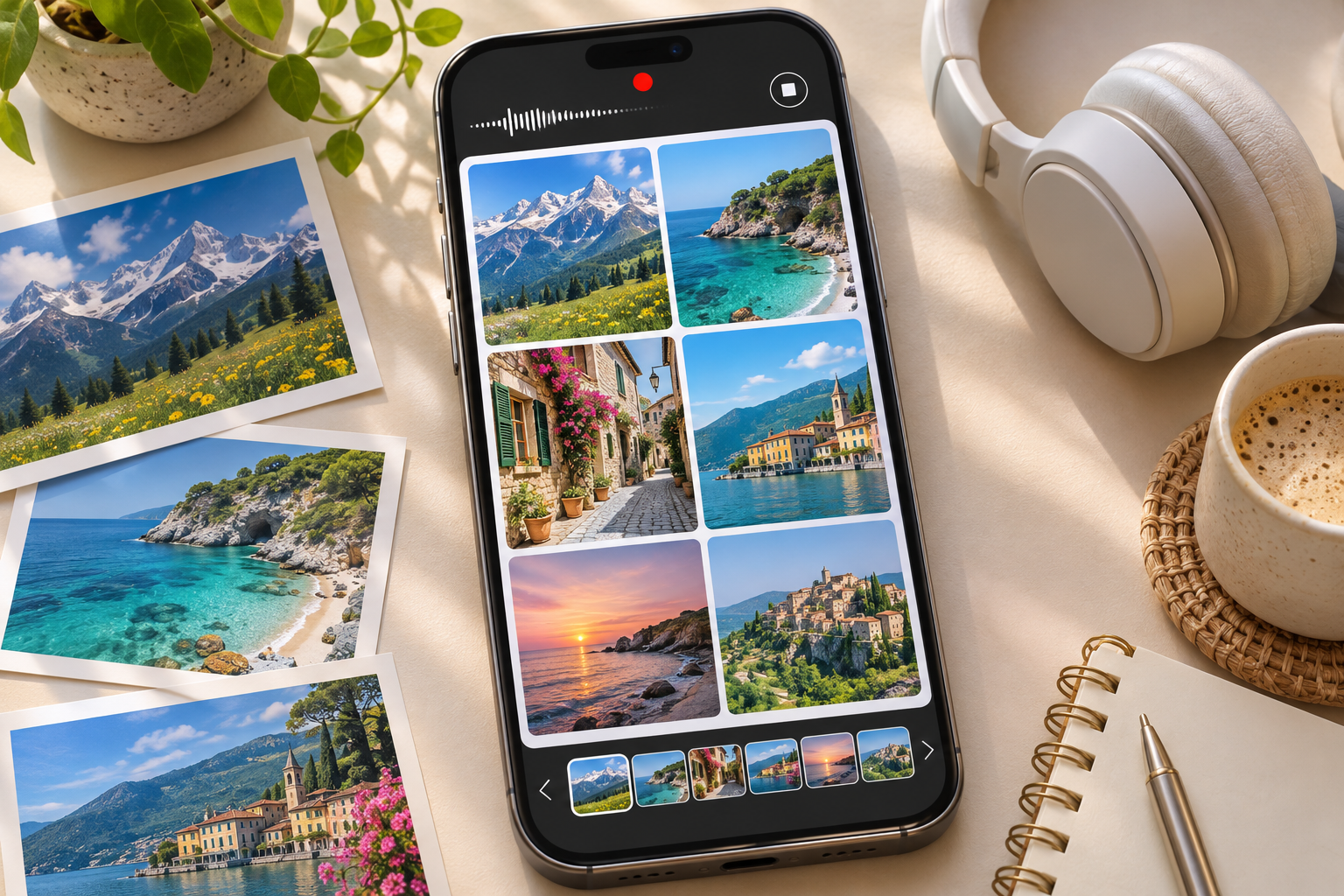
A few photos from a trip can tell more of the story when someone explains what happened between them. A short screen recording lets you open each picture, point out a detail, and add your own commentary as you move through the album.
Screen Recorder: Record App supports screen capture with microphone commentary, trimming, and export to Photos, according to its publisher. You can use those tools to prepare a small narrated collection for friends or family. Screen Recorder on the App Store
Alibox promotes this application.
Choose a small story to tell
Pick a handful of photos that belong together. One afternoon, a walking route, or a visit to a favorite place gives the recording a clear focus. Put them in a dedicated album so you can move between them without searching through your library.
Choose an opening picture that establishes the setting and a final picture that brings the story to a natural stop. Decide what you want to say about each one. A few short notes can help you remember details without reading a full script.
Check which pictures and names will appear as you browse. Keep the album limited to images you intend to show.
Record a narrated photo album on iPhone
Start with a brief test in Screen Recorder using microphone commentary. Open the first image in your album and say a sentence, then stop and replay the test. Check that your voice is clear and the picture appears as expected.
For the main recording, begin with the opening image already prepared. Explain where the story takes place, then move to the next photo when your thought is complete. Let each image settle before discussing it.
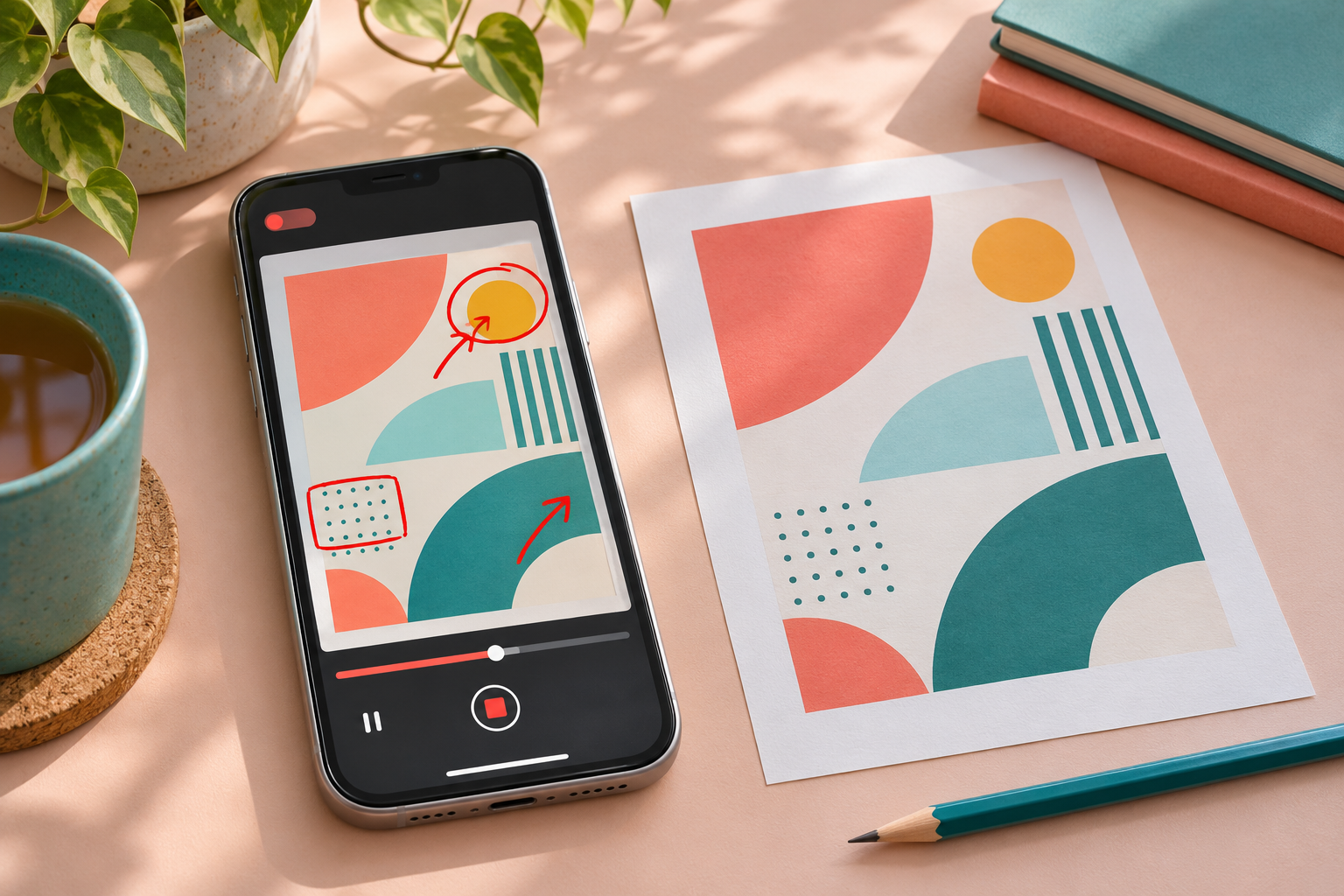
If you zoom in to show a small detail, move slowly and return to the wider view afterward. This helps viewers understand where that detail fits in the photograph. Microphone commentary guide
Add the context the pictures leave out
Describe what made the moment memorable. In a photo of a village square, you might explain why you stopped there or what happened just before the picture. A detail from your own experience can make the recording feel personal.
Keep the commentary tied to the image on screen. If you start discussing the next location, move to that picture before continuing. Pause briefly between photos so the change feels deliberate.
For a family audience, explain unfamiliar place names once and then use a shorter reference. Read your notes aloud before recording if you want to check that the wording sounds natural.
Trim the clip and review the pace
Open the saved recording in the editor and remove the time spent starting or stopping capture. Preserve the opening explanation and final image so the story remains complete.
Watch the middle section too. If you spent a long time searching for a picture, another short take may give you a smoother result. Keep the album order ready before recording again. Trimming a screen recording
Check the exported copy before sending
Export to Photos and play the saved video with sound. Check that your commentary remains audible and that no unrelated image appeared while swiping. Watch it at normal phone size to judge whether the details you mention are visible.
The publisher lists a watermark for free exports and additional quality options through Premium. Review the export choices in your installed app.
Keep the original photos separately. The narrated clip is a convenient way to share your story, and the originals remain useful when someone wants a particular picture.
How many photos should I include?
Start with enough to explain one short outing or moment. Rehearse the sequence and remove pictures that repeat the same part of the story.
Can I make the recording without commentary?
Yes. Give each photo enough time on screen and use a clear sequence. If the story depends on information outside the image, include that context in the message you send with the video. Screen Recorder feature overview