How to Record a Spreadsheet Explanation on iPhone
Show spreadsheet inputs, explain one calculation, and share a clear screen recording from your iPhone.
Updated Nov 20, 2026
In this article
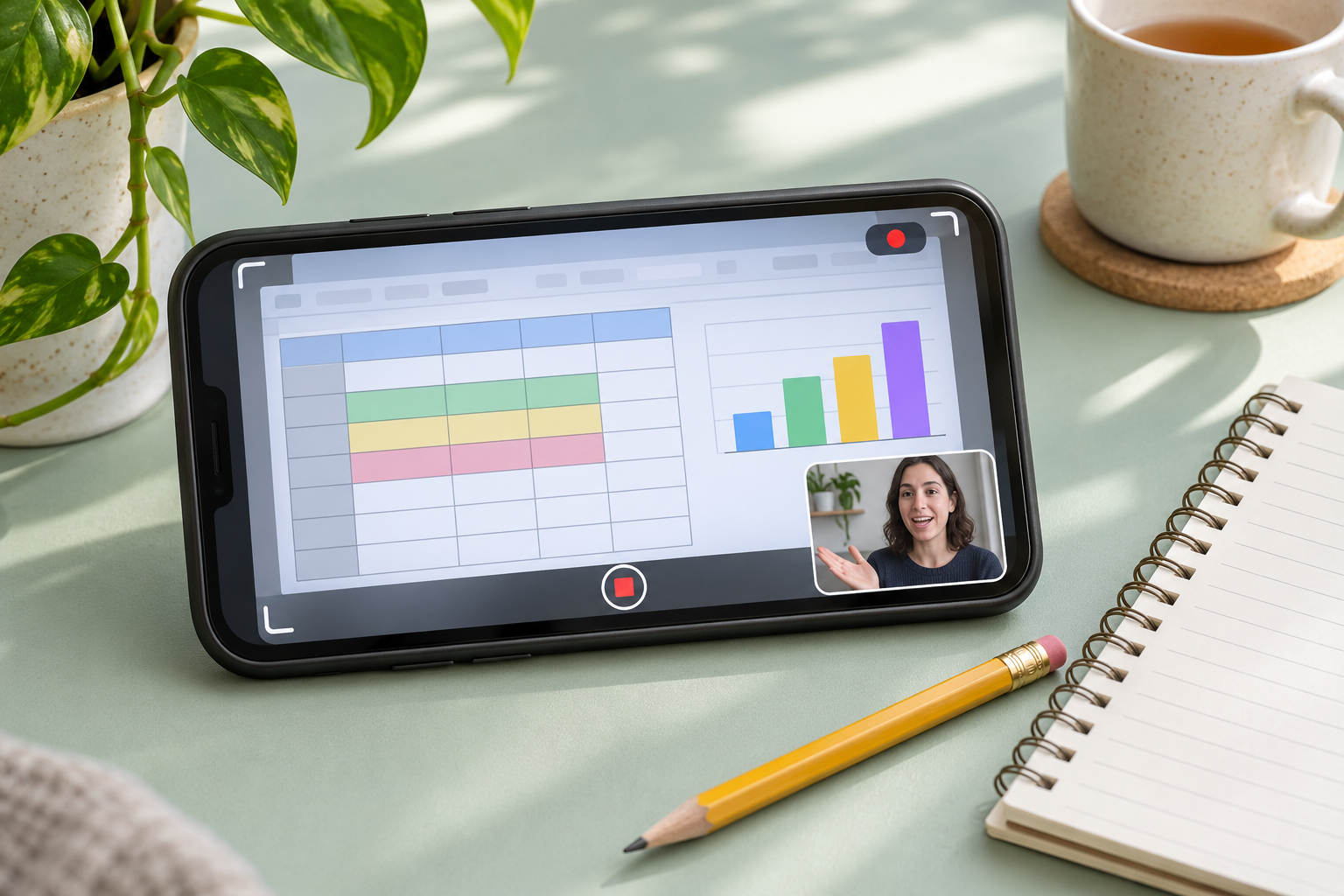
A spreadsheet can make sense to its creator and still leave someone else wondering which cells to change. A short screen recording lets you show the starting values, explain one calculation, and demonstrate how the result changes. On iPhone, a focused example can be easier to follow than a long message full of cell references.
Screen Recorder: Record App supports screen capture with microphone commentary, trimming, playback speed adjustments, and export to Photos, according to its publisher. These tools can help you prepare a short explanation to accompany a shared sheet. Screen Recorder on the App Store
Alibox promotes this application.
Prepare a small example sheet
Use a copy of your spreadsheet with sample values. Keep the relevant input cells and result close enough to appear together, and give the columns short, meaningful headings.
Choose one question for the recording. For example, explain how changing the number of guests changes the total supplies needed for an event. A small table with guests, items per guest, and total items gives the viewer a clear sequence to follow.
Open the sheet at a readable zoom before starting. Close any menus that cover the cells, and decide whether portrait or landscape orientation gives your example more room.
Record a spreadsheet explanation on iPhone
Start with a brief test in Screen Recorder. Open the prepared sheet, select a cell, and say a sentence if you plan to use commentary. Replay the test to check that the text and audio are clear.
For the main recording, begin by showing the starting table. Identify the input the viewer can change and the result it affects. Then select the formula cell and pause long enough for the formula to be read, if your spreadsheet app displays it.
Change one input value and show the updated result. Keep the movement deliberate, particularly when the keyboard covers part of the sheet. Return to a view of the complete example before ending the recording. Microphone commentary guide
Explain the relationship between the cells
Use your commentary to connect the action to its purpose. In the event example, you could say that the total multiplies the guest count by the items needed per person. After changing the guest count, point out the new total.
Name the column as well as the cell when useful. Someone watching on a small phone may recognize “items per guest” more quickly than a cell reference. If a formula uses another sheet, prepare a separate clip for that part so each recording has a manageable scope.
Trim the recording without losing context
Open the saved video in the editor and remove the time spent starting or stopping the capture. Keep the initial values, the input change, and the final result visible.
Preview any speed adjustment carefully. Fast scrolling or a quickly disappearing formula can make an explanation difficult to follow. Leave enough time for viewers to identify the cells you mention. Trimming a screen recording
Check the exported copy
Export to Photos and watch the saved video at normal size. Check whether the headings and formula remain readable. Listen to the narration and make sure it matches the actions on screen.
The publisher lists a watermark for free exports and additional export quality options through Premium. Review the choices available in your app before saving the version you intend to share.
Send the clip with a short description of the question it answers. If you also share the spreadsheet, identify which example or tab the video uses so the recipient can follow along.
What if the numbers are too small to read?
Reduce the example to the necessary rows and columns, then increase the sheet zoom. Test the view again before recording the full explanation.
Should I show every formula in the workbook?
Choose the formula or relationship needed for the current explanation. If the viewer needs more context, make another short recording with a clear starting point. Screen Recorder feature overview