Record a Mobile Website Walkthrough on iPhone
Show one website task, explain visible navigation, and prepare a focused screen recording for feedback.
Updated Nov 23, 2026
In this article
A mobile website can look clear in a screenshot while leaving its navigation hard to explain. A short walkthrough shows how the pages connect, where a menu opens, and what someone sees after tapping a button. Recording that sequence on iPhone gives a teammate or client a view of the experience you want to discuss.
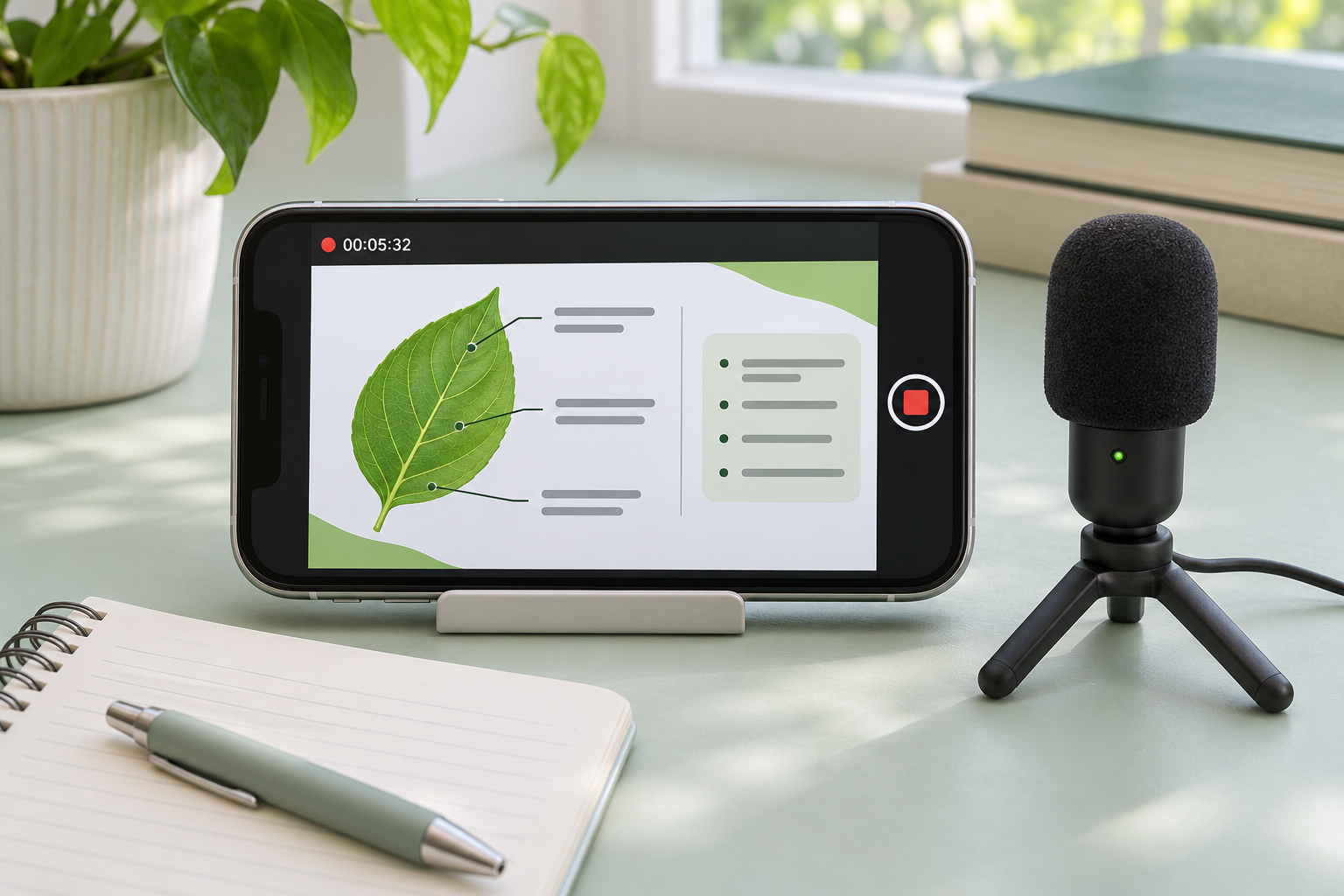
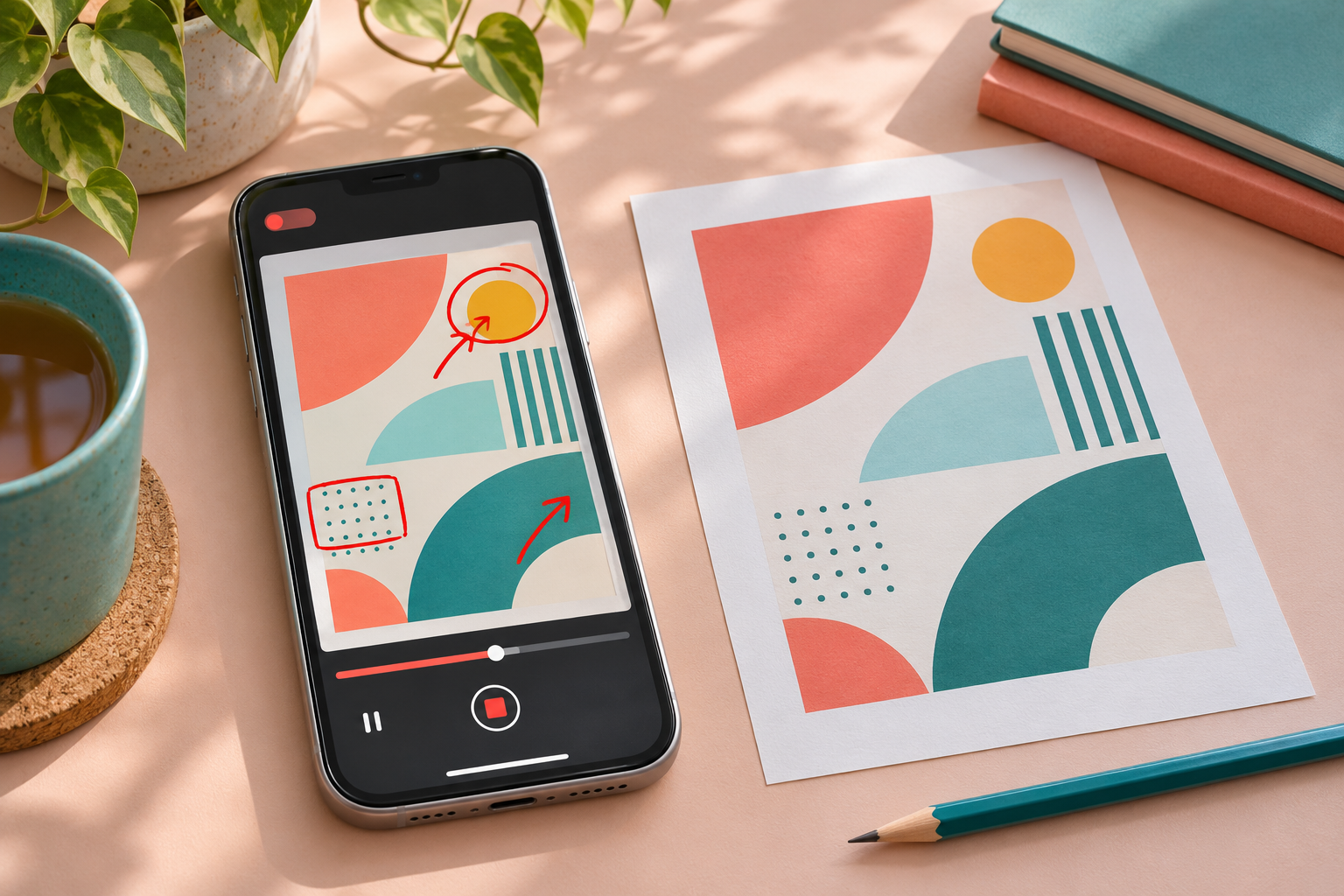
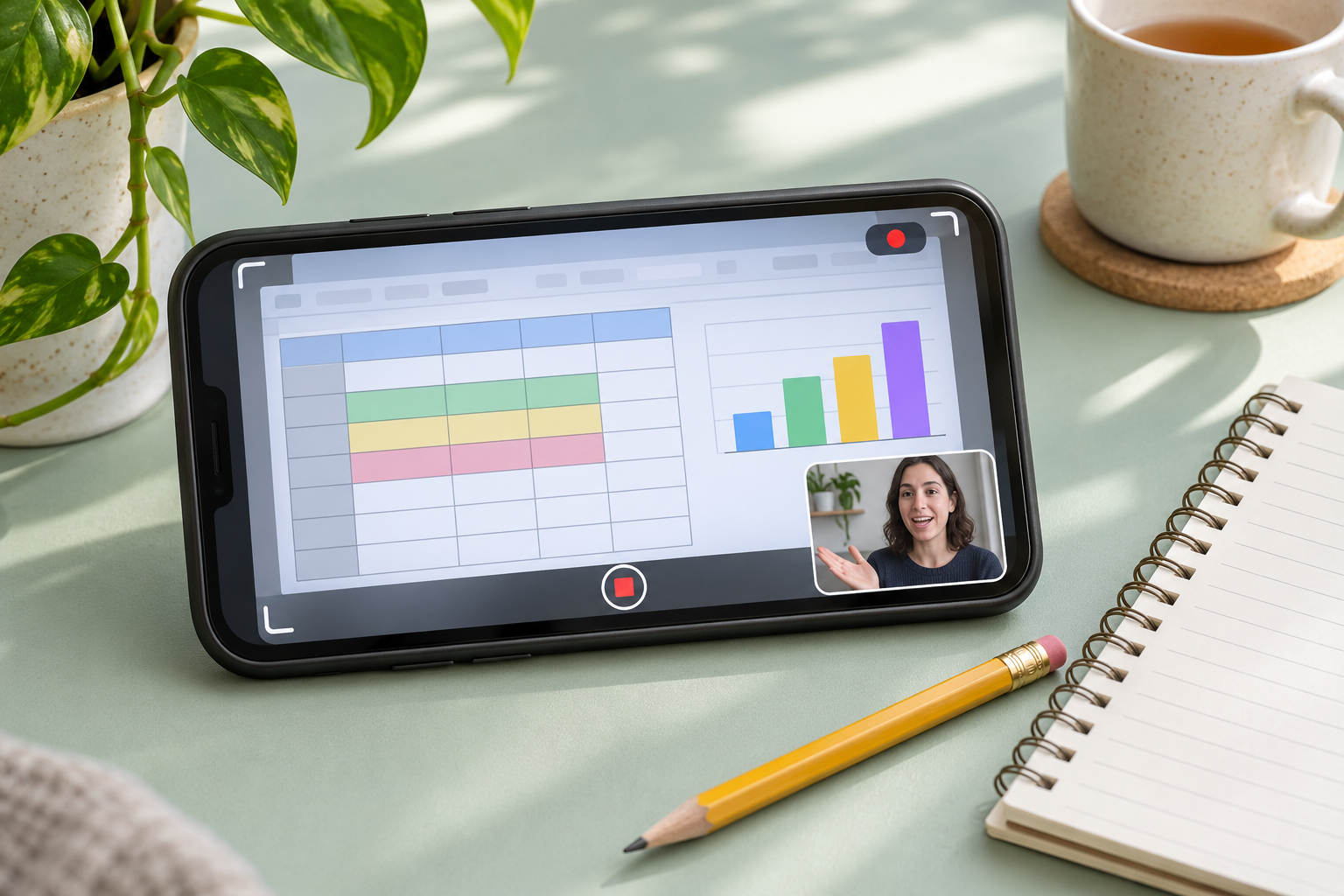
Screen Recorder: Record App supports screen capture with microphone commentary, trimming, playback speed adjustments, and export to Photos, according to its publisher. These tools can help you turn a browsing session into a focused explanation. Screen Recorder on the App Store
Alibox promotes this application.
Choose one route through the website
Decide what the viewer should learn. You might demonstrate finding a product category, opening an event page, or locating contact information. Start from a page the viewer can recognize and end when that task is complete.
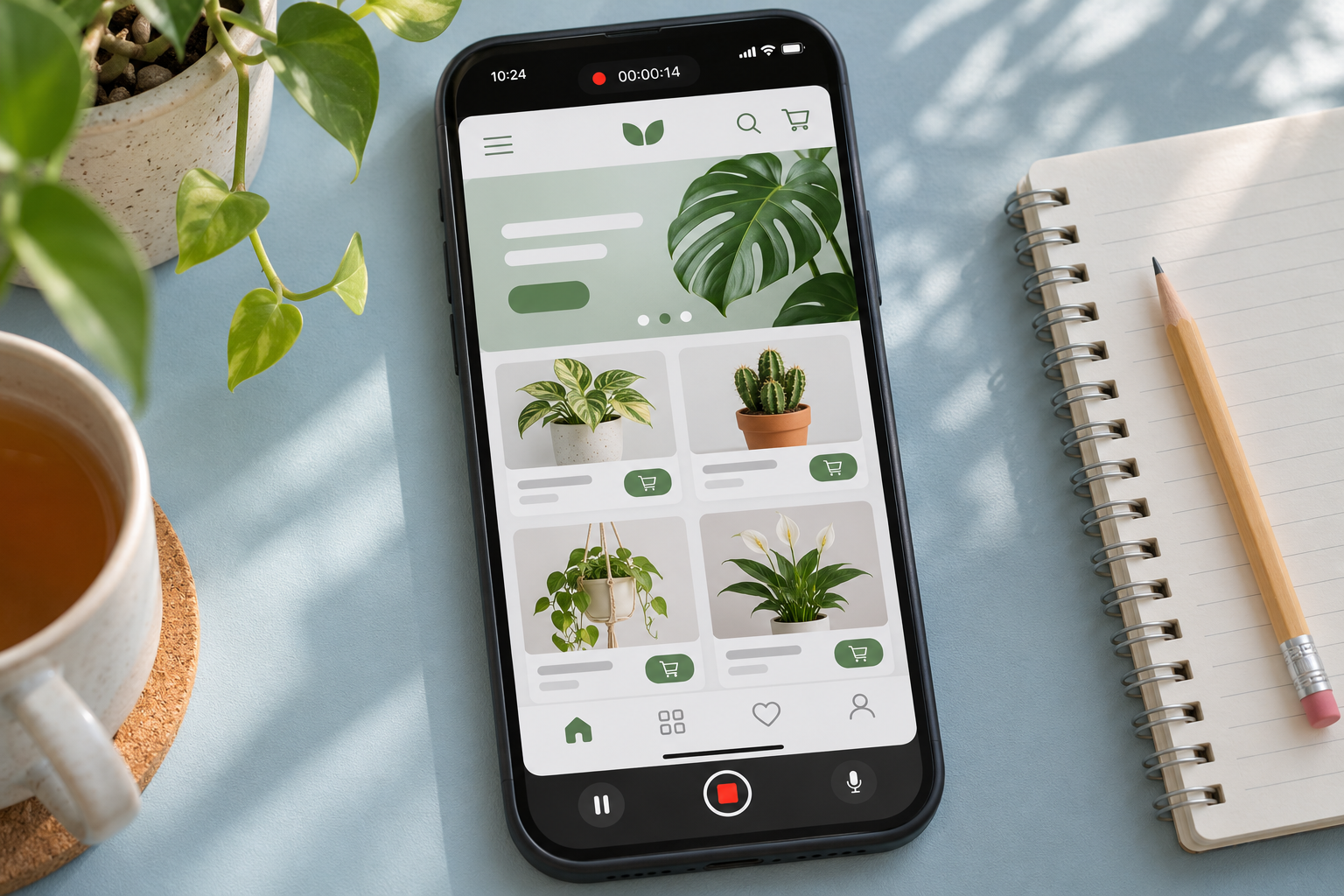
For a plant shop, a useful route could move from the home page to a category and then to a product's care information. That gives the clip a clear purpose and avoids unrelated browsing.
Open the site before recording. Load the starting page, close unnecessary tabs, and check what appears in the browser's suggestions. Use sample information if the demonstration includes a form.
Record a mobile website walkthrough on iPhone
Make a short test with Screen Recorder, return to the browser, and scroll through the first section. Replay it to check whether the text is readable and any microphone commentary is clear.
For the main recording, hold the starting page still for a moment. Open the menu or select the first link, then pause when the next page loads. Scroll slowly enough for the viewer to identify the section you are discussing.
If a button changes the page, leave enough time to show the result. Say what you are trying to do and name the visible label when using commentary. This helps the viewer connect your explanation to the action. Microphone commentary guide
Keep feedback tied to visible details
Describe the moment that matters. Instead of saying the menu feels confusing, explain which category you expected to find and where you looked for it. Show the screen that supports your observation.
Separate a demonstration from a suggestion in your narration. You can first show the current route, then explain what would help you complete the task more easily. A teammate can use that context when reviewing the same page later.
For example, if the care information is below several large photos, scroll to it and explain where you initially expected to find it. Keep the relevant heading on screen while speaking.
Trim the start and end
Open the saved clip in the editor and remove the time spent starting or stopping capture. Preserve the starting page and the completed task so the route still makes sense.
Preview any speed changes carefully. Fast scrolling can make a website walkthrough harder to follow. Keep navigation actions and their results visible long enough to read. Trimming a screen recording
Review the exported video
Export to Photos and watch the saved copy on your phone. Check the smallest label the viewer needs to read and listen for commentary that continues after the relevant screen has disappeared.
The publisher lists a watermark on free exports and additional quality options through Premium. Review the export choices shown in your app before sharing.
Send the clip with the website link and a sentence naming the route you recorded. If the site changes later, that context helps others understand which version of the experience you reviewed.
What if the website loads slowly?
Show enough of the wait to explain the experience if loading time is part of your feedback. For a simple navigation tutorial, prepare a fresh recording once the site is responding normally.
Should I record the whole website?
Choose a route with a clear start and finish. Create another clip for a different task so each explanation stays easy to review. Screen Recorder feature overview