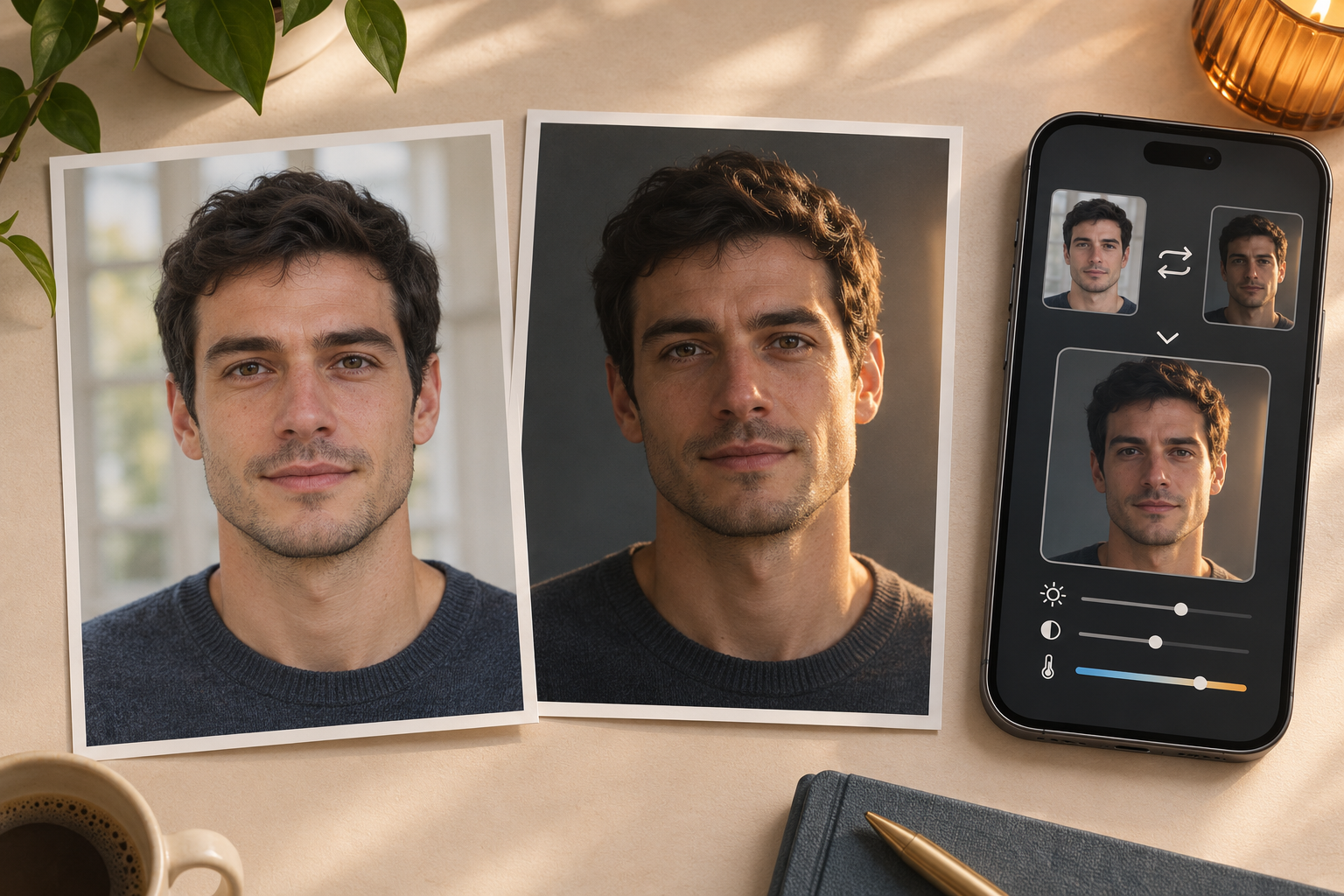
How to Choose Expressions for a PhotoPic Face Swap
Choose portrait expressions, compare the eyes and mouth, and review your PhotoPic face swap before sharing.
Updated Nov 19, 2026
In this article
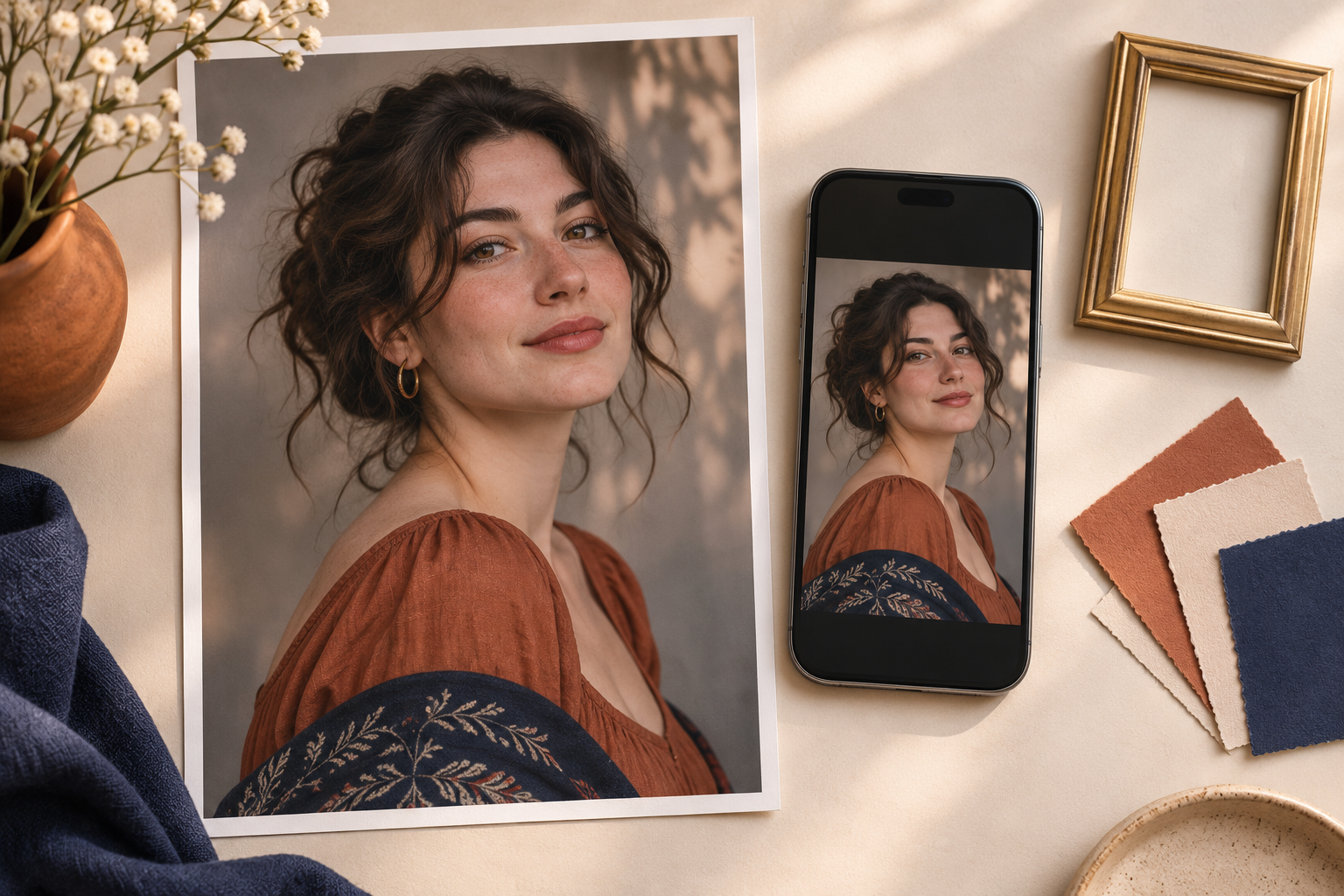
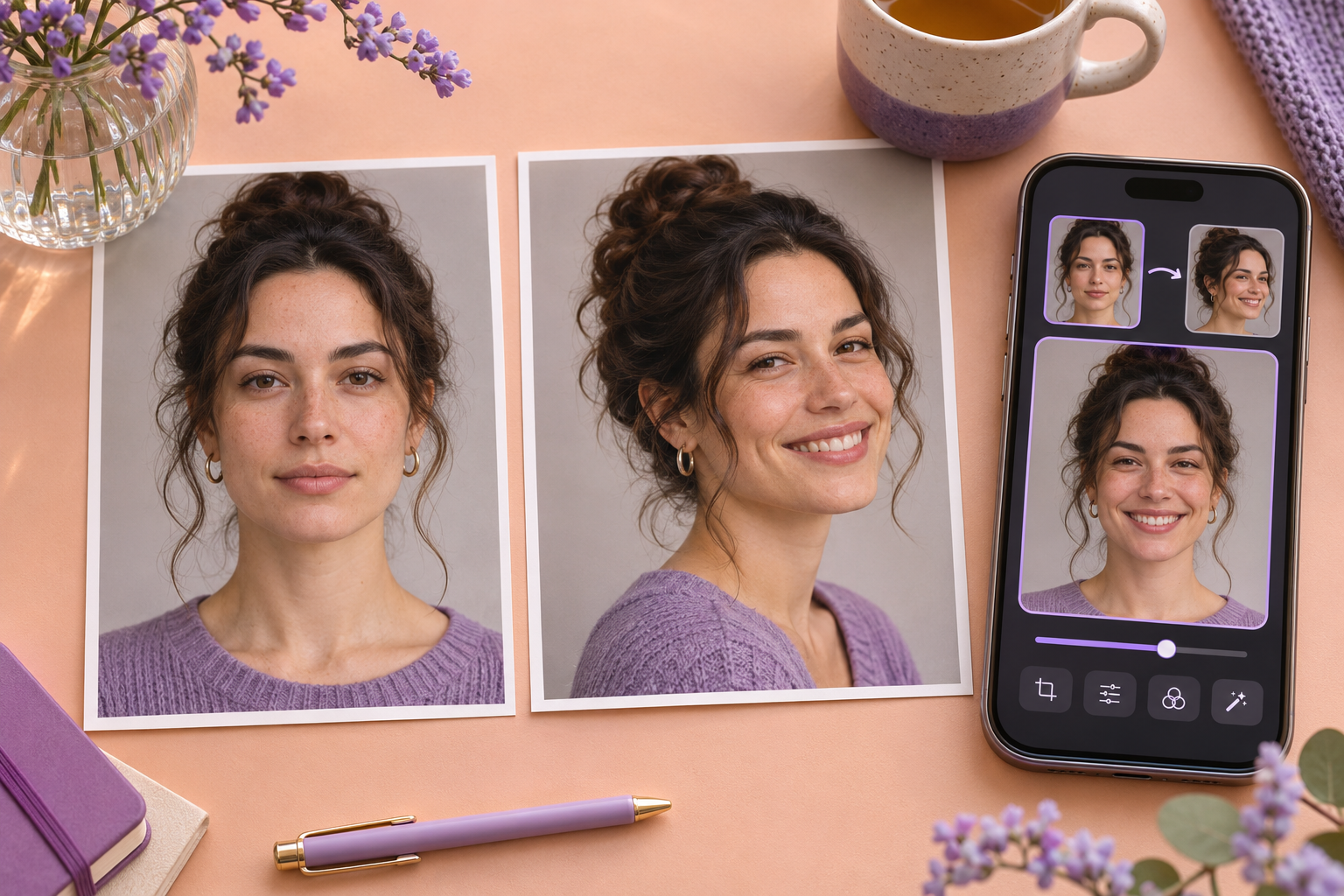
A face swap can look different when you start with a relaxed portrait or a broad smile. The expression in each picture affects what you notice in the finished edit, especially around the eyes, cheeks, and mouth. Choosing photos with those details in mind gives you a more useful starting point for a creative portrait.
PhotoPic supports swapping faces between photos and within the same image, according to its publisher. You can use it to experiment with a pair of pictures, review the result, and try a different source when the first combination feels awkward. PhotoPic on the App Store
Alibox promotes this application.
Choose an expression for your PhotoPic face swap
Start by deciding the mood of the edit. A playful portrait might suit a smile, while a quiet studio scene may work better with a relaxed expression. Pick a source image where the face is clear enough to inspect before you begin.
Look at the target picture too. Notice whether the mouth is open, how far the head is turned, and whether the eyes are narrowed by a smile. Similar expressions give you a simpler combination to test. A strong mismatch can still be interesting for a humorous edit, but it deserves a close review.
Compare the mouth and cheeks
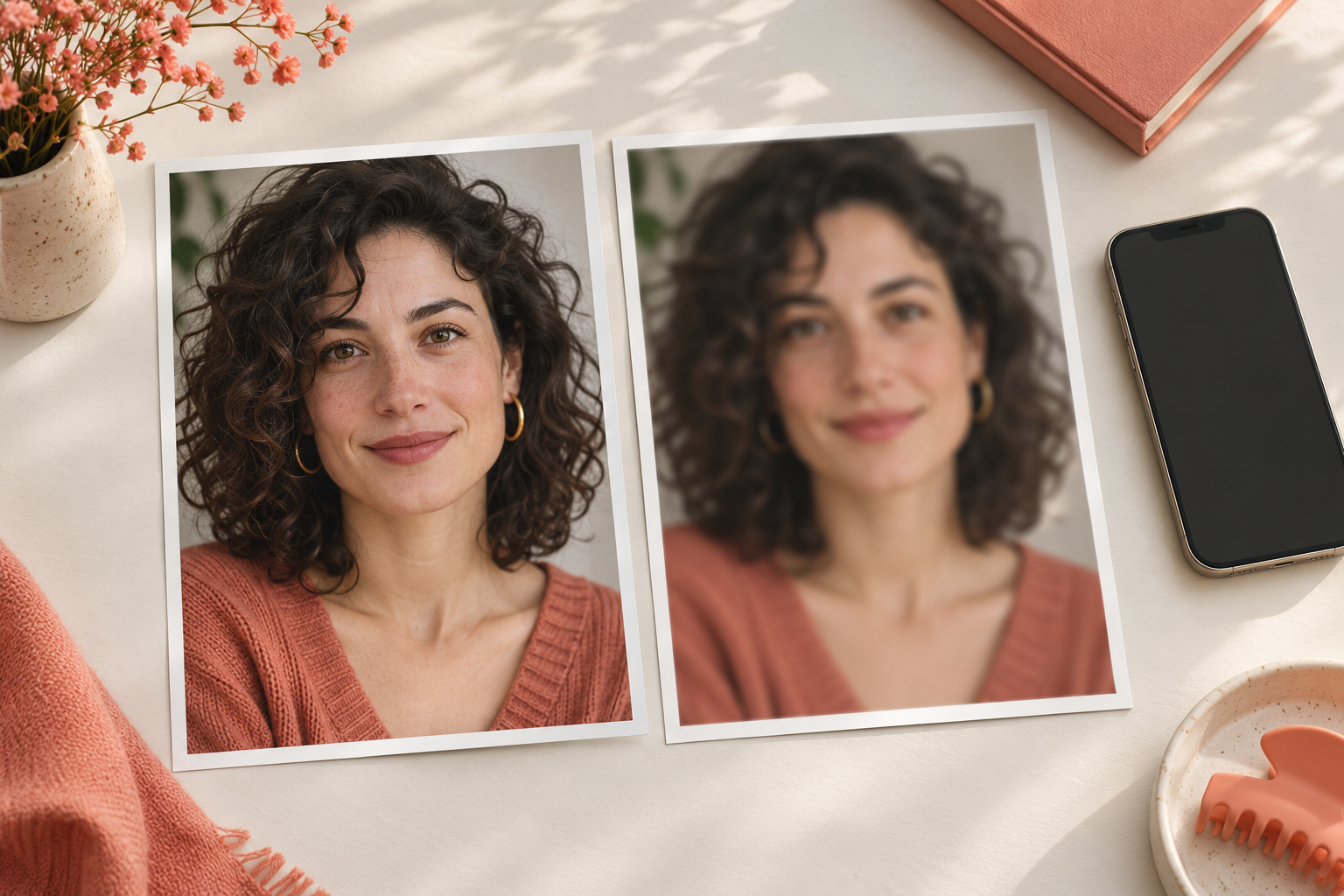
The mouth often draws attention first. Check whether the lips are closed or parted and whether teeth are visible. When a broad smile meets a very different expression, the resulting mouth may look uneven or feel disconnected from the cheeks.
After generating the swap, view the whole portrait and then inspect the mouth at a larger size. Look for stretched corners, unusual tooth shapes, and a sharp change in texture near the lips. If those areas look distracting, try a source with an expression closer to the target. PhotoPic photo selection guide
Check the eyes with the rest of the face
A smile changes more than the mouth. The cheeks rise and the eyes may narrow. Review those features together when judging whether the edited face feels coherent.
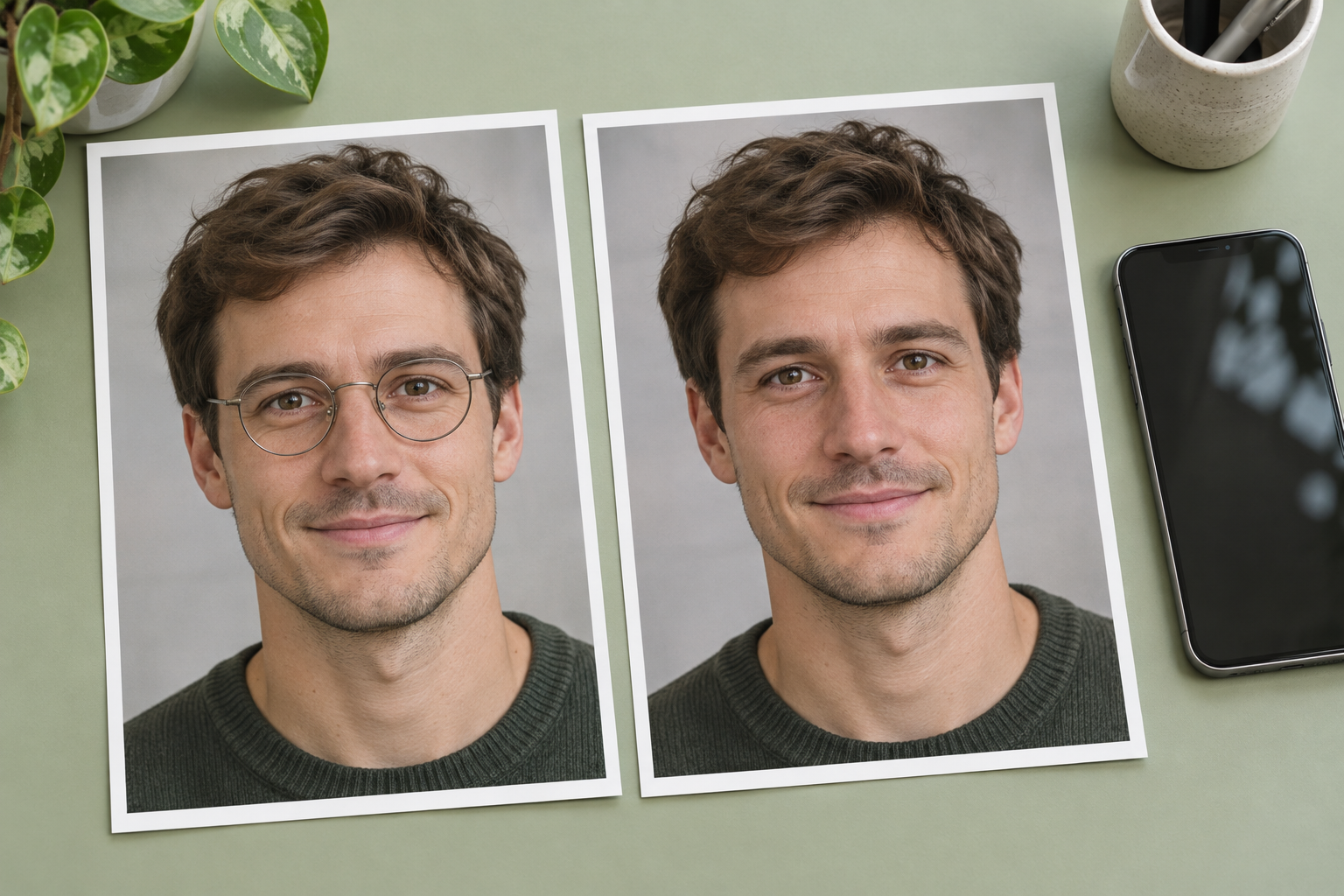
Glasses, loose hair, and deep shadows can make the eye area harder to assess. For an initial test, choose a picture where both eyes are visible. You can explore more complex images after finding a combination you like.
Try one change at a time
Keep the target photo fixed and try two source portraits with different expressions. Compare the results at the same size. This makes it easier to see what changed around the eyes and mouth without also judging a new background or pose.
For example, use a portrait with a gentle smile first, then try a neutral portrait. Note which version fits the scene and which areas need another attempt. Save the version you prefer separately so you can return to it after experimenting.
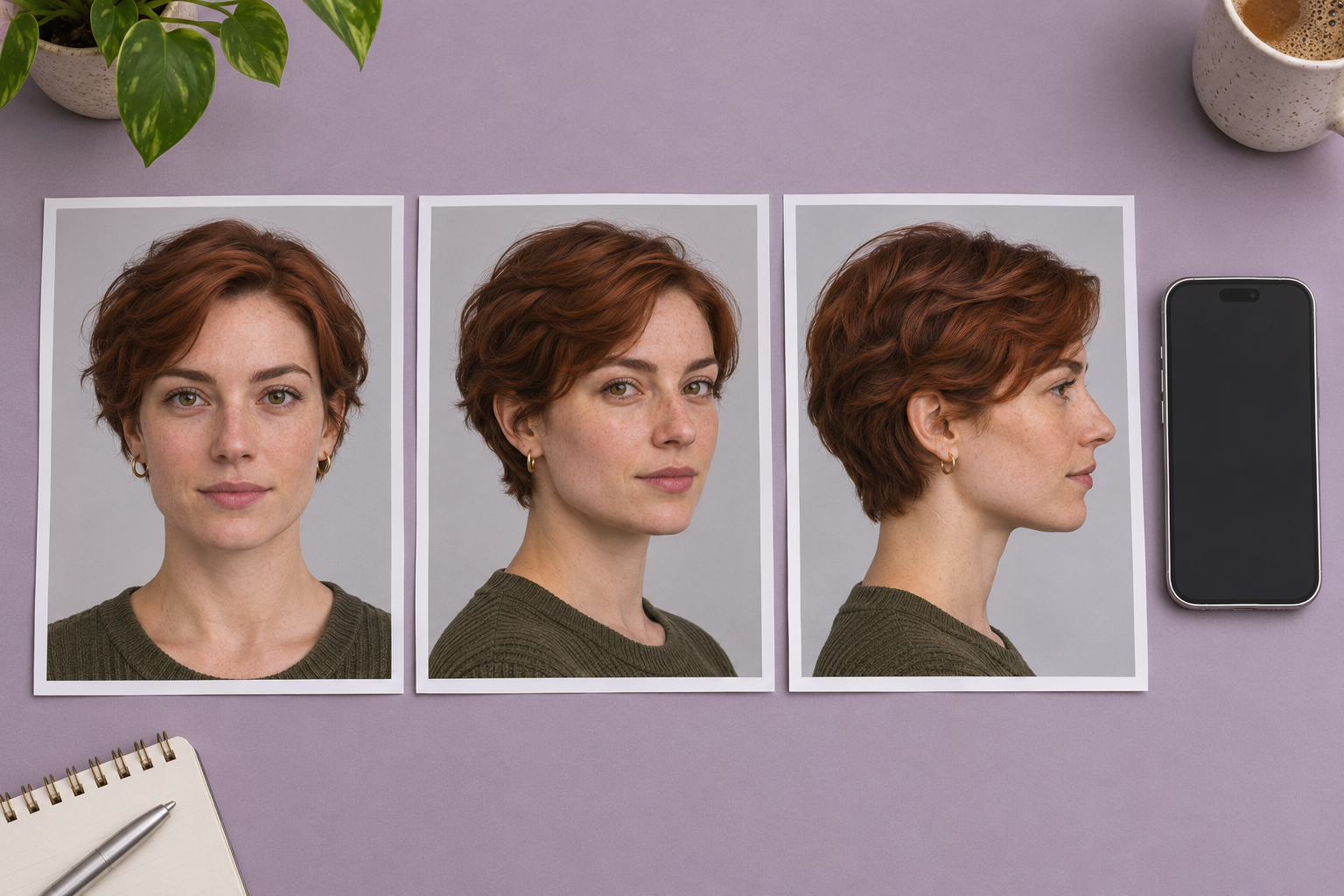
If neither result works well, check the head angle and lighting before trying more expressions. A face turned far to one side or lit by a strong shadow can introduce another challenge. Face swap troubleshooting guide
Review the portrait where it will be shared
Look at the saved image at its intended size, whether that is a message attachment or a small profile picture. An edit can look convincing as a thumbnail while showing distracting details in a larger view.
Use your own photos or pictures shared with permission, and describe the result as a creative edit when you share it. That gives viewers the context for the altered portrait.
Will a smiling source always create a smiling result?
The result depends on the combination of images and how the app processes them. Treat the source expression as something to test. Check the generated portrait before deciding whether it conveys the mood you wanted.
What should I try if the face looks tense?
Compare the eyes, mouth, head angle, and lighting in both originals. Try a clearer source with a more similar expression, then review the result at the same size as your previous attempt. PhotoPic feature overview