How to Record Two Camera Angles on iPhone with Screen Recorder
Frame a short demonstration using the front and rear cameras, test the layout and audio, and review the saved video.
Updated Nov 11, 2026
In this article
- Give each camera a job
- Find a position that works for both views
- Choose the layout and record a sample
- Choose the mode for the footage you have
- Check the saved video at the size viewers will see
- Frequently asked questions
- Can I record with both iPhone cameras?
- Which view should be larger?
- Can I add commentary while using both cameras?
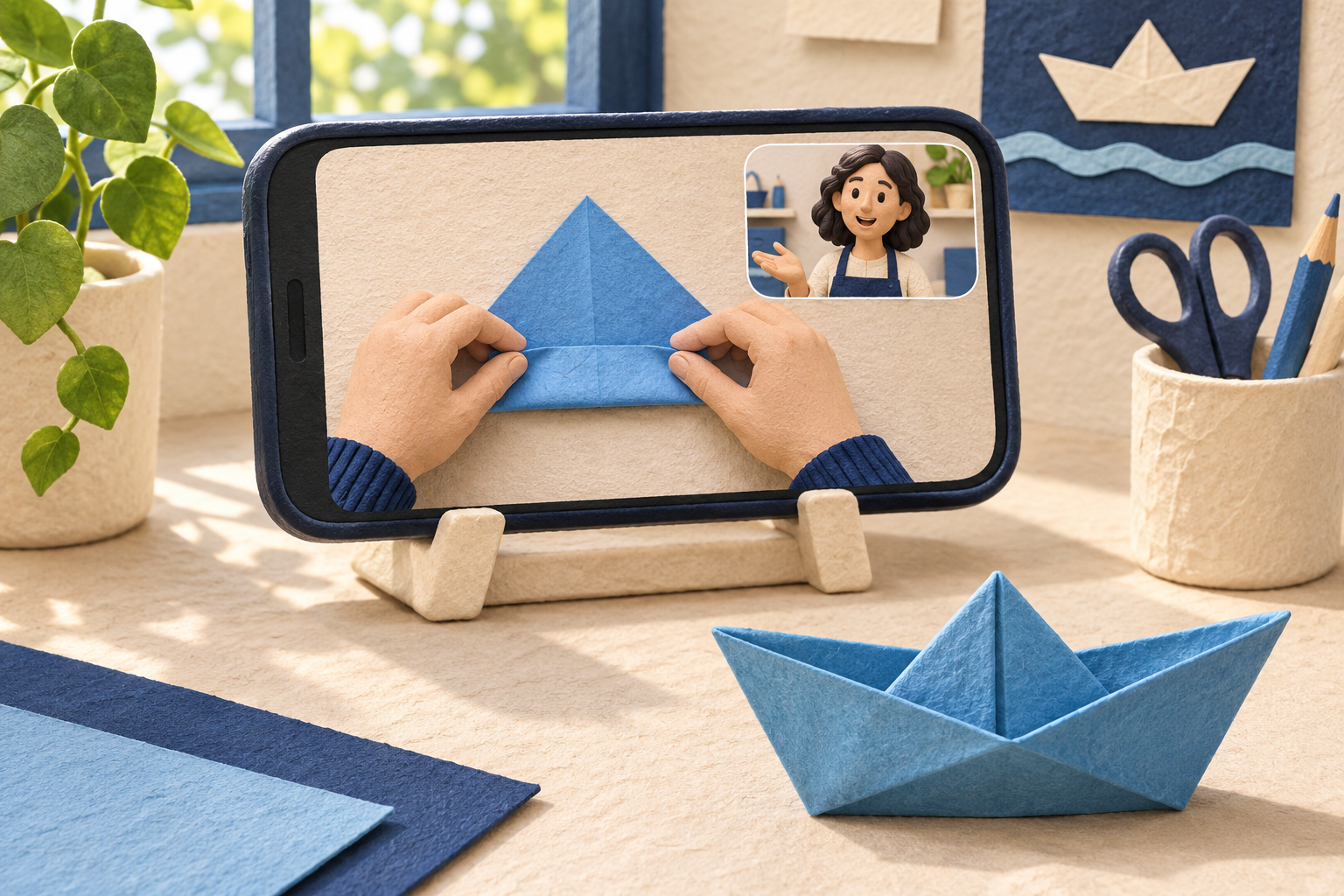
When you demonstrate a craft or explain an object, viewers need to see what your hands are doing. A second camera angle can keep your face in view while the main frame shows the work. A paper folding demonstration is a good first test because you can repeat the same movement and compare different layouts.
The publisher of Screen Recorder: Record App lists a dual camera mode that uses the front and rear cameras. This guide covers how to frame a simple demonstration, test both views on your iPhone, and check the saved video.
App to try · Screen Recorder: Record App on the App Store. Alibox promotes this application.
Give each camera a job
Use the rear view for the detail the audience needs to follow, such as the edge you are folding or the part you are holding. Use the front view to show your expression and address the viewer. For a first test, choose an action you can complete in about twenty seconds.
Think about what changes during the clip. At the beginning of a paper folding demonstration your hands may be near the center, then move toward the edge as you turn the sheet. Check that the full movement stays in view.
Find a position that works for both views
Place the iPhone on a stable stand where the rear camera can see the work and the front camera can see you. Check both previews. Moving the phone closer to the work may make a crease easier to see while changing how much of your face fits in the other view.
Try a few positions before settling on one. Adjust the work surface or your seat if moving the phone makes one view worse. Keep distracting objects and private details out of both backgrounds. Light the work surface so your hands can move without casting a deep shadow over the detail you want to show.
Choose the layout and record a sample
Open the dual camera mode and check the layouts and quality options available on your device. Choose a layout that keeps the work easy to see at the intended viewing size. If a smaller camera window covers an important part of the demonstration, try another available layout or reposition the work within the main frame.
Record the opening sentence and one complete action. Play the saved sample and check whether your face is in view, the key movement is visible, and your voice can be understood. Change one thing between samples so you can tell which adjustment helped.
| What you notice | What to try | | --- | --- | | Your hands move out of the main frame | Widen the view or bring the action closer to the center | | The smaller view covers the work | Choose another available layout or move the object | | Your face is too dark | Turn toward a soft light and check the work surface again | | The explanation is hard to hear | Move to a quieter spot and repeat the sample at your normal speaking volume |
Choose the mode for the footage you have
Dual camera mode is suited to a live scene where you want front and rear views. If you already have a saved video and want to add your reaction, the publisher lists Face Cam for selected videos. For a tutorial about taps and menus on your iPhone, use the screen recording workflow. Face Cam reaction guide · iPhone screen tutorial guide
Check the saved video at the size viewers will see
Watch the clip as a viewer would. Pause at the key action and see if you can identify the detail without zooming. Listen for the explanation while that detail is on screen. If you trim the opening, keep the sentence or frame that tells the viewer what to watch for.
The publisher lists trimming, speed adjustment, and export to Photos. Check the available options in your installed version, then play the exported file and verify that both views and the intended sound are present. Screen recording trimming guide · Screen Recorder application overview
Frequently asked questions
Can I record with both iPhone cameras?
The publisher lists front and rear camera recording. Check the dual camera mode on your iPhone and make a short test to confirm the available options.
Which view should be larger?
Give more space to the view that carries the information. For a craft demonstration, that is usually the work surface. Check the final layout at phone size before recording the full demonstration.
Can I add commentary while using both cameras?
The publisher lists microphone capture for dual camera recording. Listen to a saved sample to check that the voice is present and clear with your setup.