Record Voice Notes on iPhone with Screen Recorder
Record a short voice note, review your delivery, and prepare a spoken outline for your next screen recording.
Updated Nov 17, 2026
In this article
- Give each voice note one purpose
- Test how your voice sounds in the room
- Record and revise a short section
- Choose when to move to screen recording
- Review the saved take before sharing
- Frequently asked questions
- Can I record a voice note in Screen Recorder?
- How long should a test recording be?
- Can I use the draft when I record my screen?
You have an idea for a tutorial and want to hear how the explanation sounds before recording the screen. A short voice note gives you something concrete to review. You can hear where you rush, which sentence needs an example, and where an explanation ends before the point is clear.
The publisher of Screen Recorder: Record App lists an audio recorder for voice notes and commentary, with playback and export options. This guide uses that feature to record a short spoken draft and turn it into an outline for your final take.
Screen Recorder: Record App on the App Store. Alibox promotes this application.
Give each voice note one purpose
Decide what you want to capture before opening the recorder. For a tutorial, try an opening sentence and the explanation of one action. For a personal reminder, say what you noticed and what you want to do next. A focused note is easier to find and replay when you need it.
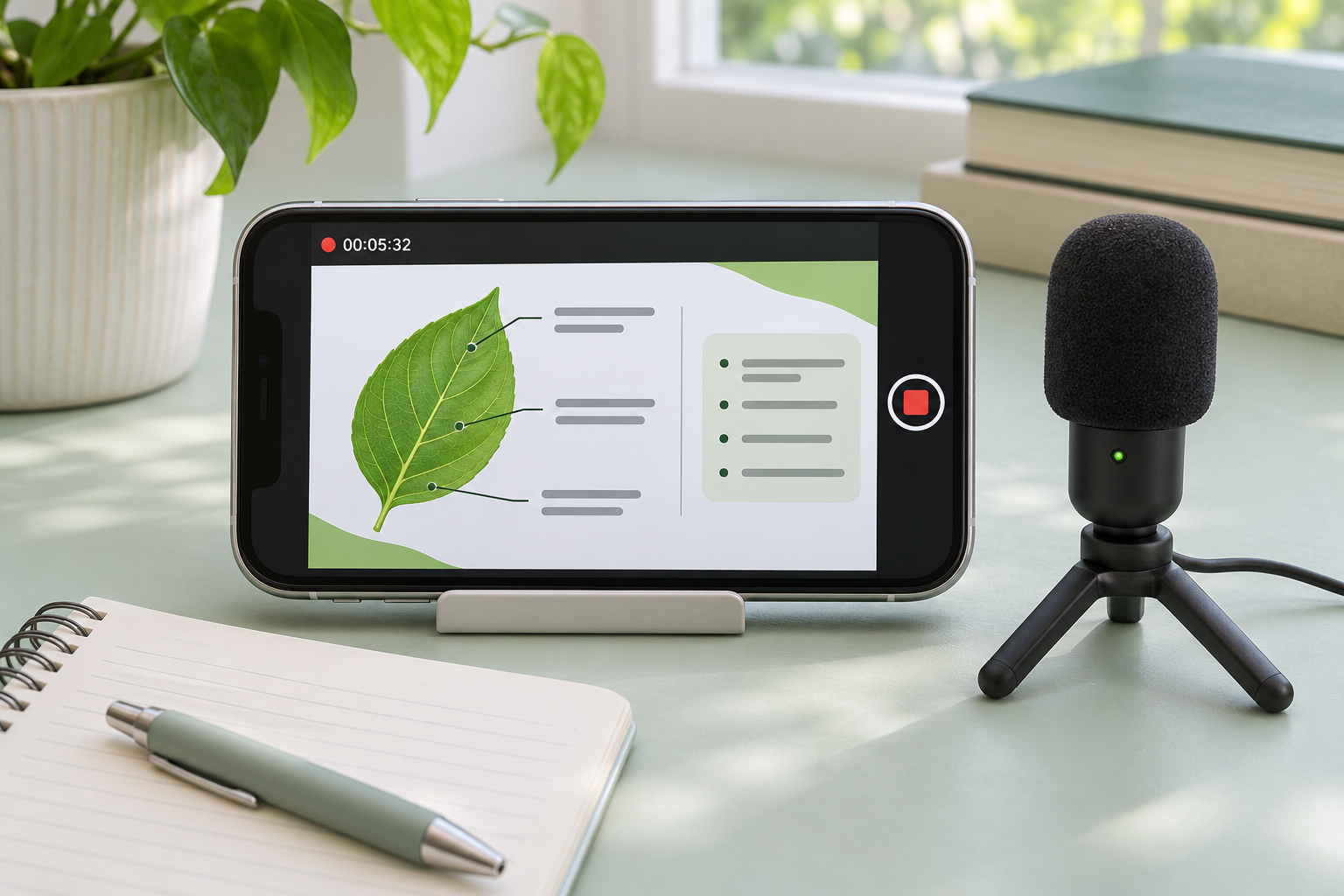
If you are drafting a voiceover, keep the relevant screenshot or a few written cues in front of you. Say which action you are explaining and what the audience should look for afterward. For example, “Tap Save, then check that the new title appears at the top.” That last detail gives the viewer a way to tell whether the step worked. Guide to recording an iPhone tutorial
Test how your voice sounds in the room
Find the audio recorder using the controls in your installed version. Set the phone on a stable surface and speak one sentence at your usual volume. Replay it through the speaker or headphones you expect to use while reviewing the draft.
Listen for sounds you can change easily. If the first word is clipped, leave a brief pause after starting the recording. If the room echoes, try a position away from a bare wall. If holding the phone creates rubbing sounds, put it down before the next take. Change one thing between samples so you can hear what helped.
Record and revise a short section
For a voiceover draft, aim for a complete thought you can repeat. Record it in your own words, then listen once for meaning and once for delivery. Mark the sentence where you first explain the action. If the listener has to wait through several sentences to hear it, move the action closer to the beginning.
| What you hear | What to try in the next take | | --- | --- | | The action appears late in the explanation | Open with the action and add background where needed | | Several instructions run together | Pause between each action and its result | | The voice becomes quiet at the end | Keep your position and finish the sentence at a steady volume | | The wording sounds awkward aloud | Restate it using the words you normally use |
Keep a short cue for each section you want to reuse. For a three-step tutorial, three cues may be enough to guide the final recording without reading a script.
Choose when to move to screen recording
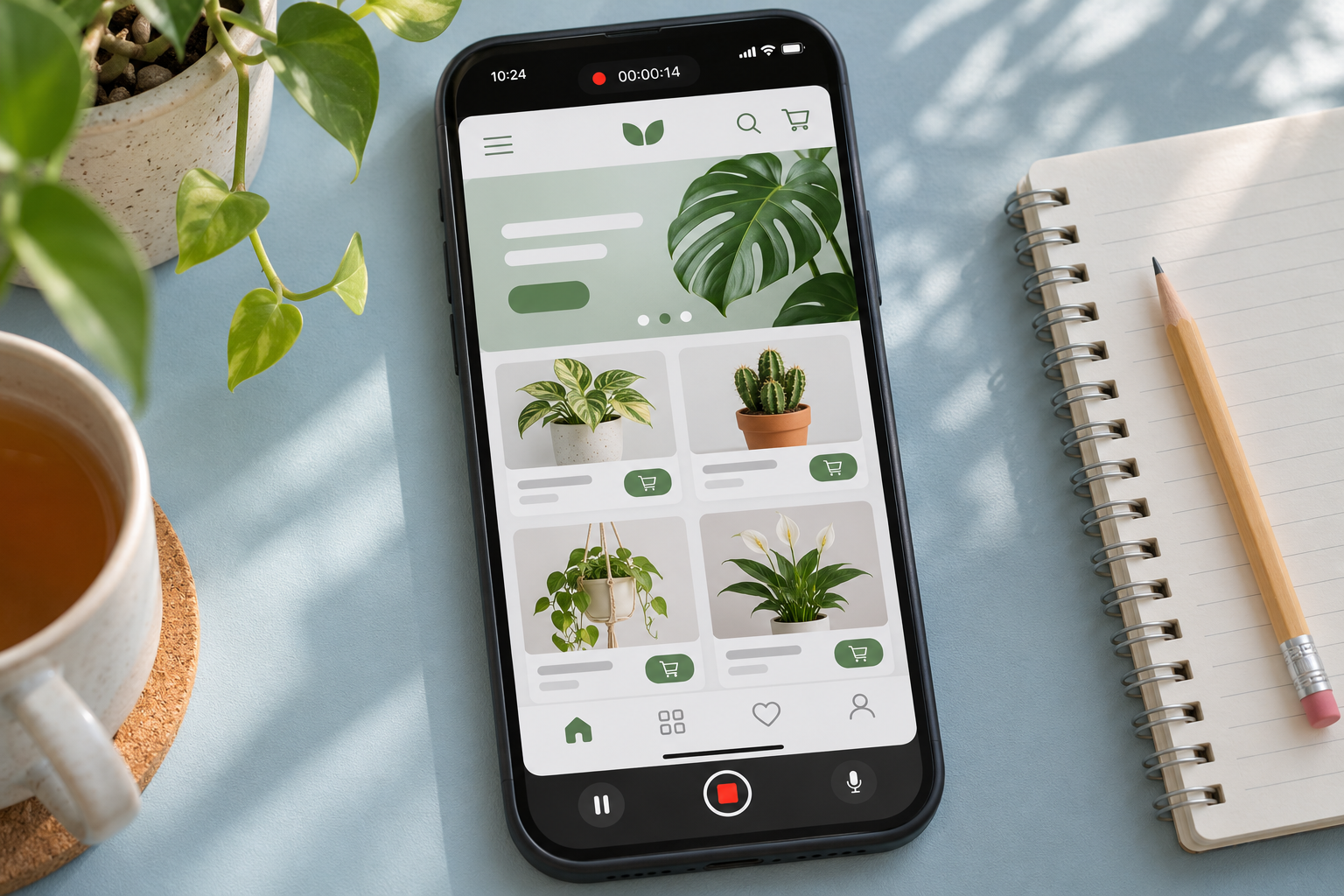
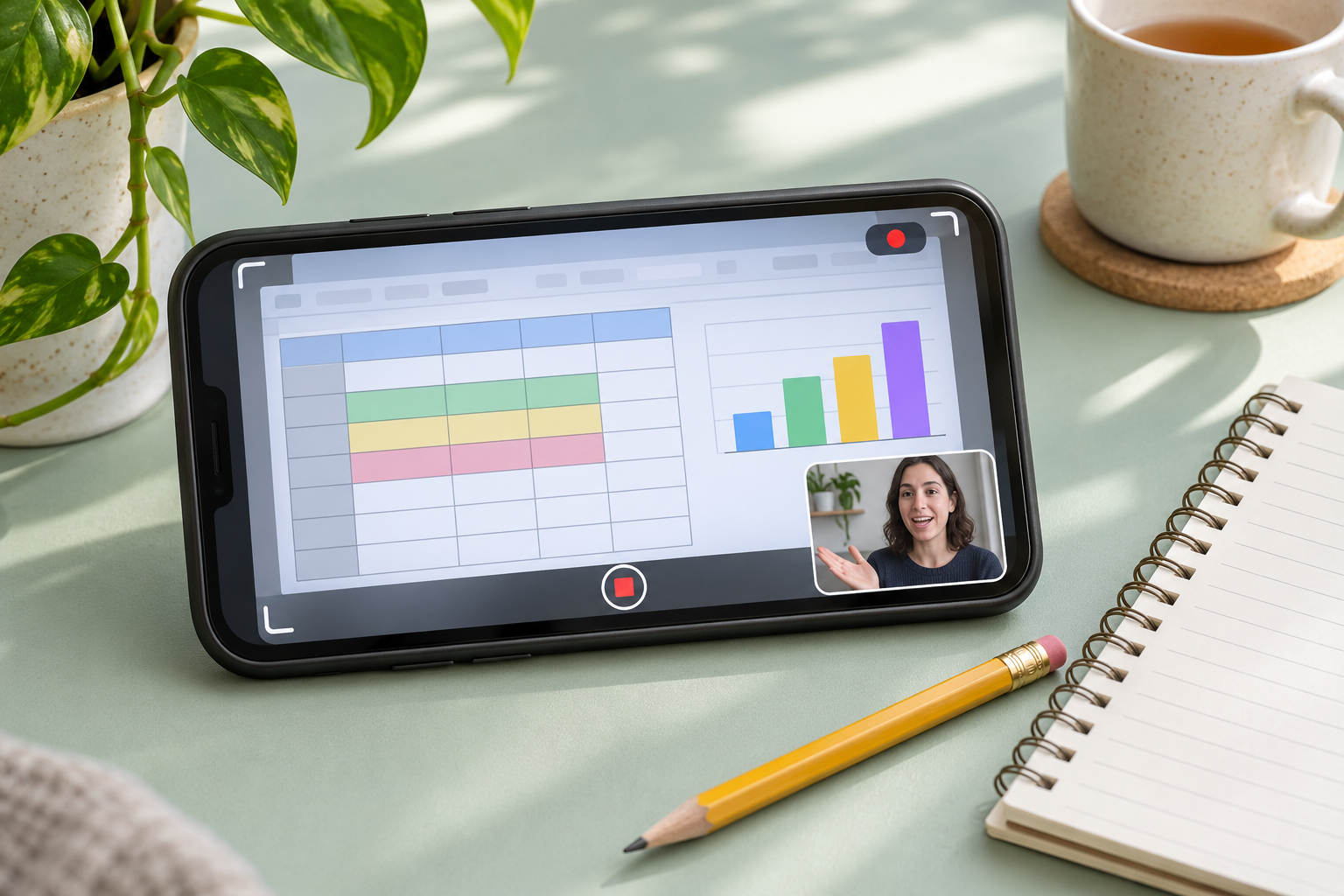
A separate audio draft is useful for rehearsing an explanation. When you want your voice to follow taps and changes on screen, use the screen recording workflow with microphone commentary and make a short test of the complete setup. The publisher lists the audio recorder and microphone screen recording as available tools. Screen Recorder application overview · Microphone commentary guide
If your plan calls for putting a saved audio file over existing footage, check whether your chosen editor offers that workflow. You can also use the voice note as a reference and speak the explanation again while recording the screen.
Review the saved take before sharing
Play the file you intend to send. Check that the opening is intact, the final sentence is complete, and the recording contains the take you chose. If you recorded several attempts, use the available file or recording controls to distinguish the preferred version before exporting.
For a private note, keep it where you can find it later. For a draft going to a collaborator, include a short description of the video section it belongs to and what feedback you need. Review the audio for names or conversations that were captured in the background.
Frequently asked questions
Can I record a voice note in Screen Recorder?
The publisher lists a dedicated audio recorder for voice notes and commentary. Check the recording and playback controls in your installed version.
How long should a test recording be?
Use one or two sentences at the volume and pace you expect to use for the full take. Replay the sample and check for clarity, background sound, and clipped words.
Can I use the draft when I record my screen?
Yes. Keep it as a spoken reference or turn it into a few cues. Test microphone commentary separately in the screen recording workflow before making the full video.