Record a Personal Greeting with Car Connect
Prepare a short voice greeting, preview the sound, and test your CarPlay automation while parked.
Updated Nov 25, 2026
In this article
A short greeting in your own voice can make connecting your iPhone to the car feel more personal. It could welcome the family on a weekend outing or simply say a few words you enjoy hearing at the start of a trip. Preparing a clear recording first makes the later setup easier to evaluate.
CarPlay Widgets: Car Connect lists sound previews, audio imports, and voice recording among its features. Its publisher explains that a selected sound can be used with a CarPlay connection or disconnection automation configured in Apple Shortcuts. Car Connect on the App Store
Alibox promotes this application.
Write a short personal Car Connect greeting
Choose one phrase you can say comfortably in a single take. “Welcome back, enjoy the trip” gives the recording a simple beginning and end. Read it aloud before recording and remove any words that make you hesitate.
Consider who shares the car. A general greeting may suit several drivers, while a trip-specific phrase can be fun for a particular outing. Keep private details out of a recording that passengers will hear.
Try two versions if you are unsure about the wording. A shorter take can sound more relaxed when played during the first moments of a connection.
Record in a quiet place
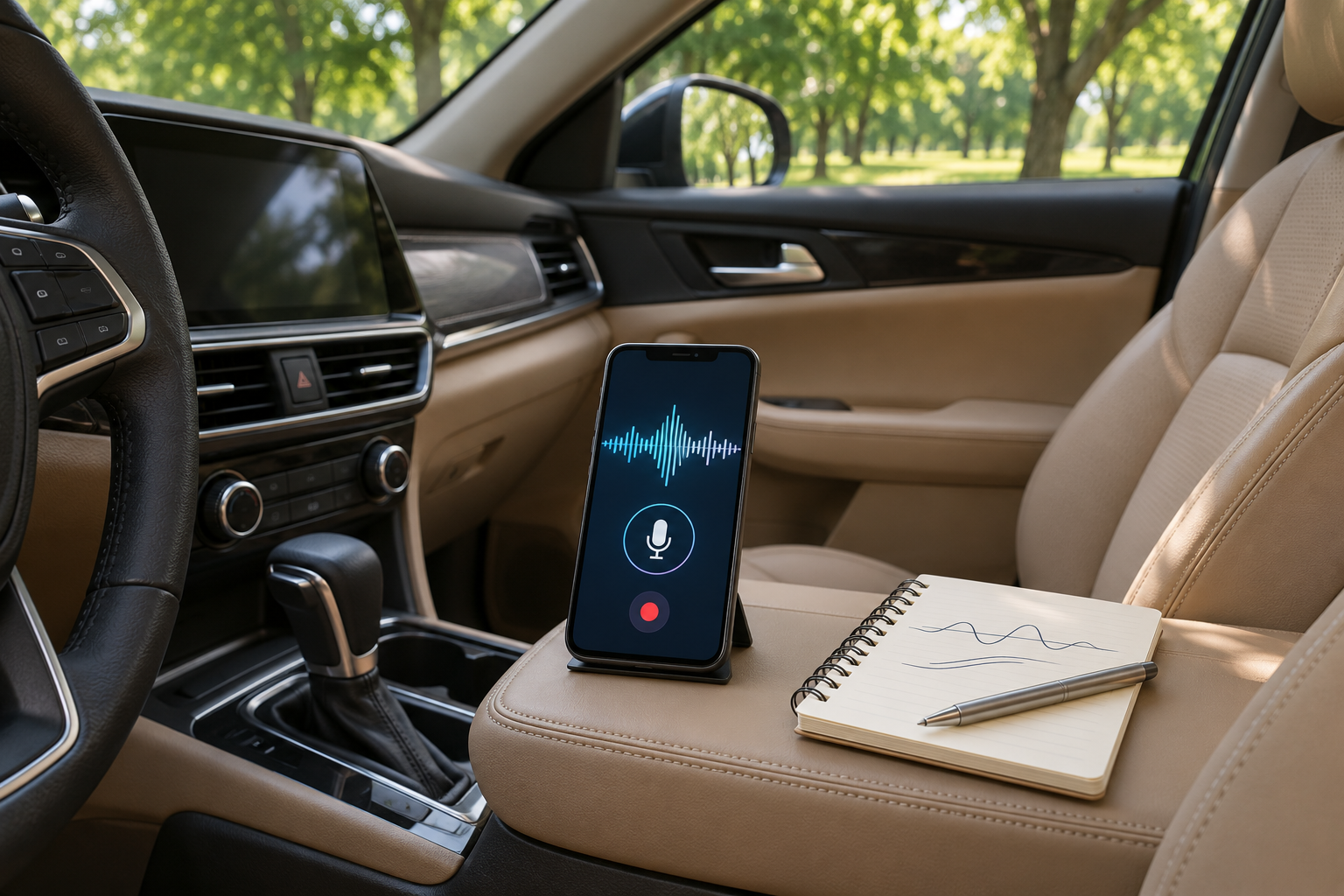
Use the voice recording option available in Car Connect and follow its prompts for microphone access. Find a quiet room or a safely parked car with minimal background noise.
Keep the phone at a comfortable distance and speak at an even volume. Leave a small pause before and after the phrase, then preview the result. Listen for rustling, background conversation, or a clipped first word.
If the recording sounds rushed, take another pass with a brief pause between the greeting and closing words. Compare the takes before choosing the one you prefer.
Preview before setting up the automation
Play the selected recording on your phone and check that every word is clear. Use the controls available in your installed version to save or select the sound, then follow the app's setup guidance.
The connection or disconnection event is configured through Apple Shortcuts. Check which event the guide asks you to use and choose the one that matches when you want the greeting to play. CarPlay welcome sound setup guide
Keep the first setup simple. Once the greeting works, you can decide whether you also want a separate sound for disconnecting.
Test playback while parked
With the vehicle safely parked, connect your iPhone using your usual CarPlay setup. Listen to the greeting through the active audio output and check its volume in that setting.
If you hear silence, first preview the saved sound in Car Connect. Then review the Shortcuts automation, its selected event, and any prompts it shows. This gives you a way to check the saved recording and the connection test in turn.
If the sound is too loud or difficult to understand, adjust the recording or playback setup and test again while parked.
Refresh the greeting after a special trip
A holiday phrase may be enjoyable for one outing and less useful afterward. Review your selected recording when the trip is over and choose a general greeting if you prefer.
You can coordinate it with a simple dashboard design. A short text widget can carry a related phrase, while a photo design can show the destination. Check compatibility and preview widget changes on your vehicle display. CarPlay text widget guide
Can I use an existing audio file?
The publisher lists audio import. Use the import options shown by your installed app and preview the selected file before following the sound automation guide. Choose audio you have permission to use.
Does choosing the recording complete the setup?
Follow the app's guidance to configure the matching automation in Apple Shortcuts, then test the connection or disconnection event while parked. Car Connect feature overview