Set Up Car Connect for a Shared Family Car
Check each driver’s phone, choose shared-friendly designs, and test the dashboard while parked.
Updated Nov 28, 2026
In this article
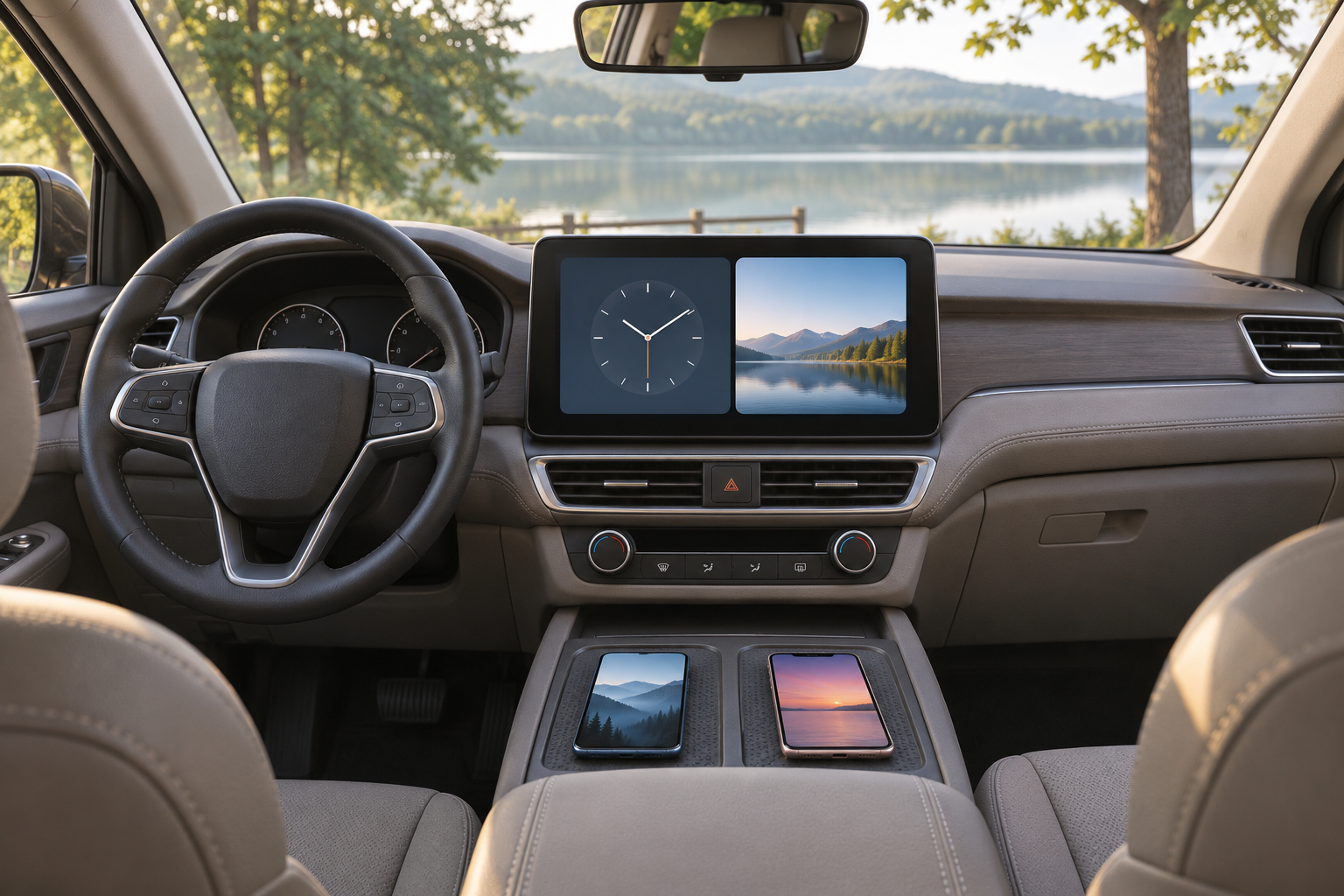
When several people use the same car, dashboard preferences can differ. One driver may enjoy a landscape photo, while another prefers a plain clock. A little preparation helps each person understand what appears when their phone connects and how to check their chosen design.
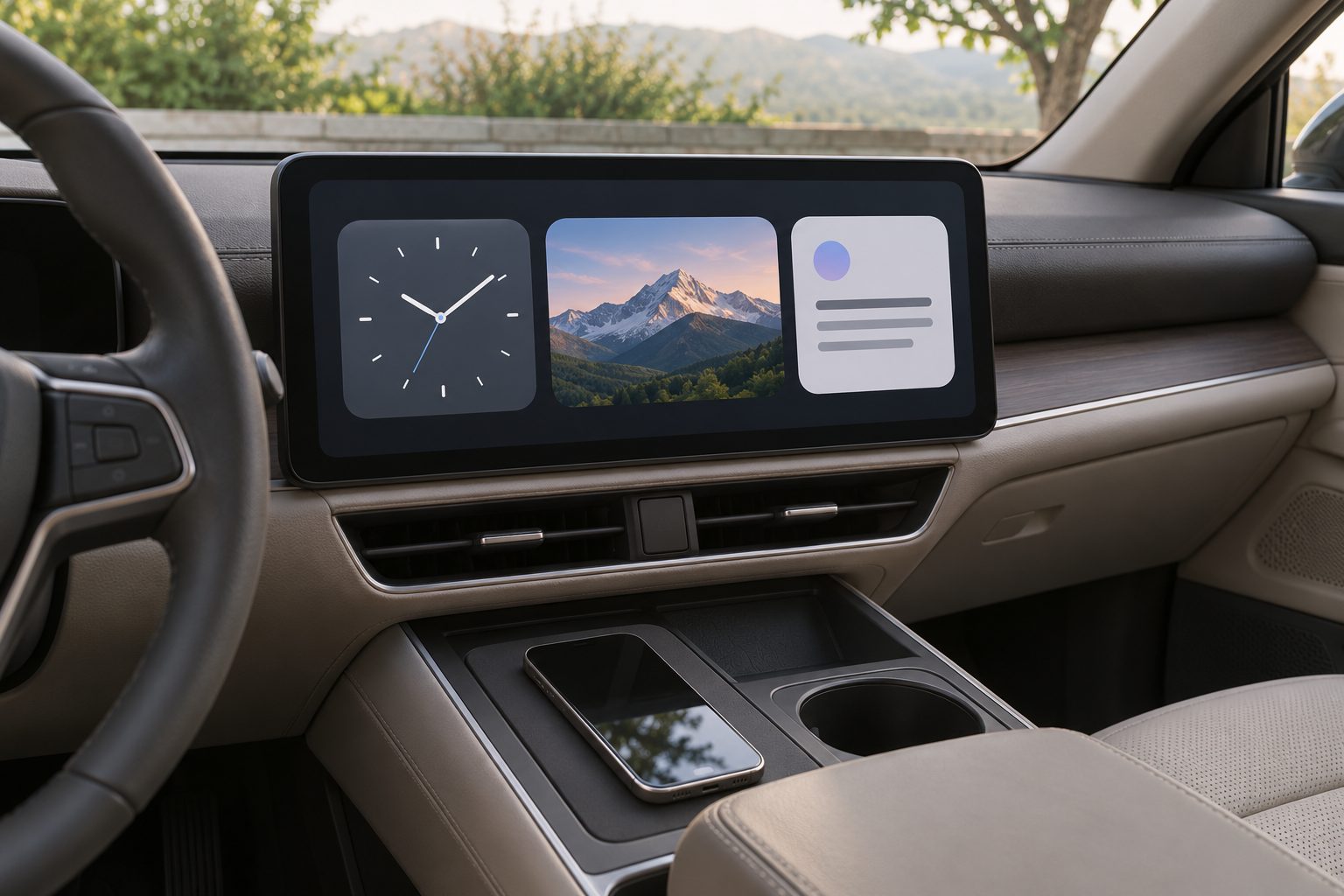
CarPlay Widgets: Car Connect offers photo, clock, countdown, and text designs. The publisher lists iOS 26 or later and a compatible vehicle or head unit as requirements for CarPlay widgets. Check compatibility on each phone you plan to use. Car Connect on the App Store
Alibox promotes this application.
Start with one phone and one design
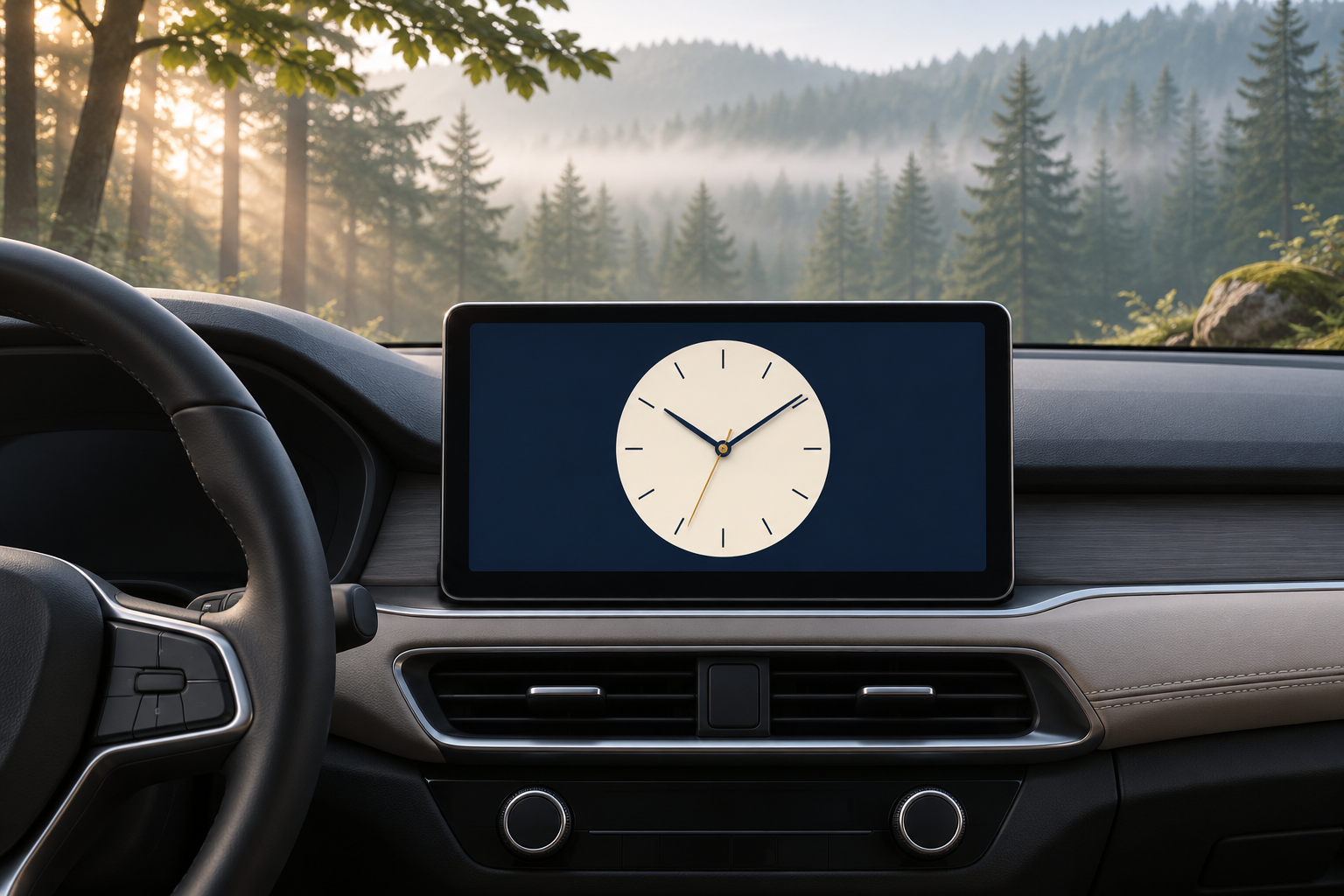
Set up a simple design on the first driver's iPhone. Choose a clock or a photo with one clear subject, save it, and follow the app's guidance for adding it to the compatible vehicle display.
Keep the car parked throughout setup. Confirm which phone is connected before reviewing the dashboard. This gives you a clear starting point when more than one paired phone is nearby.
Note the design you selected and check that the intended card appears. Car Connect widget setup guide
Check each driver's connection separately
Follow the vehicle's instructions for selecting or connecting another driver's phone. Once that phone is connected, review the widget options available for that setup.
Prepare and test the second phone's design independently. Check the actual display before assuming that a choice made on one phone will appear when another phone connects. Vehicle connection behavior and available settings vary.
A short parked test with each phone helps everyone recognize the expected result. If the wrong design appears, confirm the active phone and selected widget before editing the design itself.
Choose content people are comfortable displaying
A shared car is a shared viewing space. Pick photos and wording that each driver is happy for passengers to see. A landscape, pet portrait, or general greeting can work well.
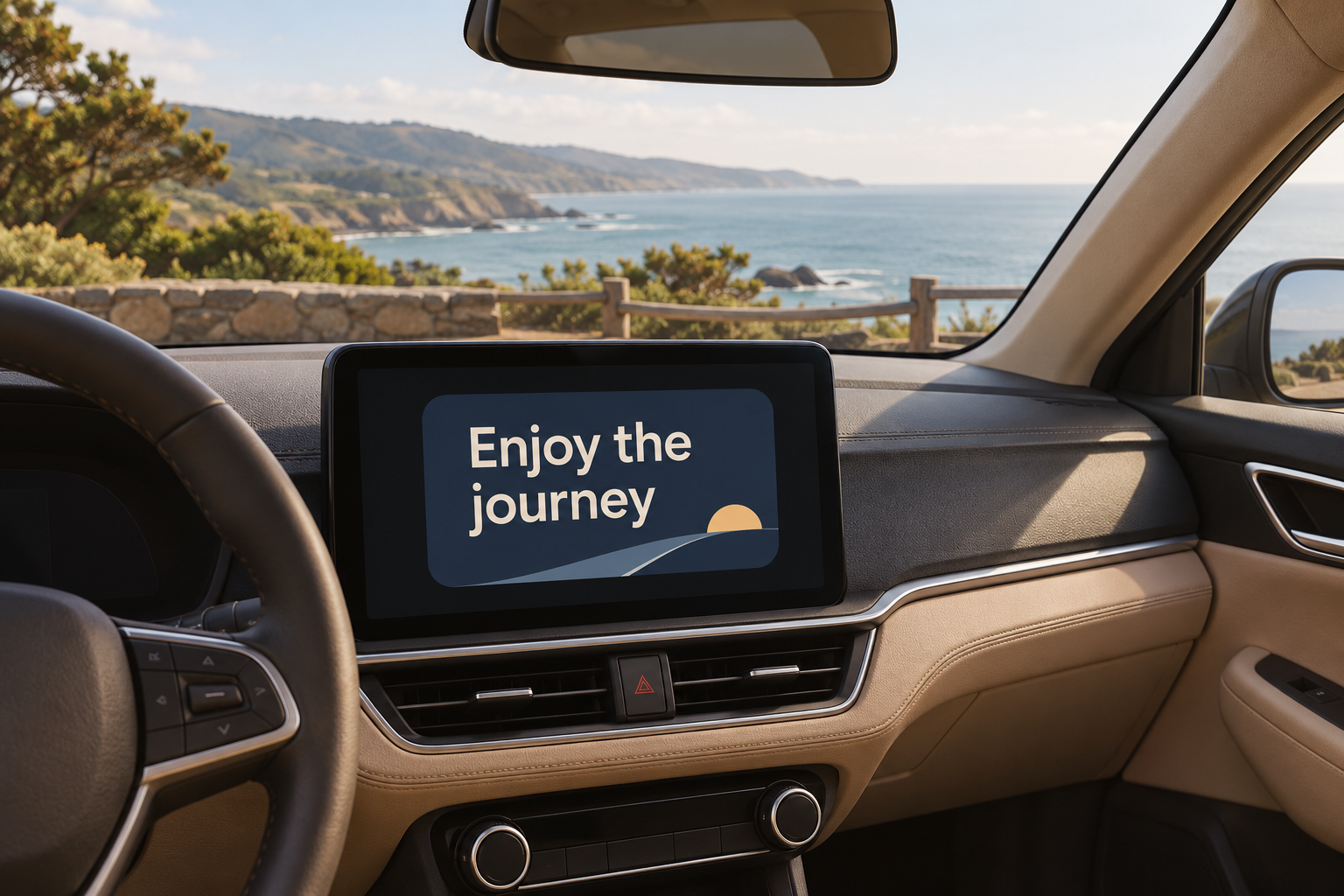
For a family trip, choose a short outing name or a destination photo. Keep private addresses and booking details in your usual travel notes. Preview the final wording and photo crop on the car display. Choosing a CarPlay photo
Agree on a simple everyday option to return to after a special outing. That makes it easier to refresh a trip theme later.
Review sound choices on the relevant phone
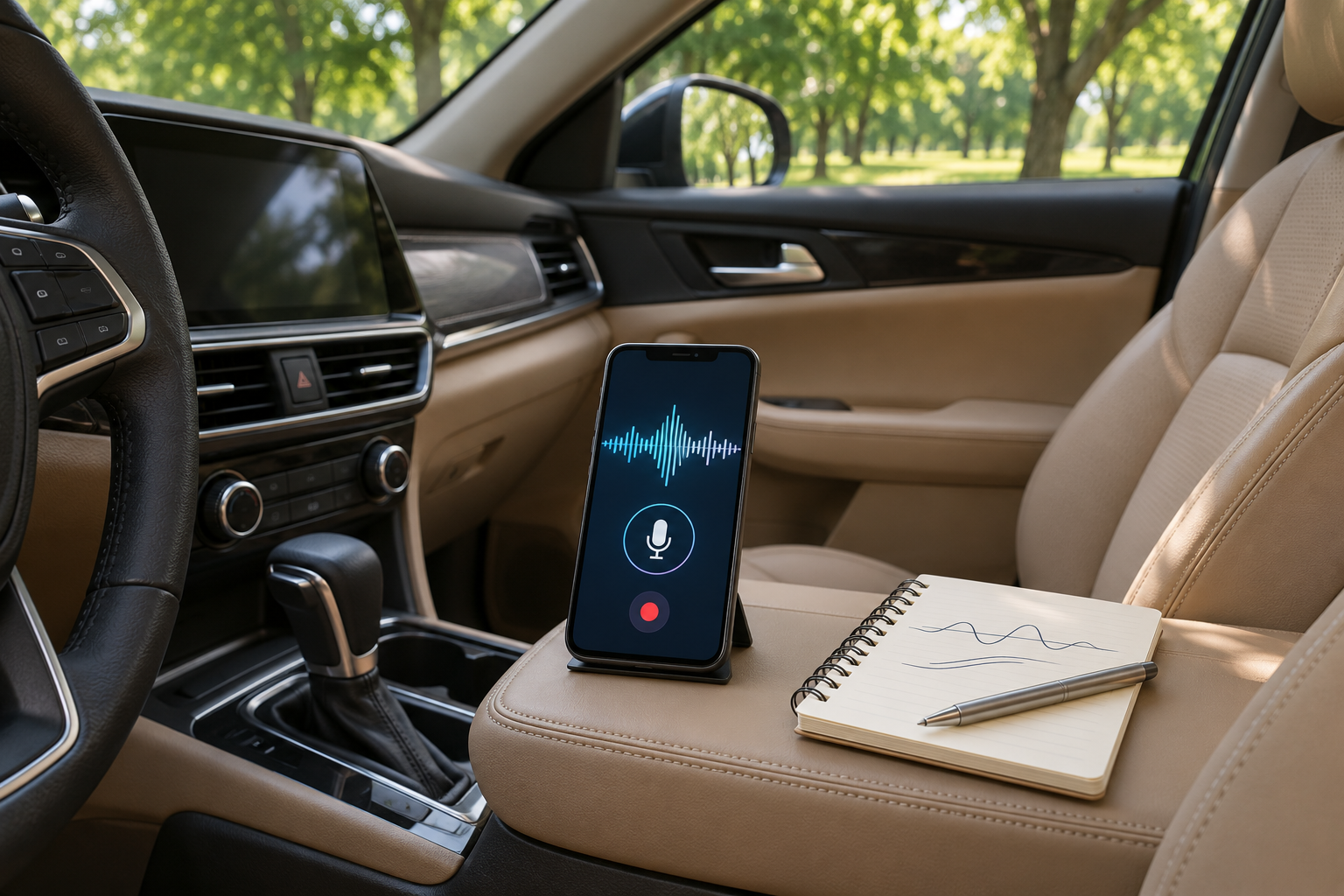
The publisher describes using selected sounds with connection or disconnection automations in Apple Shortcuts. If a driver sets up a sound, follow the in-app guide on that phone and test the matching event while parked.
Listen at a comfortable playback volume and check whether the greeting suits the other people who use the car. Preview the saved sound first if a connection test produces an unexpected result. Personal greeting guide
Keep a small setup note
Write down which design each person selected and where they found the vehicle's phone selection controls. Include a reminder to check the connected phone before changing widget settings.
After an app or system update, repeat a short parked check if the appearance changes. Review the saved preview, the selected widget, and the active connection in that order.
For each design, look at readability from the normal seating position. A card that suits one person may need a simpler crop or stronger contrast for another. Widget preview check
Will both phones show the same widgets automatically?
Check each phone's actual configuration and the vehicle's available settings. Test the intended design when that phone is connected before relying on it.
What if the car connects to a different phone first?
Use the vehicle manufacturer's instructions to select the phone you intend to use. Review the active connection while parked, then check the dashboard design. Car Connect feature overview