Create a CarPlay Text Widget with Car Connect
Choose a short dashboard message, preview its layout, and check the saved text widget in your parked car.
Updated Nov 20, 2026
In this article
A short phrase can give your dashboard a personal touch without needing a new photo every time. It might be the name of your weekend trip, a favorite saying, or a simple greeting for everyone who shares the car.
CarPlay Widgets: Car Connect includes customizable text widgets, along with photo, clock, and countdown designs. The publisher lists iOS 26 or later and a compatible vehicle or head unit as requirements for CarPlay widgets. Check compatibility before preparing your design. Car Connect on the App Store
Alibox promotes this application.
Choose a message for your CarPlay text widget
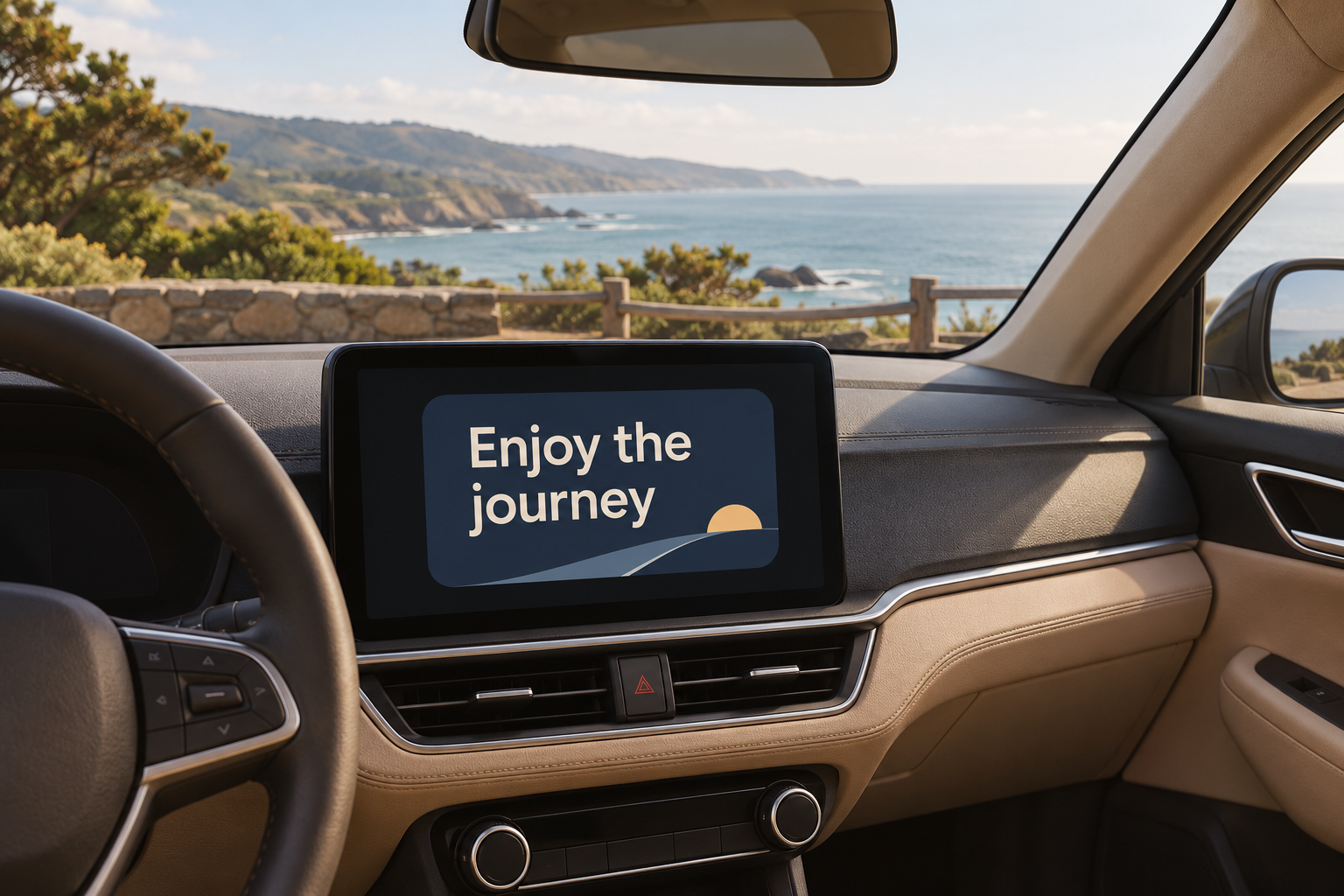
Start with a phrase that makes sense on its own. “Enjoy the journey” can suit a general dashboard design, while “Coastal weekend” can mark a particular outing. A few words are easier to fit into a small card than a full sentence with extra context.
Type your first version, then see whether any words can be removed while keeping the meaning. A short phrase gives you more room to choose a readable layout.
Create the design in Car Connect
Open Car Connect and select a text widget design. Enter your message, then use the available controls to choose the supported colors and layout. Preview the complete phrase before saving it.
Pay attention to line breaks. If one word sits alone on a final line, try a shorter version of the message or another available layout. Check punctuation too, especially if the design uses a large type size.
For a first attempt, use a plain background and clearly contrasting text. You can try a more decorative style after you have seen how the card looks on your vehicle display.
Check the saved message in your parked car
With the vehicle safely parked, connect your iPhone and follow the app's guide to add the saved design through the widget settings available for your compatible CarPlay display. Car Connect widget setup guide
Look at the card from your normal seating position. Confirm that the full phrase appears and that every line is easy to read. If the design feels crowded, shorten the wording and preview the result again.
If your vehicle changes display appearance after dark, check the design under that setting while parked as well. Choose the combination that stays readable in the conditions where you use the car.
Write for everyone who sees the dashboard
In a shared car, choose a phrase that passengers and other drivers will understand. A trip name, a family greeting, or a simple welcome can work without much explanation.
Keep private information out of a design that appears on a shared display. For a trip theme, the name of the outing is usually enough. You can use a separate countdown design when you want the departure date to be part of the dashboard. CarPlay countdown guide
Refresh the message when its purpose changes
After a special outing, review whether the phrase still belongs on your display. Replace the trip name with a general greeting or switch to another saved design. Check the result on the next connection while parked.
For a more visual theme, a clear photo can provide another way to personalize the dashboard. Choosing a CarPlay widget photo
Why is part of my phrase cut off?
The available card space and layout determine how much text fits. Preview a shorter phrase, check the line breaks, and save the revised design before reviewing it on the vehicle display.
Does a text widget work on every CarPlay system?
The publisher requires iOS 26 or later and a compatible vehicle or head unit. Check your vehicle's available widget settings and the in-app setup guidance before expecting the design to appear. Car Connect feature overview