How to Set Up a CarPlay Countdown Widget
Set a road trip countdown date in Car Connect and preview the widget on your dashboard.
Updated Nov 18, 2026
In this article
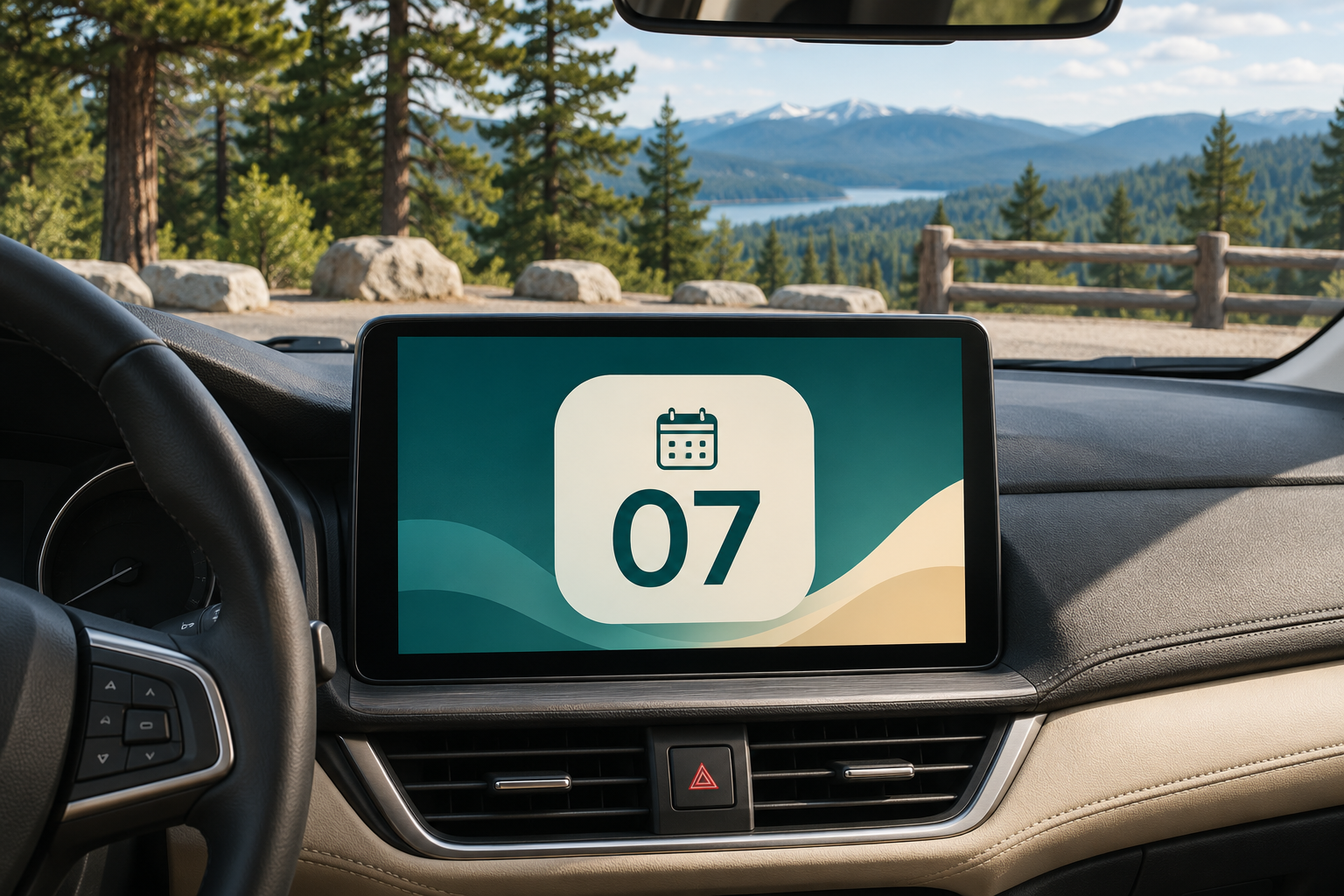
A road trip can spend weeks on the calendar before the car leaves the driveway. A countdown widget gives the departure date a small place on your CarPlay display. Set it up for a weekend away, a family visit, or the day you finally pick up the keys to a rental cabin.
CarPlay Widgets: Car Connect on the App Store. Alibox promotes this application.
Choose the date you want to count down to
For a Saturday trip, use Saturday as the target if the widget is about the day you leave. If your holiday starts on Friday but you drive on Saturday, decide which date makes sense on the dashboard. Keep timed commitments, such as a ferry check-in, in your calendar with a reminder.
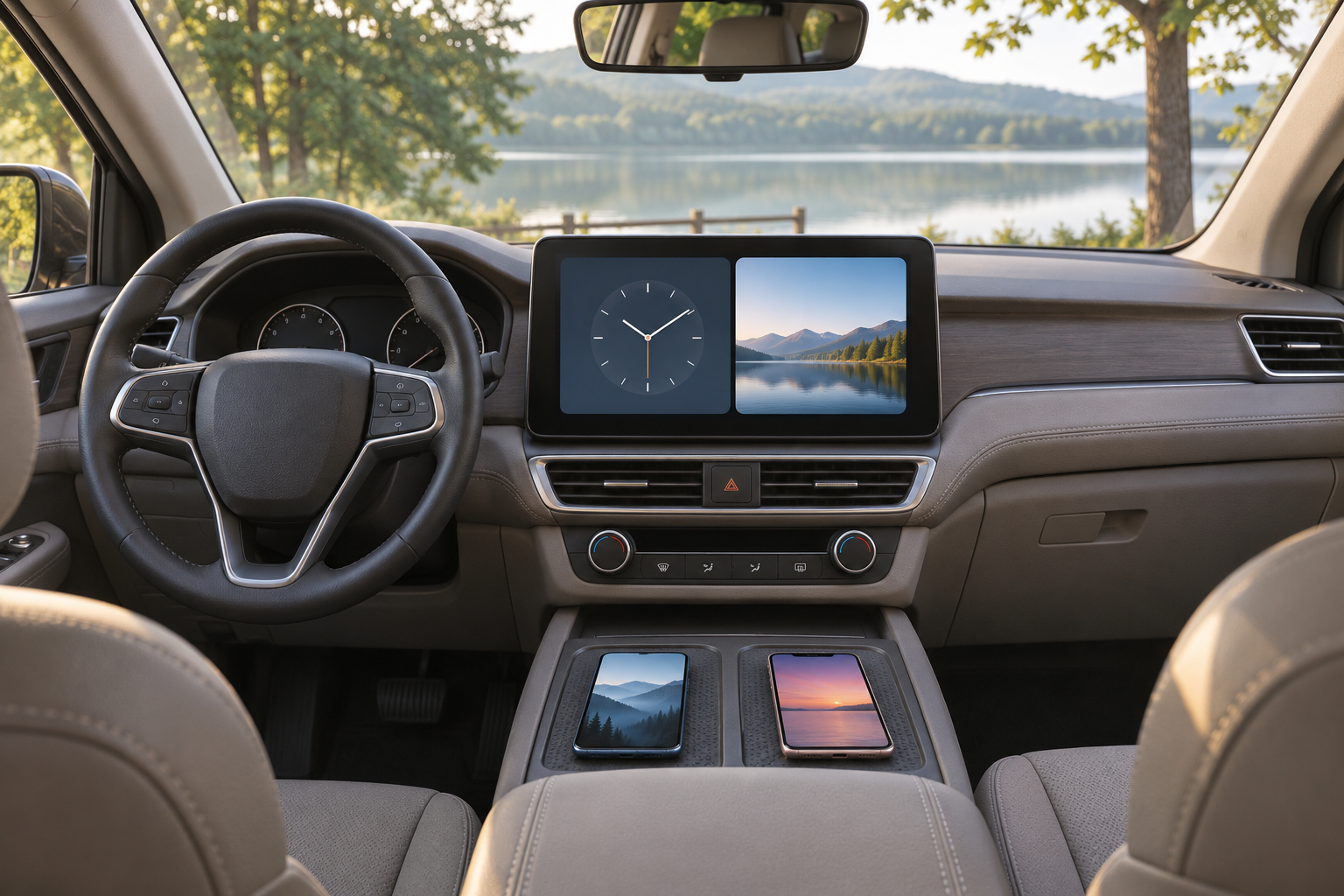
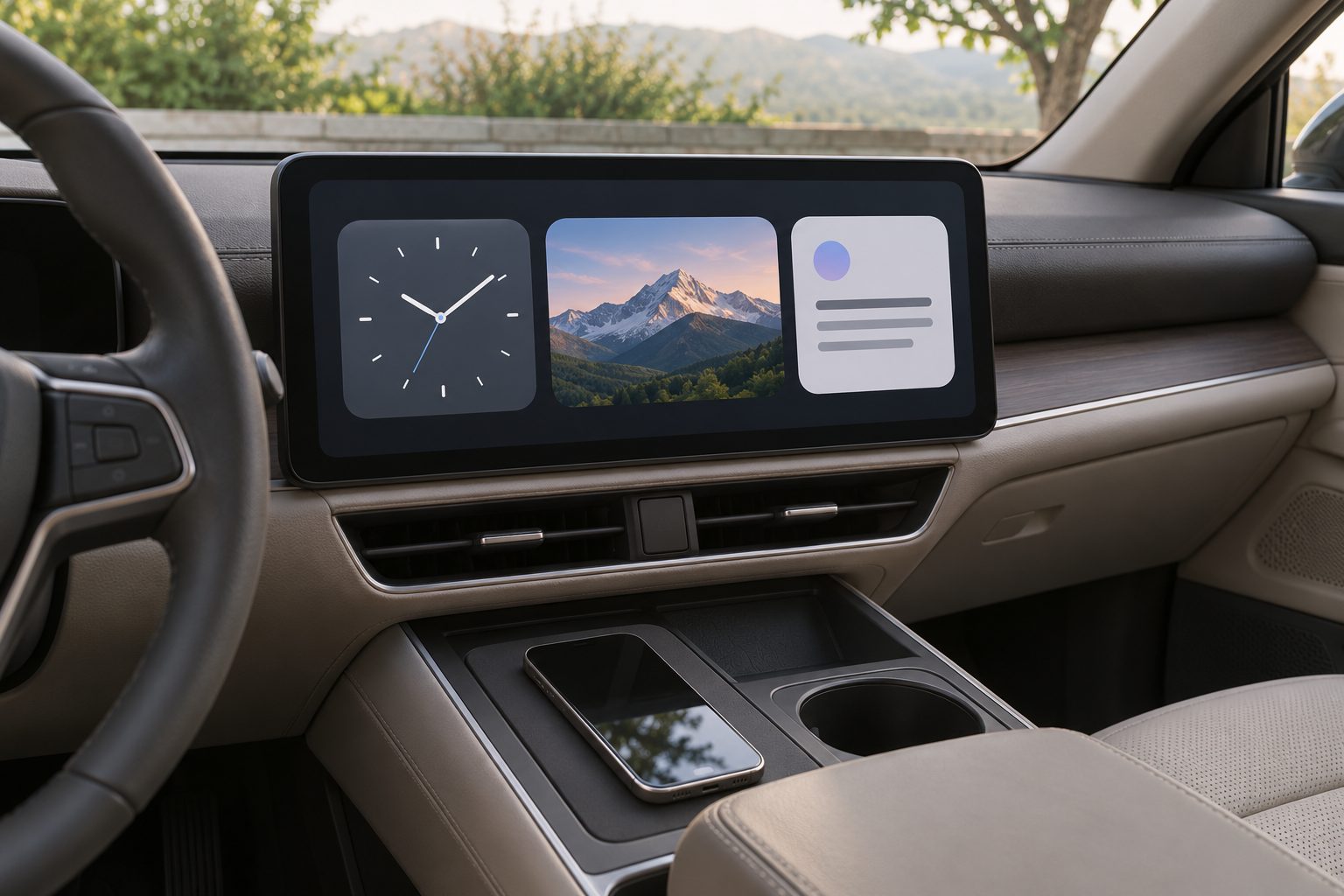
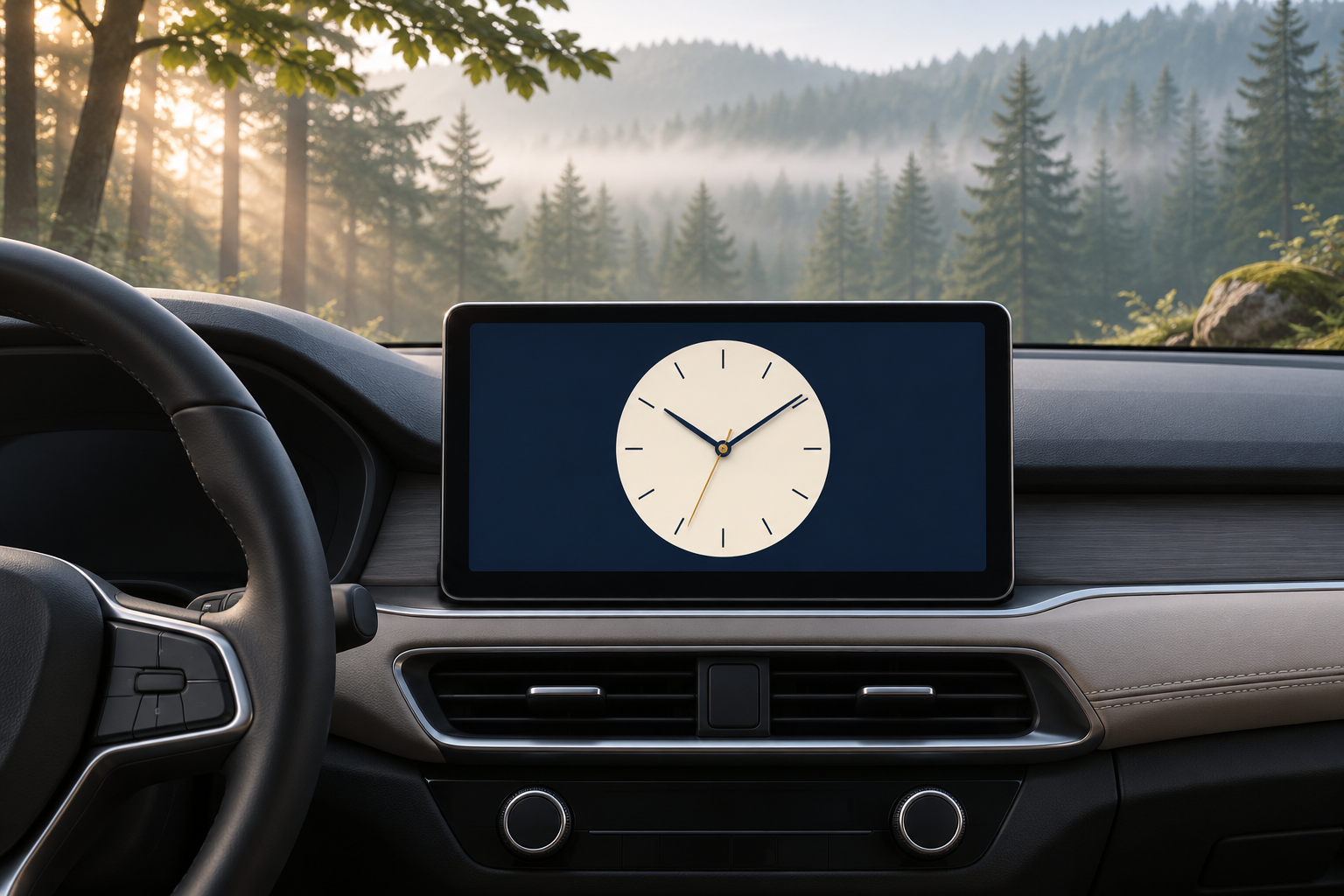
Car Connect offers customizable countdown, clock, photo, and text widgets. The publisher lists iOS 26 or later and a compatible vehicle or head unit as requirements for displaying the widgets in CarPlay.
Set up a CarPlay countdown widget
1. Open Car Connect on your iPhone and choose a countdown design. 2. Select your target date. If the design supports an event label, keep it short. “Cabin trip” fits more comfortably than a cabin name and booking reference. 3. Preview the design and save it. Pick a color combination that makes the number easy to read. A plain background can help on a smaller display. 4. With the car parked, connect your iPhone and add the saved design using your vehicle’s CarPlay widget settings. Check it on the dashboard before setting off. Car Connect widget setup guide
Check how it looks from the driver's seat
A widget that looks balanced on your phone can look crowded beside other cards. While parked, look at it from your usual seating position. Can you read the number and tell which event it represents? If your vehicle switches its display appearance after dark, preview the design in both conditions. A shorter label or stronger contrast may make more difference than changing the layout.
Try setting the countdown a few days before departure. That gives you time to check that it points to the intended date and still looks right the next time you connect. After the trip, you can swap the countdown for a clock or another design you use regularly. Car Connect feature overview
Why is my countdown missing from the vehicle display?
Check that your iPhone is running iOS 26 or later and that your car or head unit supports CarPlay widgets. If the widget settings are available, confirm that you saved the countdown in Car Connect and selected it for the connected vehicle. You can check the iPhone preview first to confirm the design was saved with the date you intended.