Check Your Car Connect Widget Design While Parked
Review a saved widget design on your phone and car display, checking crops, text, and contrast.
Updated Nov 26, 2026
In this article
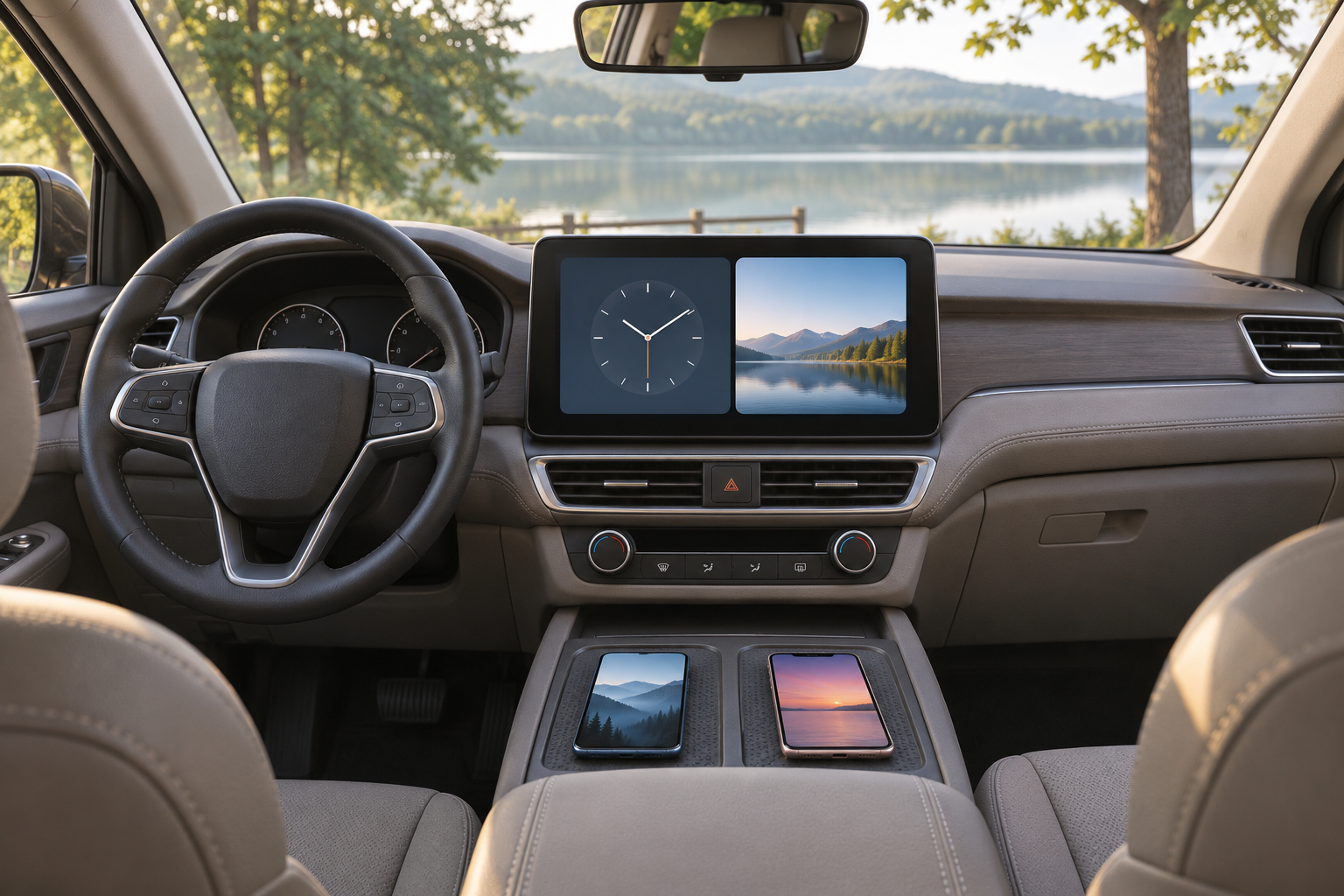
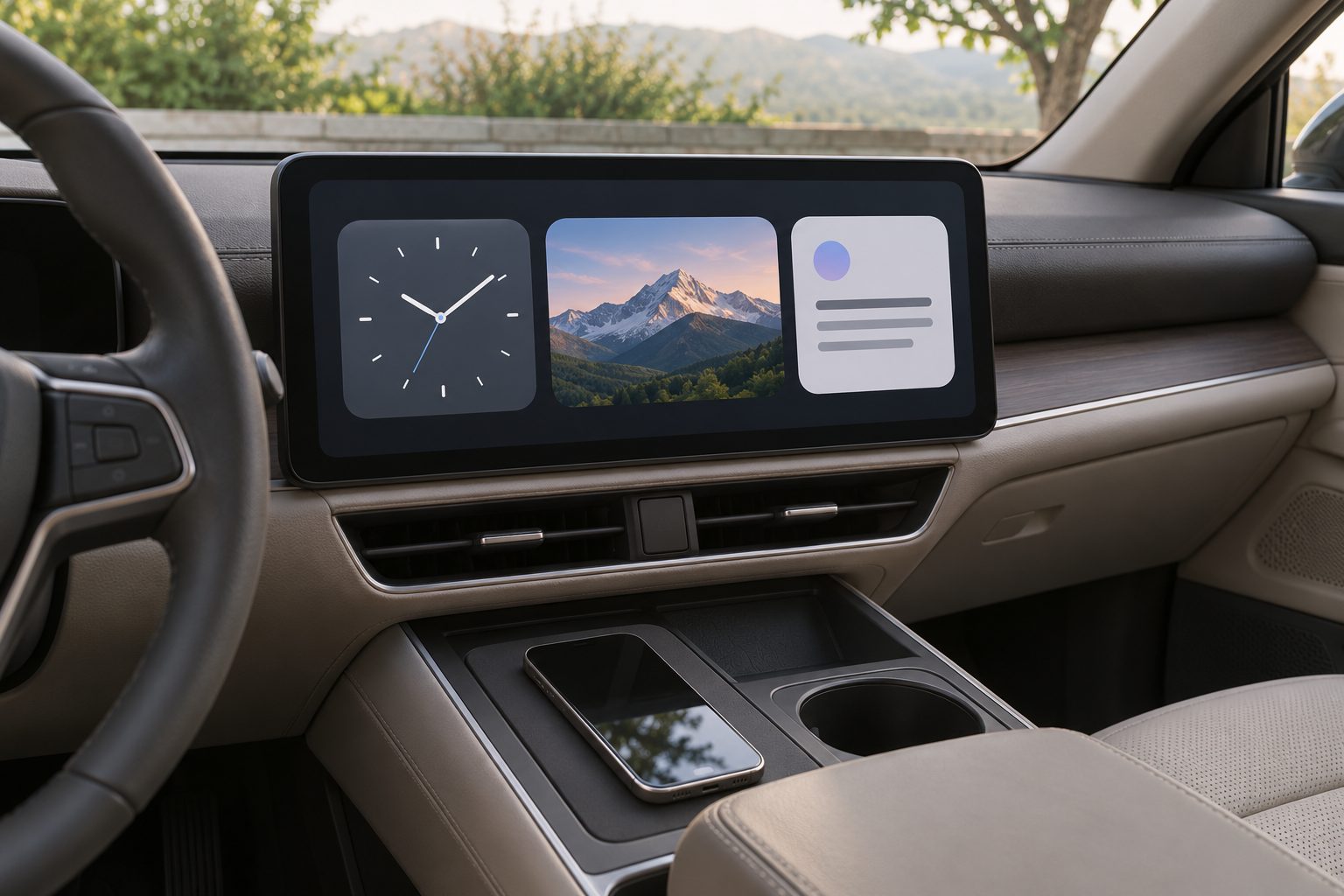
A new widget design can look balanced on your iPhone and feel crowded on the car display. The screen size, neighboring cards, and viewing position all affect the result. A short check while parked helps you decide whether the design works in the place where you will see it.
Use this review after saving a design in CarPlay Widgets: Car Connect. Keep the version you liked available while trying another color, crop, or message so you can compare the changes. Car Connect on the App Store
Alibox promotes this application.
Review your Car Connect widget preview
Open the saved design on your iPhone and confirm that it contains the photo, wording, or date you intended. Check the full preview before returning to the car.
For a photo, look at the edges of the crop. For text, read every line and check for a word left alone at the bottom. For a countdown, confirm the target date in the design settings.
Change one detail at a time. If you adjust the color and wording together, it can be harder to tell which change improved the card.
Check the selected vehicle and widget
With the car safely parked, connect your iPhone using your usual setup. Follow the in-app guide and the widget options available for your compatible vehicle or head unit.
Confirm that you are reviewing the intended saved design. If the display shows an earlier choice, check the selected widget and its configuration before making more edits. Use the setup guidance for your installed version. Car Connect widget setup guide
Widget availability depends on your iOS version and vehicle support. Check the app's current compatibility information and your vehicle's available settings when preparing the setup.
Look from your normal seating position
Sit where you usually drive and review the display while parked. Notice whether the card's main detail is easy to recognize without leaning toward the screen.
A photo with one clear subject may remain recognizable at a smaller size. A short phrase may fit more comfortably than several lines of text. If the design feels busy, try simplifying the content first. Choosing a CarPlay photo
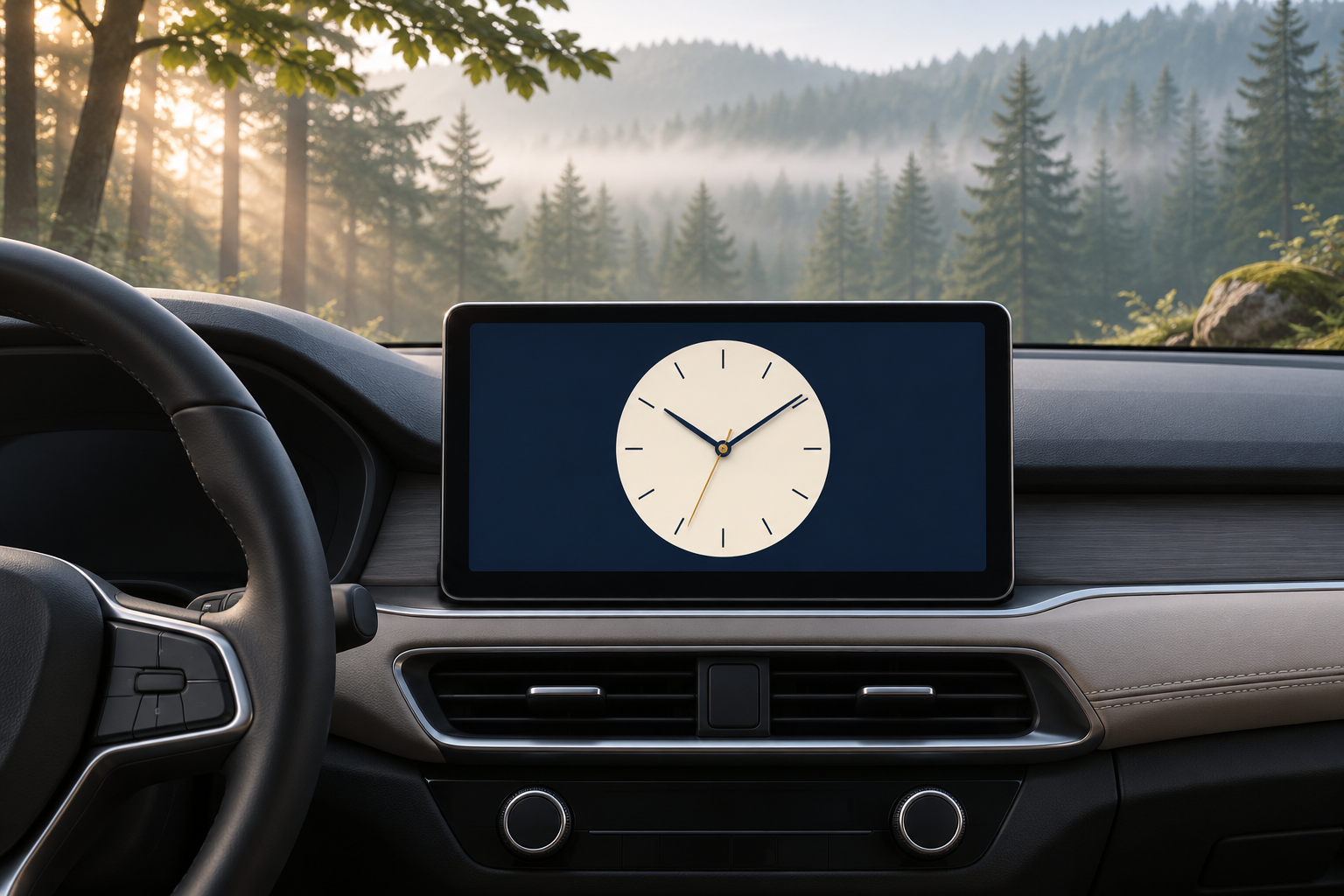
Check the neighboring cards as well. Similar colors can help the group feel consistent, but each card still needs enough contrast for its own content.
Compare daylight and evening appearance
Review the design in daylight and, when practical, with the vehicle's evening display appearance while parked. Reflections and screen brightness can change how a color combination looks.
If fine details disappear, try stronger contrast or a simpler background. Save the revision, then compare it under the same conditions before choosing a version.
Keep a note of the design you prefer. That makes it easier to return to it after experimenting with another style.
Finish the check with the actual content
A placeholder phrase or sample photo can hide a layout problem. Review the final wording, image, or date before treating the design as ready.
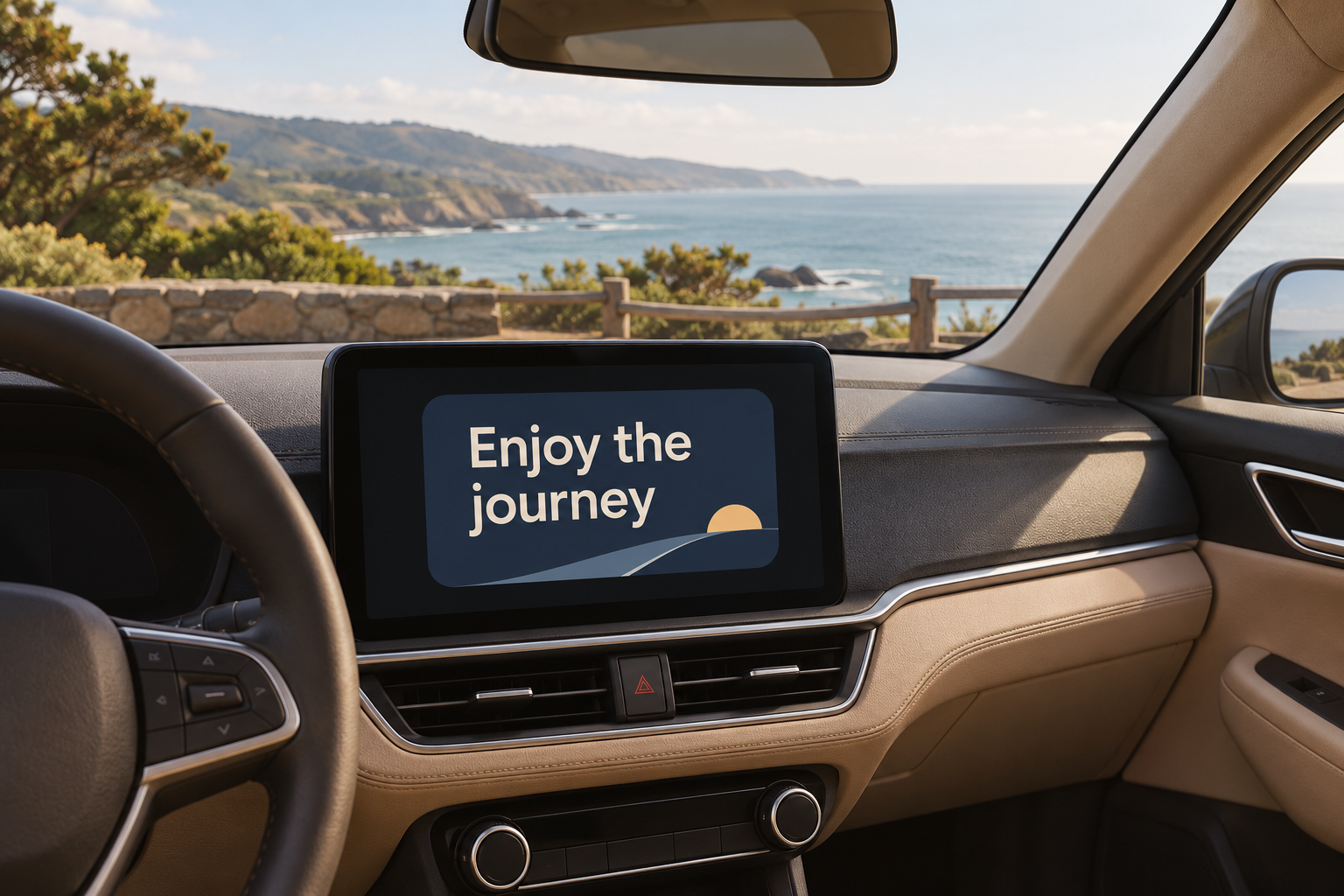
For a trip countdown, verify the date again after editing. For a greeting, read the complete phrase on the vehicle display. CarPlay text widget guide
Once you are happy with the saved result, check it again at the next connection while parked. This gives you another opportunity to confirm that the intended selection appears.
What if a photo looks cropped differently?
Compare the saved preview with the card shown on the vehicle. Try a picture with more space around the subject and review it at the actual display size.
Should I change every widget at once?
A single design change is easier to compare with the previous version. Review it on the vehicle display, then move to the next card if needed. Car Connect feature overview