How to Choose a Photo for Your CarPlay Widget
Choose a clear photo, preview the crop, and check your saved Car Connect design on a compatible dashboard.
Updated Nov 19, 2026
In this article
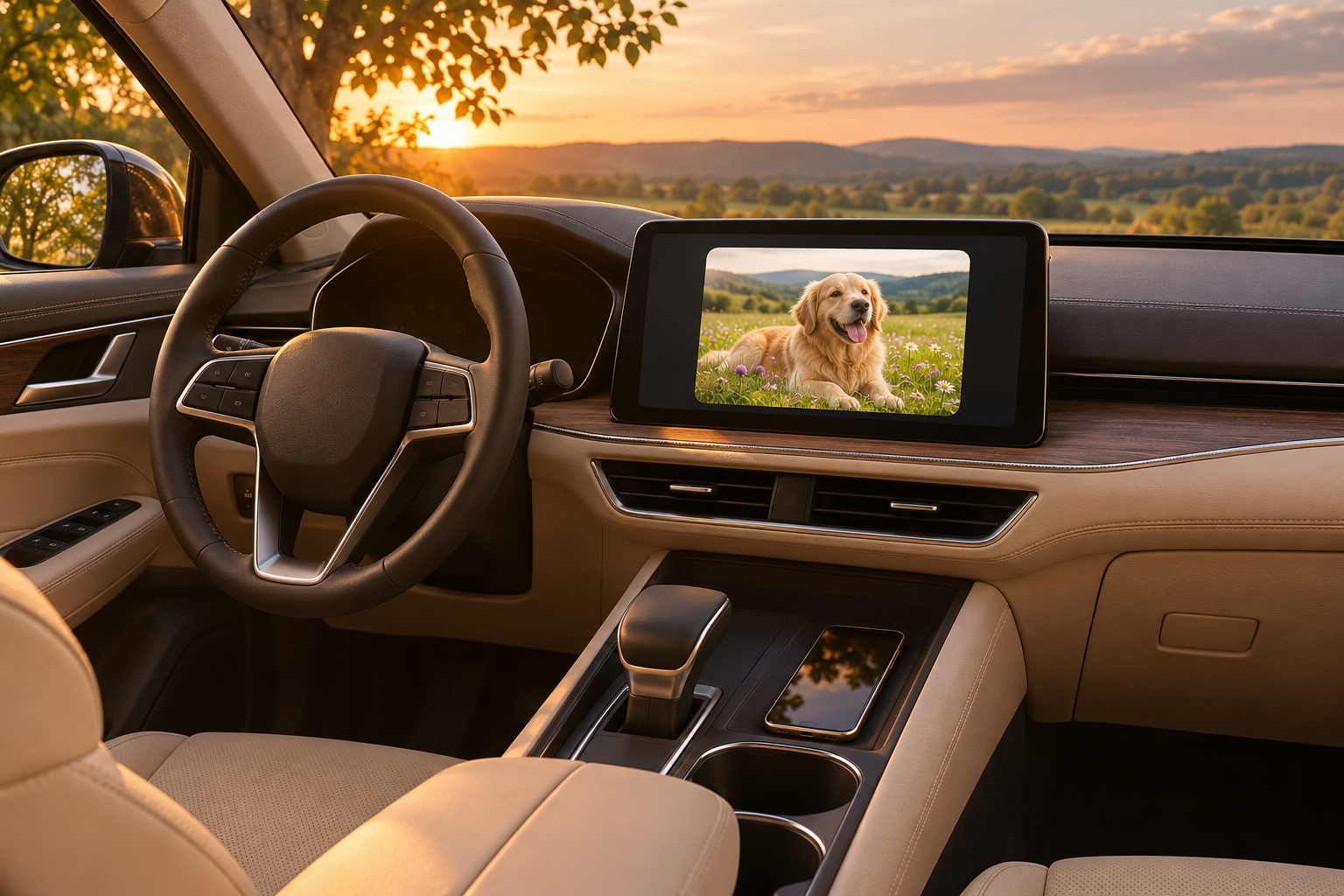
A favorite photo can make your car display feel more personal each time you connect your iPhone. Choosing an image for a small dashboard tile takes a little care. A close portrait of your dog may remain recognizable after cropping, while a wide holiday group photo can lose the faces you wanted to see.
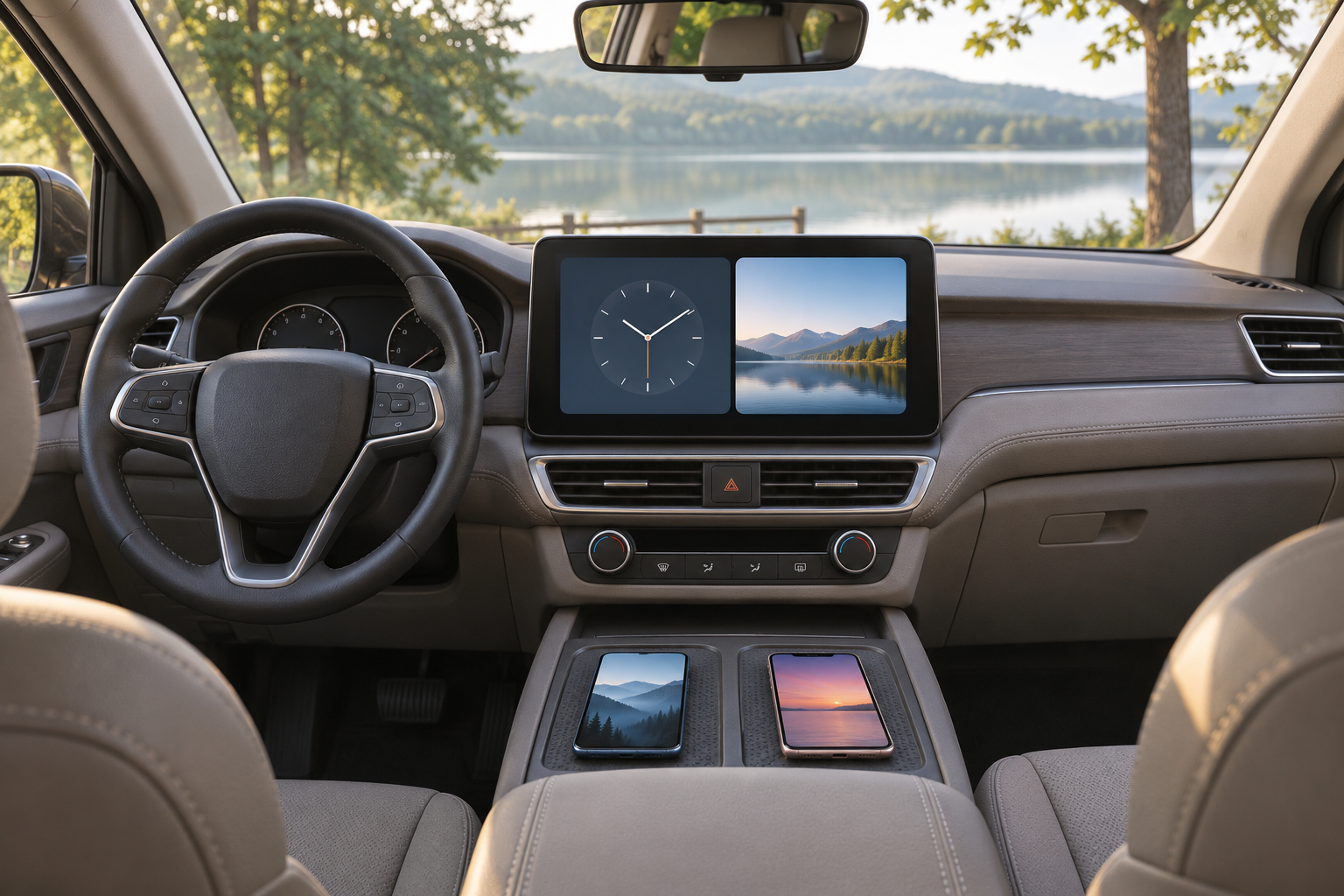
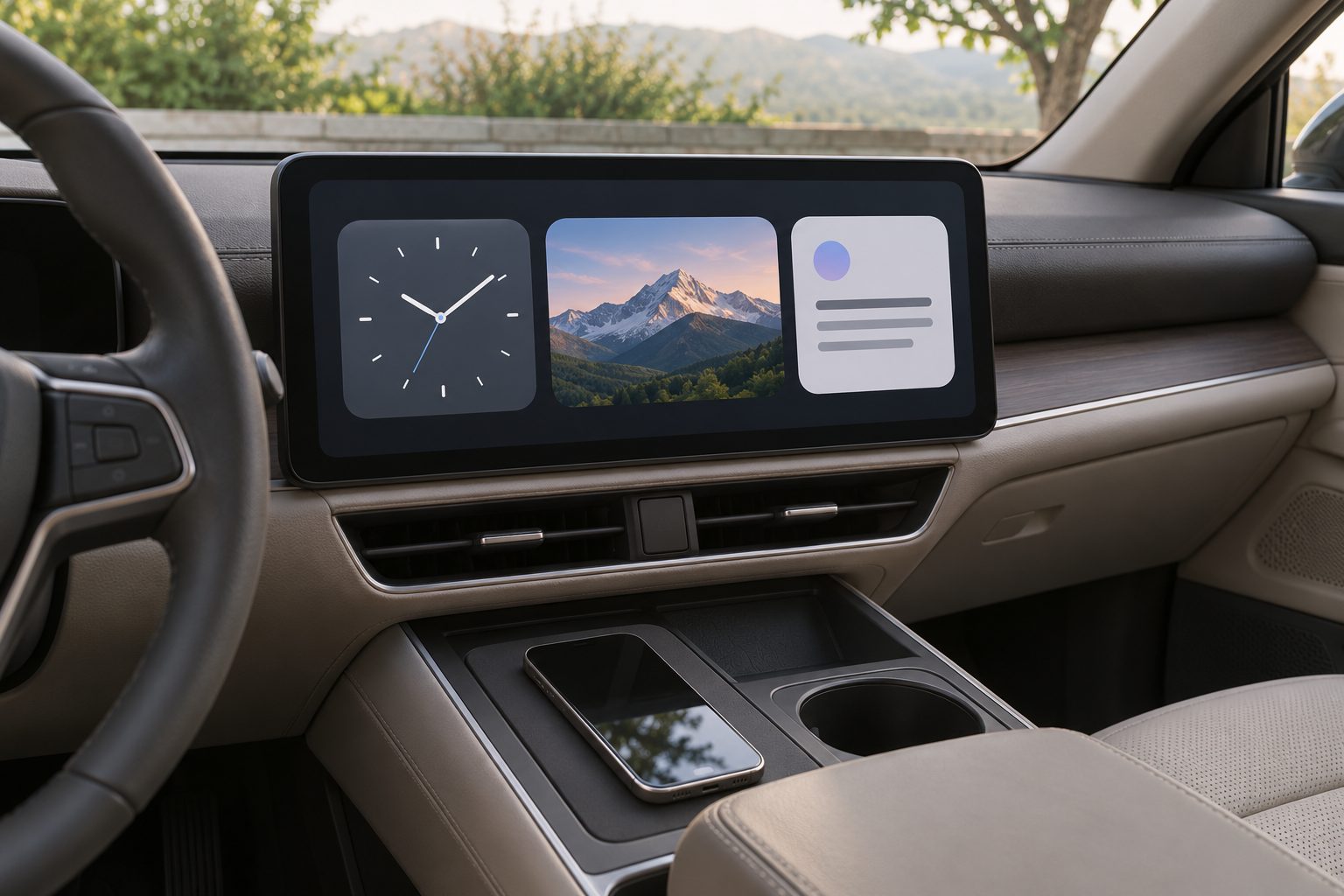
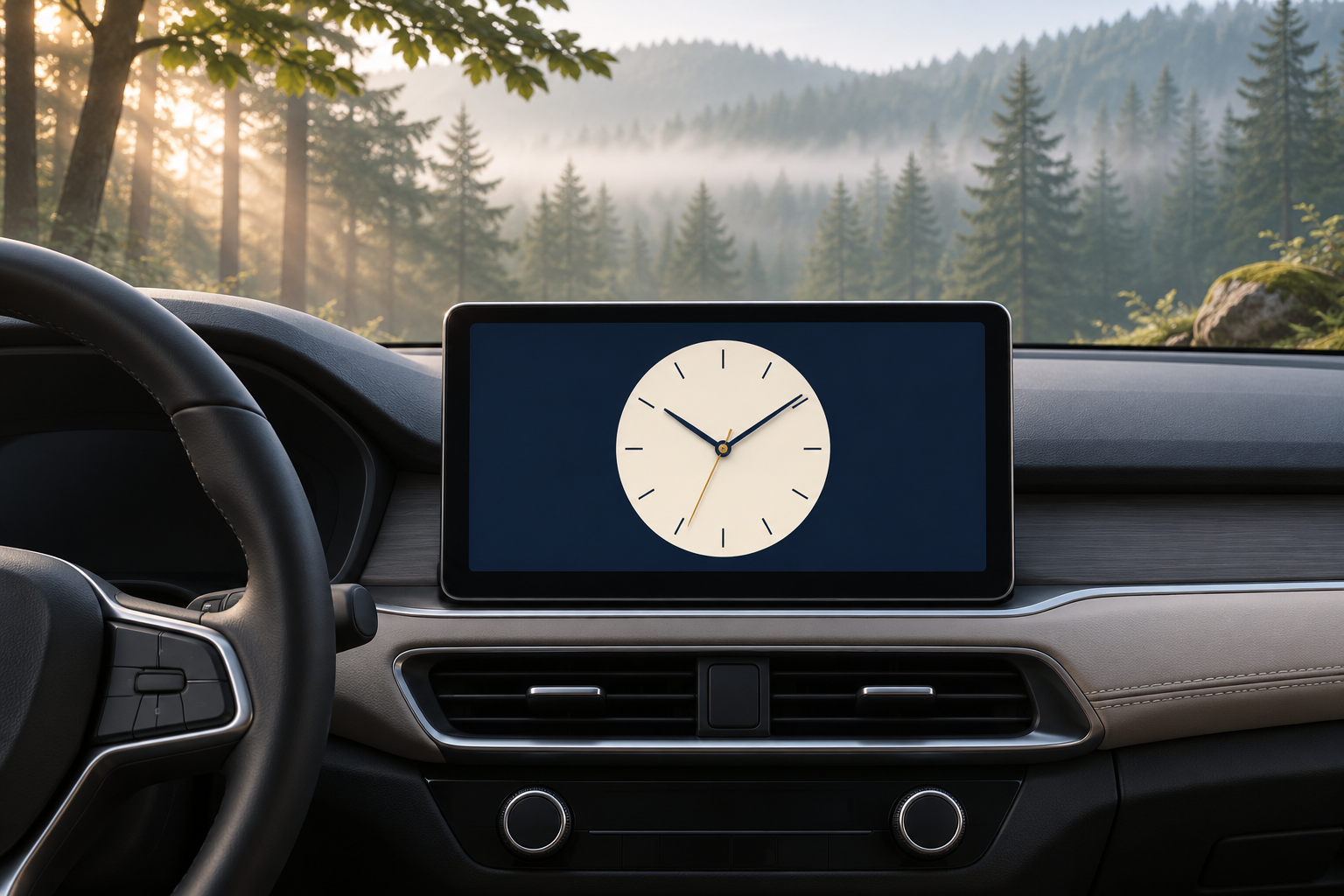
Car Connect supports customizable photo widgets, along with clock, countdown, and text designs. Its publisher lists iOS 26 or later and a compatible vehicle or head unit as requirements for CarPlay widgets. Check those requirements before preparing your picture. CarPlay Widgets: Car Connect on the App Store
Alibox promotes this application.
Choose a picture for your CarPlay photo widget
Start with one clear subject. A pet, a mountain, or a person framed against a quiet background is easier to recognize in a small tile. Look at the image as a thumbnail before opening the widget editor. If the important detail is already hard to see, choose a closer photo.
Leave some space around the subject. Widget layouts can crop the edges of a picture, and a face pressed against the border may lose part of its outline. A photo with room above and beside the subject gives you more flexibility when choosing the available layout.
Preview the crop before saving
Open Car Connect and select a photo design. Choose your image, then use the available customization controls to preview how it fits. Check the corners and edges as well as the center. A crop that keeps the dog's face but removes its ears can feel awkward even when the main subject remains visible.
Try two pictures if you are unsure. A close portrait and a wider scene often reveal the difference immediately when shown at widget size. Keep the version that works with the space available.
For a landscape, choose a distinct shape such as a mountain ridge or a bright boat against water. A scene filled with tiny details may turn into a patch of color once it appears on the dashboard.
Check the result in your parked car
Save the design and follow the in-app guide to add it through the widget settings available for your compatible CarPlay display. Connect your iPhone with the vehicle safely parked and look at the result from your normal seating position. Car Connect widget setup guide
Check whether the subject is recognizable and whether the crop matches your expectation. If the picture looks too busy, try a simpler image. If it looks too dark, choose a brighter original. Make your adjustments while parked, then check the saved result again.
Pick a photo you are comfortable displaying
Passengers may see the image whenever your dashboard shows the widget. Choose a picture you are happy to share in that setting. A favorite landscape or pet portrait can work well in a shared car.
You can also change the design for a special trip. A photo of the destination can accompany the days leading up to departure, and a countdown design can show how close the date is. CarPlay countdown widget guide
Why does the picture look different from the original?
The widget has its own shape and available space. A wide picture may need a tighter crop, while a tall portrait may lose details near the top or bottom. Preview the design in the app and on the parked vehicle display, then choose a photo with more space around the subject if needed.
What if the widget does not appear?
Check the iOS version, vehicle compatibility, and the widget selection for the connected car. Confirm that the design was saved in Car Connect before selecting it for the vehicle. The app's setup guide can help you follow the available steps for your display. Car Connect feature overview