Personalize CarPlay Widgets with Car Connect: A Practical Setup Guide
Create a clear Car Connect widget, check iOS and vehicle compatibility, follow the setup guide, and review your design on the display while parked.
Updated Nov 7, 2026
In this article
- Check compatibility before designing
- Choose one widget with a clear purpose
- Build a design that stays understandable at a glance
- Review colors and appearance in the real display
- Follow the current guide for adding the widget
- Compare a few simple designs before making a collection
- Treat welcome sounds as a separate setup
- Understand the trip dashboard's role
- Keep playlist video separate from standard CarPlay expectations
- Finish with a parked review of the complete setup
- Frequently asked questions
- What is required for CarPlay widgets?
- Can I create photo and text widgets?
- Will saving a welcome sound set up an automation?
- Does standard CarPlay guarantee video playback?
- Where can I try Car Connect?
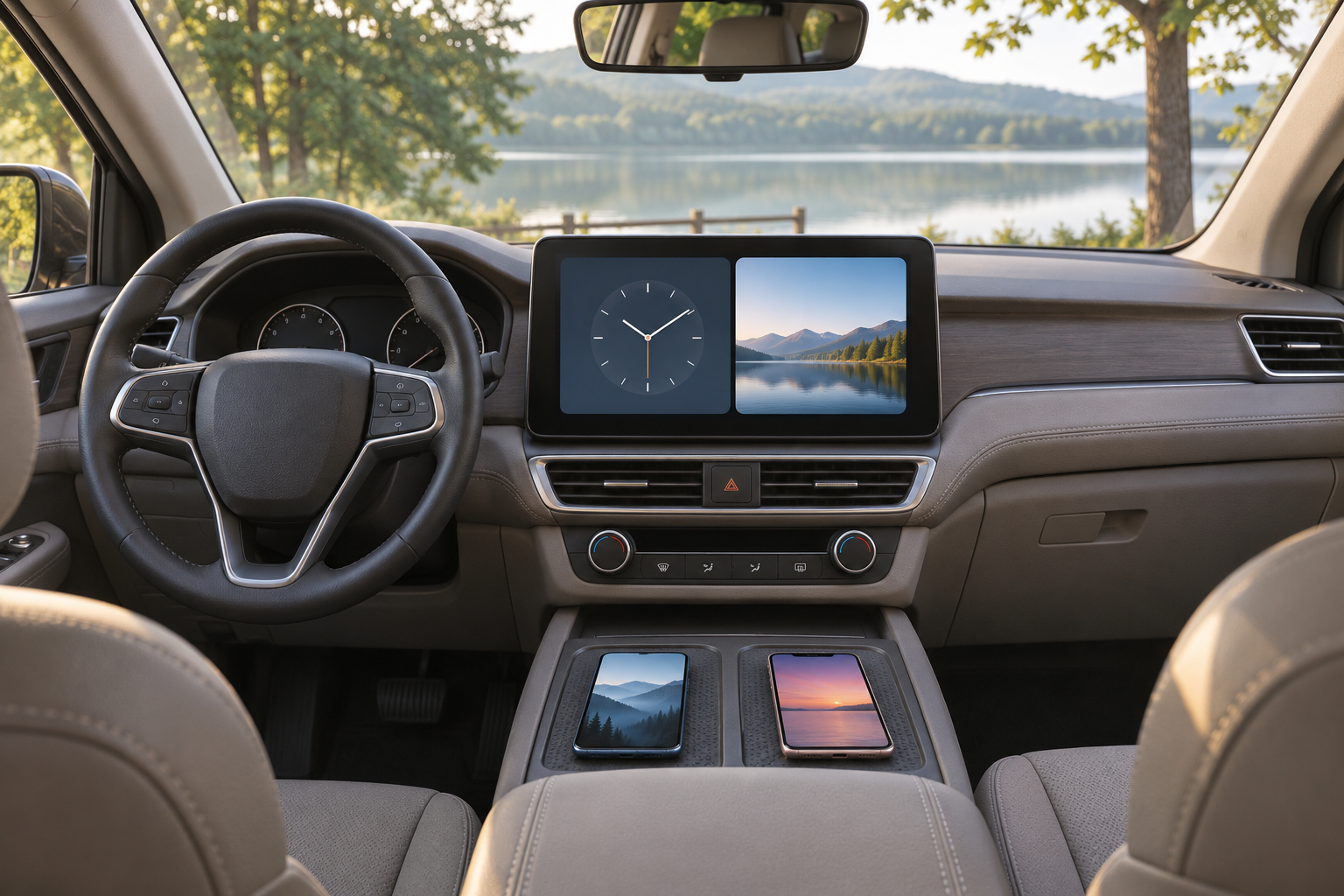
A car dashboard feels more personal when it shows information and images you actually want to see. A favorite photo, a simple clock, or a countdown can give a compatible CarPlay display a different character without turning setup into a complicated design project.
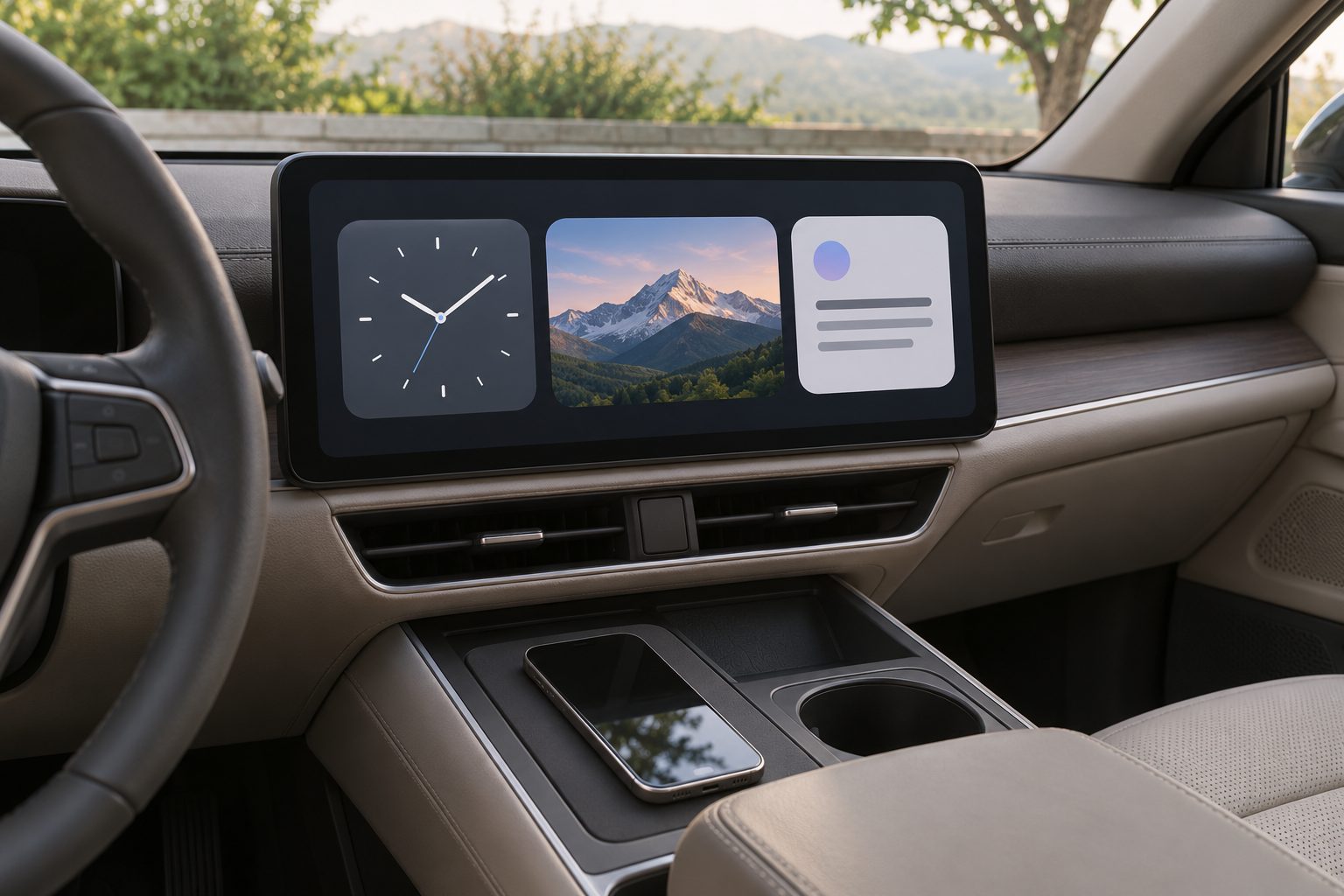
CarPlay Widgets: Car Connect lists tools for creating custom widgets, choosing supported colors and layouts, and following a guide to add designs to a compatible display. This article explains a practical starting routine: check compatibility, make one clear widget, review it in the car while parked, and expand only when the first design works for your setup.
App to try: View CarPlay Widgets: Car Connect on the App Store. Alibox promotes this application.
Check compatibility before designing
The publisher specifies iOS 26 or later and a compatible vehicle or head unit for CarPlay widgets. Meeting the phone's software requirement alone does not establish that every display will behave the same way.
Check the current app guidance and the information for your actual vehicle or head unit. Confirm that the intended CarPlay connection works before spending time creating several designs. If you cannot find the required display option, investigate compatibility rather than assuming a saved design will appear automatically.
Configure and review the app while safely parked. Give yourself time to inspect the display without needing to divide attention between setup and driving.
Choose one widget with a clear purpose
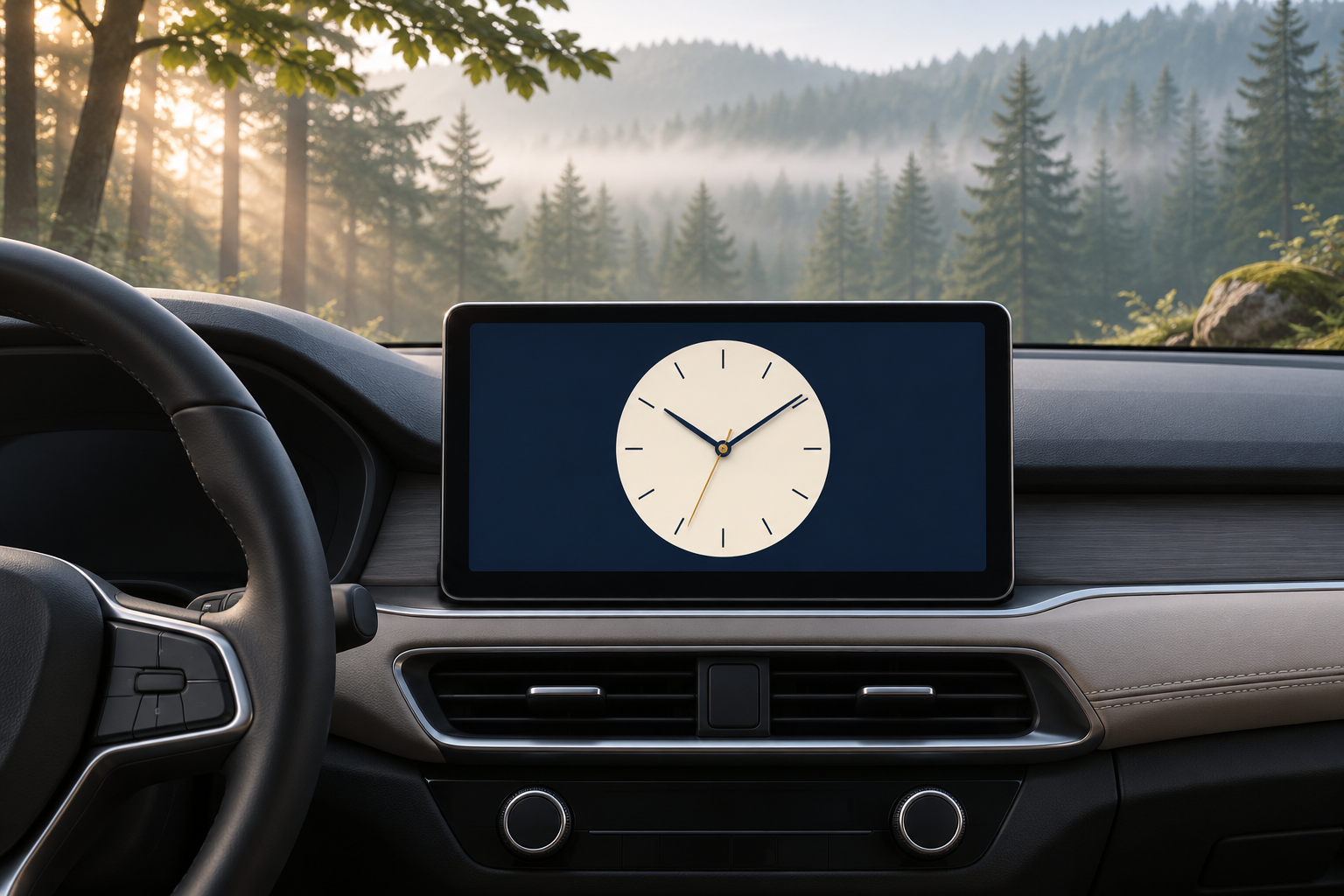
Start with a photo, clock, countdown, or short text design from the options available in your installed version. Choose the kind of content you want before adjusting colors or layouts.
For a photo widget, the goal might be a recognizable image with a simple subject. For a text widget, it might be a brief message that remains readable in a compact card. A countdown has a different role again: choose the intended event and check the resulting display carefully.
The Car Connect application overview summarizes the publisher's listed tools. This article does not assume a specific widget size, automatic placement rule, or template beyond the options you can confirm in the app.
Build a design that stays understandable at a glance
A widget preview on your phone may be easier to inspect than the same content on a dashboard. Choose a simple composition and review it at the size the compatible display actually uses.
Avoid putting too much text into a small design. A longer message can become visually busy even when it technically fits. For photos, consider whether the main subject remains recognizable if the available layout crops part of the image.
Use the supported customization controls in the current app. Do not assume every color, font, crop, or border can be changed independently. Work with the options shown and choose a design whose meaning survives the available presentation.
Review colors and appearance in the real display
A palette that looks appealing on one screen may look different on another. Check the design on the actual compatible dashboard while parked, including the appearance mode you expect to use.
Look at contrast and visual clarity. Can you distinguish the important content from the background? Does a photo compete with the clock or text? If something feels crowded, simplifying the design may be more useful than adding another decorative element.
The publisher lists light and dark appearance options in Car Connect. Confirm how your current app and vehicle settings affect the result rather than assuming the same behavior on every head unit.
Follow the current guide for adding the widget
Save your design through the available workflow and follow the app's current CarPlay widget setup guide. Exact labels and the steps on the destination display can vary, so use the instructions relevant to your installed version and hardware.
Do not interpret a design appearing in the phone app as proof that it has been added to the car display. Check the actual destination and confirm that the intended widget is visible.
If it does not appear, note what you can observe: whether the phone is connected, whether the design is saved, and which setup step you reached. Avoid resetting unrelated settings repeatedly without understanding the current compatibility requirements.
Compare a few simple designs before making a collection
After the first widget works, create another version only if you have a clear reason. You might try a different photo composition or a shorter text message. Keep the comparison focused on what changes.
Use a small review table:
| Design choice | What to check while parked | | --- | --- | | Photo | The subject remains recognizable in the displayed crop | | Clock | The information is readable in the chosen layout | | Countdown | The intended event and displayed value are correct | | Text | The message is brief and clear at the actual size | | Colors | Important elements remain distinct from the background |
These are manual review questions, not claims that the app automatically scores designs. Keep the versions that fit your display and purpose rather than collecting options you will not use.
Treat welcome sounds as a separate setup
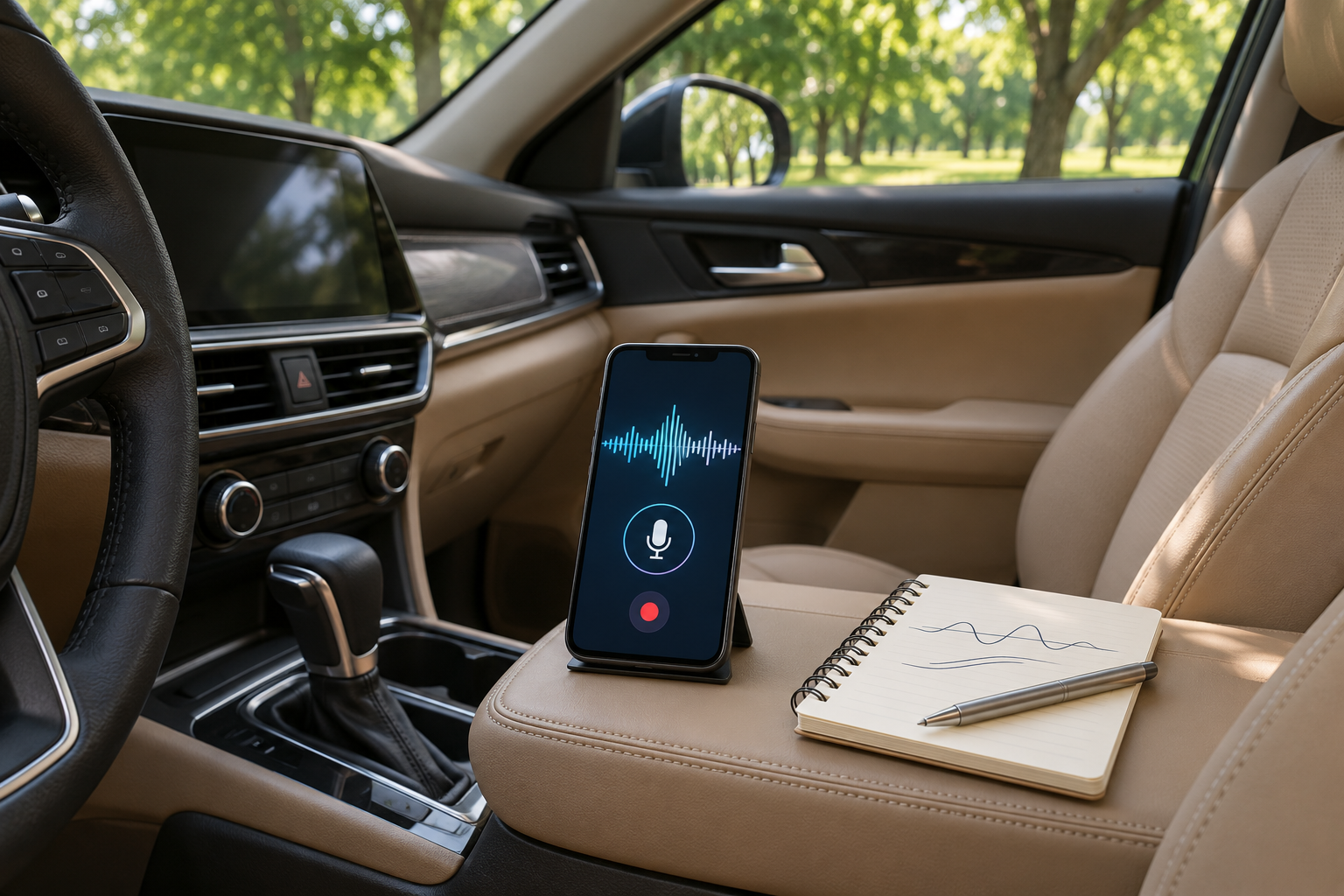
Car Connect also lists sound previews, audio import, and voice recording. The publisher describes using a selected sound with a CarPlay connection or disconnection automation in Apple Shortcuts.
That automation requires separate setup. Creating a widget or saving an audio selection should not be assumed to configure the Shortcuts workflow automatically. Follow the current guide and test the intended behavior while parked.
Choose a sound you are comfortable hearing and have permission to use. Keep widget design and sound testing as separate tasks so you can identify which configuration needs attention if something behaves unexpectedly.
Understand the trip dashboard's role
The app lists a GPS dashboard with speed, distance, duration, and saved trip summaries. The publisher describes those measurements as estimates. Do not treat them as exact readings or a replacement for the vehicle's instruments.
Active trips use location and may continue tracking in the background, which can affect battery life. Review permissions and the current start-and-stop workflow before relying on trip history.
A custom widget, a trip dashboard, and a welcome-sound automation serve different purposes. Do not assume that each appears on the CarPlay display or shares the same controls simply because they are offered in one app.
Keep playlist video separate from standard CarPlay expectations
The publisher lists user-supplied M3U and M3U8 IPTV playlists and supported AirPlay video with a compatible display. A standard CarPlay connection does not guarantee video playback.
Car Connect does not provide TV channels or streaming subscriptions. Use only playlists and content you have permission to access, and watch video only while safely parked.
If you are interested primarily in widgets, you do not need to configure every other feature to begin. Confirm each additional workflow and its hardware requirements separately rather than expecting one connection to enable everything.
Finish with a parked review of the complete setup
Check the actual widget, saved design, and any separate automation you intentionally configured. Confirm that the result matches your purpose and that you understand how to change it later through the available controls.
Review the current App Store listing and in-app screens for feature access and purchase terms. Do not assume every listed function is included in a particular entitlement or that compatibility has been independently tested for your vehicle.
A useful first setup is small and verified: one readable widget, on the intended compatible display, with a configuration you understand. Build from that starting point when another design adds something you want.
Frequently asked questions
What is required for CarPlay widgets?
The publisher specifies iOS 26 or later and a compatible vehicle or head unit. Check the current app guidance and your actual hardware before relying on the feature.
Can I create photo and text widgets?
The listing describes customizable photo, clock, countdown, and text widgets. Follow the options available in your installed version for supported layouts and colors.
Will saving a welcome sound set up an automation?
Do not assume that. The publisher requires setup in Apple Shortcuts for a CarPlay connection or disconnection sound automation.
Does standard CarPlay guarantee video playback?
No. The listed video workflow requires a compatible display and supported content. Watch only while safely parked; channels and subscriptions are not included.
Where can I try Car Connect?
Find CarPlay Widgets: Car Connect on the App Store. Check compatibility, choose one simple widget, and review it in the parked vehicle before expanding your setup.