Choose a Clear CarPlay Clock Widget with Car Connect
Compare clock designs, check contrast, and preview your saved widget on a compatible vehicle display.
Updated Nov 23, 2026
In this article
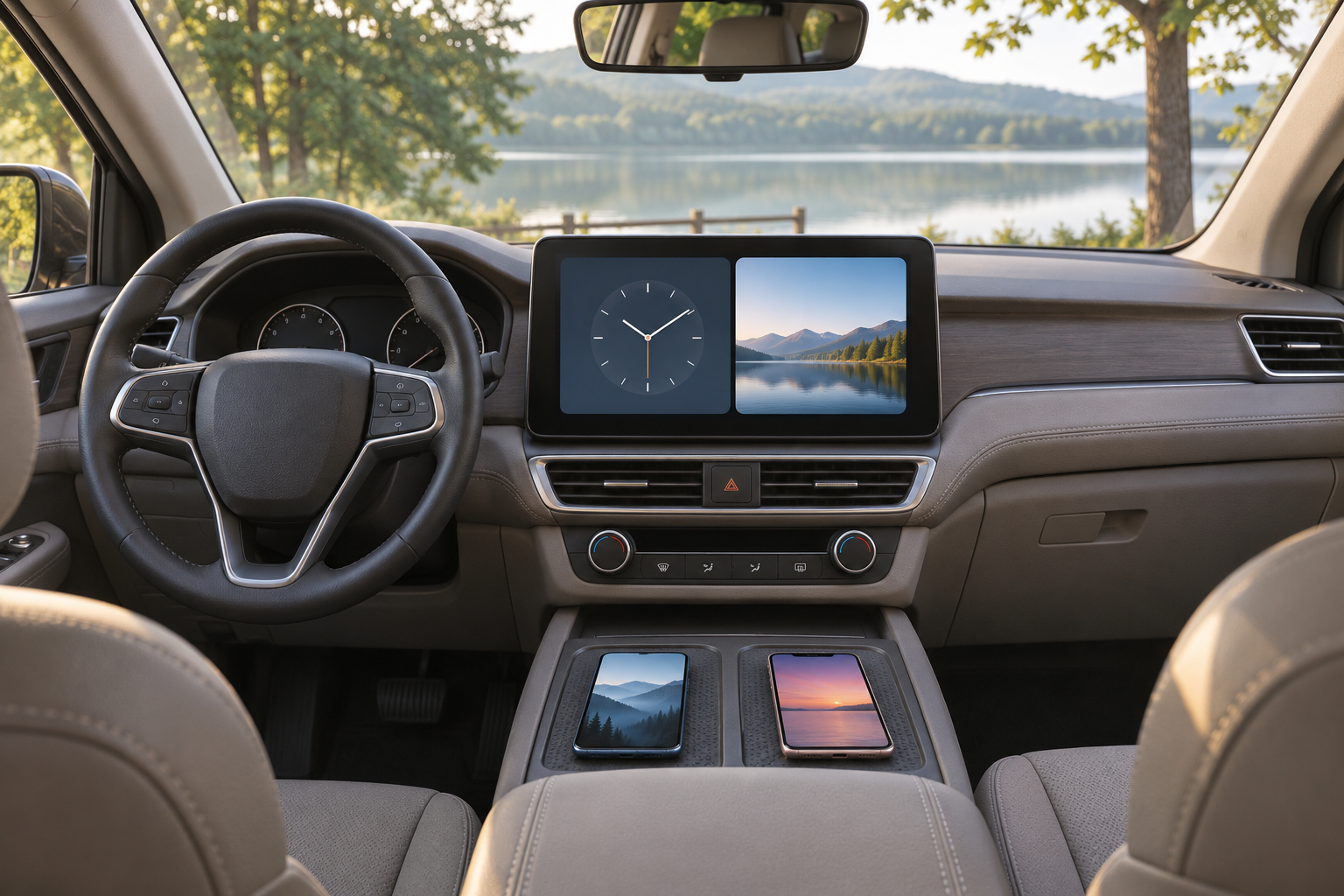
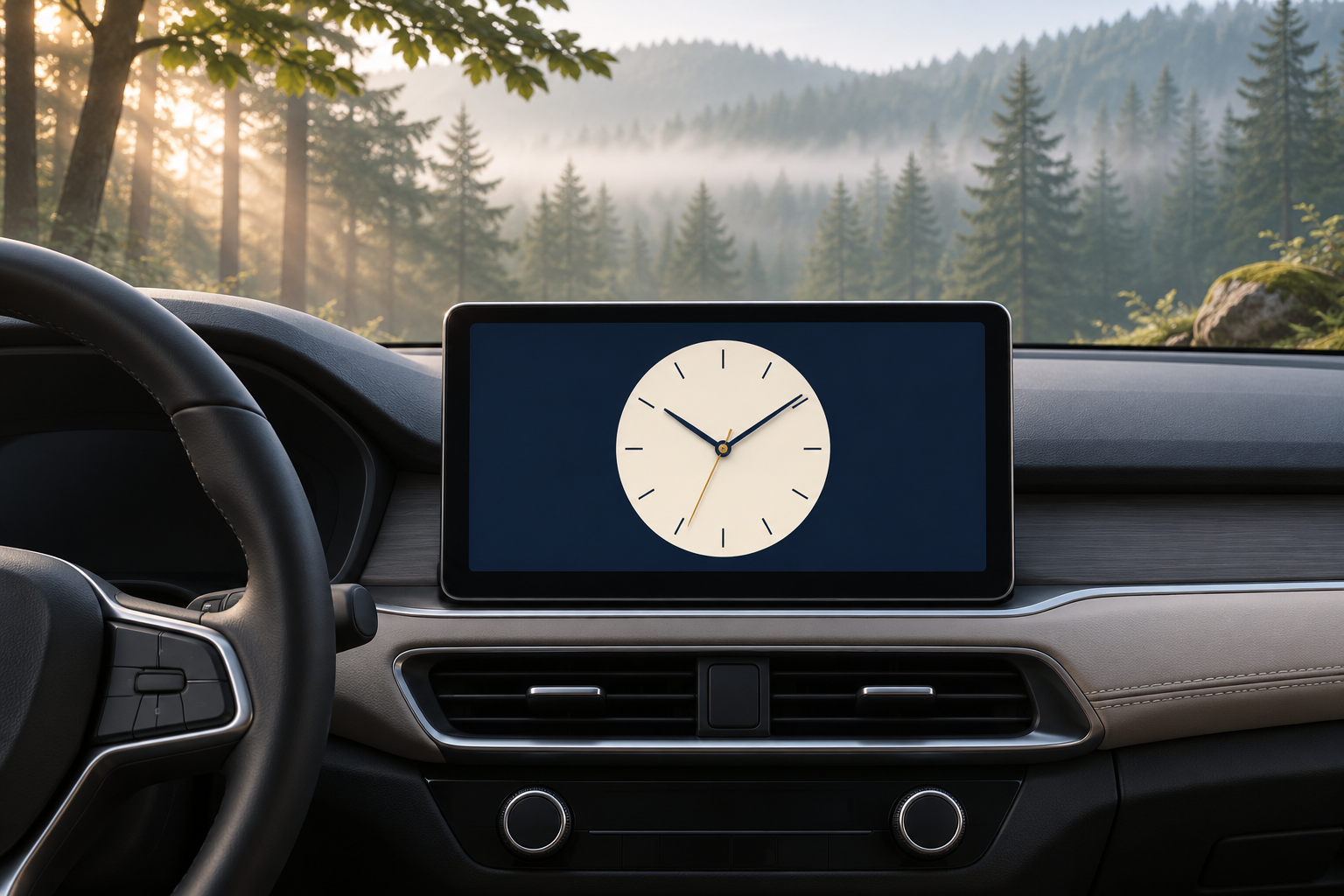
A clock is a familiar part of a car dashboard, but the design you prefer on your phone may feel different on a vehicle display. A clear face, readable contrast, and a restrained layout can help a custom clock fit comfortably beside your other widgets.
CarPlay Widgets: Car Connect offers customizable clock designs alongside photo, countdown, and text widgets. Its publisher lists iOS 26 or later and a compatible vehicle or head unit as requirements for CarPlay widgets. Check your setup before choosing a design. Car Connect on the App Store
Alibox promotes this application.
Choose a CarPlay clock widget for your display
Open Car Connect and browse the available clock designs. Begin with a style you can read comfortably in the preview. Look at the space around the time and the contrast between the clock and its background.
Use the supported customization options to try a simple color combination. A strong difference between the foreground and background can make details easier to distinguish. If a decorative element competes with the time, try a quieter design.
Save your preferred version before moving to the vehicle. The app's guide can help you follow the available setup steps. Car Connect widget setup guide
Preview it from your usual seating position
With the car safely parked, connect your iPhone and select the saved design through the widget settings available for your compatible display. Sit where you normally drive and look at the clock at its actual size.
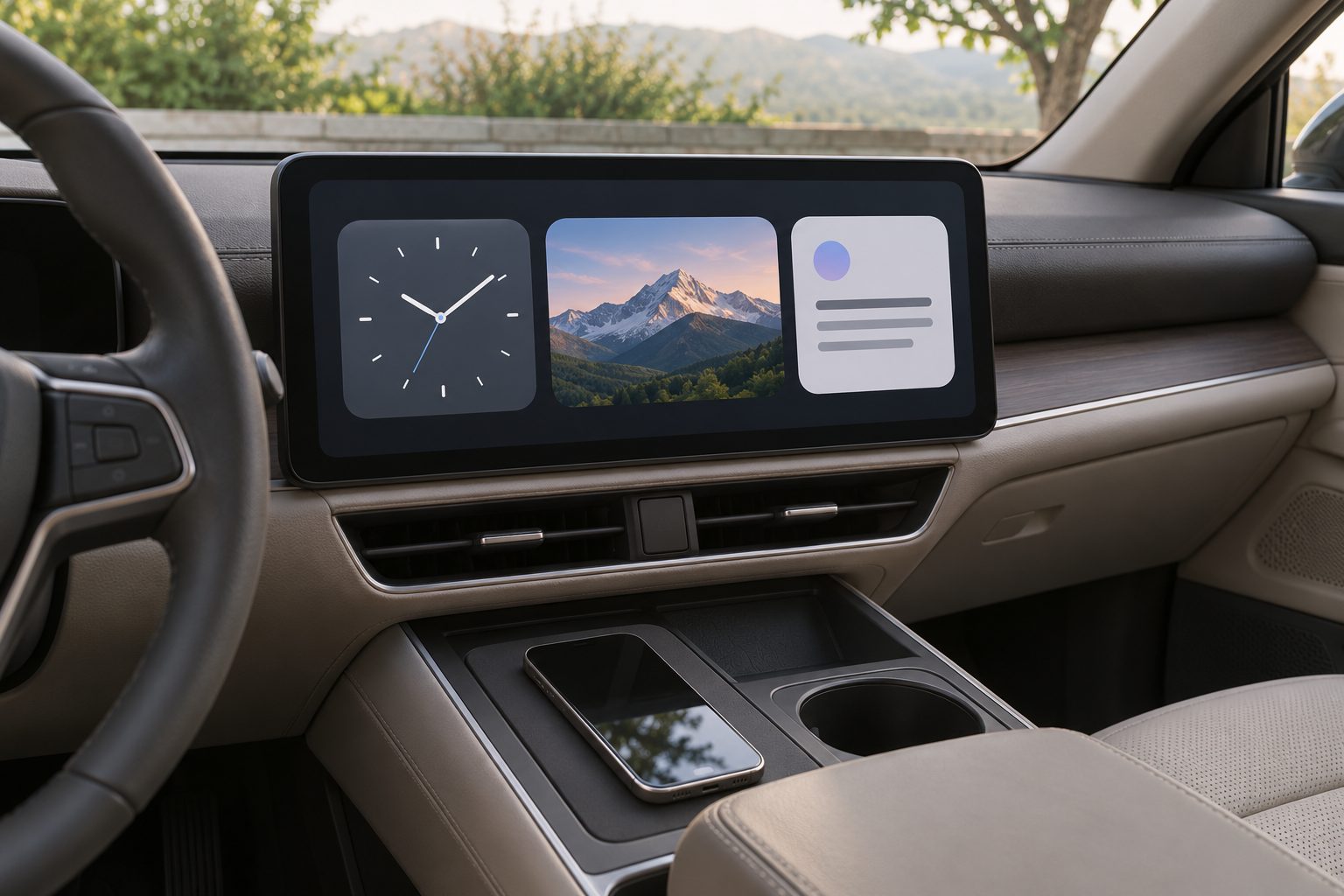
Check whether the time remains easy to identify when other cards appear nearby. A design that looks spacious in a phone preview may have less room on the vehicle display. If it feels crowded, return to the available designs and test a simpler option.
Make changes while parked. After saving another version, reconnect or follow the app's guidance to review the updated selection.
Check bright and dim conditions
Look at the design in daylight and, when practical, with the vehicle's evening display appearance while parked. Reflections and changes in screen brightness can affect how the same colors look.
Choose the version that remains clear in the conditions where you use the car. If fine details disappear, try stronger contrast or a less detailed face. Keep a note of the design you preferred so you can return to it after experimenting.
Give neighboring widgets some room
Think about the whole group of cards. A clock with a busy background beside a detailed photo can feel crowded. Try pairing the clock with a simple text design or a photo with one clear subject.
For a trip theme, you might prefer a countdown before departure and a clock for everyday use afterward. Review each saved design on the actual display before deciding which combination to keep. Countdown widget guide
If you choose a photo card, check that its crop still makes sense at widget size. Choosing a CarPlay widget photo
What if the clock design does not appear?
Confirm that the design was saved, check the widget selection for the connected vehicle, and review the compatibility requirements. Follow the in-app setup guidance for the options available on your system.
Can I use the same design in every car?
Check each vehicle or head unit's compatibility and available widget settings. Screen sizes and layouts can differ, so preview the saved clock while parked in each car you use. Car Connect feature overview