Set Up a CarPlay Welcome Sound with Car Connect and Shortcuts
Choose a sound, link it to the CarPlay connection trigger in Apple Shortcuts, and test playback while parked.
Updated Nov 11, 2026
In this article
- Choose a sound you can recognize quickly
- Choose the CarPlay event in Shortcuts
- Link the sound to the trigger
- Diagnose a silent or unexpected result
- Keep widgets and sound setup separate
- Frequently asked questions
- Can I use a recording of my own voice?
- Can I choose a different sound for disconnecting?
- Where do I change or stop the sound later?
A short welcome sound can mark the moment your iPhone connects to CarPlay. CarPlay Widgets: Car Connect offers sounds to preview and lets you import or record your own. Apple Shortcuts handles the connection event that runs the automation.
App to try · CarPlay Widgets: Car Connect on the App Store. Alibox promotes this application.
Choose a sound you can recognize quickly
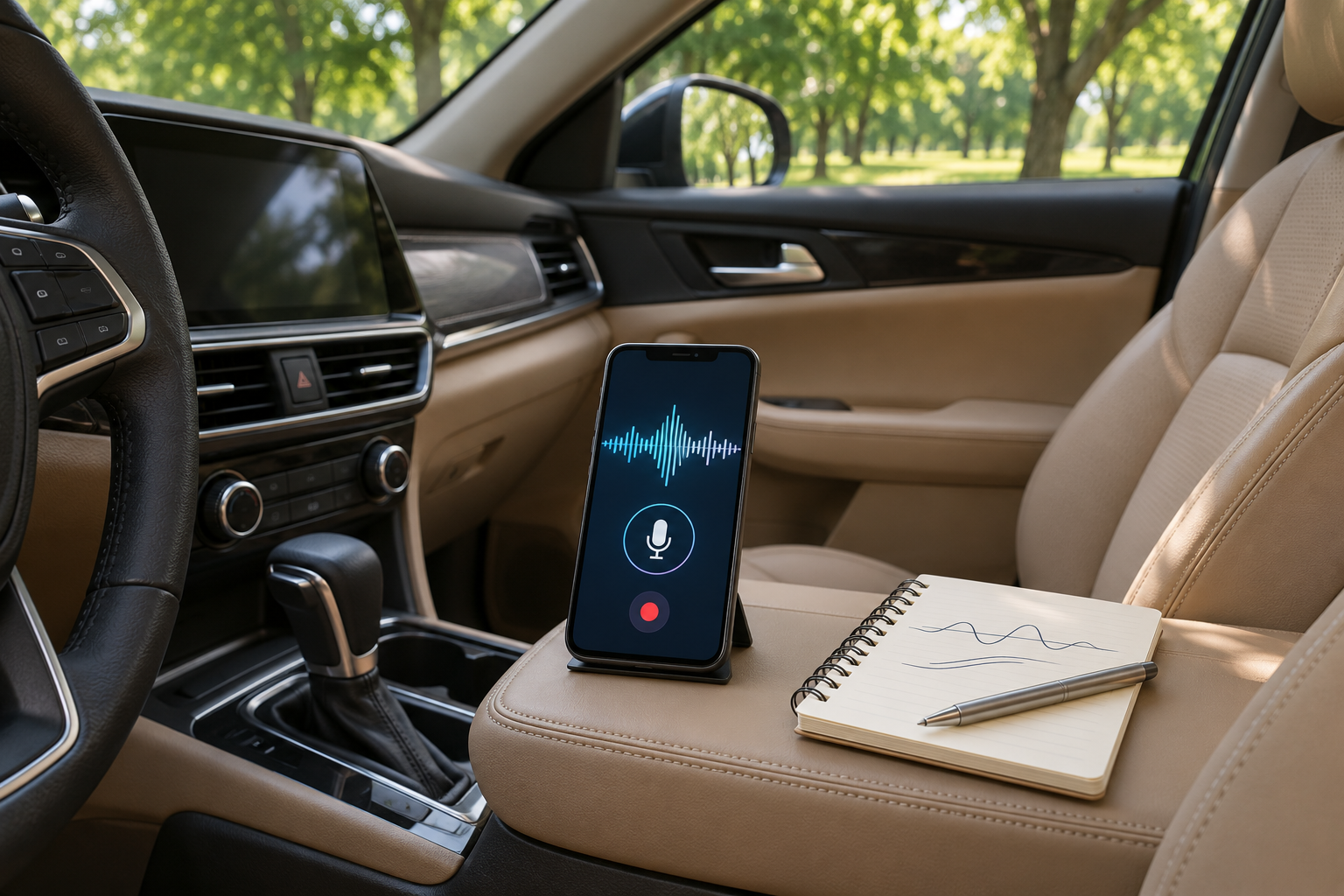
Start with a short sound from the app's library, an audio file you have permission to use, or a recording you make yourself. Preview it on your iPhone before creating the automation. A brief chime is easy to recognize even if music resumes shortly after the phone connects.
Choose a sound that is distinct from your vehicle's alerts. If the car is shared, consider what the sound will be like for passengers who hear it each time the phone connects. Set up and test the automation while safely parked.
Choose the CarPlay event in Shortcuts
Apple documents two options for the CarPlay trigger. Connects runs the automation when the iPhone connects to CarPlay. Disconnects runs it when the connection ends. Choose Connects for a welcome sound. If you also want a goodbye sound, set up and test a separate automation for Disconnects. Apple's guide to travel triggers in Shortcuts
Think of the event as a change in the phone's connection state. If your car starts and CarPlay connects later, expect the trigger when the connection occurs. For a parked test, use the same wired or wireless setup you normally use.
Link the sound to the trigger
1. In Car Connect, choose or prepare the sound you want to hear. 2. Open the app's setup guide for CarPlay sounds and follow its instructions for using your selection in Shortcuts. 3. In Shortcuts, configure the personal automation with the CarPlay connection event and the playback workflow described by the app. 4. Save the automation, then disconnect and reconnect while parked. Listen for the selected sound and note where it plays.
Use the controls shown on your iPhone for the action and run settings. The publisher describes a separate Shortcuts setup, so previewing a sound inside Car Connect is the preparation step. The connection test verifies the automation.
Diagnose a silent or unexpected result
Start by testing the playback workflow manually if Shortcuts offers that option. If manual playback fails, check that the audio selection still exists and that the shortcut points to the intended sound. If manual playback works, check the saved automation and whether the actual CarPlay event matched the trigger you chose.
| What happened | What to check while parked | | --- | --- | | The sound plays manually but nothing happens on connection | Verify the CarPlay trigger is set to Connects and review the automation's run settings | | The previous sound plays | Confirm which sound or shortcut the automation currently references | | The sound plays from an unexpected speaker | Check the audio destination at the moment the trigger runs | | A disconnect sound is silent in the car | Check whether the car audio connection has already ended | | Two sounds play after one connection | Review existing CarPlay automations for overlapping playback actions |
Make one change at a time and repeat the parked test. If you are testing a disconnect sound, listen for it on the iPhone as well as in the car. The audio route can change as the connection ends.
Keep widgets and sound setup separate
A welcome sound is an automation in Shortcuts. A widget is a design you add to a compatible CarPlay display. You can test each independently, which makes it easier to tell whether an issue concerns a trigger, audio playback, or the dashboard layout. Car Connect widget setup guide
Car Connect's publisher lists sound previews, audio imports, and voice recording. For current availability and requirements, check the app and its listing. Car Connect overview
Frequently asked questions
Can I use a recording of my own voice?
The publisher lists voice recording as a way to prepare a sound. Follow the current in-app guide to use the recording in your Shortcuts automation.
Can I choose a different sound for disconnecting?
Apple Shortcuts offers a separate Disconnects event. Configure that event separately and test it while parked, paying attention to where the sound plays once the connection ends.
Where do I change or stop the sound later?
Open the personal automation in Shortcuts to review its trigger and playback action. If you change the selected sound, test one parked connection to confirm the result.