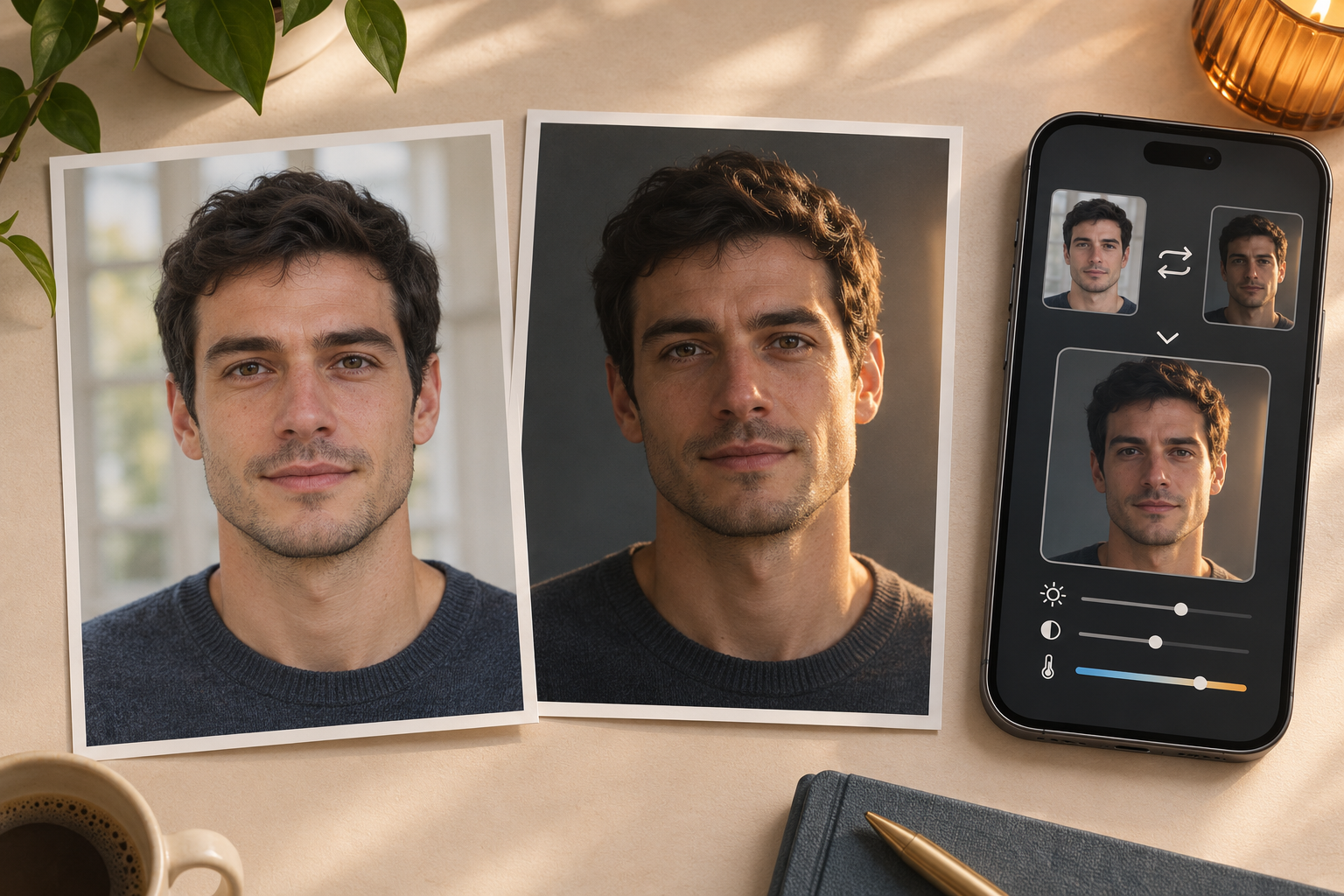
How to Swap Faces in the Same Photo with PhotoPic
Choose a photo of two people, use the same-image Face Swap workflow, and review both faces before sharing your edit.
Updated Nov 11, 2026
In this article
- Start with a picture of two people
- Use the same-image workflow in PhotoPic
- Review the two faces separately and together
- Pick a version both people want to share
- Frequently asked questions
- Does PhotoPic list face swaps within one picture?
- Is a group photo a good first attempt?
- What if I like only one side of the swap?
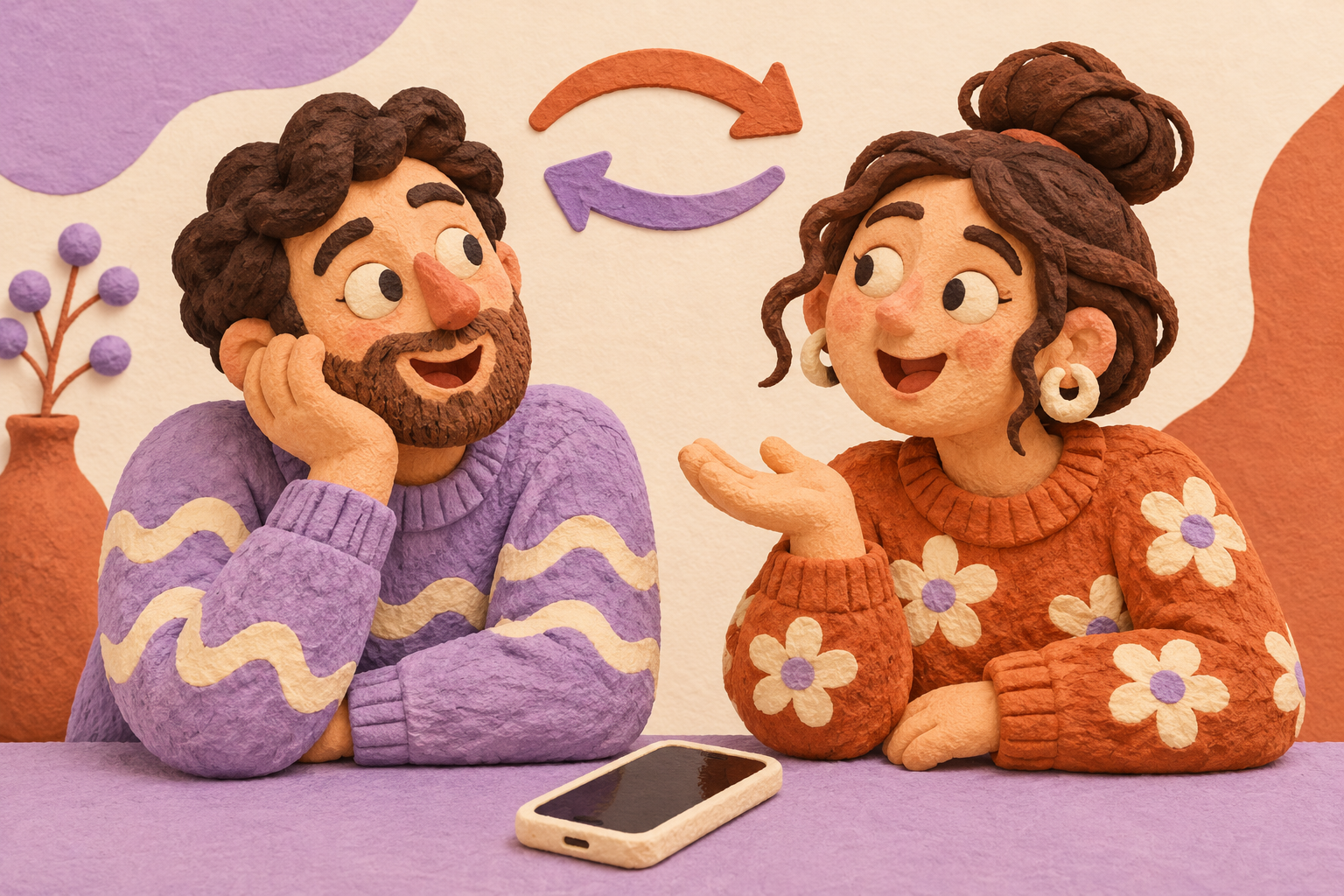
Two friends pose for a photo in contrasting outfits. Swapping their faces within that picture can turn the original into a playful portrait while keeping the setting, poses, and costumes recognizable. The joke works best when you can still see how the two people relate to each other in the frame.
PhotoPic lists face swapping within the same image as well as between photos. This guide focuses on a single picture with two people and covers how to choose the photo, check both faces, and decide which version to keep.
App to try · PhotoPic: AI Face Swap Editor on the App Store. Alibox promotes this application.
Start with a picture of two people
Choose a photo where both faces are easy to distinguish. A pair standing side by side in even light gives you a clear starting point. If one person is far behind the other, the smaller face may be hard to inspect. A hand across a cheek or hair covering an eye can make the result harder to judge.
Leave room around both heads. Cropping a photo too tightly can make it harder to see where an edited face meets the hair, ears, or neck. Use a picture you have permission to edit and check that both people are comfortable with the idea before starting.
For a first attempt, try a staged photo taken specifically for the project. Ask both people to look roughly toward the camera, then take a few frames. Pick the one where the difference in outfits or poses is clear enough to carry the joke. PhotoPic photo selection guide
Use the same-image workflow in PhotoPic
Open Face Swap and follow the prompts in your installed version for a swap within one image. Check that the two intended people are the ones being used before you generate the result, if the interface offers a selection preview.
For a group picture, pay attention to faces in the background. If the available workflow makes the intended pair hard to identify, try a separate crop with just those two people or use a photo of the pair. Keep the original intact so you can return to the full composition. PhotoPic application overview
Review the two faces separately and together
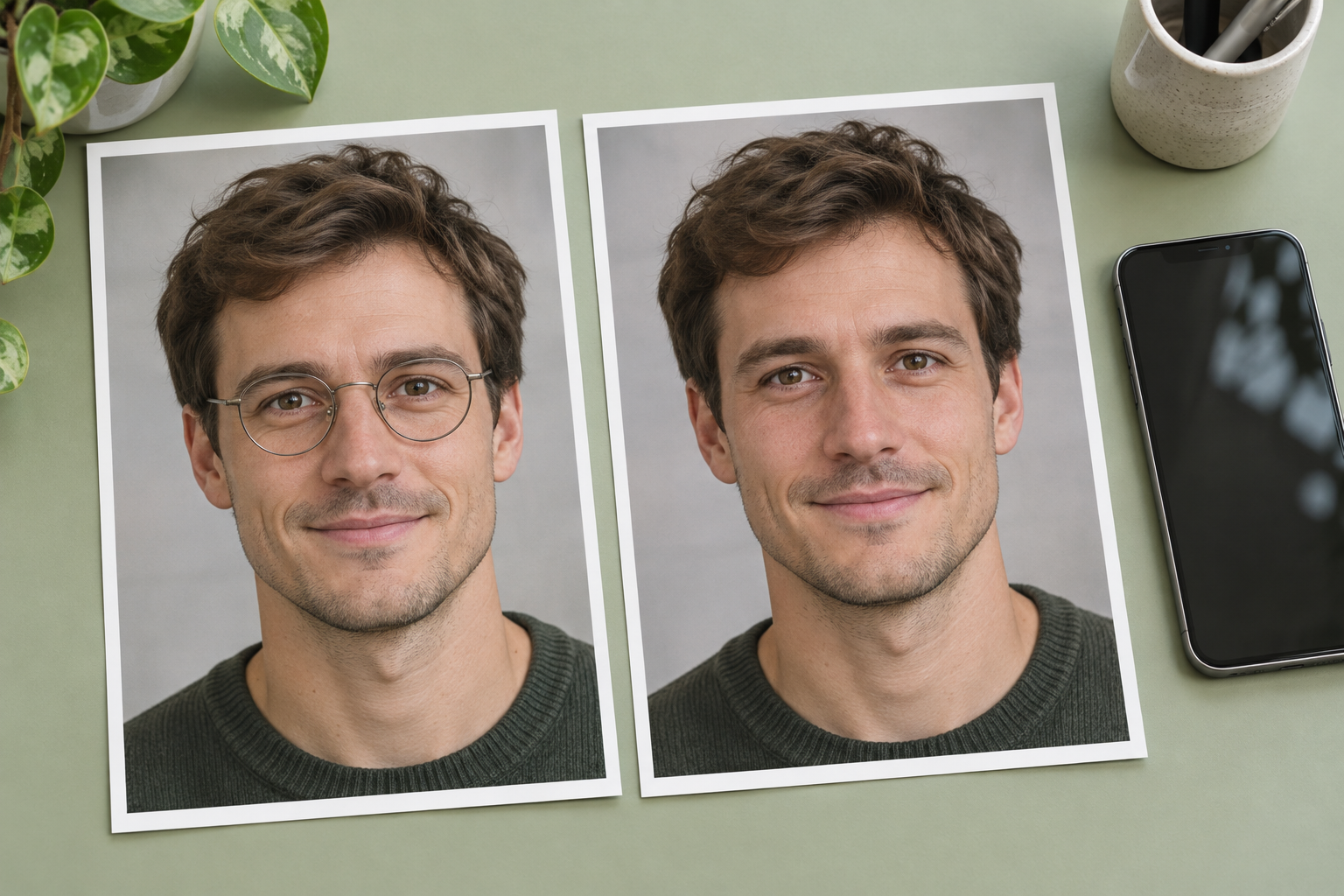
Start with the full frame. Can you still recognize the setting, the two poses, and what makes the edit playful? Then zoom in on each face. Check how the eyes, mouth, jaw, and hairline sit in the surrounding portrait. If one person wears glasses, see whether the frames still make sense around the temples and nose.
A picture can work on one side and look awkward on the other. This is especially easy to miss if one person is closer to the camera or if you spend most of your time looking at the funnier expression. Compare both sides with the original at the same viewing size before saving the result.
| What you notice | What to try next | | --- | --- | | One face is much smaller in the frame | Choose another photo with the two people at a similar distance | | An accessory overlaps an eye or cheek | Try another frame where both faces are more visible | | One person is in shadow | Choose a shot with more even light across both faces | | The wrong pair stands out | Use a photo or crop with only the intended two people |
Try a second frame from the same shoot if you have one. It gives you a direct comparison because the outfits and setting stay familiar while the expressions or head angles change. Face swap troubleshooting guide
Pick a version both people want to share
Open the saved version at the size your recipients will see. A crop for a message or a post should keep enough of both people in view for the idea to make sense. Show the finished image to the people pictured and confirm where they are comfortable sharing it.
A caption such as “Face swap from our costume shoot” tells viewers how the picture was made. If you share the original alongside the edit, label each clearly and check that both versions are suitable for the audience. Face swap sharing checklist
Frequently asked questions
Does PhotoPic list face swaps within one picture?
Yes. The publisher describes swaps within a single image and between photos. Follow the current in-app prompts for the selected workflow.
Is a group photo a good first attempt?
A photo of two people is easier to review. For a group shot, use a frame or crop that clearly isolates the pair you intend to edit.
What if I like only one side of the swap?
Compare both sides with the original, then try a second frame with clearer expressions, more even lighting, or fewer objects covering the faces.