How to Translate a Menu or Sign from a Photo on iPhone
A practical photo translation guide for menus and signs: capture readable text, choose the languages, and check the result against the original.
Updated Oct 28, 2026
In this article
- Understand the two jobs behind photo translation
- Photograph one readable section
- Open the photo or camera translation option
- Check the source and target languages
- Read the result beside the original
- Keep enough context for unusual phrases
- Switch to a spoken question when it fits the situation
- Prepare before you need a translation
- Frequently asked questions
- Can I translate a photo I have already taken?
- Why does a translation look fluent but still seem wrong?
- Should I photograph a whole menu at once?
- Does the app provide certified translations?
- Where can I download Translate Photo Camera & Voice?
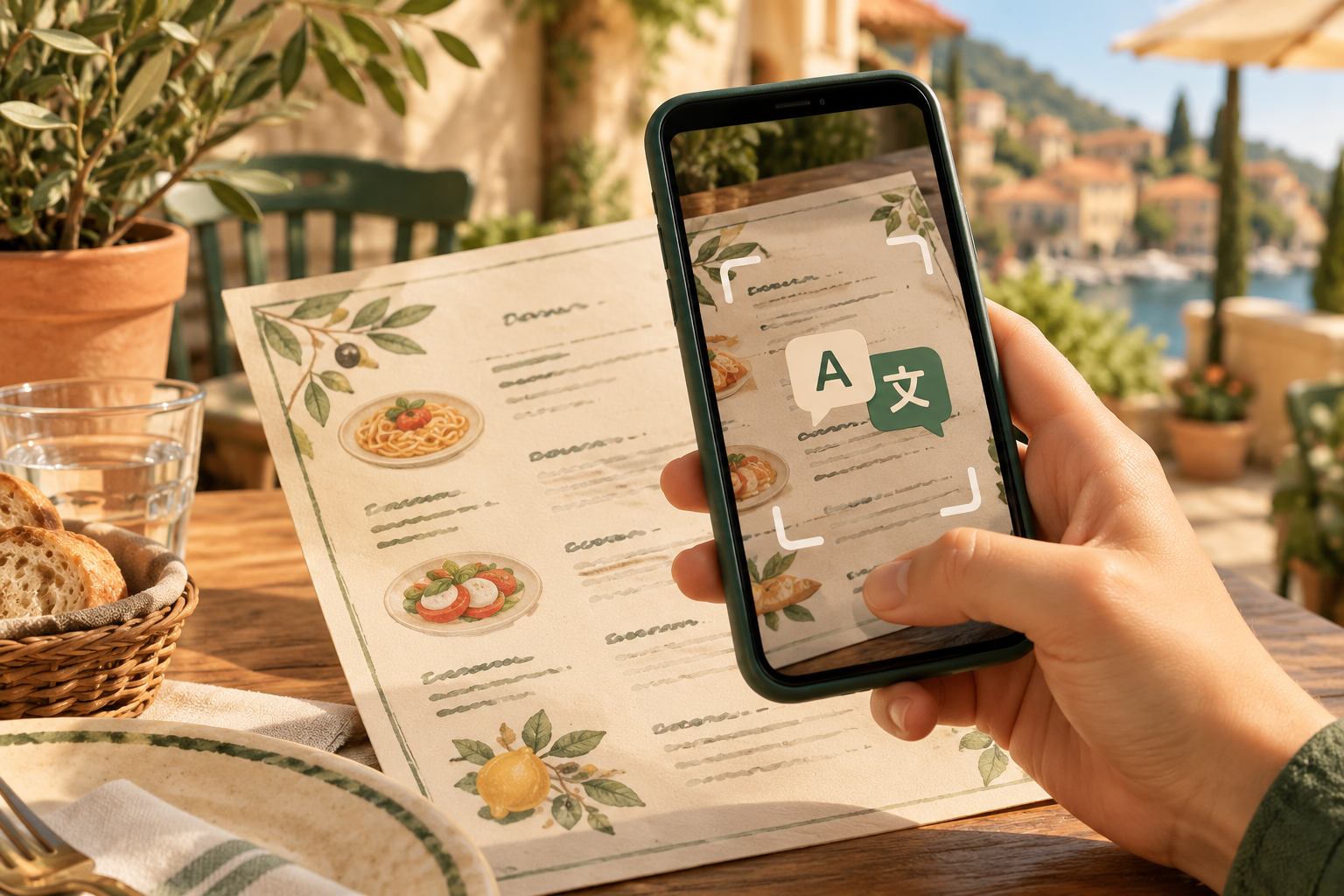
You are standing outside a café with a menu you cannot easily read. Typing every unfamiliar word into a translator would take time, and copying the whole board is not practical.
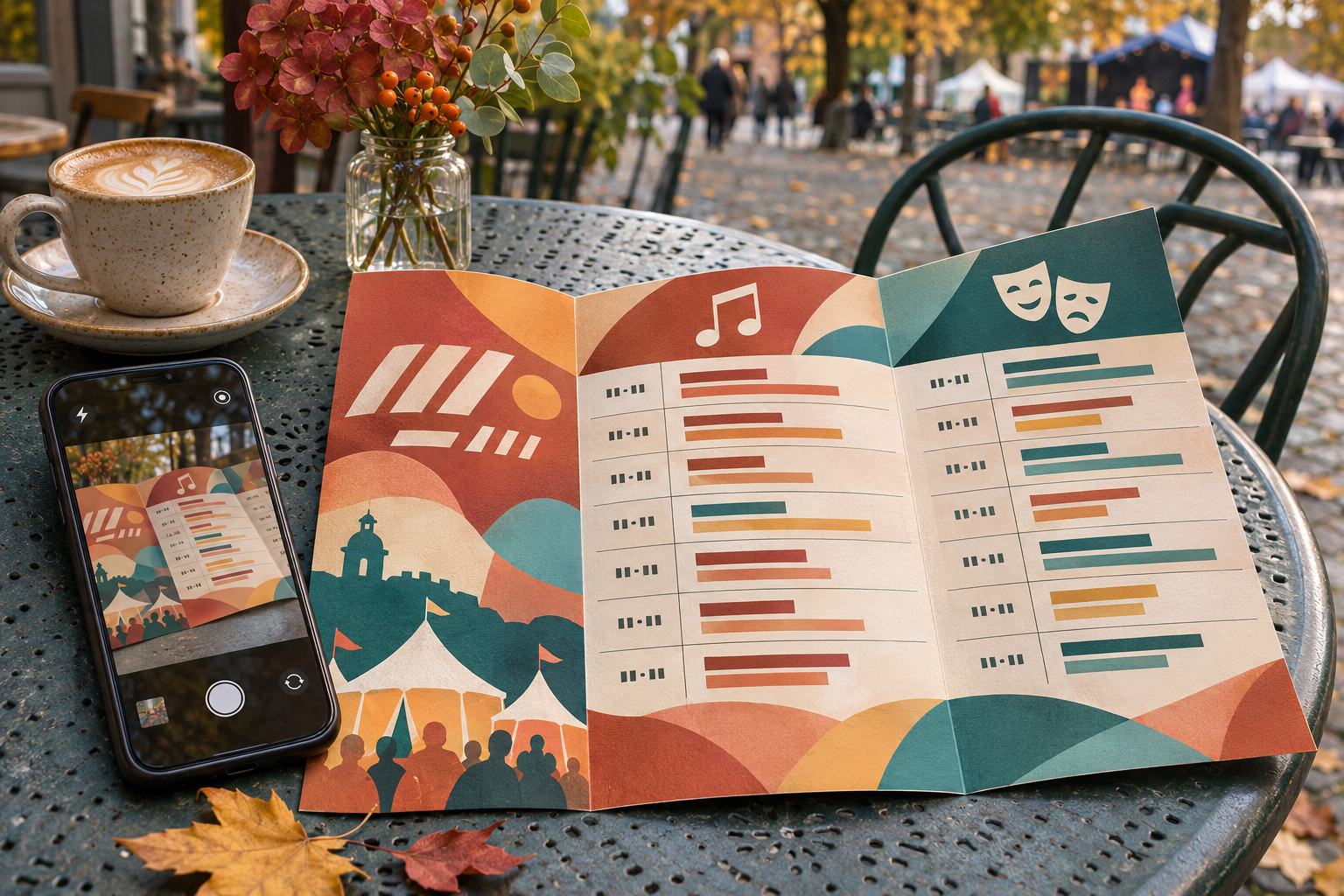
A photo translator gives you another route: capture the relevant text, choose the languages, and review a translated version. Getting a useful result starts with the photo itself, especially when the menu has narrow columns, decorative lettering, or prices beside each item.
This guide explains how to translate a menu or sign from a photo on iPhone, what to check before relying on the result, and when a spoken question may be more useful than another photograph.
App to try: View Translate Photo Camera & Voice on the App Store. Alibox promotes this application.
Understand the two jobs behind photo translation
Translating text from a picture involves recognizing the characters in the image and translating the recognized text. OCR, or optical character recognition, is the part that extracts text from an image.
That distinction helps when something looks wrong. A translation can become confusing because the photograph was difficult to read, because the wrong language was selected, or because a phrase needs more context.
Before trying a different translation repeatedly, check whether the text was captured clearly. If the app shows recognized text, compare it with the original where you can. A missing number or a broken line may explain the problem.
Photograph one readable section
Start with the part you actually need. For a menu, that might be a few items in one column. For a sign, include the main message and any nearby text that changes its meaning.
Try these simple adjustments before taking the photo:
- Hold the phone steady and wait for the text to appear sharp.
- Face the page or board rather than photographing it from a steep angle.
- Keep your hand and the phone's shadow away from important words.
- Change position if a glossy surface reflects light over the text.
- Leave enough space around a line to keep its words together.
A close photograph of one section can be easier to review than a distant image of an entire board. Keep the wider view too if it contains context you may need later.
Google's image translation guidance also notes that small, unclear, or stylized text can reduce translation accuracy. That guidance describes Google Translate; it is useful background on image clarity, not a claim that another app has identical controls or features.
Open the photo or camera translation option
In Translate Photo Camera & Voice, the publisher describes translation from camera photos and imported images, along with OCR-based text extraction.
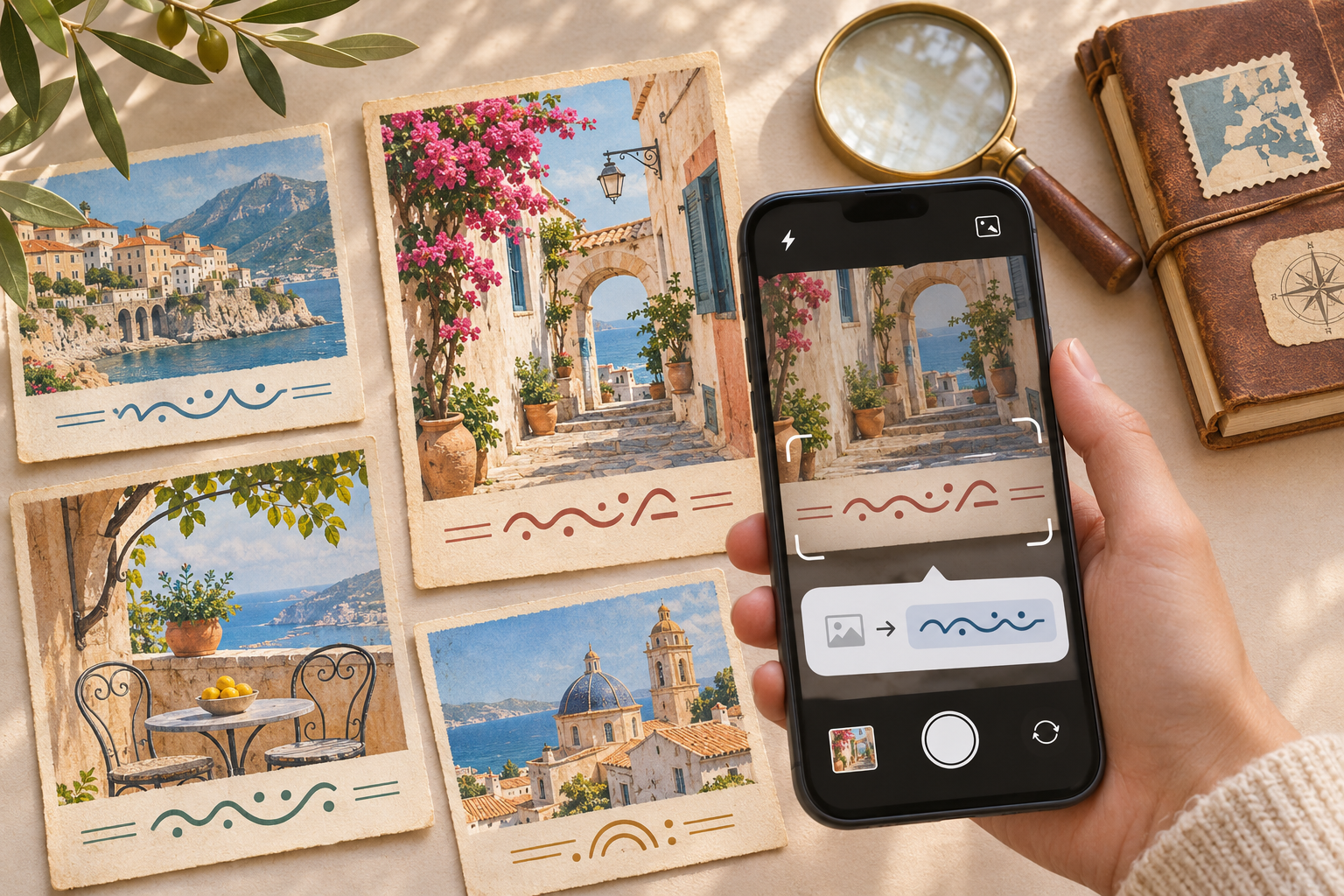
Open the available camera or photo translation option in your version of the app. Take a picture of the text or choose a photo you have already saved. Follow the controls shown on screen; labels and access conditions can change between versions.
If the result is difficult to interpret, try a new photograph of the relevant section instead of repeatedly translating the same blurry image. For an existing photo, you can also use your phone's photo editor to make a separate crop around the text you need.
Keep enough surrounding words to preserve the meaning. Cropping down to a single unfamiliar word can remove the phrase that explains it.
Check the source and target languages
The source language is the language in the picture. The target language is the one you want to read.
The App Store description for Translate Photo Camera & Voice lists automatic source-language detection. Detection can be convenient, but you should still check whether the chosen language makes sense for the text you photographed.
A short word, a product name, or a mixed-language menu may provide little context. If the app offers a manual source-language choice, selecting the known language is a reasonable next step when detection appears wrong.
Set the target language deliberately too. A technically successful translation into an unintended language will not help you decide what the sign says.
Read the result beside the original
Keep the original image available while reviewing the translation. This matters most when layout carries information, such as a price beside a dish or a time printed beneath a notice.
For a menu, ask yourself whether you can still connect each description with its item and price. A translation that combines two columns may sound fluent while associating the wrong details.
For a sign, check dates, times, quantities, and restrictions separately from the general sentence. Small details can change what you need to do.
You do not need to recognize every word to notice a layout problem. If the translated passage appears to merge two different items, photograph them separately and compare the results with the original arrangement.
Keep enough context for unusual phrases
Dish names, local expressions, and abbreviated signs may not translate neatly word by word. A literal result can leave you with a string of familiar words that still does not explain the item.
For example, a menu photograph might contain a name on one line and an explanation underneath it. Capturing only the name removes the description that could make it understandable.
Try including the heading and the relevant description in the same image. If the result is still unclear, use it as a starting point for a question rather than treating it as a complete explanation.
This is particularly useful when choosing between two similar items. Understanding the specific difference may matter more than finding an elegant translation of each name.
Switch to a spoken question when it fits the situation
Sometimes the information you need is not on the page. A clearer photo will not answer a question the menu never addresses.
Translate Photo Camera & Voice's publisher also lists voice-to-text translation. If the available language pair and features suit your situation, you can use a short spoken message to ask about the unclear detail.
Keep the message focused on one question. Review the recognized text where the app makes it available, since a misheard word can affect the translation just as a misread character can affect photo translation.
The person you are speaking with may be able to clarify an ambiguous result. For consequential questions or instructions, get appropriate confirmation rather than relying on a machine-generated phrase alone.
Prepare before you need a translation
Before a trip or a busy appointment, open the app and check the language options and feature access you expect to use. Try a short, ordinary example while you have time to understand the controls.
The current App Store listing is the place to check device compatibility and purchase information. Offline operation, particular language pairs, and paid entitlements should be checked in the app rather than assumed from the general idea of a photo translator.
When you photograph a document, include only what the task needs. Avoid sharing personal details that have no bearing on the translation, and review the application's own privacy information before using sensitive material.
Frequently asked questions
Can I translate a photo I have already taken?
The publisher's App Store description lists both taking a photo and importing an image. Use the photo option available in your version and check its current access conditions.
Why does a translation look fluent but still seem wrong?
The original text may have been misread, separate lines may have been combined, or the selected language may be incorrect. Review the image, recognized text where available, and language settings before trying again.
Should I photograph a whole menu at once?
A full image preserves context, but a close view of one section may be easier to recognize and review. Keep the overview and photograph individual sections when small text or multiple columns cause problems.
Does the app provide certified translations?
We have not verified a certified-translation service for this application. For official submissions or other situations requiring a certified translation, check the receiving organization's requirements and use an appropriately qualified provider.
Where can I download Translate Photo Camera & Voice?
You can view Translate Photo Camera & Voice on the App Store for current product details, compatibility, and purchase conditions. This is an Alibox-promoted application.