Compare Face Swap Versions in PhotoPic: Choose the Edit Worth Keeping
Compare PhotoPic face swap versions with a clear purpose, consistent viewing size, useful review criteria, and a saved original reference.
Updated Nov 3, 2026
In this article
- Choose a purpose before choosing a winner
- Keep the original separate from experiments
- Give each attempt a meaningful difference
- Compare at the same viewing size
- Use a small set of review questions
- Avoid confusing added detail with a better result
- Save a preferred stage before adding other edits
- Make a selection instead of collecting endless options
- Review the chosen file before sharing
- Frequently asked questions
- Does PhotoPic automatically rank my face swap versions?
- How many versions should I keep?
- Should I compare only the faces?
- Is the sharpest image always the best one?
- Where can I try PhotoPic?
After a few face swap attempts, choosing a favorite can become surprisingly difficult. One version has an expression you like, another fits the scene better, and the latest result looks impressive simply because it is new. Without a reference, it is easy to lose track of what actually improved.
This guide explains how to compare face swap versions when creating portraits with PhotoPic. It is a manual review method: preserve your source, make purposeful variations, compare the results consistently, and keep the version that serves your project. It does not assume a built-in version manager or automatic ranking feature.
App to try: View PhotoPic: AI Face Swap Editor on the App Store. Alibox promotes this application.
Choose a purpose before choosing a winner
A playful private portrait and a carefully staged creative image can have different standards. Write a short description of the intended result before comparing versions. That gives you a reason to prefer one composition beyond a vague first impression.
For example, you might want a friendly expression, a clear costume concept, or an obviously fictional postcard. Decide what matters most and what would make a version unsuitable. Avoid changing the goal after every generation just to justify the newest result.
The publisher lists face swapping between photos and within an image in PhotoPic. Check the current app for its actual inputs and feature access. Your comparison criteria come from your creative purpose, not from a promise that every pair of photos will produce the same quality.
Keep the original separate from experiments
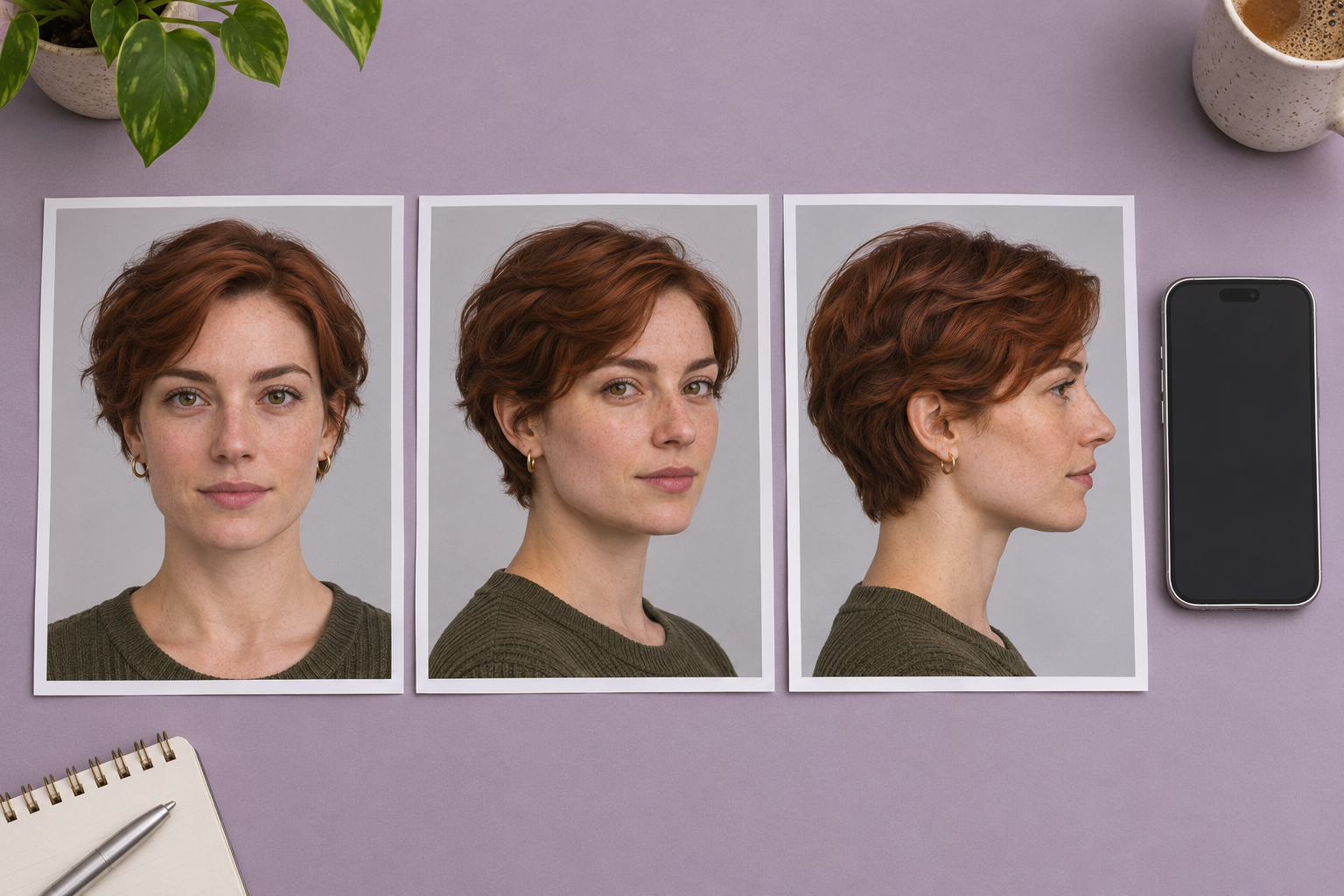
Preserve an unedited source wherever your workflow allows it. It provides a reference for the identity, expression, and surrounding details you started with. An edited result should not become your only record of the original image.
Use the file and album tools available on your device to distinguish sources from selected outputs. Do not assume that PhotoPic automatically retains every previous generation, provides unlimited history, or synchronizes your project across devices.
Before deleting anything, verify what you have saved and where it is stored. A preview you can still see in an app should not be treated as proof that an independent copy exists in the place you expect.
Give each attempt a meaningful difference
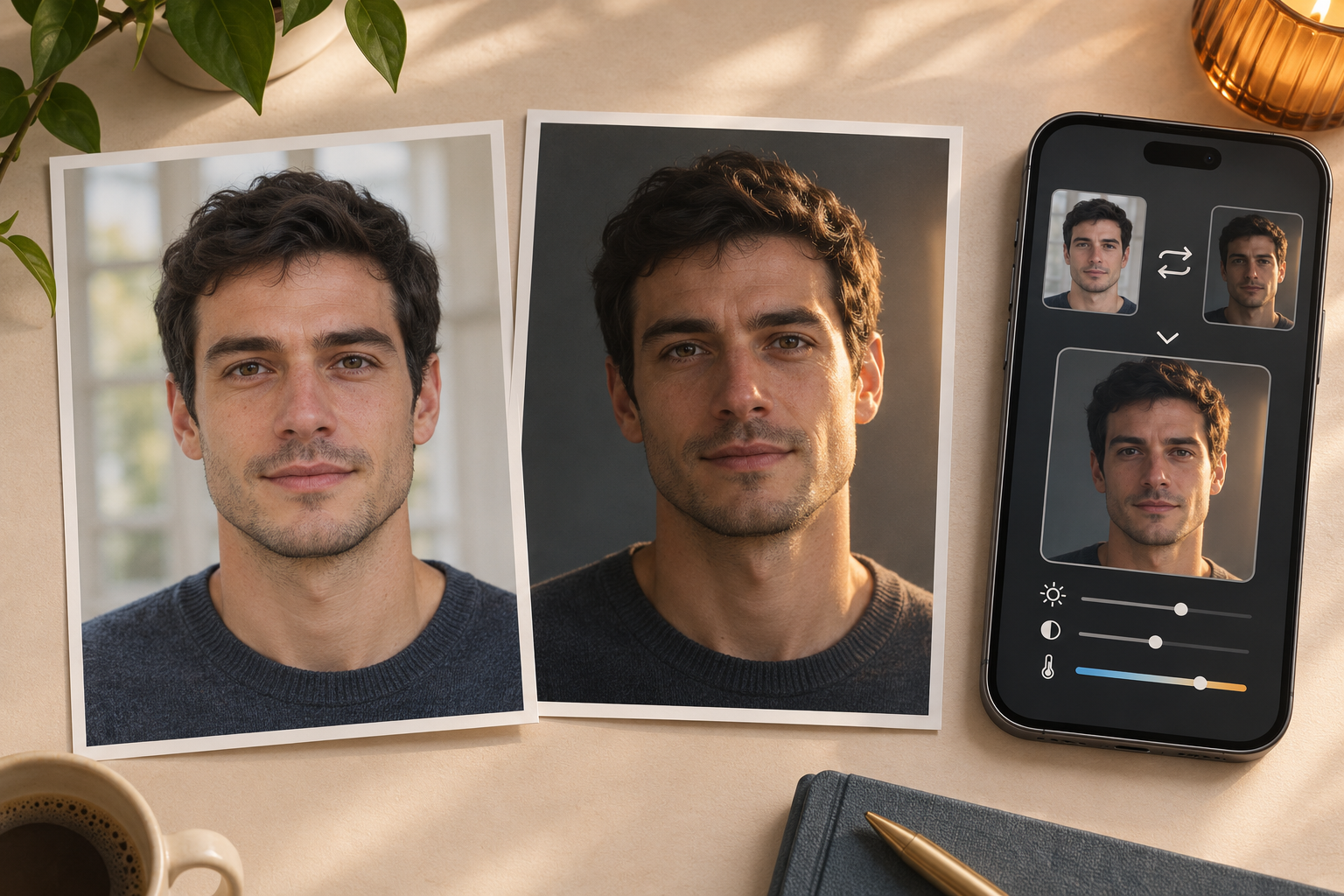
Comparison is easier when you know what changed. Keep the target scene the same and try a source portrait with a different expression, or keep the source and choose a target with a closer head angle. One deliberate change creates a useful question to evaluate.
A short private note can be enough: “same target, neutral expression” or “new target, softer lighting.” You do not need a complex tracking system. The point is to remember which input choice you are judging.
Our PhotoPic photo selection guide explains how to choose clear portraits. If a result has a specific problem, the face swap troubleshooting guide covers testing a relevant change instead of repeating the same uncertain input indefinitely.
Compare at the same viewing size
A large preview can make one version seem more detailed than a small thumbnail. Compare candidates at a similar size before deciding which looks better. Then inspect each at the size your intended audience is likely to see.
Start with the full picture. Does the portrait fit the scene? Is the expression right for the concept? Does anything pull attention away from the main subject? A technically detailed face may still be the weaker composition.
Only after that should you look more closely at facial details and transitions. This order prevents a tiny detail from dominating your decision before you have judged whether the image works as a whole.
Use a small set of review questions
Choose a few criteria you can apply consistently. You might compare these:
| Criterion | Question to ask | | --- | --- | | Purpose | Does this version communicate the intended creative idea? | | Expression | Does the expression fit the scene and mood? | | Proportions | Does the head feel coherent with the body and framing? | | Transitions | Are the hairline, jaw, and nearby accessories distracting? | | Context | Can the result be shared without implying a false event or endorsement? |
You do not need a precise numerical score. A brief observation is often more informative than assigning an arbitrary rating. For example, “clearer expression, but distracting glasses” tells you why a candidate is not the final choice.
Avoid confusing added detail with a better result
A version can look sharper without being more faithful or more suitable. Inspect what the detail actually shows. Eyes, teeth, hair, and accessories should be reviewed in context rather than praised simply because they appear crisp.
PhotoPic also lists upscaling and restoration tools. Treat their output as additional transformations to evaluate. Increasing resolution does not independently verify missing facial detail, and colorization does not establish the original colors of a photograph.
Our comparison of face swapping and photo restoration explains those distinctions. Keep the standard tied to your project rather than assuming every extra processing step improves it.
Save a preferred stage before adding other edits
Once a face swap meets your criteria, consider preserving that stage before changing the background or making another transformation, where your available workflow permits it. This gives you a reference if a later edit introduces a distraction.
Review a background change against the earlier version. Does the setting support the concept? Does the subject still fit the lighting and outline? If you use outpainting, inspect the generated areas rather than treating them as recovered original content.
The PhotoPic application overview summarizes the publisher's listed tools. Follow current in-app prompts and avoid assuming separate adjustment controls, masks, or automatic comparisons that have not been confirmed.
Make a selection instead of collecting endless options
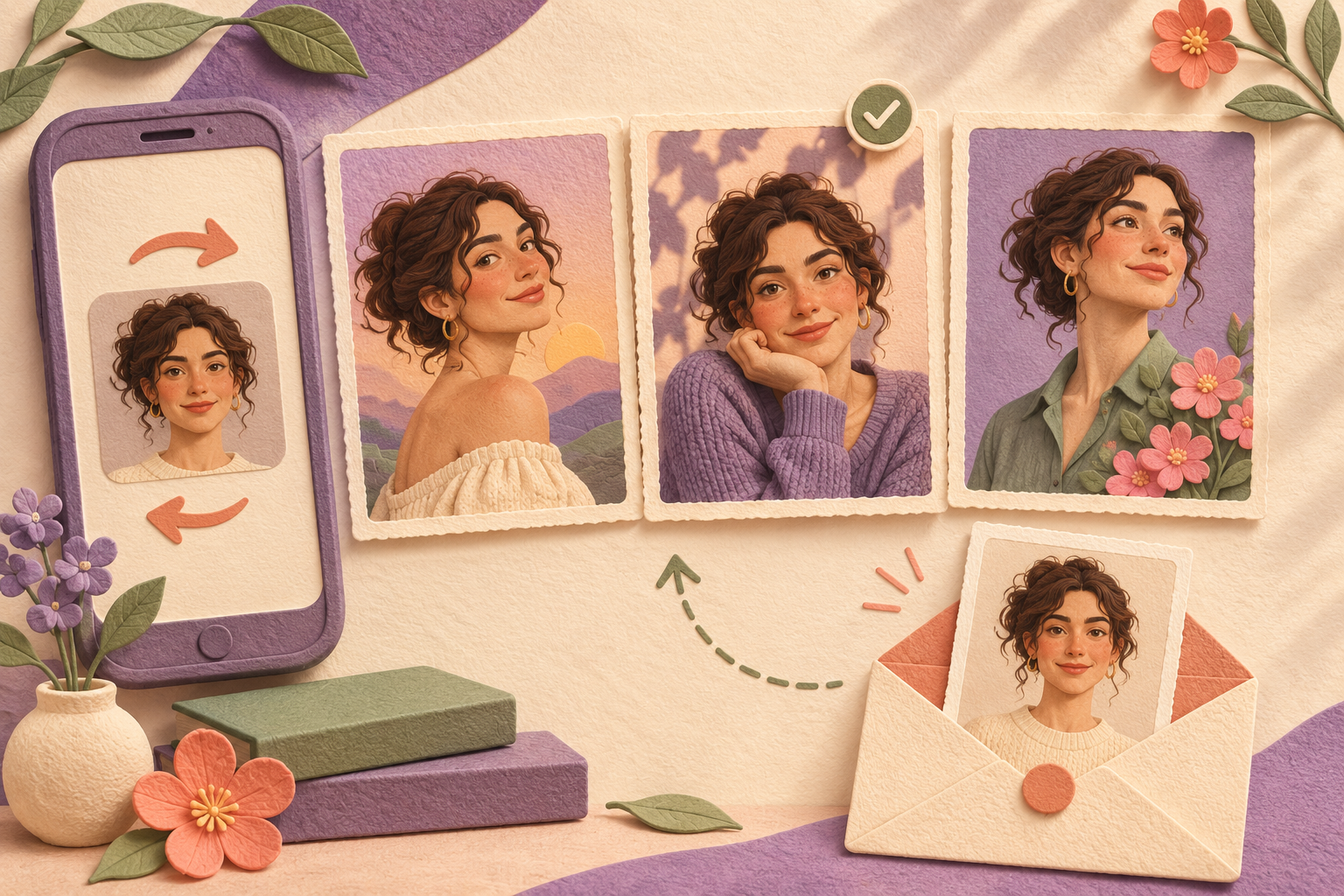
When several candidates are close, return to your original purpose. Choose the version that best meets it, identify one specific unresolved issue, or decide that none is suitable. All three are valid outcomes.
More attempts are useful only when you have a reason to expect that a meaningful input change will help you make a decision. A new result is not automatically a better one. If the concept remains awkward, a simpler target or another project may be a more useful next step.
For alternative directions, our creative face swap ideas offers small projects with clear visual themes. Keep the current experiment separate so you can return to it without confusing the versions.
Review the chosen file before sharing
Open the actual saved image you intend to send. Confirm that it is the selected version, inspect the crop, and check whether any additional editing or export changed its appearance. Do not rely only on remembering which preview you liked.
Use photos you are permitted to edit and confirm agreement before sharing another person's likeness. A favorite version still needs appropriate context. Explain that the image is a creative edit when it could otherwise be mistaken for an authentic photograph.
Our face swap checklist before sharing covers that final decision. Keep a result private if the quality, permission, or meaning of the image remains uncertain.
Frequently asked questions
Does PhotoPic automatically rank my face swap versions?
Do not assume that feature exists. This guide describes a manual comparison routine using the outputs and storage options available in your own workflow.
How many versions should I keep?
Keep enough to make a useful comparison and preserve the sources you need. Avoid treating every attempt as a final candidate or deleting files before confirming what they contain.
Should I compare only the faces?
Review the whole composition first, then the facial details and transitions. Expression, proportions, scene context, and intended viewing size all affect the choice.
Is the sharpest image always the best one?
No. Extra detail does not prove accuracy or suitability. Choose the result that meets the project's purpose and passes your visual review.
Where can I try PhotoPic?
Find PhotoPic: AI Face Swap Editor on the App Store. Start with a clear purpose, compare a few deliberate variations, and review the chosen file before sharing it.