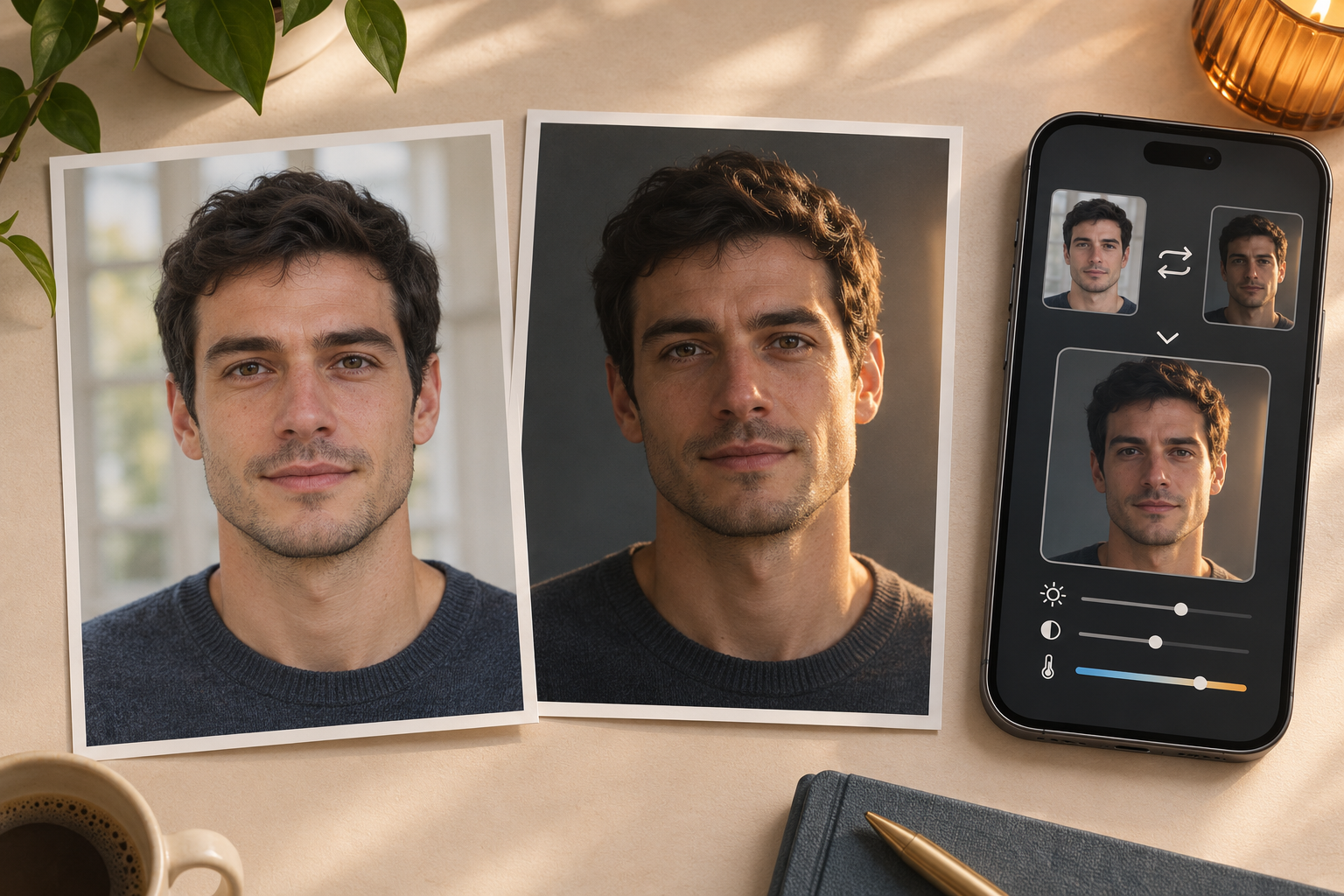
Create a Face Swap Profile Picture with PhotoPic: Framing and Review
Prepare a creative PhotoPic portrait for a profile image: choose clear framing, test square and circular previews, and review context before uploading.
Updated Nov 7, 2026
In this article
- Decide where the avatar will appear
- Choose a portrait with room around the face
- Create the portrait before judging the crop
- Test both square and circular presentation
- Review at the size people will see
- Keep additional transformations purposeful
- Compare a few candidates consistently
- Check permission and meaning before uploading
- Inspect the saved image and final preview
- Frequently asked questions
- Does PhotoPic include a dedicated avatar mode?
- Should I crop the source tightly before swapping?
- Will a square picture display the same everywhere?
- Is a small avatar exempt from permission considerations?
- Where can I try PhotoPic?
A creative portrait can look good as a full image and become difficult to recognize when reduced to a small circle. Hair, accessories, and background details compete for space, while a tight crop can remove the expression that made the picture appealing.
This guide explains how to prepare a face swap profile picture using a PhotoPic edit and the crop tools available in your chosen workflow. The goal is a clear creative avatar that fits its intended setting. It does not assume PhotoPic includes a dedicated avatar generator, circular export, or direct integration with every social app.
App to try: View PhotoPic: AI Face Swap Editor on the App Store. Alibox promotes this application.
Decide where the avatar will appear
Start with the destination. A small community profile, a private group, and a professional account can call for different kinds of images. Consider whether the setting welcomes a fictional portrait or expects a straightforward representation of the account holder.
Check the destination's current image requirements and account rules. Do not assume that a creative edit is appropriate for identity verification or that every platform uses the same crop and dimensions.
Describe your purpose in one sentence before editing. “A playful portrait for a hobby community” gives you a clearer standard than simply wanting an impressive picture. It helps you choose an expression, scene, and level of stylization that fit the context.
Choose a portrait with room around the face
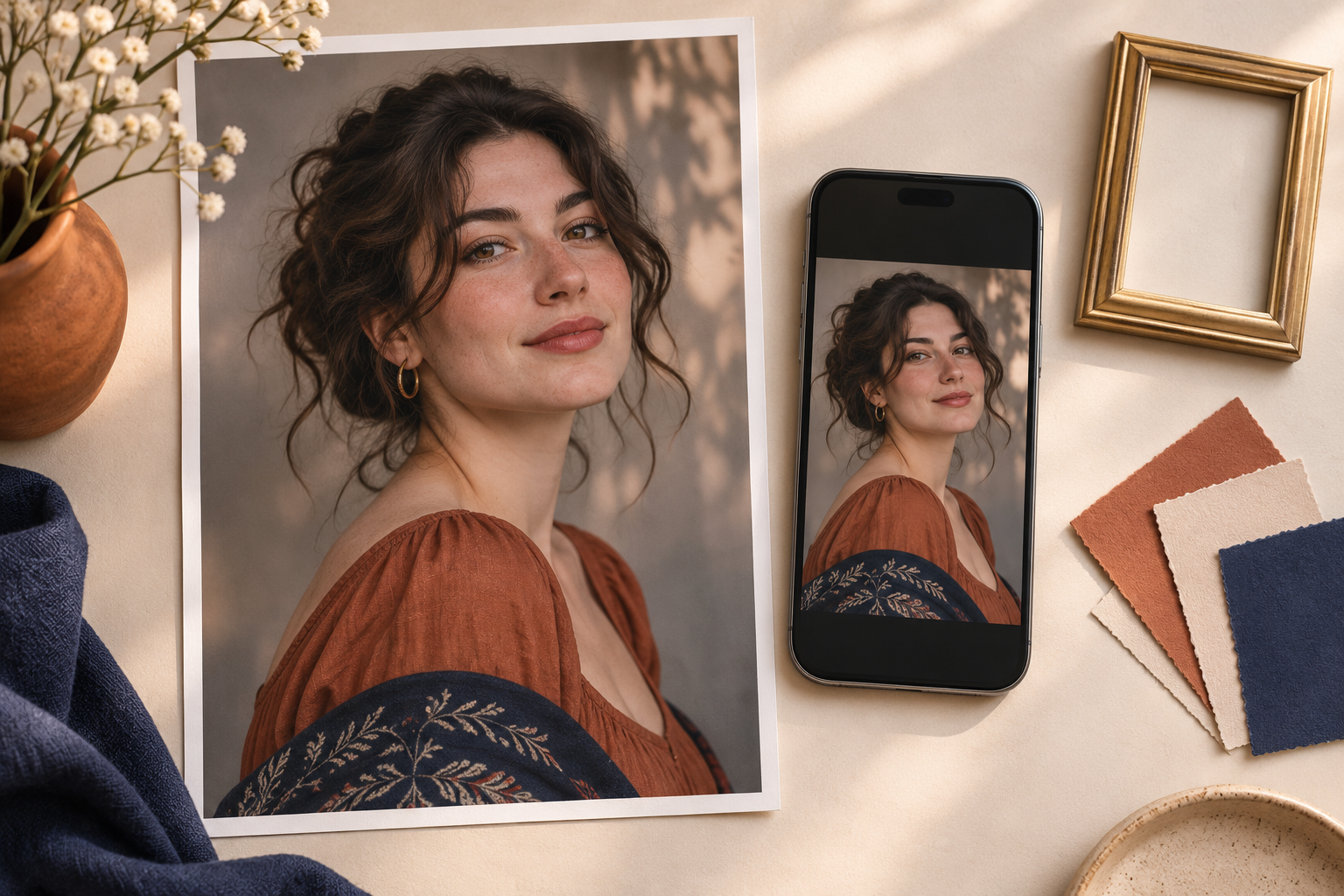
A very tight input crop leaves little flexibility when the final destination removes corners or changes the framing. Choose a picture that keeps the head and some surrounding space visible, while still providing facial detail you can inspect.
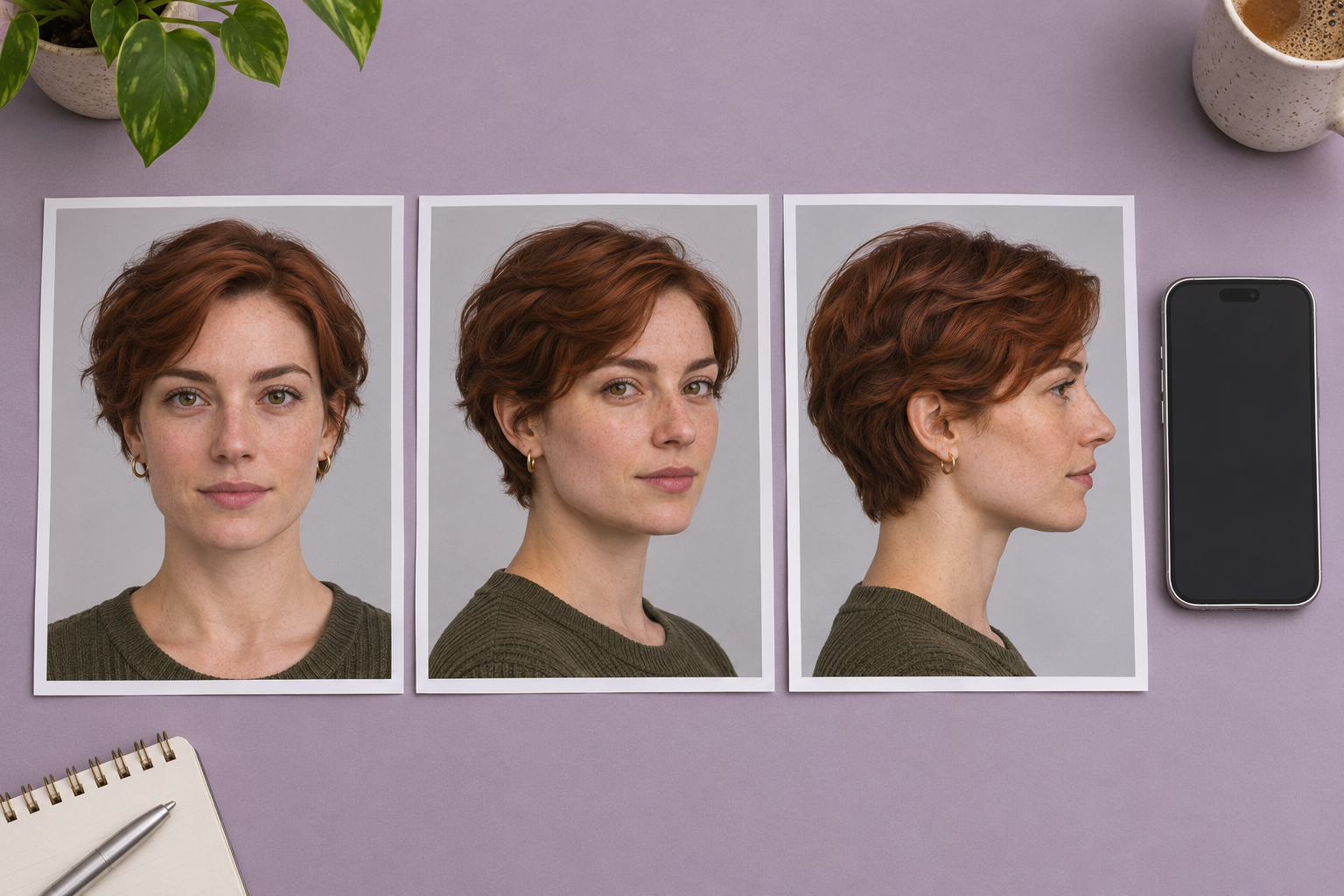
Look for a clear expression and a composition with one obvious subject. A crowded scene may lose its meaning at avatar size. If the creative concept depends on a tiny accessory or background joke, consider whether it will survive a small preview.
The publisher lists face swapping between photos or within an image in PhotoPic. Our PhotoPic photo selection guide explains how to choose inputs. Clear source material supports your review, but no pair should be assumed to guarantee a particular output.
Create the portrait before judging the crop
Follow the current face swap prompts in your installed app and inspect the resulting portrait. Check whether the expression, proportions, and transitions fit the scene before trying to rescue an unsuitable result with tight framing.
A crop can emphasize a subject, but it does not establish that hidden or generated details are accurate. If the portrait has a distracting problem, choose another input or discard the attempt rather than assuming a small display makes every issue irrelevant.
Our face swap troubleshooting guide covers purposeful input changes. Keep a source reference and a preferred output where your workflow allows it so you can compare later edits.
Test both square and circular presentation
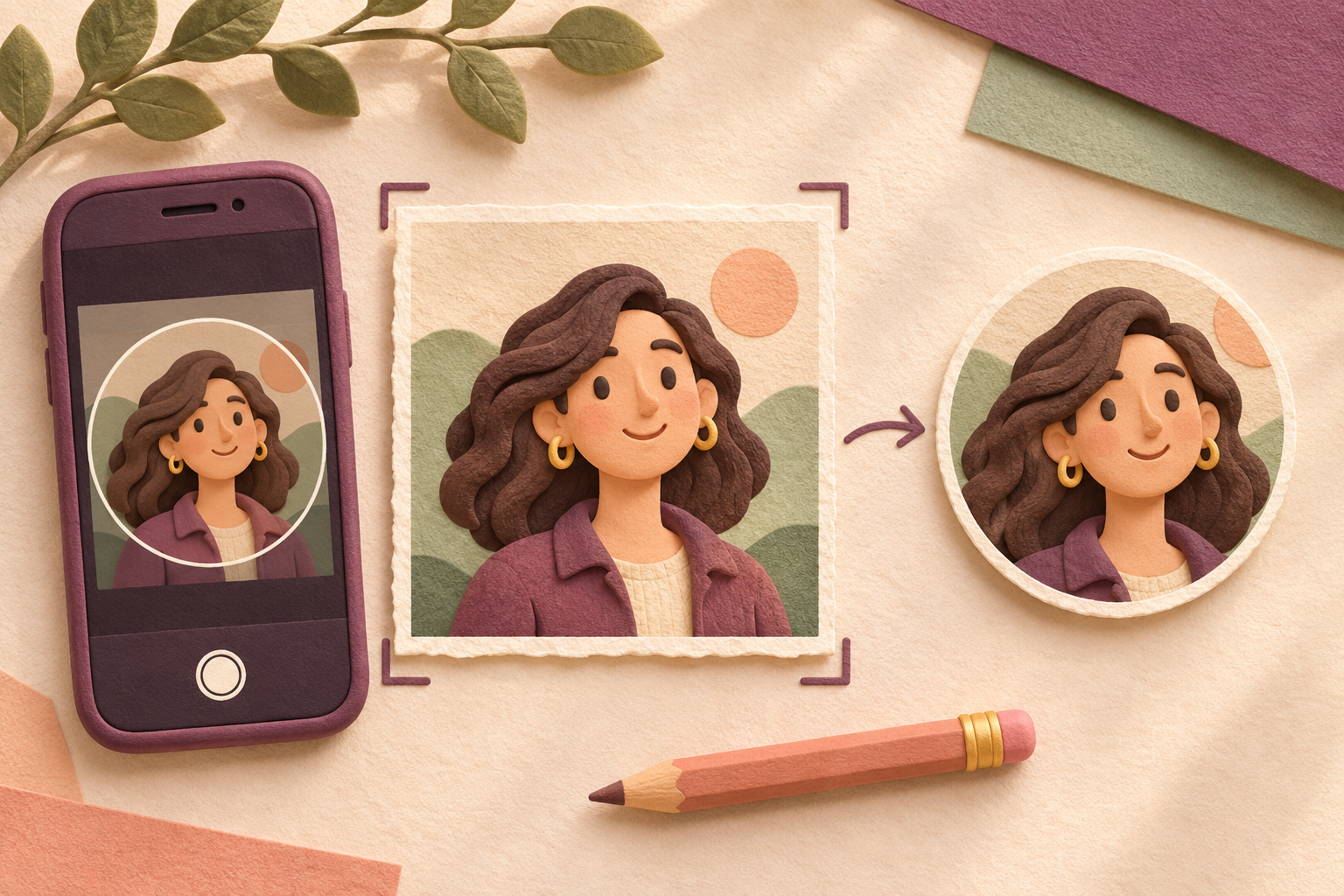
Use the crop or preview tools available on your device or in the destination app to see how the image will be framed. A square file may be displayed inside a circle, which can hide corners and parts of the hairstyle or clothing.
Check the actual destination preview rather than assuming a particular export shape from PhotoPic. Leave enough margin for the important facial features and avoid placing the face so close to an edge that ordinary framing changes remove it.
These are presentation checks you perform in the tools available to you. They are not a claim that PhotoPic supplies every crop ratio, border option, or profile-upload control described by another app.
Review at the size people will see
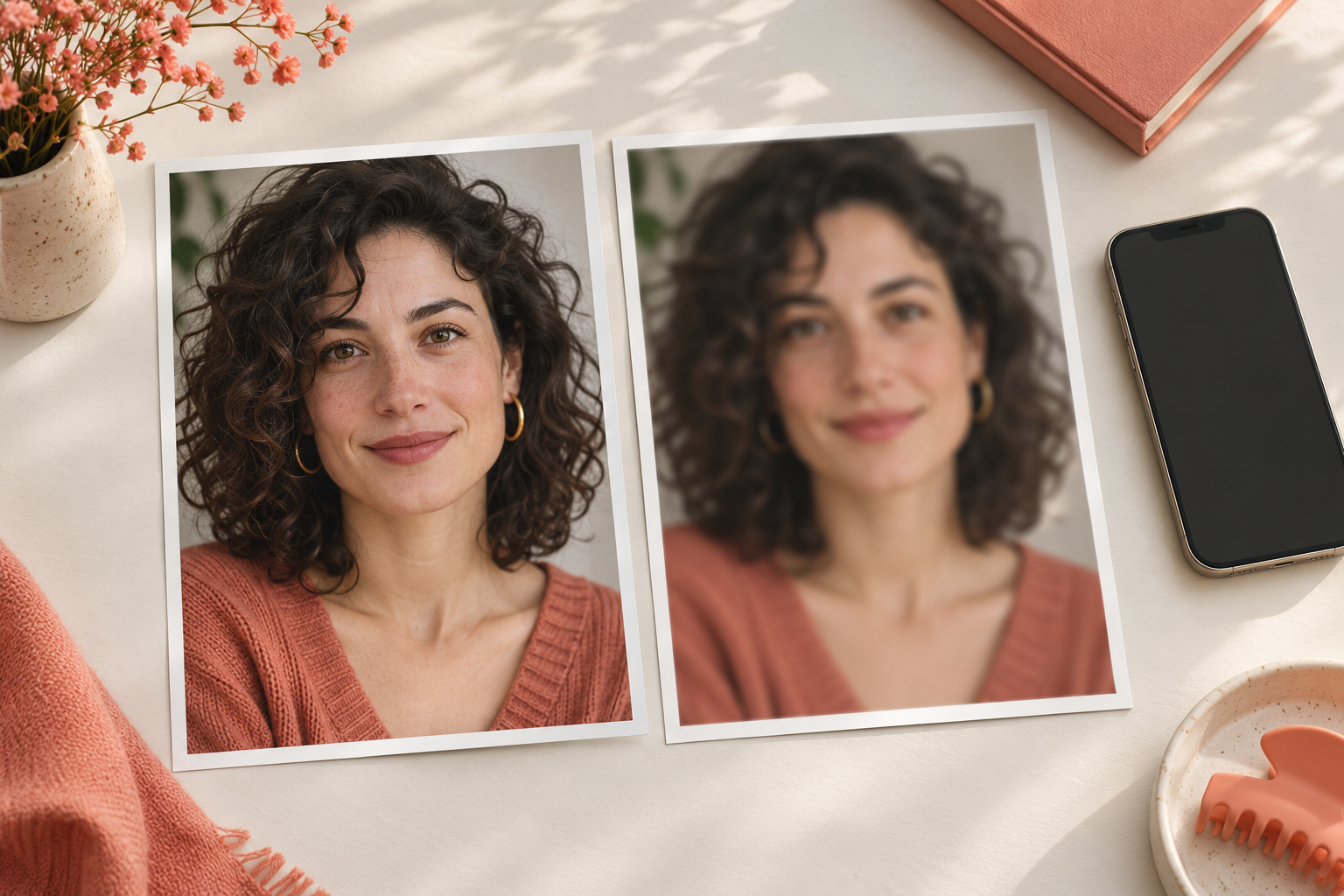
Reduce the preview to a realistic avatar size. Can you identify the main subject without zooming? Does the expression still read? Is a complicated background pulling attention away from the face?
Then look at the larger image again. A small preview and a detailed review answer different questions. You want the avatar to communicate clearly while also being a result you are comfortable sharing at full size if the destination allows viewers to open it.
Use a few consistent checks:
| Check | What to look for | | --- | --- | | Framing | Eyes, mouth, and important head details remain visible | | Expression | The intended mood is readable at small size | | Background | The face remains the visual focus | | Crop | The destination does not remove essential details | | Context | The image suits the account and does not misrepresent someone |
A simple composition often gives you less to resolve, but the right choice depends on the actual picture and destination.
Keep additional transformations purposeful
PhotoPic's listed tools include background editing and upscaling alongside face swaps. If you use another feature, make one meaningful change and compare it with the earlier portrait. Do not apply several transformations just because they are available.
A new background should support the subject rather than make the small preview busier. An enlarged output should be inspected for facial detail rather than treated as proof of a more accurate likeness.
The PhotoPic application overview summarizes its listed capabilities. Check current controls and access in your version. Avoid planning around unverified manual masks, crop tools, or automatic avatar templates.
Compare a few candidates consistently
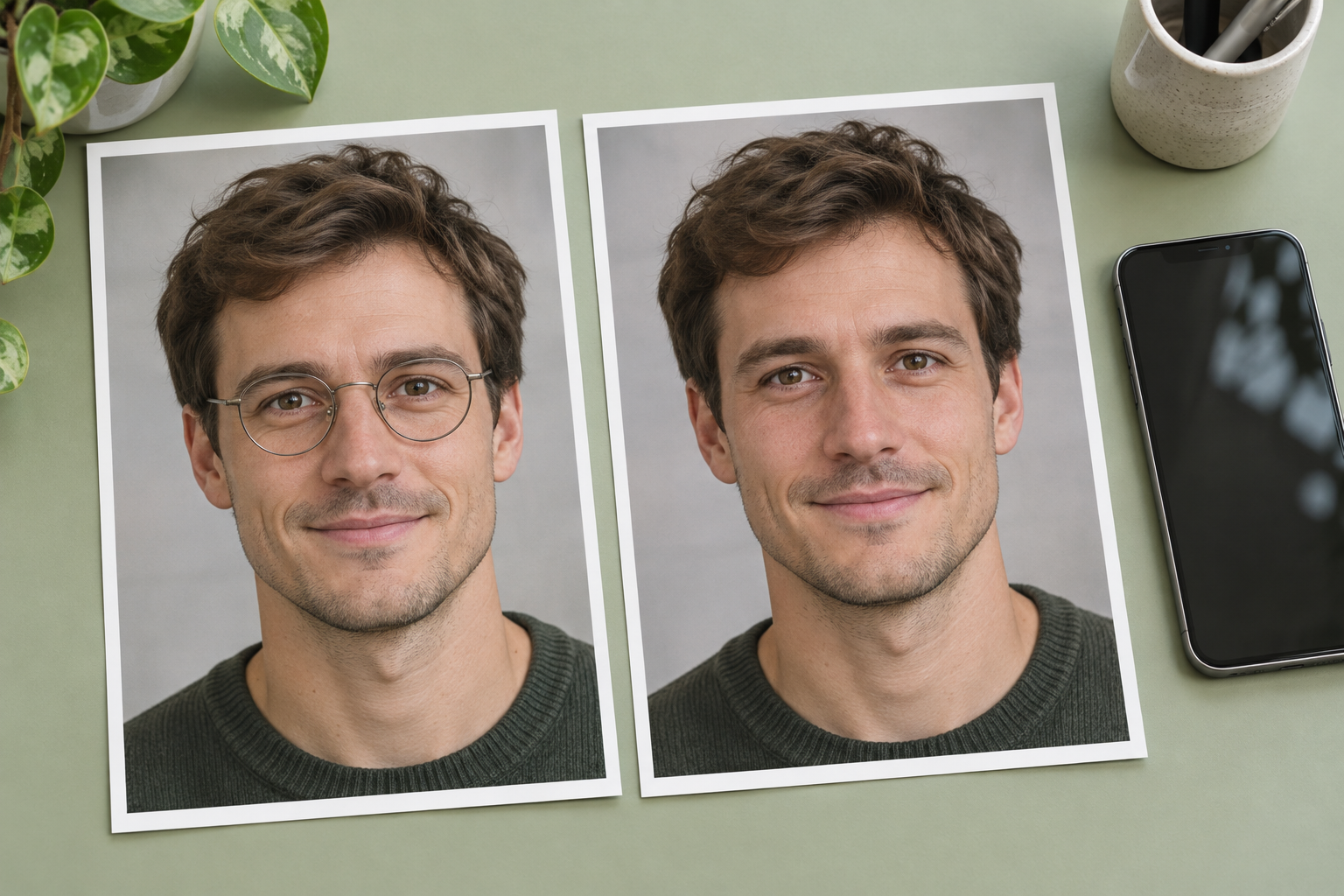
If you have several portrait versions, view them at the same size and with a similar destination crop. Otherwise, a larger or brighter preview can influence the comparison without representing a better fit.
Return to your intended purpose. A dramatic costume image may be excellent for a fictional character account while a calmer portrait may fit a different community. Choose based on that context rather than assuming the latest generation is automatically the winner.
Our guide to comparing face swap versions provides a manual review routine. Keep the chosen file distinguishable from experiments so you do not upload the wrong version later.
Check permission and meaning before uploading
Use photos you are permitted to edit and obtain agreement when another person's likeness is involved. A small profile image still represents a person or identity to other viewers.
Avoid using a face swap to impersonate someone or imply an endorsement. If the portrait could be mistaken for an authentic photograph of an event or outfit, provide appropriate context where the destination allows it. A clearly creative presentation can help communicate the intended use.
Do not use this workflow as a substitute for a required authentic identity image. Follow the relevant platform's actual requirements. Our sharing checklist covers the final image and its context together.
Inspect the saved image and final preview
Open the actual file you intend to use. Confirm that it is the selected version and that any later edit preserved the appearance you preferred. Do not rely only on remembering an in-app preview.
After selecting it in the destination app, inspect the framing before completing the change. If the crop hides an important detail, adjust through the available controls or prepare another suitable file. Check the resulting profile view where practical.
Keep an original reference and your chosen creative version in a storage arrangement you understand. Do not assume a particular history or backup behavior from either app. The useful final result is a portrait you can recognize, explain, and use appropriately in its intended setting.
Frequently asked questions
Does PhotoPic include a dedicated avatar mode?
Do not assume that. This guide uses the publisher-listed face swap capability and the crop or preview tools available in your own workflow.
Should I crop the source tightly before swapping?
Keep enough facial detail and surrounding space for useful review. A very tight crop can limit your later framing choices. Check the actual result rather than following a fixed crop rule for every image.
Will a square picture display the same everywhere?
No universal presentation should be assumed. Check the destination's current requirements and preview; some layouts may display only a circular portion.
Is a small avatar exempt from permission considerations?
No. Use images and likenesses appropriately, confirm agreement where needed, and avoid impersonation or misleading context.
Where can I try PhotoPic?
Find PhotoPic: AI Face Swap Editor on the App Store. Check current access, create a portrait with a clear purpose, and review it at the intended profile size before uploading.