How to Translate Screenshot Text on iPhone: An Image Translation Guide
Translate text in saved screenshots with a practical image workflow: prepare the passage, check languages, review OCR, and compare important details.
Updated Oct 30, 2026
In this article
- Decide whether an image is the best source
- Keep the useful context when preparing the image
- Check readability before importing
- Import through the available photo translation tools
- Check the source and target languages
- Review recognized text separately from meaning
- Give dates, quantities, and labels extra attention
- Use a smaller second pass when the layout is crowded
- Review private information before sharing an image
- Frequently asked questions
- Can I use a saved screenshot as an image input?
- Should I crop the image first?
- Does clear text guarantee a correct translation?
- Can I translate every image offline?
- Where can I get the translator?
Sometimes the words you need to understand are trapped in an image. A friend sends a screenshot of an event announcement, a saved graphic contains instructions, or a travel information card arrives as a picture instead of selectable text. Retyping the whole thing is inconvenient, especially when the alphabet is unfamiliar.
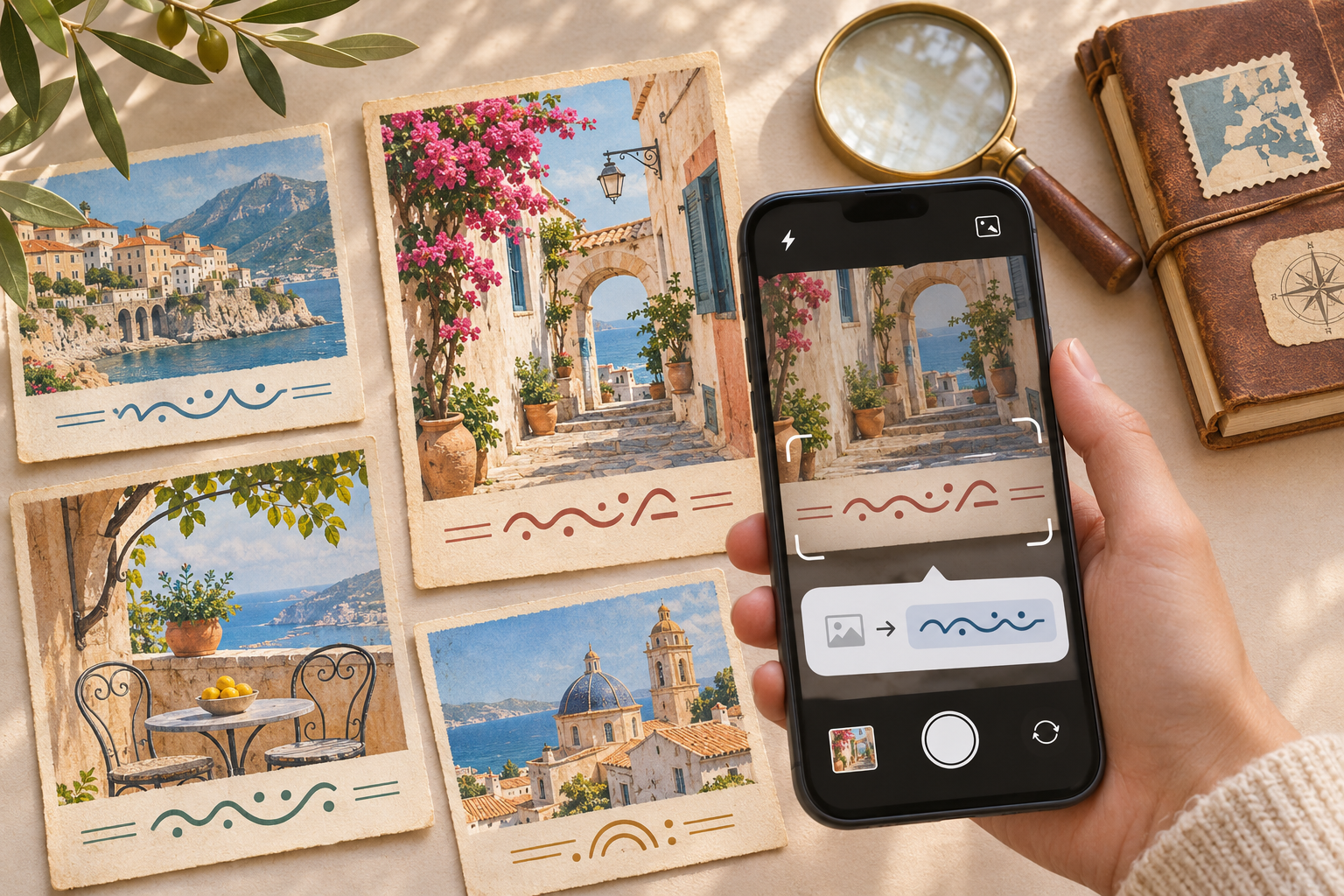
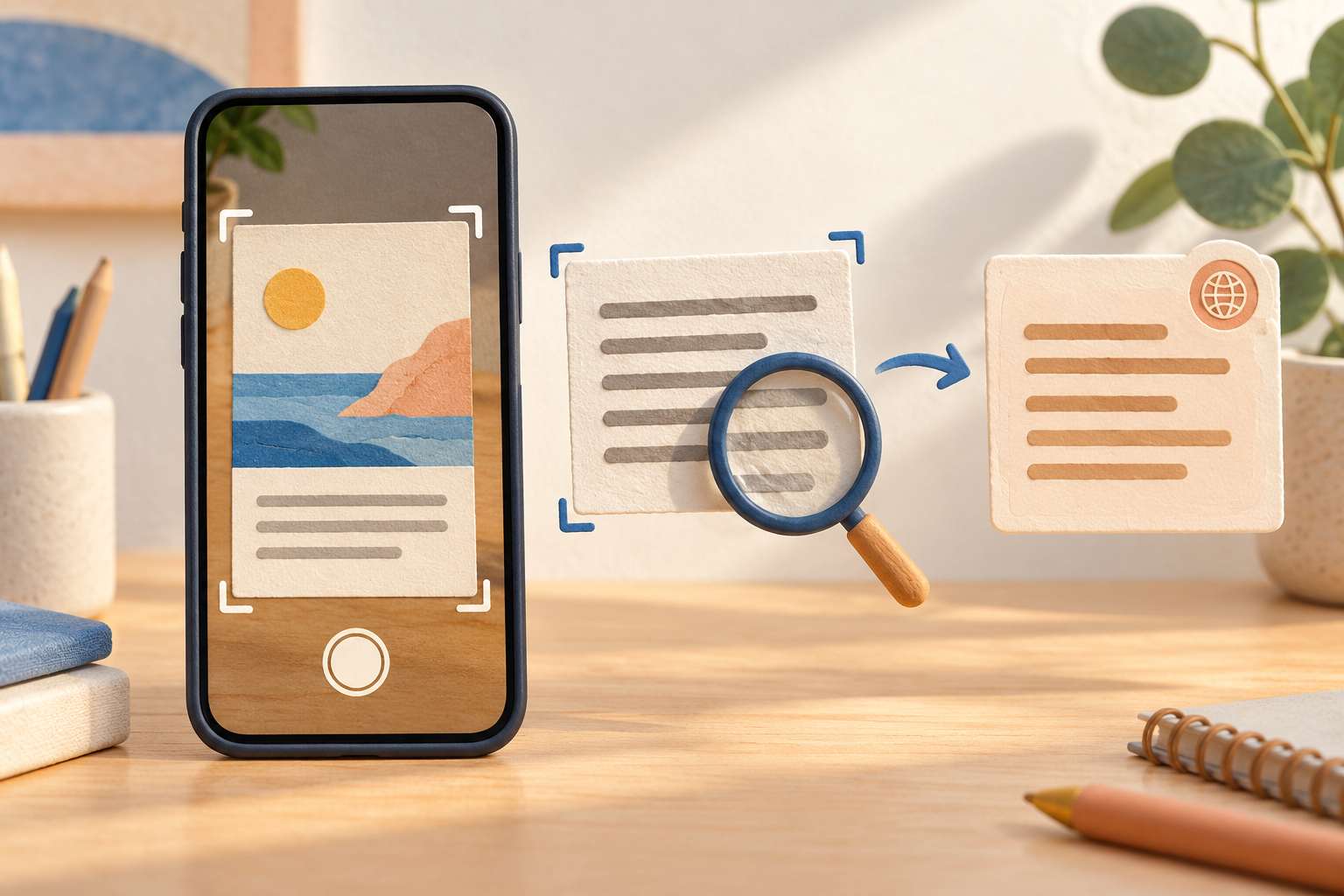
This guide explains a practical way to translate screenshot text on iPhone using an image translation workflow in Translate Photo Camera & Voice. You prepare the relevant image, import it through the available photo tools, check the language direction, and compare the result with the original.
App to try: View Translate Photo Camera & Voice on the App Store. Alibox promotes this application.
Decide whether an image is the best source
Before using OCR, check whether the original text is available in a form you can copy. A screenshot may show only part of a message or page, while the original source may contain useful context. When possible, keep that source available while you work.
If an image is what you have, use the clearest available copy. A screenshot forwarded through several conversations may have lost detail compared with the original file. Ask for a better copy when the text is visibly hard to read rather than assuming translation will recover missing characters.
The publisher lists OCR text extraction and translation from imported images in Translate Photo Camera & Voice. A saved screenshot can be approached as an image input through the supported workflow; do not assume a separate screenshot-only mode or a particular file-sharing integration exists.
Keep the useful context when preparing the image
Identify the passage you actually need. A screenshot can contain navigation controls, comments, timestamps, and unrelated messages around a small block of useful text. Reducing the clutter can make your own review easier.
Keep enough context to understand the passage. A heading may explain what a date refers to, and the preceding sentence may change the meaning of a short instruction. Cropping down to one isolated word is not always an improvement.
Use the editing tools available on your device to prepare a separate image if needed. Do not assume that every preparation step described here is an in-app feature of the translator. Preserve the original so you can check anything that was left outside the crop.
Check readability before importing
Look at the image at a comfortable viewing size. Are letters distinct? Are lines cut off at the edge? Does a speech bubble cover part of the text? These are useful questions before asking an OCR workflow to interpret the picture.
A screenshot may avoid camera blur, but it can still have small type, low contrast, decorative lettering, or compressed details. Enlarging an already unclear image does not establish what the missing letters were.
For a first test, choose a short passage with ordinary printed text. This gives you an easier comparison between the visible original and the result. You can move to a more complicated layout once you understand the current import and review workflow.
Import through the available photo translation tools
Open Translate Photo Camera & Voice and follow its current image or photo translation prompts to select the saved picture. Allow the relevant photo access if you choose to use that workflow. Exact labels and permission options can vary with your installed version and device settings.
Confirm that you selected the intended image, especially when several similar screenshots are saved together. A newer screenshot may contain different information from the one you originally meant to translate.
For the application's listed photo, image, and voice capabilities, visit the Translate Photo Camera & Voice overview. Check current feature access before relying on a particular workflow during a time-sensitive task.
Check the source and target languages
Select the language you want to read and check the source-language setting or detection result where it is shown. A short phrase, a proper name, or several languages in one screenshot can make the direction less obvious than expected.
If the translation looks unrelated to the passage, review the language choice before making other changes. Also check whether your image contains multiple text blocks that belong to different contexts. A comment beneath an announcement is not necessarily part of the announcement itself.
Available translation languages should be checked in the app. The language of the interface and the languages supported for translation are different pieces of information; one should not be used as a substitute for the other.
Review recognized text separately from meaning
OCR and translation answer different questions: what characters appear in the image, and what those words mean in another language. A misread character can affect the translation before you even consider sentence structure.
Where recognized text is available, compare it with the screenshot. Check names, negative wording, and any short terms that change the main point. If a line is missing, try a clearer source or a better-focused image rather than assuming the translated paragraph includes it.
Then consider the meaning of the translated passage. Does it correspond to the heading and surrounding context? A fluent sentence is not proof that the original was understood correctly. If you cannot read the source language, recognize that your ability to verify the result is limited.
Give dates, quantities, and labels extra attention
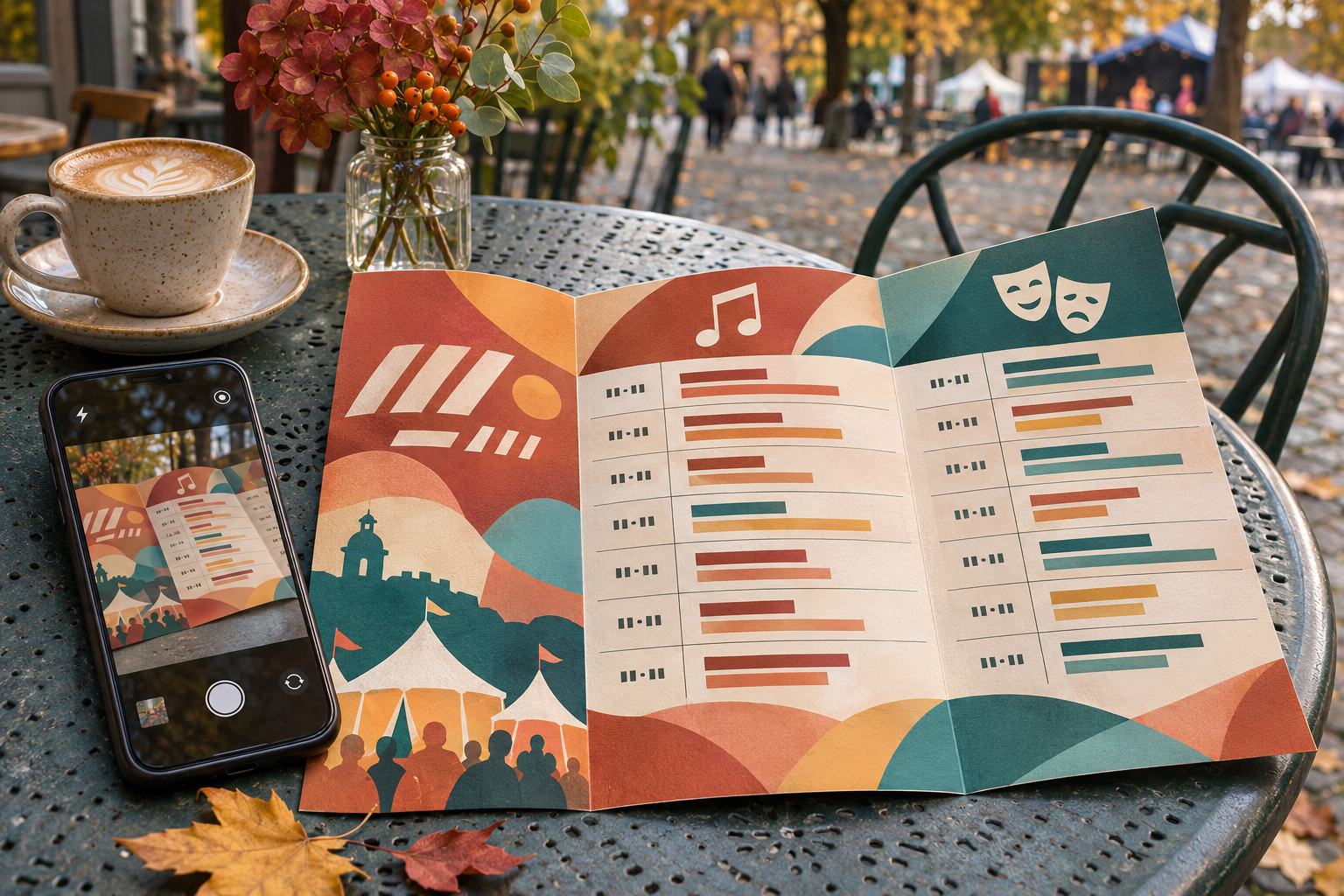
A screenshot may combine words with numbers, symbols, and layout. An event card can contain a date, start time, location, and a separate registration deadline. Treating every number as one continuous sentence can create confusion.
Use the original layout to identify what each value refers to. Compare the digits directly and check whether a label belongs above, beside, or below the number. Do not infer a date format, time zone, currency, or unit merely because a translated sentence sounds complete.
For an important practical detail, confirm it with the original publisher or another appropriate official source. A translated screenshot is a reading aid, not a replacement for checking the current information that controls your decision.
Use a smaller second pass when the layout is crowded
If a screenshot contains several columns, mixed messages, or a large amount of text, prepare a smaller section for another attempt. Keep a heading or nearby sentence when it is needed to preserve meaning.
Compare the second result with the first and with the original image. The purpose is to investigate a specific uncertainty, such as a missing line or a confusing label. Repeating the same input without identifying the problem may simply give you another result you cannot assess.
For text you encounter in the physical world, our menu and sign photo translation guide covers image preparation from a camera. If you need to ask a follow-up question aloud, our short voice translation guide explains a separate spoken-message workflow.
Review private information before sharing an image
Screenshots can contain more than the passage you want translated: names, email addresses, message previews, account references, or other personal details may appear nearby. Check the entire image before importing or forwarding it.
Where appropriate, prepare a copy that leaves out unrelated information. Review the app's current privacy information and the rules that apply to your material. Do not assume that an ordinary screenshot is suitable to share simply because the visible text is difficult for you to read.
Keep the translation connected to the source when you refer to it later. A short note about what the screenshot shows can prevent you from confusing two similar announcements. Avoid treating an old saved image as proof that the information is still current.
Frequently asked questions
Can I use a saved screenshot as an image input?
The publisher lists importing images for OCR and translation. Use the supported photo or image workflow in your installed app, and check available formats and access rather than assuming a dedicated screenshot mode.
Should I crop the image first?
A focused image can make review easier, but keep the heading and surrounding text needed to understand the passage. Preserve the original before preparing a separate crop.
Does clear text guarantee a correct translation?
No. Recognition, language selection, wording, and context can all affect the result. Review key details and confirm consequential information with the appropriate source.
Can I translate every image offline?
Do not assume offline coverage for every language or tool. Check the current app's available modes, requirements, and feature access before relying on them.
Where can I get the translator?
Find Translate Photo Camera & Voice on the App Store. Start with a short, readable image and compare the result with the original before using a more complicated screenshot.