Translate Printed Instructions on iPhone: A Guide to Booklets and Captions
Read ordinary printed booklets with a photo translation workflow: capture a complete section, compare captions and diagrams, and check recognized text.
Updated Oct 31, 2026
In this article
- Find the best source before taking a photo
- Choose a complete section rather than a whole booklet
- Prepare the page so you can read it yourself
- Open the supported photo translation workflow
- Check the language direction and recognition
- Keep diagrams and captions connected
- Check numbers and sequence markers directly
- Use a second capture to investigate a specific uncertainty
- Keep a useful reference without overstating certainty
- Frequently asked questions
- Can the app translate text from a photographed booklet?
- Will a translation preserve the original page layout?
- Can I import a complete PDF manual?
- Is the result suitable for safety instructions?
- Where can I try the translator?
A hobby kit arrives with a printed booklet in a language you do not read. The diagrams help, but the captions explain details that are hard to infer from pictures alone. Translating a relevant section can help you understand the page without retyping every unfamiliar character.
This guide explains how to translate printed instructions on iPhone using a photo-based workflow in Translate Photo Camera & Voice. It focuses on ordinary, low-risk material such as craft booklets and hobby descriptions: capture a readable section, preserve its context, and compare the translation with the original layout.
App to try: View Translate Photo Camera & Voice on the App Store. Alibox promotes this application.
Find the best source before taking a photo
Check whether the publisher provides an official version in your language. A printed booklet may include a website address, product identifier, or reference to other editions. An official translated document can provide context that a single photographed paragraph lacks.
If you use a translation app, keep the original booklet available. A translated text block may not preserve the relationship between a caption, a numbered step, and an illustration. You will need the source page to understand those connections.
Do not treat an unofficial machine translation as verified operating guidance for hazardous equipment or other consequential tasks. For safety warnings and important requirements, use the manufacturer's official information or qualified assistance. The workflow here is a reading aid for ordinary material, not a substitute for verified instructions.
Choose a complete section rather than a whole booklet
Start with one question: what does this heading mean, which object does the caption describe, or what is the next part of the hobby sequence? A focused question makes it easier to choose the relevant image and review the answer.
Capture enough context to include the heading, the complete sentence, and any number that identifies the step. A crop containing only the middle of a sentence may remove a condition or a negative word that changes the meaning.
Avoid assuming that the app can import and process an entire PDF or a multi-page document as one job. The publisher lists photo and image text extraction and document scanning; check the current app for the specific input formats and workflows available in your version.
Prepare the page so you can read it yourself
Place the booklet on a stable surface with the relevant text visible. Watch for glare on glossy paper, a shadow near the binding, or a page curve that hides letters. A readable source is easier for you to compare with any recognized text.
Keep the phone positioned so the passage is not heavily distorted. Include the full lines you need without making the text unnecessarily small in the frame. If you cannot distinguish the characters in the image, try another capture rather than expecting translation to establish what is missing.
These are image preparation choices, not claims about a particular camera control in the app. Use the capture tools available on your device and follow the installed translator's current prompts.
Open the supported photo translation workflow
Translate Photo Camera & Voice lists OCR-based extraction and translation from camera photos and imported images. Use the relevant workflow to capture the passage or select a saved picture, then confirm that the image contains the intended section.
Follow the permissions and controls shown in your installed version. Do not assume a specific button name, a batch mode, or a particular file-sharing integration. If a task depends on one of those options, verify it before preparing a larger project.
The Translate Photo Camera & Voice application overview describes the publisher's listed tools. Check current feature access and requirements rather than inferring them from a general product description.
Check the language direction and recognition
Choose the language you want to read and review the source-language setting or detection result where it is available. Proper names, abbreviated labels, and short fragments may provide little context, so do not assume detection is correct simply because a result appears.
Where recognized source text is shown, compare it with the original. Look for missing lines, joined words, and labels that were interpreted in the wrong order. OCR recognition and translation are separate stages; an error in the captured wording can affect the next stage.
If the text appears unrelated to the page, first check the selected image and languages. Then consider a clearer or more focused capture. Changing several things together makes it harder to understand which issue caused the confusion.
Keep diagrams and captions connected
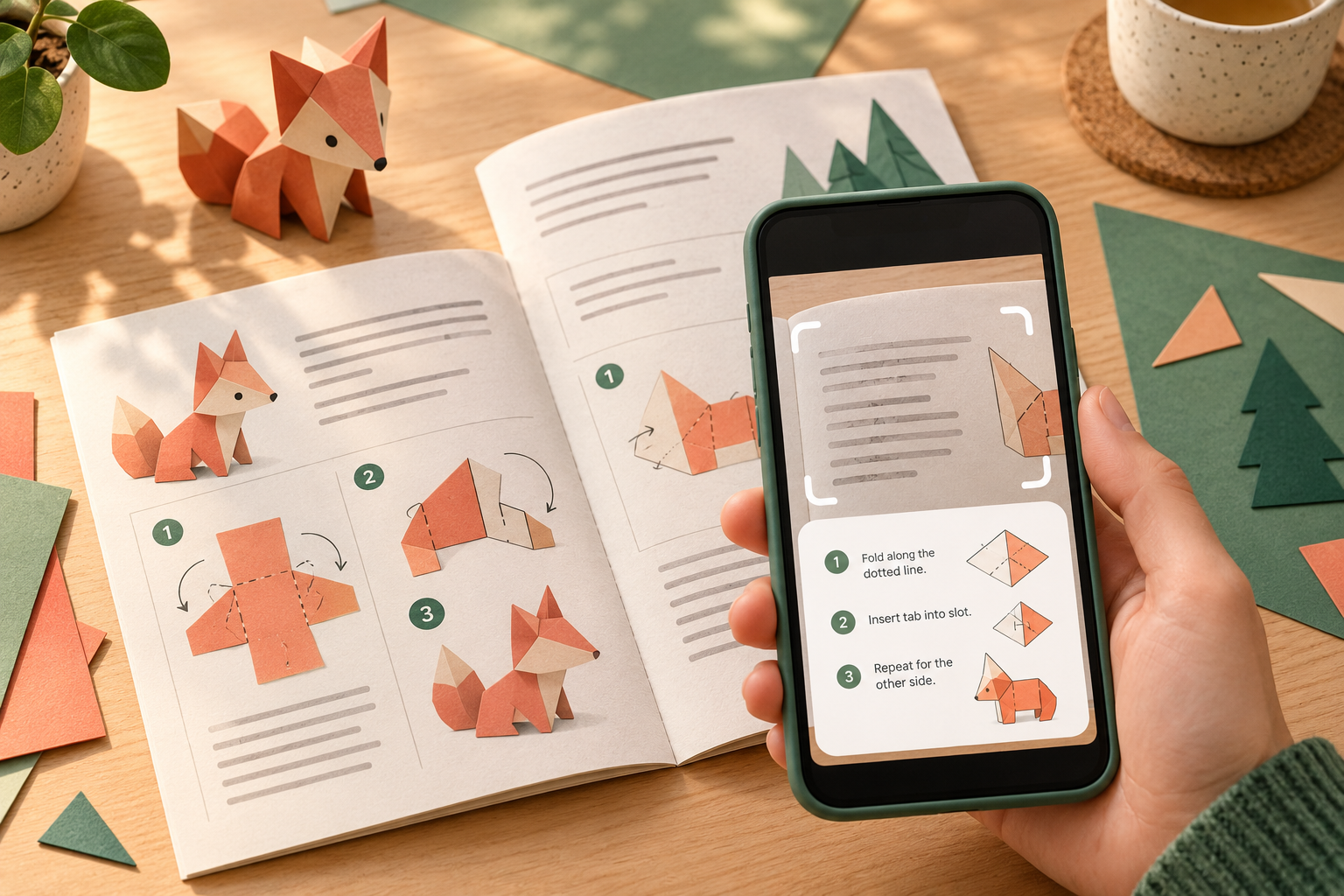
A diagram may contain letters, arrows, part labels, and a short caption. A translated paragraph alone may not tell you which label refers to which object. Use the original visual arrangement as a reference rather than assuming the output preserves the entire page design.
For a hobby booklet, compare the caption beside each illustration separately when necessary. Keep the identifying step number visible in your reference image. If two captions are close together, make sure you have not combined them into one instruction during your own interpretation.
Treat unfamiliar symbols as something to verify. A translation of nearby words does not establish the meaning of every graphic mark. Look for a legend or explanation in the original publication instead of guessing from the shape alone.
Check numbers and sequence markers directly
Numbers can identify parts, quantities, page references, or a sequence. Compare the digits with the original and establish what each value refers to. A correct-looking number in the wrong context can still lead to a misunderstanding.
Keep units and labels together. Do not infer a unit from habit or assume that the reading order of a table matches a paragraph. If a value matters to your next action, confirm it against the publisher's relevant information.
For a low-risk craft project, a small test may help you judge whether you understood a descriptive passage. It should not be used as a way to experiment with uncertain safety instructions, equipment requirements, or other consequential details.
Use a second capture to investigate a specific uncertainty
When a result is unclear, identify what you need to resolve. Perhaps one line was missed, a caption was mixed with a heading, or the source photo had a shadow over a word. Make a new image that addresses that issue while preserving useful context.
Compare the new result with the first and with the page. Repeatedly translating the same unclear crop is not independent confirmation. If you still cannot establish the meaning, consult a reliable translated source or an appropriate person.
For a saved digital image, our screenshot translation guide covers a related import workflow. If your source is a menu or a public sign, see our photo translation guide for that use case.
Keep a useful reference without overstating certainty
If you make your own notes, connect them to the page or step you reviewed. A short label such as “booklet page 3, diagram B” is more useful later than a detached translated sentence with no source context.
Do not assume that a particular export, reminder, or long-term storage feature exists. Use the options you can verify and keep any necessary reference in a format you control. Review screenshots and notes for personal information before sharing them.
If you need to ask someone a follow-up question, a short spoken exchange may be more suitable than another photo. Our voice translation guide explains how to keep those messages focused and check understanding.
Frequently asked questions
Can the app translate text from a photographed booklet?
The publisher lists OCR extraction and translation from photos and imported images. Start with a short readable section and check the current workflow in your installed version.
Will a translation preserve the original page layout?
Do not assume the translated text reproduces every diagram, caption relationship, or table structure. Keep the original page available while reviewing the meaning.
Can I import a complete PDF manual?
Check the app's actual supported inputs. Photo and document-related feature descriptions should not be treated as proof of a particular PDF or multi-page processing capability.
Is the result suitable for safety instructions?
Do not rely on an unverified machine translation for consequential instructions. Use the manufacturer's official translated guidance or qualified assistance when the details affect safety or important requirements.
Where can I try the translator?
Find Translate Photo Camera & Voice on the App Store. Begin with a short, low-risk passage, keep its context visible, and review the result against the original.