Translate Product Descriptions on iPhone: Read Labels and Compare Details
Read ordinary product descriptions with photo translation: keep labels and numbers together, compare variants, and identify questions for the seller.
Updated Nov 7, 2026
In this article
- Identify the question you need answered
- Choose a readable source image
- Keep labels and values together
- Import through the supported photo workflow
- Check the recognized wording before interpreting it
- Review dimensions, units, and quantities directly
- Compare two products without mixing their descriptions
- Ask a short follow-up when the description is unclear
- Know when a casual translation is insufficient
- Keep the final reference in context
- Frequently asked questions
- Can I translate a product card from a photo?
- Does the app identify a product from its barcode?
- Will translation confirm that an accessory is included?
- Can I compare several translated descriptions?
- Where can I try the app?
A notebook description looks promising, but the language is unfamiliar. You can recognize the product in the picture while still being unsure about the dimensions, materials, or what the package includes. Translating the relevant text can help you ask a more specific question before choosing.
This guide explains how to translate product descriptions from a photo or saved image on iPhone with Translate Photo Camera & Voice. It focuses on ordinary items such as stationery and hobby supplies, with a review routine for keeping labels, numbers, and variant details connected to the original.
App to try: View Translate Photo Camera & Voice on the App Store. Alibox promotes this application.
Identify the question you need answered
Begin with the detail that matters. Are you trying to understand what is included, which material is listed, or how two variants differ? A specific question helps you choose the relevant passage instead of translating every word on a crowded package.
Keep the product identifier or visible variant name available as a reference. Similar-looking products can have different descriptions, and a translation of one image should not be assumed to describe every version.
A translated description is a reading aid. It does not independently verify the seller's claims, establish product quality, or confirm that an image matches the item you will receive. Use the original listing and seller's current information to resolve important uncertainties.
Choose a readable source image
If you have the physical item or display card in front of you, photograph the relevant text with enough detail to inspect it. Watch for reflections, folds, curved surfaces, and small lettering that disappears in the image.
If the information is already in a digital listing, use the clearest available image. Repeatedly forwarded or compressed pictures may lose useful detail. Check whether selectable text or an official translated description is available before relying on OCR.
The publisher lists OCR extraction and translation from photos and imported images in Translate Photo Camera & Voice. Do not assume that this establishes barcode recognition, automatic product lookup, or access to a retailer's catalog. Those would be separate capabilities to verify.
Keep labels and values together
A product card may show dimensions, quantity, material, and several short labels near the same image. Capture the words that explain the numbers rather than cropping down to isolated values.
For example, one number might refer to a single item's size and another to the package quantity. Their position in the original layout can help you understand the relationship. A translated paragraph may not reproduce that layout exactly.
Keep a wider reference image as well as a focused passage if that helps your review. Use the preparation tools available on your device, without assuming every crop or layout option is part of the translator itself.
Import through the supported photo workflow
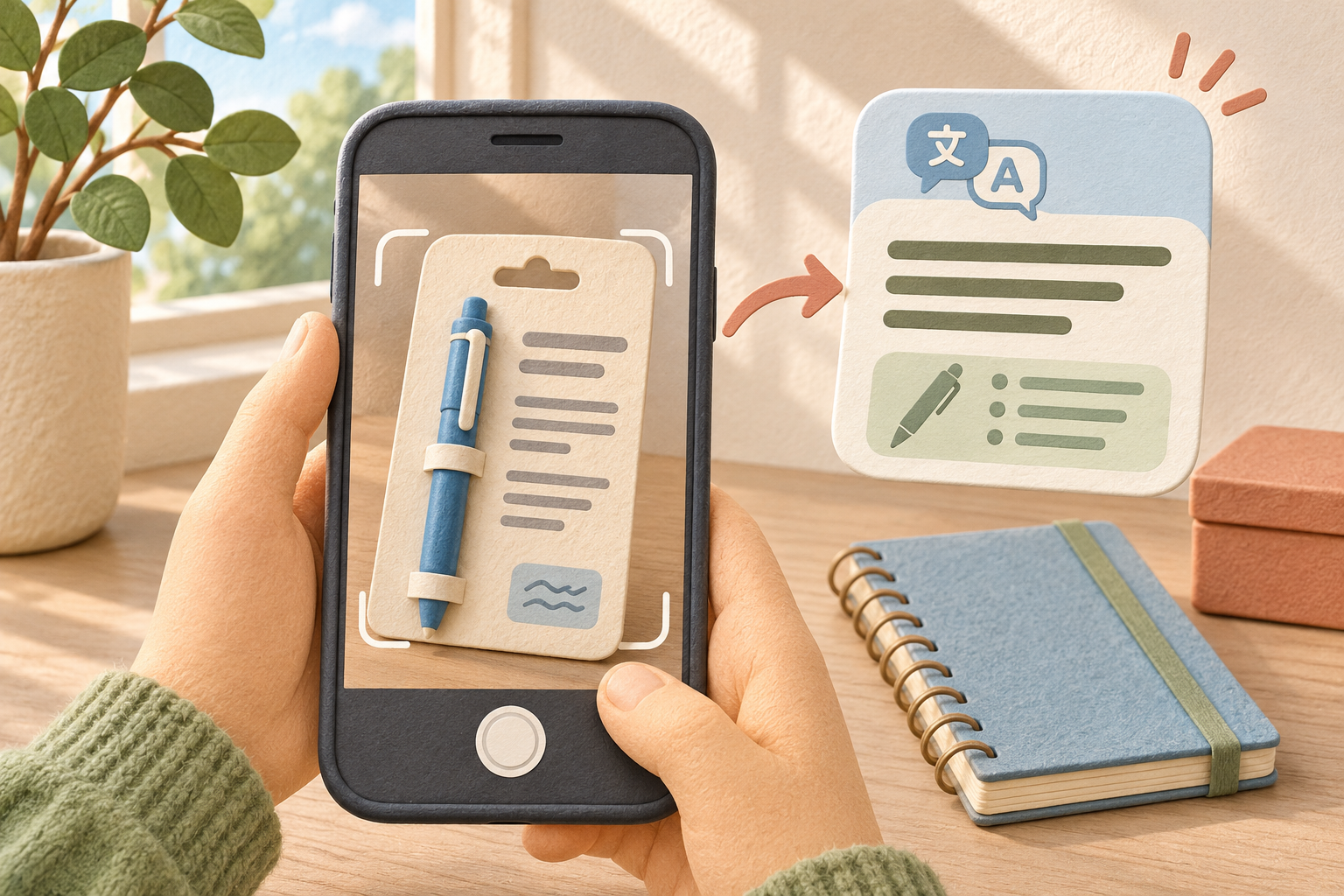
Open the app's current image translation tools and follow the available prompts to capture or select your picture. Confirm that it is the right product and the right section before reviewing the result.
Choose the target language and check the source-language setting or detection result where shown. Very short labels, brand names, and mixed-language packaging may provide limited context, so do not assume detection is correct simply because output appears.
The Translate Photo Camera & Voice application overview summarizes its listed features. Check your installed version for supported inputs, language choices, access, and connectivity requirements before relying on a particular workflow while shopping.
Check the recognized wording before interpreting it
Where source text is displayed, compare it with the image. Look for omitted lines, joined words, and characters that resemble numbers. A recognition error can affect the translation before you begin interpreting the result.
Keep proper names separate from ordinary descriptive words. A model or variant name may look meaningful without being a phrase that should be translated literally. Use the original name when asking the seller about the product.
If a result seems unrelated to the picture, check the selected image and language direction first. Then try a clearer or more focused capture. Repeating the same unreadable image does not provide independent confirmation of its meaning.
Review dimensions, units, and quantities directly
Compare digits against the original rather than trusting a fluent translated sentence. Confirm which label each value belongs to and whether the description concerns the item, its packaging, or an available option.
Do not silently convert units or infer a decimal convention from habit. If you need a conversion, perform and check that as a separate task. Translation and calculation are different operations.
A small comparison table can help you organize questions:
| Detail | What to keep from the source | What to confirm | | --- | --- | --- | | Dimensions | Value and unit together | Which object or package is measured | | Quantity | Number and nearby label | Whether it means items, sheets, or sets | | Material | Complete descriptive phrase | Whether it applies to the whole item or one component | | Variant | Original name or identifier | Which option the description refers to | | Included contents | Full list and qualifications | Whether pictured accessories are included |
Treat the table as your review structure, not as information the app has independently verified.
Compare two products without mixing their descriptions
When reviewing several items, keep each image and result connected to its own source. Similar packaging can make it easy to attribute one translated detail to another product.
Compare the same categories where possible. A description that specifies dimensions and another that only mentions a general size are not equivalent evidence. Mark a missing detail as unknown instead of filling it with an assumption.
If you keep private notes, include a recognizable source reference. Do not assume a particular export, automatic comparison, or shopping-list feature exists in the app. Use the tools you can confirm and review the note before depending on it later.
Ask a short follow-up when the description is unclear
A seller can clarify whether an accessory is included or which variant matches a description. Use the original product name or identifier alongside a simple question. That gives the other person a concrete reference.
The app also lists voice-to-text translation. If you choose that workflow, keep the question short and check the recognized wording. Our voice translation guide explains how to manage a brief exchange without assuming perfect understanding.
For choosing between inputs, our photo vs voice translation comparison describes when a written reference and a spoken question can support different parts of the same task.
Know when a casual translation is insufficient
Do not use an unverified translation as the only basis for safety instructions, allergy information, medical use, or other consequential product requirements. Seek the appropriate official information or qualified assistance for those details.
Likewise, a translated claim does not establish that a product meets a standard, is authentic, or is compatible with your intended use. Confirm such requirements through a suitable source rather than treating translation as a product assessment.
For ordinary descriptive text, the useful result is a clearer understanding of what you still need to check. A good translation workflow can end with a more precise question rather than an immediate purchasing decision.
Keep the final reference in context
Before saving or sharing a result, check that it still identifies the source product and preserves the relevant qualifications. Review pictures for unrelated personal information, especially when they come from messages or account pages.
Our screenshot translation guide covers preparing a focused digital image. If you move from a product description to its booklet, see the printed instructions guide for keeping captions and diagrams connected.
Return to the current seller or publisher information when a detail matters. A saved image can be useful context, but it does not establish that the listing or available variant has stayed the same.
Frequently asked questions
Can I translate a product card from a photo?
The publisher lists photo and image OCR translation. Use a readable image through the supported workflow and review the result against the original.
Does the app identify a product from its barcode?
Do not assume that capability. This guide concerns text translation from images, not verified barcode lookup or catalog access.
Will translation confirm that an accessory is included?
It can help you read the description, but unclear or missing information still needs confirmation from the relevant seller or publisher.
Can I compare several translated descriptions?
You can organize the results manually, keeping each connected to its source. Do not assume an automatic shopping comparison feature exists.
Where can I try the app?
Find Translate Photo Camera & Voice on the App Store. Start with one clear description, check the labels and numbers, and use the result to identify any questions that remain.